A capture card isn’t always necessary. If your game and OBS are running on the same Windows PC, try Game Capture in OBS first. For the HDMI signal from an external console or a second PC, however, you’ll need a suitable signal path via a capture card. Decide based on your game source, the audio setup for your co-players and the monitor signal you want. Recording and HDMI passthrough are different modes, and connecting a headset can interrupt HDMI audio on certain consoles, as Elgato explains.
Who might need a capture card?
Co-op hosts using a console
If you want to combine console gameplay and your co-players’ voices in OBS, plan your HDMI and headset audio setup before choosing your equipment. Elgato notes that connecting a headset can interrupt HDMI audio on certain consoles.
Hosts gaming and streaming on one PC
If you play and stream on the same Windows PC, try Game Capture in OBS first. The OBS Project recommends this source for games running directly on your PC.
Hosts with a dedicated gaming monitor
If you want to play on a separate screen while streaming, in your preferred resolution, frame rate or HDR mode, compare HDMI passthrough separately from recording.
What should you look for when buying?
| Buying priority |
What to check |
Who is this most relevant to? |
| Game source and signal path |
Make a note of where your game and OBS are running. With an external source, the HDMI input, HDMI output and computer connection all need to be compatible. |
If I play on the same Windows PC, I want to know whether I need an extra device at all. Around 36% of consumers put the signal path first. |
| Game audio and voices |
Check the audio path from your console and headset, along with the analogue inputs and separate audio source routing in OBS. |
If your stream needs to include your co-players’ voices and your own microphone, test the audio with everyone involved beforehand. Audio transmission is the main concern for around 29% of consumers. |
| Monitor picture and recording |
For the specific model, compare recording resolution and frame rate separately from HDMI passthrough. Check for HDR or VRR if you need them. |
If I want to keep playing on a separate monitor in my preferred picture mode, passthrough needs to support it too. Around 21% of consumers pay particular attention to the monitor signal. |
| Space, connections and cables |
Count your available computer ports and the HDMI and audio cables you’ll need. For each model, check the position of the ports and what’s included in the box. |
With a small desk, I want to set everything up using the connections I already have and as few extra cables as possible. For around 14% of consumers, practical space and accessory requirements come first. |
Common buying mistakes
-
Assuming “4K” means 4K recording
A card may passthrough a 4K signal to your monitor while only recording in Full HD. For example, AVerMedia lists 4K60 passthrough and 1080p60 recording for the GC311G2.
For the exact model, compare recording and passthrough as separate specifications.
-
Assuming that seeing the game means you’ll hear everyone in co-op
On certain consoles, connecting a headset can interrupt HDMI audio. So seeing the picture alone doesn’t tell you whether party chat is coming through on the stream.
Plan the audio path for the game, your co-players and the host microphone, then make a short test recording before you go live.
-
Taking a frame-rate specification at face value without checking its software requirements
AVerMedia’s 4K144 recording specification for the GC553G2 requires Streaming Center on Windows and the MJPEG format.
Check that your preferred mode is compatible with your operating system, recording software and monitor signal.
Key brands to consider
Elgato
The external 4K S and HD60 X models have different stated recording limits. For co-op streams, the analogue audio path may also be important.
- Elgato says the 4K S records at up to 2160p60, while the HD60 X records at up to 2160p30 or 1080p60.
- Elgato notes that connecting a headset can interrupt HDMI audio on certain consoles.
AVerMedia
According to the manufacturer, the StreamLine MINI+ GC311G2 is designed for Full HD recording with 4K60 passthrough. The Live Gamer ULTRA 2.1 GC553G2 offers an HDMI 2.1 signal path.
- AVerMedia lists 1080p60 recording for the GC311G2.
- The manufacturer’s 4K144 recording specification for the GC553G2 requires Streaming Center on Windows and MJPEG; this isn’t automatically supported by other software.
ASUS
The TUF Gaming Capture Boxes FHD120 and CU4K30 differ in their recording and passthrough modes. Specifications for one model don’t apply to the other.
- ASUS lists two 3.5 mm sockets for the FHD120, as well as up to 4K60 passthrough and Full HD recording at up to 120 fps.
- The OBS Project lists both models as certified capture devices, but that doesn’t replace testing your specific console and audio setup.
Hauppauge
According to the manufacturer, the HD PVR Pro 60 combines passthrough, an audio mixer and an SD card recording option.
- Hauppauge lists 4K60 passthrough and 1080p60 recording.
- Hauppauge says a 4K input is downscaled to 1080p60; this isn’t 4K recording.
Joybuy products for external HDMI capture
This selection features external HDMI capture cards described as offering Full HD recording. Several models also passthrough a 4K signal to your monitor.
 No image available
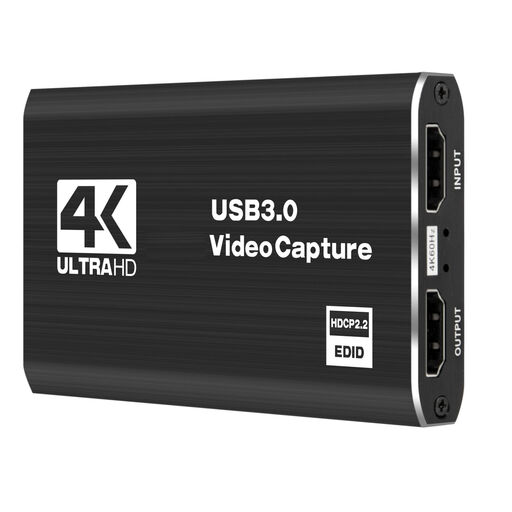
USB 3.0 video capture card with five ports
For a setup with an external game source and a separate monitor, when Full HD recording is all you need.
The description lists 4K60 input and passthrough, as well as 1080p60 recording. Five ports are specified.
View at Joybuy
 No image available
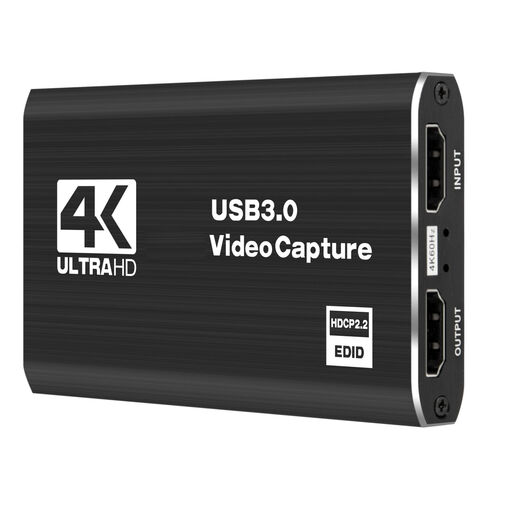
4K video capture card with five ports
For an external HDMI source and a separate monitor, if Full HD recording is suitable.
The description lists 4K60 input and passthrough, as well as 1080p60 recording. Five ports are specified, and Windows, macOS and Linux are listed as compatible systems.
View at Joybuy
 No image available
HDMI capture card with input up to 4K30
For Full HD recording from an HDMI source, if an input limit of up to 4K30 suits your signal.
The title lists 1080p60 recording and HDMI input up to 4K30. The description lists HDMI passthrough, as well as microphone and headphone outputs.
View at Joybuy
 No image available
USB 3.0 game capture card with audio capture
For a setup with 4K60 monitoring and Full HD recording, if the listed connections suit your audio setup.
The description lists 4K60 input and passthrough, as well as 1080p60 recording. Five ports and audio capture are specified.
View at Joybuy
 No image available
VIELLAN 4K HDMI video capture card
For Full HD gameplay recording with HDMI passthrough, if the microphone and headphone connections suit your planned setup.
The description lists 1080p recording, as well as 4K HDMI input and passthrough. USB 3.0, a microphone input and a headphone output are also specified.
View at Joybuy
Frequently asked questions
How do I connect an external console to OBS and my gaming monitor?
Connect the console’s unprotected HDMI signal to the input on a suitable capture card, then connect the card’s HDMI output to your monitor and the card itself to your streaming computer. Add it to OBS as a video capture source, then check the picture and sound with a short test recording.
Why can I see the game but not hear my co-players on the stream?
First, check your console’s audio output and headset connection. Elgato notes that on certain PlayStation and Switch consoles, connecting a headset can remove HDMI audio. Then check whether you need to select an analogue input and whether OBS is capturing game audio, chat and the host microphone correctly.
Do I need a capture card if I play and stream on the same PC?
Not necessarily. If your game and OBS are running on the same Windows PC, the OBS Project recommends trying Game Capture first. However, you’ll need a suitable capture solution for the HDMI signal from an external console or a second PC.
What can I check if my PlayStation 5 screen is black?
According to the manufacturer, Elgato devices won’t show a recording picture from an HDCP-protected HDMI signal. For PS5 gameplay, Elgato says to turn off “Enable HDCP” under Settings, System and HDMI before connecting the console to the card. This doesn’t make protected films and series available as unrestricted stream content.
Does buying a capture card automatically allow me to stream any game and music publicly?
No. The hardware doesn’t grant you usage rights. German copyright law includes, in particular, the right to make works available to the public, as set out in Section 19a of the UrhG by the Federal Ministry of Justice and the Federal Office of Justice. So check the rights and terms for the specific game, any music it contains and your planned recordings. This doesn’t amount to blanket permission or a blanket ban on all gameplay streams.


