Console tutorial creators
If you explain inputs over console footage and want to keep playing on your monitor, check the recording resolution and HDMI passthrough separately. Elgato and AVerMedia list these specifications for each model.


If you want to keep playing on your monitor while explaining what you’re doing and recording your console footage, choose a capture card with HDMI input and output, and compare its passthrough and recording resolutions separately. For an HDMI camera showing your hands and controller, a camera-to-USB device may be all you need. If you want to use your screen and hand camera as separate video sources, you’ll need suitable inputs or separate recording paths. Remember to plan how you’ll record your voice, too, and check the picture and sound with a short test clip.
If you explain inputs over console footage and want to keep playing on your monitor, check the recording resolution and HDMI passthrough separately. Elgato and AVerMedia list these specifications for each model.
If you want to show buttons, finger movements or a controller close up, an HDMI camera can act as a separate video source. Elgato describes Cam Link 4K as a way to connect HDMI cameras to a USB port.
If your tutorial combines screen footage, a hand camera and spoken commentary, plan your video and audio sources together. OBS Studio lists video capture and audio as separate source types.
| Buying priority | What to check | Who is it most relevant to? |
|---|---|---|
| Console footage and monitor passthrough | Check the HDMI input and output, as well as the recording and passthrough resolutions, for the specific model. | If I want to keep playing on my monitor while demonstrating something and recording the console footage, I need both signal paths. This is the main priority for around 36% of consumers. |
| Showing hand movements with a camera | Check the camera’s HDMI output, supported video format and the number of inputs you need. | If I want my hands and controller movements to be visible, I need a suitable camera input. A hand camera is the top priority for around 29% of consumers. |
| Synchronising video sources and commentary | Count the HDMI inputs you need and add the voice source only once in OBS; listen back to a test clip. | If I want the screen, hand movements and explanations to make sense together, I need to set up the picture and sound at the same time. Around 21% of consumers focus on using multiple sources and getting the audio balance right. |
| Planning connections and accessories | Check your computer’s ports, system requirements and what’s included with the specific model. | If I want to connect the capture card without extra adapters or missing cables, I check what’s included beforehand. For around 14% of consumers, the right connection and accessories are the main priority. |
Elgato lists 4K60 passthrough for Game Capture Neo, but recording is limited to 1080p60. These figures describe different signal paths.
Before you buy, compare the stated recording resolution with the recording mode you want to use.
Cam Link 4K and Ripsaw X are described as ways to connect an HDMI camera. That doesn’t mean they can also pass console footage through to a gaming monitor.
Map out your video sources and the HDMI inputs you need before choosing a device.
AVerMedia lists up to 1080p60 for both passthrough and recording on the GC311. For the GC311G2, the manufacturer specifies 4K60 passthrough and 1080p60 recording.
Check the full model number and compare the specifications for that exact version.
Elgato notes that Game Capture Neo doesn’t include an HDMI cable. OBS Studio also warns that adding the same audio source twice can cause echo.
Check what’s included and record a short test clip before filming your tutorial.
You may need to buy a suitable HDMI cable separately for Game Capture Neo.
Its product range includes capture cards for consoles, as well as devices for HDMI cameras.
The Live Gamer MINI GC311 and StreamLine MINI+ GC311G2 are different models with different passthrough specifications.
Razer positions Ripsaw X as a capture device for HDMI cameras, for example to get a close-up of your hands.
The Joybuy products below are capture cards for video recording. Check each model individually to make sure its passthrough, recording resolution and connections suit your video sources and computer.
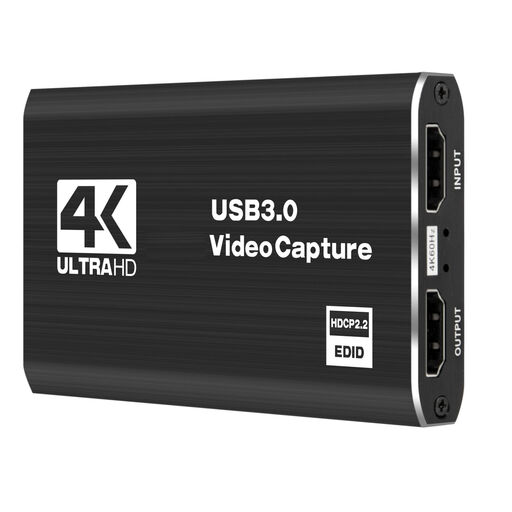 No image available
Worth considering for camera or console recording; check that the listed connections match your signal path.
USB 3.0; five ports; described as suitable for cameras, camcorders and live streaming.
 No image available
For a setup with HDMI input and recording on a computer; check that the stated input format matches your source.
HDMI input up to 4K/30 Hz; recording at 1080p/60 Hz; compatible with PC and laptop.
 No image available
For a tutorial with a compatible console or camera; check that the listed formats match your actual signal path.
4K HDMI passthrough; 1080p recording; USB 3.0; according to the product name, compatible with Windows, macOS, Linux, PS4, Xbox and Nintendo Switch.
 No image available
Could suit an HDMI recording setup; check that the listed connection and audio features work with your computer and commentary setup.
4K HDMI passthrough; recording up to 1080p; UVC and UAC; microphone input and headphone output.
 No image available
For an HDMI recording setup with a possible commentary channel; check that the listed features suit your devices.
4K passthrough; recording up to 1080p; microphone input and headphone output; listed as suitable for use with OBS Studio.
With a capture card that supports passthrough, connect the console to the card’s input using an HDMI cable, connect the output to your monitor, then connect the card to your recording computer via USB. Elgato describes this setup for the HD60 X; check the connections and what’s included for the specific model.
Elgato’s capture devices can’t record an HDMI signal protected by HDCP. For recording gameplay, Elgato explains how to turn off HDCP on PlayStation 5. This doesn’t give you permission to copy protected films or streaming content.
In OBS Studio, the same audio source can cause echo if it’s selected both globally and as a source in the scene. Check your voice source and HDMI audio separately, then listen to a short test clip.
Check what’s included with your chosen model: according to Elgato, Game Capture Neo doesn’t come with an HDMI cable. Also compare the computer ports you need with those available in your setup.
Not simply because you can technically make the recording. German copyright law treats making a work available to the public as a separate exploitation right. Whether you can publish a particular game clip or piece of music depends on the content and the rights involved.