If you’re playing a strategy game on the same PC, try recording the game directly in OBS first. If you want to capture the HDMI signal from a separate console on your recording PC, a compatible capture card is an obvious option. Choose one based on its recording and passthrough modes, and how you plan to handle audio. Higher picture specifications won’t remove room noise or capture party chat audio that isn’t being routed to the card.
Which recording method is right for you?
Guide creators recording in a shared room
If you explain your moves as you play, set up game audio, your commentary and any other voices in the room carefully. Separate audio tracks make editing easier later. OBS Project also notes that noise suppression has limited effectiveness when there’s a lot of background noise.
Console players with a recording PC
If you want to capture a console’s HDMI signal on a laptop or PC and play on a separate screen, compare the recording and passthrough modes separately. OBS Project describes a capture device as a way to record console signals.
Creators who need a specific picture mode
If you need small text to remain legible or want to keep a particular picture mode on your gaming monitor, check the specifications for the exact model against your source, screen, USB connection and software. Requirements and limitations vary by model.
What should you look for?
First, establish whether the game is running on the same PC or coming in as a separate HDMI signal. Then choose your recording resolution, screen passthrough and audio setup.
Direct recording on your gaming PC
Best for: Playing a game and running OBS on the same PC, when you want to try recording without adding an HDMI device.
Consider: This won’t automatically capture the HDMI signal from a separate console. You’ll still need to set up your microphone and game audio.
External card for Full HD recording
Best for: Recording a console on a laptop or PC when recording at up to 1080p60 is sufficient. Elgato’s Game Capture Neo is one example of a card that supports this mode.
Consider: Elgato specifies passthrough of up to 4K60 HDR for the screen with the Game Capture Neo, but recording is limited to 1080p60.
External card for higher picture modes
Best for: When small details require a particular recording mode, or you want to retain a specific HDR, VRR or refresh-rate mode on your screen.
Consider: The highest passthrough specification doesn’t tell you what the card can record on its own. Your source, screen, USB connection, operating system and software all need to support the mode you want.
The percentages below relate to consumers considering a capture card for a strategy guide. Each row focuses on their main purchasing consideration.
| Consideration |
What to check |
Who is it important to? |
| Commentary and audio tracks |
Microphone, game audio and the option to use separate tracks; the audio setup for your specific equipment. |
If I’m commentating on my moves in a shared room, I want to be able to record my voice and the game audio separately. Around 36% of consumers put clear commentary and audio control first. |
| Connecting a console |
HDMI input and passthrough for your console and separate screen; the required USB connection. |
If I want to capture the picture from a separate console on my recording PC while playing on a screen, the connection setup needs to support this. Around 29% of consumers prioritise recording from an external console. |
| Recording and screen modes |
Check recording resolution and frame rate separately from passthrough; make sure your operating system and software support the mode you want. |
If I need small text in my guide to stay legible or want to retain my monitor’s mode, I need suitable settings for both signal paths. Around 21% of consumers put their preferred picture mode first. |
| Avoiding an extra device |
Try recording the game directly in OBS if the game and recording are running on the same PC. |
If I play on my existing gaming PC, I first want to know whether direct recording will do the job. Around 14% of consumers primarily check whether they can avoid buying an extra capture card. |
Common misconceptions
-
A 4K specification automatically means 4K recording
For the Elgato Game Capture Neo, the specification of up to 4K60 HDR applies to the screen output. Elgato lists recording at up to 1080p60.
For the model you’re considering, compare the recording resolution and passthrough mode as separate specifications.
-
A better capture card will solve room noise
A capture card captures the video signal; it won’t automatically give you a clean voice recording. OBS Project describes the use of separate audio tracks and notes that noise suppression has limited effectiveness when there’s a lot of background noise.
Plan and test your microphone, headphones, game audio routing and audio tracks separately. Recording in a shared room may take extra setup and editing.
-
High frame rates work regardless of your connection and software
The manufacturers’ specifications for the ASUS TUF Gaming Capture Box-CU4K30 and AVerMedia Live Gamer ULTRA 2.1 link recording modes to specific USB connections, operating systems or software.
Check that the mode you want is supported by your USB connection, operating system, recording software and file format.
Key brands and product ranges
Elgato
According to Elgato’s technical specifications, the Game Capture Neo, 4K S and 4K X ranges support different recording and screen modes.
- Elgato specifies passthrough of up to 4K60 HDR and recording of up to 1080p60 for the Game Capture Neo. The 4K S is listed with recording of up to 2160p60 and an analogue line input.
- Elgato currently limits HDR recording on the 4K S to Windows and up to 1080p60. The specified USB connection for the 4K X is 10 Gbit/s. Check the specifications for the model and setup you’re using.
AVerMedia
According to the manufacturer, the Live Gamer ULTRA 2.1 (GC553G2) is an external HDMI 2.1 option. Its recording modes depend on the software and operating system you use.
- AVerMedia specifies recording of up to 4K144 with Streaming Center on Windows in MJPEG format, and up to 4K60 with OBS on Mac.
- These specifications apply to different software and system requirements. Also check whether your particular headset and console connection support the party chat audio setup you intend to use.
ASUS
According to ASUS, the TUF Gaming Capture Box-CU4K30 is an external option with HDMI, USB and analogue headset or gamepad connections.
- ASUS specifies recording of up to 2160p30 via USB 3.2 Gen 1 and passthrough of up to 2160p60 HDR for the CU4K30.
- Recording at 720p30 is specified for this model over USB 2.0. These figures apply to the CU4K30 and shouldn’t be assumed to apply to other ASUS models.
Joybuy options for external recording
This selection includes external video capture cards for recording a game source on a computer. For each option, check the recording and passthrough modes separately, and make sure its connections and audio setup suit your equipment.
 No image available
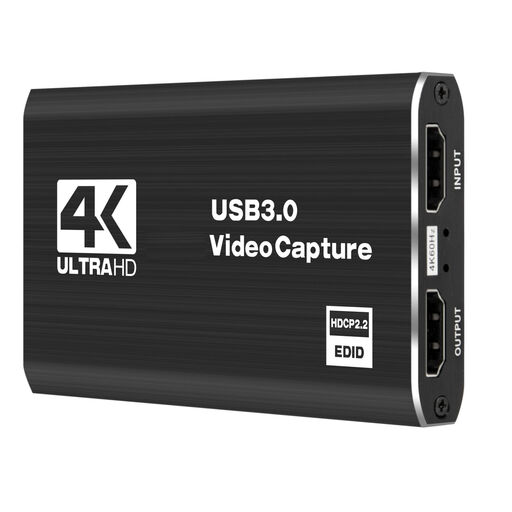
4K video capture card, USB 3.0, 5 ports
An external capture card option to consider for recording a game source on a computer. Check that the recording and passthrough modes suit your screen and recording needs.
The product name lists USB 3.0 and 5 ports. Check the recording and passthrough specifications for the exact model you’re considering.
View at Joybuy
 No image available
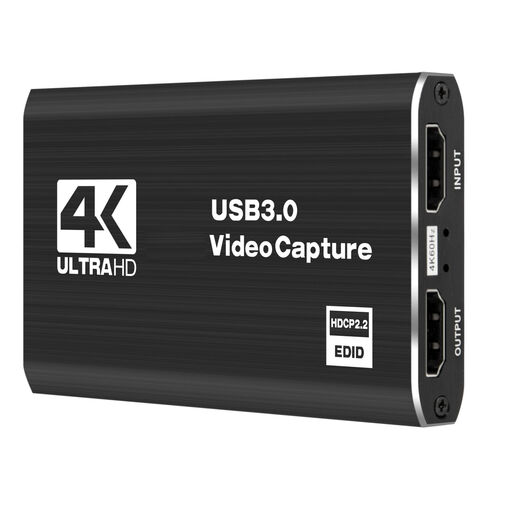
4K video capture card, 5 ports
Consider this external video capture card for recording a game source on a computer. Before choosing it, check whether its specific recording and screen modes will work for you.
The product name lists 4K and 5 ports. Check the recording specifications separately from those for screen passthrough.
View at Joybuy
 No image available
HDMI capture card, up to 30 Hz 4K input, up to 60 Hz 1080p recording
The modes listed in the product name may suit external console recording. Check that they match your required screen mode and recording needs.
The product name lists HDMI input of up to 4K 30 Hz and recording at 1080p 60 Hz. It also lists microphone and headphone connections.
View at Joybuy
 No image available
4K USB 3.0 video capture card, 5 ports
An external capture card option to consider for recording a game source on a computer. Check the signal modes supported by your console and screen.
The product name lists 4K, USB 3.0, audio recording and 5 ports. Check the specific recording and passthrough specifications before choosing.
View at Joybuy
 No image available
VIELLAN 4K HDMI video capture card, USB 3.0
The recording and passthrough specifications listed in the product name may be relevant for external console recording. Check that they suit your particular setup.
The product name lists 1080p recording, 4K HDMI passthrough and USB 3.0. Windows, macOS and Linux are listed as compatible.
View at Joybuy
Frequently asked questions
Do I need a capture card if I play on PC?
Not necessarily. If the game and OBS are running on the same PC, try recording the game directly first. For capturing the HDMI signal from a separate console on your recording PC, OBS Project describes a capture device as a way to record the signal.
How do I set up an HDMI capture card in OBS?
For a model with passthrough, connect the console to HDMI IN, the screen to HDMI OUT, and the card to your recording computer using the specified USB connection. Add it in OBS as a video capture device, then check the picture and sound with a short test recording. The connections you need depend on the model.
Can a capture card filter out voices or noise in the room?
No. A capture card records the video signal and doesn’t replace setting up your audio sources separately. OBS Project describes using separate audio tracks for editing and notes that noise suppression is generally of limited effectiveness when there’s a lot of background noise.
Can I record on a PS5 without a capture card to start with?
Yes. Sony describes recording for up to one hour using the Create button, as well as options for microphone and voice chat audio. Some scenes can’t be recorded, so check whether the console’s recording options are suitable for the length and editing needs of your guide.
What should I consider when recording housemates in Germany?
Section 201 of the German Criminal Code (StGB) concerns unauthorised recording of another person’s non-public spoken words. Before recording, check whether you’ll be capturing other people’s conversations or voice chat, and don’t record such speech without permission. This provision does not make a blanket statement about every gameplay recording.


