If you’re playing on the same Windows PC as OBS, try recording the game directly first. For an HDMI signal from a console or second PC, a capture card is the right choice. Choose one based on its recording resolution and frame rate, and check passthrough to your monitor, connections, software, audio and signal requirements separately.
Who could benefit from a capture card?
Console gameplay comparison creators
Feed the HDMI output from a console into your recording PC, then choose the resolution and frame rate for your saved comparison separately from the gameplay display. OBS Project also explains how to capture supported games directly on a PC.
Gamers with a high-refresh-rate monitor
You’re recording an external HDMI signal but want to keep a higher frame rate or VRR on your monitor while you play. That makes passthrough mode just as important as the recording format.
Single-PC recording creators
You play and record on the same computer, and want to check whether direct game capture in OBS is enough for your comparison before buying extra hardware.
What should you consider when choosing one?
Direct game capture
A good fit if: the game and OBS are running on the same Windows PC, and you don’t need a separate HDMI input.
What to consider: Try a short test recording to check whether your particular computer is up to the task.
External card for Full HD
A good fit if: the game is coming from a console or second PC, and Full HD is enough for both recording and your monitor.
What to consider: This option won’t be enough if your comparison needs to retain 4K detail or a 4K monitor mode.
External card for higher recording modes
A good fit if: you want to save an external gameplay signal in a higher recording mode, such as 4K60.
What to consider: Recording and passthrough have separate limits. The connection and software also need to support the mode you want.
Internal PCIe card
A good fit if: you have a desktop with a suitable spare PCIe slot.
What to consider: Check the slot and available motherboard bandwidth. Two HDMI inputs are only a reason to choose a card if your setup needs them.
| Priority |
What to check before buying |
Who is it important to? |
| Detail and movement in the recording |
Check the recording resolution and frame rate for the video mode you want on the specific model. |
If you want gameplay details and movement to remain clear in the saved comparison, recording quality is the priority. Around 36% of consumers in this scenario put it first. |
| Gameplay on your monitor |
Check that passthrough resolution, frame rate, VRR and HDR are compatible with your gaming device, capture card and monitor. |
If you want to keep a particular monitor mode or VRR while playing, the passthrough image matters as well as the recording. Around 29% of consumers prioritise the monitor image. |
| Connections, setup and game audio |
Check the operating system, USB mode or PCIe slot, as well as the HDMI inputs and outputs. Test both picture and sound before making a longer recording. |
If you want to record picture and game audio reliably with your existing computer and software setup, compatibility is essential. Around 21% of consumers put setup and audio first. |
| Avoiding extra hardware |
Decide which device the game will run on. If it’s a Windows PC, first try a short OBS Game Capture recording. |
If the game is already running on your recording PC, you’ll want to find out whether you can make the comparison without a separate HDMI card. Around 14% of consumers prioritise avoiding extra hardware. |
Common buying mistakes
-
Assuming the highest 4K or fps figure is the recording limit
Recording and passthrough have separate limits. For example, the NZXT Signal 4K30 offers 4K30 recording alongside 4K60 HDR passthrough.
Make a note of the file and monitor modes you want, then check both against the specifications for the exact model.
If the saved recording mode doesn’t meet your needs for the comparison, you may need a different card.
-
Expecting the highest mode to work without checking software and operating system requirements
AVerMedia specifies 4K144 recording on the GC553G2 with Streaming Center on Windows in MJPEG format. HDR recording on Elgato’s 4K S is currently limited to Windows and up to 1080p60.
Before choosing a card, check that the mode you want works with your operating system and the software you actually plan to use.
-
Buying HDMI hardware for a single-PC recording without testing first
OBS Project offers a direct Game Capture source for supported DirectX or OpenGL games.
If the game and OBS are running on the same PC, try a short recording with game audio first.
-
Assuming a black screen automatically means the card is faulty
Elgato capture devices can’t display or record HDMI signals with HDCP enabled.
Check that your intended game source outputs an unencrypted signal, and don’t base your purchase on the expectation that you’ll be able to capture protected films or apps.
Key brands at a glance
Elgato
The external models covered here include the 4K S and the 4K X. They’re worth considering if you want to plan your recording and monitor display separately.
- Elgato says the 4K S supports recording at up to 2160p60; the 4K X features HDMI 2.1 and passthrough up to 2160p144.
- HDR recording on the 4K S is currently limited to Windows and up to 1080p60. Elgato capture devices can’t capture HDCP-protected HDMI signals.
AVerMedia
The models covered here range from the external Live Gamer MINI GC311 to internal PCIe cards such as the GC573 and GC570D, as well as the external GC553G2.
- According to AVerMedia, the GC570D has two HDMI inputs, while the GC573 uses PCI-Express x4 Gen 2.
- The manufacturer specifies recording at up to 1080p60 per input for the GC570D. The GC553G2’s 4K144 recording requires Streaming Center on Windows and MJPEG.
NZXT
The Signal 4K30 is an external HDMI option if 4K30 recording suits your planned comparison.
- The manufacturer’s German manual lists 4K30 recording and 4K60 HDR passthrough.
- If your finished comparison has to be recorded in 4K60, the stated recording limit won’t be enough.
Joybuy products for external HDMI recording
The Joybuy options below are external HDMI capture cards for consoles and other HDMI gameplay signals. Their stated recording specifications go up to 1080p; for some models, 4K refers to input or passthrough.
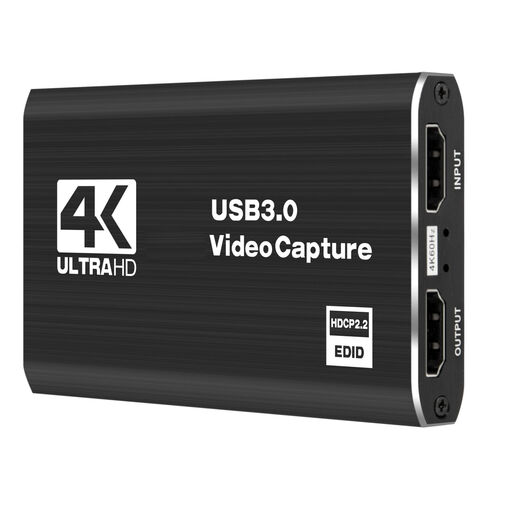 Image unavailable
4K video capture card, 5 ports
For an external HDMI gameplay signal when Full HD recording at 60 Hz is enough.
Specifications list USB 3.0, 4K input and loop-through, with recording at 1080p and 60 Hz.
View at Joybuy
 Image unavailable
4K HDMI capture card, USB 3.0
For an external HDMI gameplay signal when 1080p60 recording and HDMI passthrough suit your setup.
The HDMI input is specified at up to 4K at 30 Hz, with recording at 1080p and 60 Hz. A microphone input and headphone output are also listed.
View at Joybuy
 Image unavailable
VIELLAN HDMI video capture card with 4K passthrough
For an external HDMI signal when video recording up to 1080p and 4K passthrough suit your comparison setup.
Specifications include USB 3.0, a microphone input and a headphone output; OBS Studio is listed as compatible software.
View at Joybuy
 Image unavailable
VIELLAN 4K HDMI capture card, USB 3.0
For HDMI gaming devices when 1080p recording and 4K passthrough are enough for your planned comparison.
Specifications include USB 3.0 and compatibility with Windows, macOS and Linux. Sources listed include PS4, Xbox and Nintendo Switch.
View at Joybuy
Frequently asked questions
How do I connect my console, display and recording PC?
With a card that supports passthrough, connect the console’s unencrypted HDMI signal to HDMI In, then connect HDMI Out to your gaming display. Connect the card to your recording PC as well. Select it as a video capture device in OBS, then test that picture and sound record together before making your comparison. The connections on the specific model determine how to set it up.
Why is my PlayStation 5 showing a black screen in the capture software?
With Elgato capture devices, HDCP may prevent HDMI capture if it’s enabled. Elgato notes that protected films and app content can’t be captured as gameplay signals as a result. Check the signal and how you plan to use it, rather than assuming protected content can be recorded.
What should I check after a failed test recording or if the card is faulty?
First, check the signal mode, connections and selected OBS source with a short recording. In Germany, statutory consumer rights for faulty goods generally apply against the seller; these are separate from a voluntary guarantee. The repair rules in force since 31 July 2026 do not mean that every capture card automatically falls into a category of devices with a separate manufacturer repair obligation.
Can I record or publish any gameplay or video signal for my comparison?
No. A capture card doesn’t give you blanket permission to use content. Section 53 of the German Copyright Act (UrhG) covers certain copies for private, non-commercial use, subject to its conditions; it does not give you general permission to publish them. Section 95a UrhG protects effective technological measures under the conditions set out there. If you plan to publish your comparison, you’ll need to assess the rights to the specific gameplay footage and any other content it includes separately.


