Gamers comparing console footage
If you want to compare two gameplay recordings fairly, check both the recording setup and the signal going to your monitor. OBS Project lists a capture card as a possible way to record console gameplay.


If you’re playing both games on the same Windows PC, try capturing the gameplay in OBS first. For an HDMI signal from a console or a second PC, a capture card may be worth considering. OBS Project describes direct game capture on PC and lists a capture card as an option for consoles. Check each model’s recording and HDMI passthrough specifications separately, and plan for game audio, commentary and any background noise in the room as separate audio sources.
If you want to compare two gameplay recordings fairly, check both the recording setup and the signal going to your monitor. OBS Project lists a capture card as a possible way to record console gameplay.
If you want control over game audio and your commentary, plan your audio sources separately and check whether your microphone might also pick up conversations in the room. OBS Project explains how to use separate audio sources in OBS.
If both games run on the same Windows PC, try capturing the gameplay directly in OBS first. This will help you work out whether you actually need a separate HDMI capture device for your setup. OBS Project notes that game capture does not work with every game.
First, work out whether you need to capture an HDMI signal or whether both games run directly on the same PC. Then make sure the recording file, monitor signal and audio setup suit your particular arrangement.
| Priority | What to check | Especially important if |
|---|---|---|
| Comparable recordings | Check the resolution and frame rate of the saved file for both games and the specific model. | You want to compare two gameplay recordings directly, so the files need to match in resolution and frame rate. Around 33% of consumers prioritise comparable recordings. |
| Controlled audio | Check game audio, microphone, headset and chat as individual recording sources; watch out for duplicate sources in OBS. | You’re commentating in a shared room and want to control your audio sources without accidentally recording other people’s conversations. Around 27% of consumers pay particular attention to audio control. |
| Signal to the monitor | Check that the game source output, card passthrough and monitor all support the same resolution and frame rate, and HDR or VRR if applicable. | You want to keep playing in your preferred mode while recording, so the passthrough signal to your monitor needs to support it too. Around 20% of consumers prioritise maintaining their preferred monitor signal. |
| A setup that works for you | Check whether direct PC capture is enough and which USB or PCIe ports and accessories you have available. | Your available space and connections limit your setup, so you don’t want to choose a device you don’t actually need for recording. Around 20% of consumers prioritise a suitable, straightforward setup. |
Elgato specifies recording at up to 1080p60 and passthrough at up to 2160p60 for the Game Capture Neo. For the Game Capture 4K S, the manufacturer lists recording modes up to 2160p60. According to Elgato, HDR recording on the 4K S is currently limited to up to 1080p60 on Windows. These specifications apply to the individual models, not to capture cards in general.
A card may pass a 4K signal through to your monitor while saving a recording at a lower resolution. What matters is the recording mode for the full model code.
Check the recording and passthrough specifications separately for the exact model you’re planning to buy.
Game audio, headset, chat and microphone won’t necessarily all reach your recording through the same connection. OBS Project also warns that selecting the same device as an audio source more than once can cause echo.
Map out the signal path before buying, then make a short test recording and check the picture and each audio source separately.
Depending on your setup, you may need additional compatible cables or a different way to route the audio.
According to the manufacturer, the AVerMedia GC311 is limited to 1080p60 passthrough, while different passthrough specifications are listed for the differently named GC311G2. Similar model names don’t guarantee identical features.
Check the full model code against the specifications for the exact device.
The box won’t necessarily include everything you need for your planned setup. Elgato does not list an HDMI cable as included with the Game Capture Neo. For standalone use of the HD PVR Pro 60, Hauppauge specifies an SD card and a USB power supply, neither of which is included.
Check whether you already have the necessary cables, storage media and power connections.
The external models considered here differ mainly in their listed recording modes and audio inputs.
The models considered here range from an external 1080p60 card to an internal PCIe card.
The HD PVR Pro 60 can record HDMI footage on a PC or independently to an SD card.
The products below are external HDMI capture cards. For each model, check separately what resolution it records at and what resolution it passes through to your monitor.
 No image available
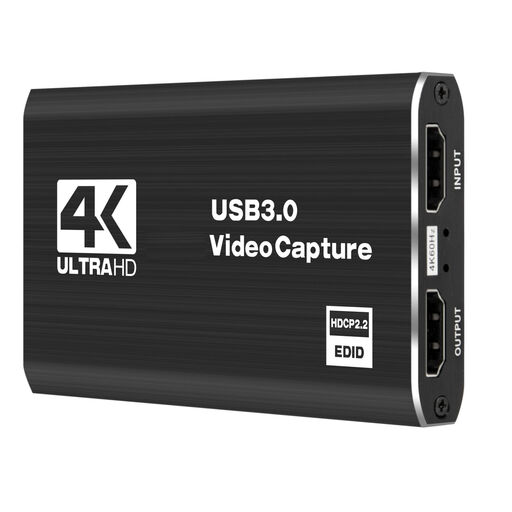
May suit external HDMI gameplay capture with passthrough to a monitor; recording resolution should be checked separately from passthrough.
The product specifications list recording at 1080p/60 and input and passthrough at 4K/60.
 No image available
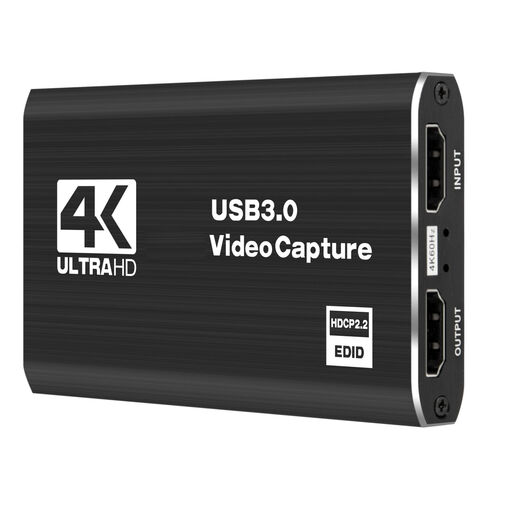
May be suitable for capturing console gameplay on a PC while passing the HDMI signal through to a monitor.
The product specifications list 1080p/60 recording and 4K/60 input and loop-through. Windows, macOS and Linux are listed as supported operating systems.
 No image available
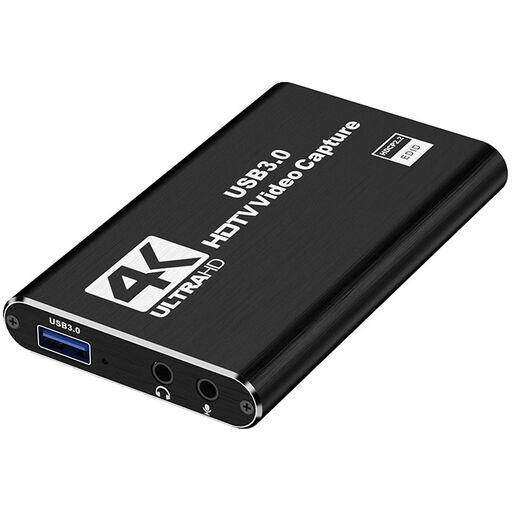
A possible option if you’re planning to capture HDMI gameplay and output it to a second screen.
The title specifies up to 4K/30 Hz HDMI input and 1080p/60 Hz recording; the product details also list HDMI passthrough.
 No image available
May suit external recording while sending the game signal to a monitor or projector.
The product specifications list 1080p/60 recording and 4K/60 input and passthrough.
 No image available
May be suitable for capturing HDMI gameplay with commentary, provided its connections work with your microphone and headphones.
The title specifies 1080p recording and 4K HDMI passthrough, plus a microphone input and headphone output. Windows, macOS and Linux are listed as supported operating systems.
Not necessarily. OBS Project offers a source for capturing gameplay directly on Windows. Try it with both games before buying additional HDMI hardware for this purpose.
Add your microphone and any other audio sources you need, then check the audio settings in OBS. OBS Project warns that echo can occur if the same device is selected both globally and as a scene source.
Yes, some models can do this. For example, Elgato specifies passthrough up to 2160p60 and recording up to 1080p60 for the Game Capture Neo. Check both modes for the full model code.
Making an unauthorised recording of another person’s private speech may be a criminal offence under § 201 StGB. Discuss audio recording with the people affected and set up your microphone sources accordingly; the legal position depends on the circumstances. The relevant provision is § 201 StGB, published by the Federal Ministry of Justice and the Federal Office of Justice.
For relevant purchases of goods in the EU, the European Union’s consumer information states that you have a minimum of two years’ legal guarantee from the seller. Online purchases generally come with a 14-day right to cancel, although exceptions apply; this is separate from any voluntary manufacturer’s guarantee.