Joybuy products for camera recording
This selection features external HDMI capture cards with passthrough output for recording a camera signal on a computer. Input, passthrough and recording modes vary by model.
 No image available
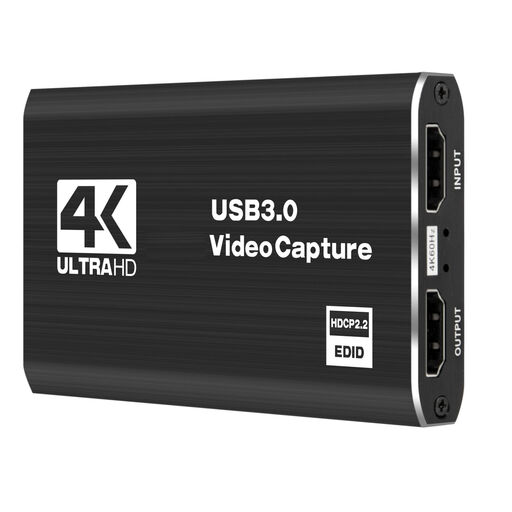
4K HDMI Capture Card, USB 3.0, 1080p/60Hz recording
For recording a camera signal on a computer, with HDMI passthrough output.
Input and passthrough: 4K/60Hz; recording: 1080p/60Hz. USB 3.0.
The product description lists Windows, macOS and Linux.
View at Joybuy
 No image available
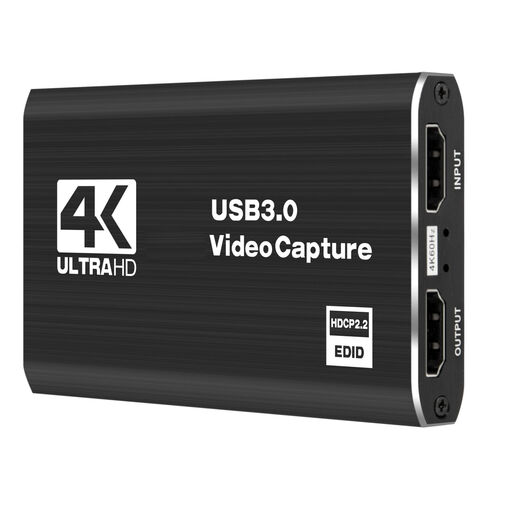
4K HDMI Capture Card, 1080p/60Hz recording
For recording with a camera on your computer when you also want to pass the HDMI signal on to another device.
4K HDMI input and passthrough; recording at 1080p and 60 frames per second.
The product description lists Windows, macOS, Linux and OBS.
View at Joybuy
 No image available
4K HDMI Capture Card, USB 3.0, 1080p/60Hz
For recording with a camera on your computer, with HDMI passthrough output and additional audio connections.
HDMI input up to 4K/30Hz; recording at 1080p/60Hz via USB 3.0. The description lists HDMI audio, a microphone input and a headphone output.
Windows, macOS, Linux and OBS are listed as supported.
View at Joybuy
 No image available
4K USB 3.0 Video Capture Card, 1080p/60Hz recording
For recording a camera signal on your computer, with additional HDMI passthrough.
Input and passthrough: 4K/60Hz; recording: 1080p/60Hz via USB 3.0. The product description lists audio recording.
Windows, macOS and Linux are listed as compatible systems.
View at Joybuy
 No image available
VIELLAN 4K HDMI Video Capture Card, USB 3.0
For recording with a camera on your computer when you also want to connect an HDMI monitor.
The product description lists 1080p recording and 4K HDMI passthrough; a microphone input and headphone output are also specified.
Windows, macOS, Linux and OBS are listed as supported.
View at Joybuy
Frequently asked questions
Is a capture card all you need to save a video file?
No. You’ll also need a suitable computer application and must start recording in it. The OBS Project describes capture cards as possible video sources and explains how to choose a save location. Check the result with a short test recording.
Why can’t I see a picture in OBS?
First, check that your camera’s output signal matches the capture card’s supported input modes. Then check the source you’ve selected, along with the resolution and frame rate in OBS. The OBS Project notes that an unsupported device resolution can prevent a source from displaying a picture.
How can I avoid missing audio or echo?
Decide whether you want to record HDMI audio or use a separate microphone, select the right source and listen back to a test recording. The OBS Project warns that echo can occur if the same audio device is captured both globally and separately in a scene.
What accessories should I check before buying?
Check whether you’ll need a suitable HDMI cable: Elgato explicitly states that Cam Link 4K doesn’t include one. Depending on your setup, you may also need storage space or a suitable power supply for longer camera sessions.
Can I simply record a work video conference in Germany using a capture card?
The fact that it’s technically possible doesn’t mean you’re allowed to record. The Data Protection Conference of the Federation and Länder treats conference recording as a form of processing that needs to be assessed separately. Before recording, clarify the purpose, legal basis, transparency requirements and, where applicable, whether you have valid consent. The appropriate legal basis in any particular case can’t be determined by the choice of device.


