Game mods on your own PC
If you’re showing changes directly in a game, try Game Capture in OBS first. The OBS Project recommends trying Game Capture for games before exploring other options.


The OBS Project recommends trying Game Capture in OBS first. If your game and OBS are running on the same Windows PC, you may not need a capture card at all. For the HDMI output from a separate console, second PC or camera, a suitable capture device could be the right choice. The connections you need, whether you require monitor passthrough and your preferred recording mode are all key factors.
If you’re showing changes directly in a game, try Game Capture in OBS first. The OBS Project recommends trying Game Capture for games before exploring other options.
If you want to capture a separate game source while viewing it on your own monitor, HDMI input and monitor passthrough are important features to look for.
An HDMI camera can be used as a video source for close-ups of a physical mod. Check the output signal from your specific camera and make sure the capture device supports it.
Best if: your game and OBS are running on the same Windows PC and you don’t need an additional HDMI input.
Consider: this method won’t automatically capture the HDMI output from a separate console or camera.
Best if: you want to capture video from a console or second PC and display it on a separate monitor at the same time.
Consider: recording and passthrough may support different resolutions and frame rates, so compare the two signal paths separately.
Best if: you want to show details of a physical modification using an HDMI camera you already own.
Consider: an HDMI-to-USB device for cameras won’t necessarily replace a gameplay capture card with an HDMI output for a monitor.
| What you need | What to check before buying | Who is it important to? |
|---|---|---|
| Do I need extra hardware? | Are your game and OBS running on the same Windows PC, or is the video coming from a separate HDMI source? | If I’m using the game and OBS on the same PC, I want to know whether I need a capture card at all before I buy one. Around 24% of consumers put the need for extra hardware first. |
| Capture the video and view it on a monitor | Check the HDMI input and output, as well as the recording and passthrough modes, for the exact model you’re considering. | With a console or second PC, I want to capture the video and view it on my own monitor at the same time. Around 29% of consumers prioritise monitor passthrough. |
| Get the picture mode you want | Check the resolution, frame rate and, where applicable, HDR or VRR for both recording and passthrough. | If a particular recording or monitor mode is important for my presentation, I check the specifications for both signal paths. Around 18% of consumers put a specific picture mode first. |
| Show camera details | Check the camera’s HDMI output, supported format and, where applicable, encryption, as well as the USB connection. | For close-ups of a physical modification, I want to use my HDMI camera as the video source. Around 18% of consumers prioritise camera recording. |
| Connect audio and the recording PC | Check the audio sources and connections you need, as well as the operating system, USB port and OBS audio mode. | If I want to set up commentary and game audio together, I check that the connections and audio settings are suitable. Around 11% of consumers prioritise audio and host compatibility. |
Elgato lists up to 2160p60 passthrough for the HD60 X, but recording is limited to up to 2160p30. So, with this model, a 4K60 picture on your monitor doesn’t automatically mean you can record in 4K60.
Compare the recording and passthrough specifications separately with the frame rate you want.
AVerMedia lists a maximum of 1080p60 for both passthrough and recording on the GC311. The GC311G2 is listed with 4K60 passthrough and 1080p60 recording.
Check the full model number in the listing against the manufacturer’s specifications.
Elgato describes the Cam Link 4K as a device that connects a supported HDMI camera signal via USB. This doesn’t automatically confirm that it has an HDMI output for monitor passthrough.
Before choosing a device, map out the signal path you need, from the video source via the recording PC to the monitor.
AVerMedia states that recording at 4K144 on the GC553G2 requires Streaming Center on Windows and MJPEG.
Check that the mode you want is compatible with your operating system and recording software.
Its product lines include devices for HDMI cameras, as well as capture cards for external game sources.
Models vary in several respects, including Full HD recording and the passthrough modes listed for each one.
The Ripsaw X is designed to connect an HDMI camera and could be suitable for close-ups of physical modifications.
The HD PVR 2 Gaming Edition and GE Plus are further options to consider for HDMI and component video sources.
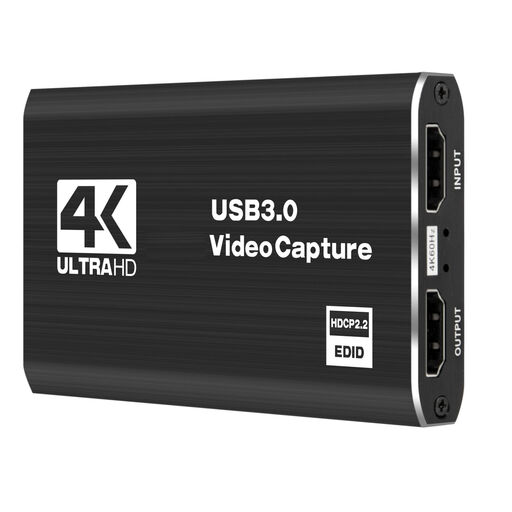
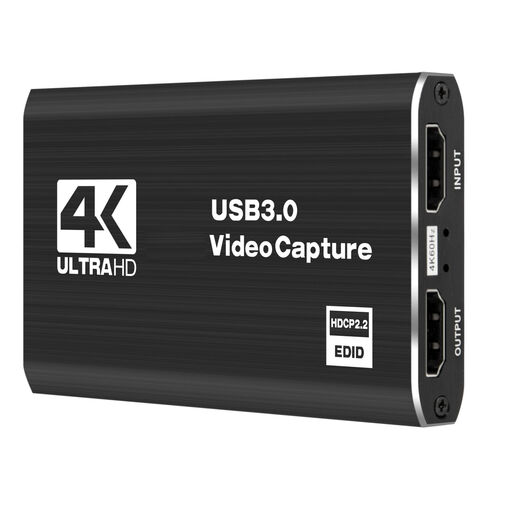
The Joybuy products below are designed for external HDMI game sources, with monitor passthrough and recording on a PC. Check the specific recording and passthrough modes for each model.
 No image available
For a separate HDMI game source, if you want to connect recording and monitor output in your setup.
USB 3.0; 5 ports. Recording is listed at 1080p/60 Hz. Check that this recording mode is suitable for your presentation.
 No image available
Could be suitable for a separate HDMI source if you want to connect the monitor display and recording on your PC.
5 ports. Before buying, check the required resolution for the input, passthrough and recording separately.
 No image available
For an HDMI game source, if you want to use the listed Full HD recording mode for your presentation.
HDMI input up to 4K/30 Hz; recording at 1080p/60 Hz. Check that the input mode and recording resolution suit your source.
 No image available
For an external HDMI game source, if you want to combine video and audio on your recording PC.
USB 3.0; 5 ports; audio recording. Recording is listed at 1080p/60 Hz. Check that this mode matches your desired output format.
 No image available
Could be suitable for a separate console or camera as an HDMI source if you want to record the video on your PC.
USB 3.0; 4K HDMI passthrough; 1080p recording. Check that this recording resolution is sufficient for your presentation.
Add a ‘Video Capture Device’ source in OBS and select the connected device. The OBS Project notes that an unsupported resolution or frame rate can prevent the video from appearing. Set the audio mode separately.
Elgato states that its capture devices cannot display or record HDMI signals with HDCP enabled. For gameplay, Elgato recommends connecting the console directly to the display first, then switching off HDCP under HDMI in the system settings. This does not make protected films or streaming content recordable.
For online consumer purchases, you generally have a 14-day right to cancel from the day you receive the goods; you must notify the retailer that you wish to cancel. The Verbraucherzentrale explains this period in its article dated 13 August 2026. Check the terms of your specific contract and test the signal paths you need in good time.
Not simply because you can technically record the signal. Under § 15 UrhG, making a protected work available to the public is generally an exclusive right of the copyright holder. Whether you can use specific game, mod, music or image content depends on the relevant rights, permissions or exceptions, as well as the terms that apply.