If your camera already appears as a suitable video source on your laptop, you don't need an additional capture card for this signal path. If your camera has a compatible, unencrypted HDMI output, an HDMI-to-USB converter may be suitable; a card with HDMI passthrough is relevant if you also need a monitor or a second signal path. Also check the camera output and USB connection, and plan a separate route for the music audio.
Who might need a capture card?
Musicians with an HDMI camera
If you want to use an existing camera as a video source on your laptop, check that the camera's HDMI output and the converter's USB connection are compatible with your setup. OBS Studio lists capture cards and webcams as possible video sources.
Musicians with a separate audio interface
If you record vocals or instruments independently of the camera footage, you'll need to set up and monitor the audio sources correctly in your streaming software. OBS Studio notes that using the same audio source in multiple settings can cause echo.
Streamers with an additional monitor
If you need an HDMI output for a monitor as well as a USB video feed to your laptop, compare capture and passthrough as separate functions.
What should you look for when buying?
No additional capture card
Suitable if: Your camera or webcam already appears as a suitable source in OBS and you don't need to feed an HDMI signal into your laptop.
Trade-off: This option won't help if your laptop can only capture an external HDMI image.
Compact HDMI-to-USB converter
Suitable if: A single camera outputs a compatible, unencrypted HDMI signal and you want to send its picture to your streaming software via USB.
Trade-off: HDMI passthrough isn't automatically included with this option; you'll need to plan a separate route for the music audio.
Capture card with HDMI passthrough
Suitable if: You need to send the HDMI signal to a monitor as well, or specifically require this type of connection.
Trade-off: Extra connections and video modes won't automatically make it easier to connect your camera or route audio separately.
First, check whether your camera works directly as a video source. If you do need a card, compare the camera mode, USB connection and any HDMI output you may need with the specifications of the specific model.
| Priority |
What to check before buying |
Who is it important to? |
| Route music audio correctly |
Audio inputs and signal path; monitor the source in OBS and check the levels. |
If vocals or instruments are recorded separately from the camera footage, a clear setup without duplicated sources is important. Around 36 % of consumers put audio routing first. |
| Connect a camera |
Compatible, unencrypted HDMI signal and supported camera mode; check that the laptop has the right USB connection. |
If you want to keep using your own HDMI camera, make sure the camera and converter support the same signal path. Around 29 % of consumers prioritise camera connectivity. |
| Simple setup |
Choose only the connections you need; also check what's included with the specific model. |
If you have limited desk space and only need to connect one camera to your laptop, keeping the cabling simple is essential. Around 21 % of consumers prioritise a compact, straightforward setup. |
| Pass through HDMI |
Compare passthrough and capture modes separately; check that the monitor connection you need is available. |
If you want to connect an additional HDMI monitor while capturing video, you'll need a signal path that's specifically suited to this. Around 14 % of consumers prioritise HDMI passthrough. |
Avoid common buying mistakes
-
Buying a capture card when your camera already works directly
If your camera already appears as a suitable video source in OBS, an additional HDMI converter may not be necessary for the picture.
Before buying, check whether your camera is available as a source in OBS and whether you actually need to feed an HDMI signal into your laptop.
An unnecessary device adds more cables to your desk.
-
Assuming “4K” means the video will be captured in that mode
Input, passthrough and capture can each have different limits. Elgato also states that the Cam Link 4K's 2160p60 specification depends on the model and a compatible camera.
Check the specific model's supported input, capture and passthrough modes individually against your camera.
-
Confusing the HDMI camera feed with a ready-to-stream music mix
A capture card won't automatically record vocals or instruments. OBS Studio warns that using the same audio source in multiple settings can cause echo; levels that are too high can also cause clipping.
Plan separate signal paths for your camera, microphone or instrument, and laptop. Before going live, test the picture and sound privately.
Depending on your setup, you may need extra audio cables or a separate audio interface.
-
Stopping your rights checks once the livestream ends
GEMA distinguishes between a live linear stream and a recording made available to watch on demand later.
Decide in advance whether the stream will remain online afterwards, and check the rights for your specific use.
A recording that remains available to watch may require an additional licence; GEMA explains the requirements according to the type of use.
Brands and models to consider
Elgato
The Cam Link 4K is designed to connect a single camera; the Game Capture 4K S also offers HDMI passthrough and an analogue line-in.
- According to Elgato, the Cam Link 4K works over USB 3.0 with compatible cameras that have an unencrypted HDMI output.
- Elgato says the Cam Link 4K's 2160p60 specification applies only under the relevant model and camera conditions. Check the signal path for your music audio separately.
AVerMedia
The Live Gamer MINI GC311 combines an HDMI input with a separate HDMI output for an additional monitor.
- AVerMedia specifies HDMI audio, with capture and passthrough up to 1080p60, for the GC311.
- According to AVerMedia, this model doesn't support 4K or HDR. The manufacturer's claim of lag-free passthrough isn't an independent latency test.
RØDE
The HDMI to USB-C Converter is described as a compact converter for connecting an HDMI camera to a UVC-compatible device.
- RØDE specifies 1080p60 for this model and use with a UVC-compatible device.
- Check that your specific USB-C device supports UVC input, and that the camera output is compatible with the video mode you want.
Magewell
USB Capture HDMI Gen 2 is an option with an HDMI input for use with a computer and streaming software.
- Magewell lists embedded HDMI audio, USB 3.0 and OBS compatibility for this model.
- The stated maximum specifications don't guarantee that a particular laptop and camera will achieve this combination. No HDMI passthrough output is listed for this model.
Joybuy products
The following Joybuy listings are capture cards for HDMI camera and computer setups. Before buying, check the specifications of each model against your camera, USB connection and audio signal path.
 No image available
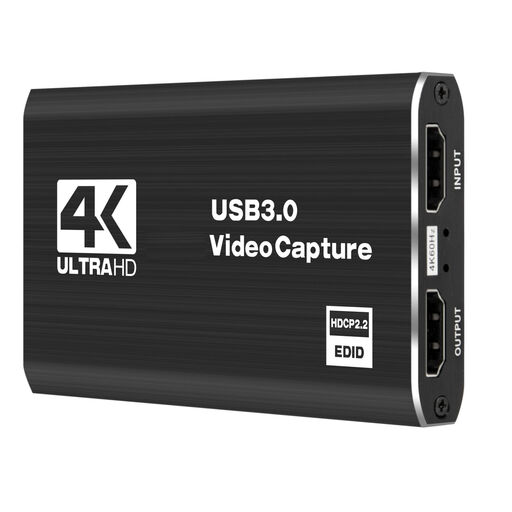
4K video capture card, USB 3.0, 5 ports
For a setup where you want to send a camera feed to a computer via a capture card.
Features listed in the product name: USB 3.0 and 5 ports.
View at Joybuy
 No image available
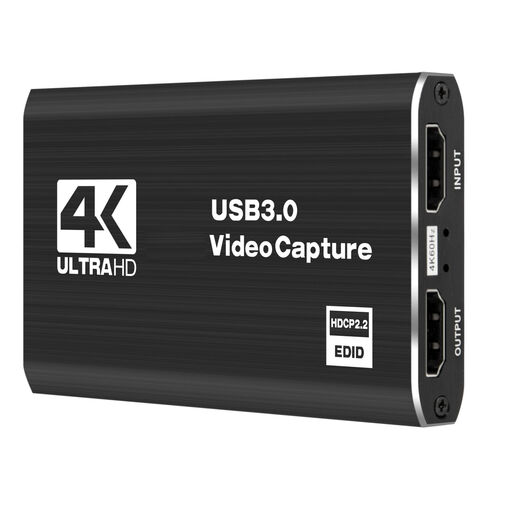
4K capture and recording card, 5 ports
For a camera setup where you want to capture an HDMI feed on your computer.
Features listed in the product name: 4K and 5 ports.
View at Joybuy
 No image available
4K HDMI capture card, USB 3.0
For a setup where you want to connect an HDMI source to a computer via USB.
Features listed in the product name: HDMI input up to 4K at 30 Hz and recording at 1080p at 60 Hz.
View at Joybuy
 No image available
4K USB 3.0 capture card, 5 ports, audio recording
For a camera or recorder setup where you want to include a capture card in your live-streaming signal path.
Features listed in the product name: USB 3.0, 5 ports and audio recording.
View at Joybuy
 No image available
VIELLAN 4K HDMI video capture card, USB 3.0
For an HDMI camera setup where you want to use a capture card for streaming with software such as OBS.
Features listed in the product name: 1080p recording, 4K passthrough, and compatibility with Windows, macOS and Linux.
View at Joybuy
Frequently asked questions
Do I need a capture card to show my camera feed in OBS?
Not necessarily. If your existing camera already appears as a suitable video source in OBS, you don't need an additional HDMI capture card for that feed. If you need to send an HDMI signal to your laptop, check that the camera output and supported video mode are compatible with the converter.
How do I set up my camera feed in OBS?
Add the connected card as a video capture device in OBS, then select the device and a supported resolution and frame rate. According to OBS Studio, an unsupported setting may mean that no picture is displayed.
Why does my performance sound doubled or distorted?
Check whether the same audio source is included both globally and in an OBS scene; OBS Studio notes that this can cause echo. Also listen to the actual output and check the level meter for clipping.
Can I publicly stream a musical performance in Germany without an additional licence?
There isn't a general answer without details of the work, rights holders, platform and access arrangements. According to GEMA, a livestream licence is generally required for a music stream on YouTube, Facebook or Instagram that viewers have to pay to access. For a freely accessible stream with entirely voluntary donations, it says agreements are generally already in place for these platforms. An additional licence may be required for a recording that remains available to watch.
Are covers you've performed yourself or your own songs automatically licence-free?
No. This depends, among other things, on whether you're simply performing someone else's work or adapting it, and on which rights have been transferred. GEMA notes that adaptations may require the rights holders' consent; even for your own work, an authorisation agreement may transfer the relevant usage rights to GEMA.


