Playing on a console with a separate display
If you want to see your console gameplay on your monitor while recording it on a computer, check passthrough and recording formats separately. Elgato explains this distinction for its capture cards, too.


When recording from an external console, your capture card should suit both your gaming display and the recording format you want: passthrough and recording use separate signal paths. For a guide with commentary, you’ll also need a suitable audio setup and a compatible recording computer. If the game is already running on the same Windows PC, the OBS Project recommends trying direct game capture in OBS first.
If you want to see your console gameplay on your monitor while recording it on a computer, check passthrough and recording formats separately. Elgato explains this distinction for its capture cards, too.
If you’re explaining your moves as you play, your voice and the game audio should both be clear in the recording. Check the audio connections and OBS settings. OBS Project also supports multiple audio tracks, which lets you edit them separately later.
If the game is running on the same Windows PC, try the OBS ‘Game Capture’ source before buying additional capture hardware. The OBS Project recommends this method for capturing PC games directly.
For a narrated strategy guide, first decide on your signal path, audio setup and preferred recording format. Then check that the connections and any extra components are right for your needs.
| Buying criterion | What to check | Who it matters most to |
|---|---|---|
| Gameplay on your monitor | Compare the HDMI inputs and outputs, supported resolution and frame rate, and any HDR or VRR support with the display mode you use. | If I want to play on my separate gaming monitor while recording, its display mode needs to work with passthrough. Around 30% of consumers put seeing the game on their monitor first. |
| Voice and game audio | Check the audio connections and console audio output, then listen back to a short OBS test recording. If you plan to edit later, check the audio tracks and recording format, too. | When explaining my moves in a guide, I want to be able to balance the commentary and game audio clearly. For around 30% of consumers, recording voice and game audio is the main priority. |
| Recording details | Check the stated recording resolution and frame rate, and make sure the specific mode works with the software you use. | If menus or small text need to be legible in the finished guide, I’ll check the actual recording format rather than just the display signal. Around 20% of consumers put recording detail first. |
| Source and computer | Choose your game source and recording software, then check your operating system, the USB mode required or the available PCIe slot for the specific model. | If I want to connect a console, capture card and recording computer, all the connections and software need to work together. Compatibility is the main consideration for around 10% of consumers. |
| Setup and contents | Check the HDMI connections you need, the cables you already have, your computer’s ports and what’s included with the specific model. | If I want to keep my setup in a separate room as tidy as possible, I’ll want to know in advance which connections and cables I need. Around 10% of consumers prioritise the setup and any extra components they’ll need. |
Passthrough describes the signal sent through to your gaming display; the recording may have a different resolution or frame rate. For the Game Capture Neo, Elgato specifies passthrough of up to 2160p60, but recording of up to 1080p60.
Check the passthrough specifications for your display and the recording specifications separately for your finished guide.
Recording modes for the ASUS TUF Gaming Capture Box-CU4K30 vary depending on the connection: ASUS specifies up to 2160p30 via USB 3.2 Gen 1 and up to 720p30 via USB 2.0.
Check which USB mode your recording computer actually supports, not just the shape of the connector.
A capture card that captures HDMI video won’t automatically set up your microphone, game audio or party chat. Headset and controller connections vary by model.
Before making a longer recording, test the game audio, commentary and, if relevant, party chat in the software you plan to use.
The cables included vary by model. Elgato doesn’t list an HDMI cable in the box with the Game Capture Neo, while an HDMI cable is included with the 4K S.
Plan the connections between your console, capture card and display, then check them against what’s included with the specific model.
Options include external Full HD recording, higher external recording modes and fixed desktop installations.
The Live Gamer ULTRA 2.1 GC553G2 is an external HDMI 2.1 option for demanding display modes and audio setups.
The TUF Gaming Capture Box-CU4K30 is an external option with connections for a headset and gamepad.
The Signal HD is an external HDMI option for recording from a console or a second PC.
These external HDMI capture cards are designed for recording console gameplay with passthrough and creating a Full HD guide. Check that their stated connections and audio features suit your setup.
 Image unavailable
For a console guide with passthrough and Full HD recording; a microphone input and headphone output are specified.
4K HDMI passthrough; recording up to 1080p; USB 3.0; 48 kHz PCM audio. Compatibility is listed for Windows, macOS and Linux.
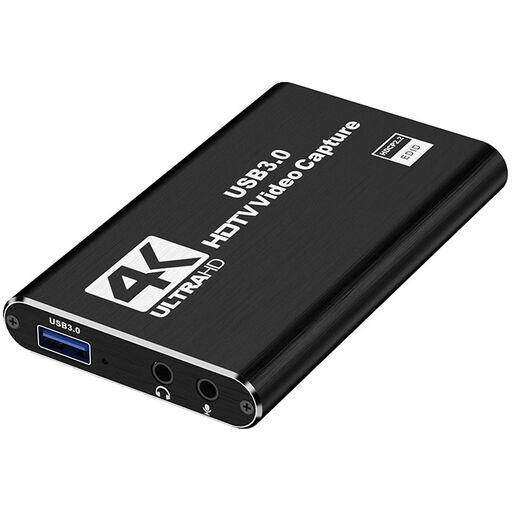 Image unavailable
For a guide with passthrough and Full HD recording; a microphone input and headphone output are specified.
HDMI input up to 4K at 30 Hz; recording at 1080p and 60 Hz; USB 3.0. Compatibility is listed for PC and Mac.
 Image unavailable
For recording gameplay with passthrough; the specified recording resolution is 1080p at 60 Hz.
4K input and passthrough at 60 Hz; USB 3.0. Compatibility is listed for Windows, macOS and Linux.
Not necessarily. If the game is running on the same Windows computer you’re recording on, the OBS Project recommends trying the direct ‘Game Capture’ source first. For the HDMI signal from an external console, OBS describes a capture device as the signal path.
Set up your capture device and microphone as suitable OBS sources, then listen back to a short test recording. If you want to edit the voice and game audio separately later, the OBS recording guide supports multiple audio tracks and recommends MKV, with the option to remux to MP4 later.
A capture card’s recording function doesn’t grant you the right to publish your content. § 19a UrhG concerns making protected works available to the public. For the game in question, its music and any other third-party material, check the applicable usage rights or publisher rules.
For new goods bought from a retailer, you generally have statutory consumer rights against the seller; Verbraucherzentrale distinguishes these from a voluntary guarantee. It states that the statutory warranty period is generally two years from delivery. The remedy available depends on the specific purchase and fault.
For its supported PS5 capture devices, Elgato explains that an HDCP-protected HDMI signal can’t be recorded. For gameplay, the manufacturer says to disable ‘Enable HDCP’ in the PS5 system settings before connecting the device. This doesn’t give you permission to record protected films or streaming content.