Gamers with a high-refresh-rate monitor
You want to record from a second PC while still using your preferred resolution and frame rate on your monitor. Check that the passthrough supports your signal.


Choose a capture card based on the picture you want the second PC to pass through to your monitor and the quality the recording PC actually needs to save. An external HDMI-to-USB card may suit a flexible setup. For high frame rates, audio and recording without the recording PC running, check the specific model’s capabilities and the connections on both computers.
You want to record from a second PC while still using your preferred resolution and frame rate on your monitor. Check that the passthrough supports your signal.
You want to bring the second PC’s HDMI picture into OBS and make sure the video, USB connection and audio routing all work together.
You’re looking for straightforward Full HD recording, or want to record from time to time without the recording PC running. Check that the specific model supports the operating mode you need.
First check the signal you want on your monitor, then the quality of the recording, followed by connections, audio and any extra equipment you may need. Elgato Support and AVerMedia list passthrough and recording specifications separately for their models; OBS Project describes how to add a capture card as a video capture device.
| What matters | What to check before buying | Who is this especially important for? |
|---|---|---|
| Monitor picture and passthrough | Check that the desired resolution and frame rate are supported across the entire HDMI chain; check HDR and VRR too, if needed. | If I want to keep using my monitor at the resolution and frame rate I prefer, I’ll check the passthrough across the whole signal chain. Around 29% of consumers put monitor refresh rate first. |
| Recording quality | Check the recording resolution and frame rate separately from the HDMI input and output, as well as any HDR requirements. | If the saved file is what matters most to me, I’ll decide first what recording quality I need. Around 22% of consumers prioritise recording quality. |
| Connections and setup | Check the HDMI output on the second PC, the USB connection on the recording PC and the cable lengths you need; check in advance how to add it to OBS. | For a setup in a spare room, I want to plan the USB, HDMI and cable routing to suit both computers. Around 21% of consumers prioritise a straightforward second-PC setup. |
| Audio routing | Check which OBS sources capture game audio and microphone sound; make a short audio and video test before recording for longer. | When streaming, I want to capture game audio and microphone sound deliberately, without accidentally using desktop audio twice. Around 14% of consumers prioritise controlled audio routing. |
| Overall cost and your rights | Check what’s included for the operating mode you plan to use; if something is faulty, distinguish your statutory rights from any voluntary warranty. | I want to know in advance which extra items my operating mode requires and who to contact if something is faulty. Around 14% of consumers prioritise overall cost and their rights after purchase. |
A model may pass a 4K signal through to your monitor but still only record at 1080p60. This applies, among others, to the HD PVR Pro 60 described by Hauppauge and the Razer Ripsaw HD.
Check the recording resolution and monitor passthrough separately for the exact model.
AVerMedia specifies that recording at 4K144 on the GC553G2 requires Streaming Center on Windows and MJPEG. The Elgato 4K X uses USB 3.2 Gen 2 at 10 Gbit/s.
Make sure your chosen recording mode is compatible with the recording PC’s operating system, software and connection.
For recording without a PC running, Hauppauge specifies an SD card and a 5 V, 1 A USB power supply for the HD PVR Pro 60; according to the manufacturer, the power supply is not included.
Check what’s included for the exact operating mode you want to use.
For this standalone setup, you’ll also need a suitable SD card and a separate USB power supply.
The external 4K S and 4K X models may suit different requirements for HDMI passthrough and USB connections.
The external Live Gamer ULTRA 2.1, model GC553G2, is worth considering for a setup with HDMI 2.1 passthrough and high frame rates.
According to Hauppauge, the HD PVR Pro 60 combines 4K passthrough with 1080p60 recording and offers an SD card mode that doesn’t require the recording PC to be running.
The Ripsaw HD is an external option for 4K60 passthrough with 1080p60 recording.
The Joybuy products below are external HDMI-to-USB capture cards for recording from a second PC. For each model, check separately what resolution it passes through to your monitor and the quality at which it records.
 No image available
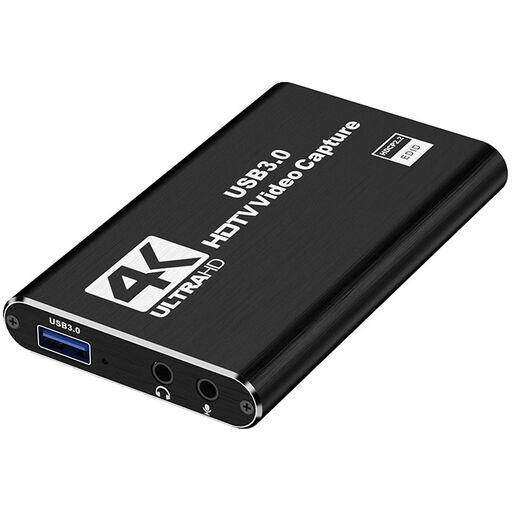
For a setup where you want to capture the HDMI signal and pass it through to a monitor at the same time.
HDMI input up to 4K 30 Hz; recording at 1080p60. The product description also lists 4K passthrough, plus microphone and headphone outputs.
 No image available
For a second-PC setup where you want to pass through a 4K signal and record in Full HD.
The product description lists 4K input and 4K/60 Hz passthrough, with recording at 1080p/60 Hz. USB 3.0; supports Windows, macOS and Linux.
 No image available
For capturing HDMI while passing the signal through to a monitor, with connections for monitoring audio.
The product description lists 4K input and 4K passthrough, plus recording at 1080p. Microphone input and headphone output; performance may be limited when using a USB 2.0 port.
 No image available
For a setup where you want to capture the second PC’s HDMI picture and pass it through to a monitor.
The product specifications list recording up to 1080p and 4K HDMI passthrough. UVC/UAC, a microphone input and a headphone output are also listed.
Connect the second PC’s HDMI output to the capture card’s input, then connect the card to the recording PC. In OBS, add a ‘Video Capture Device’ source and select the device. If no picture appears, check the supported resolution and frame rate.
Make a short test recording to check which audio source OBS is capturing. If you’ve added separate application audio sources, OBS Project recommends disabling global desktop audio to avoid echo.
For standalone mode on the Hauppauge HD PVR Pro 60, the manufacturer specifies an SD card and a 5 V, 1 A USB power supply, which isn’t included. For other models, check what’s included for the operating mode you plan to use.
No. Owning a capture card does not automatically give you the right to publish protected content. Section 53 of the German Copyright Act (UrhG) allows certain individual copies for private, non-commercial use under specific conditions; Section 95a of the UrhG protects effective technological measures under the conditions set out there. These provisions are published on the German Federal Ministry of Justice and Federal Office of Justice’s Laws on the Internet website. Whether you may stream specific content depends on the rights involved and the circumstances.
According to the Verbraucherzentrale, consumers in Germany generally have a 14-day right to cancel an online consumer contract, starting from the day they receive the goods. You must notify the retailer that you wish to cancel; exceptions and the terms of the specific contract should also be considered.