Choose a capture card based on the HDMI signal from the source PC, the recording format you want and the connections available on both computers. If you want to route your work monitor through the card, check the passthrough resolution and frame rate separately from the recording specifications. Plan your audio routing too: the documented Elgato devices cannot record copy-protected HDMI signals.
Who is a capture card for?
Second-PC users with a straightforward monitor setup
You want to capture the HDMI output from a second computer in OBS while continuing to work on your monitor. Check the recording format and monitor passthrough separately. AVerMedia and Elgato explain the modes available on their respective models; Elgato specifically distinguishes between recording and passthrough.
Users with a high-resolution or high-refresh-rate monitor
You want to keep the resolution or refresh rate you need on the source PC while recording. Compare the supported modes across the whole HDMI connection, not just a single 4K specification. Elgato explains the differences between its capture cards.
Users who need to capture PC audio
You need system audio, voice chat or both, as well as video. Before buying, decide which audio signals the source PC will output over HDMI or another intended signal path. NZXT covers audio planning for a two-PC setup, while OBS Project distinguishes between recording and audio monitoring.
What should you look for when buying?
First, check that the card can record the source PC’s signal as required. Then make sure the monitor passthrough, audio routing and connections suit your existing home office setup.
| Consideration |
What to check before buying |
Who is it most relevant to? |
| Video signal and recording |
Check the HDMI input mode and maximum recording resolution and frame rate against the source PC’s output signal. |
I want to capture the HDMI video I need on the recording computer in a suitable format. Around 40% of consumers are likely to prioritise compatibility between the video signal and recording format. |
| Monitor passthrough |
Only if connecting the monitor through the card: check the passthrough resolution and frame rate for the monitor mode you actually use. |
If my work monitor is routed through the card while I record, it needs to retain its display mode. Around 30% of consumers are likely to prioritise suitable monitor passthrough. |
| Source PC audio |
Check whether the audio you want is output over HDMI. Plan any other audio sources and their routing in OBS separately. |
I need the intended PC or voice chat audio in the recording, as well as the video. Around 20% of consumers are likely to focus primarily on getting the right audio routing. |
| Setting up the recording PC |
Check the USB connection, the specific model’s operating system requirements and the intended recording mode in the software. |
I want to be able to set up the card with my existing recording computer and the software I plan to use. Around 10% of consumers are likely to prioritise a straightforward setup. |
Common assumptions to avoid
-
Assuming 4K passthrough means 4K recording
The mode passed through to the monitor and the recording available on the recording PC may use different resolutions and frame rates.
Check the input, recording and passthrough modes separately in the specifications for the exact model.
-
Planning only for the video connection
Seeing an HDMI picture does not automatically mean that system audio, microphone audio or voice chat will be captured as you want. OBS Project distinguishes between audio capture and audible monitoring for video sources.
Before buying, work out the signal path for every audio source you need and check the audio settings in OBS.
Depending on the microphone and voice chat audio you want, you may need extra cables, audio equipment or setup.
-
Expecting a higher monitor mode from a Full HD card
AVerMedia specifies a maximum of 1080p60 for both recording and passthrough on the Live Gamer MINI GC311.
If your monitor is connected to the card’s HDMI output, check its intended mode against the passthrough specifications for the exact model.
-
Assuming copy-protected HDMI content can be recorded
Elgato says its capture devices cannot record HDMI signals with HDCP enabled. Section 95a of the German Copyright Act (UrhG) places limits on circumventing effective technical measures without the rights holder’s consent.
Plan to record a permitted, unprotected output signal and check usage rights separately.
Key brands to consider
Elgato
According to Elgato, the Game Capture 4K S and 4K X differ in their interfaces and supported modes.
- Elgato specifies recording at up to 2160p60 and HDMI 2.0 passthrough for the 4K S. The 4K X supports HDMI 2.1 and other, higher modes.
- According to Elgato, HDR recording on the 4K S is currently limited to Windows and a maximum of 1080p60. The requirements for each model and the entire signal chain remain key.
AVerMedia
According to AVerMedia, the Live Gamer MINI GC311 is designed for Full HD, while the Live Gamer ULTRA 2.1 GC553G2 is aimed at setups using higher HDMI 2.1 modes.
- AVerMedia specifies a maximum of 1080p60 for both recording and passthrough on the GC311.
- According to AVerMedia, the GC553G2’s 4K144 recording specification applies to Streaming Center on Windows using MJPEG. It does not apply across the board to every recording software.
NZXT
NZXT describes the Signal HD60 and Signal 4K30 for two-PC setups, distinguishing between them by recording and passthrough requirements.
- According to NZXT, the Signal HD60 can pass through a 4K signal, while the Signal 4K30 is the model for 4K30 recording.
- NZXT notes that audio transmission in a two-PC setup requires additional planning.
Capture cards at Joybuy
These products are designed to capture an HDMI signal on a computer. The recording modes and monitor passthrough specifications vary by model.
 No image available
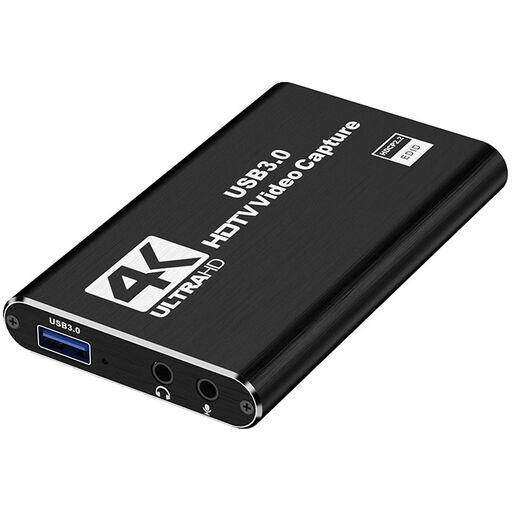
4K HDMI Capture Card, USB 3.0, 1080p60 recording
For a setup where you want to capture an HDMI signal on the recording computer.
HDMI input up to 4K at 30 Hz; recording at 1080p and 60 Hz; USB 3.0.
View at Joybuy
 No image available
4K USB 3.0 Video Capture Card, 5 ports
For a setup that calls for a video capture card with audio recording.
USB 3.0; 5 ports; audio recording.
View at Joybuy
 No image available
VIELLAN 4K HDMI Video Capture Card, USB 3.0
For a setup that needs 1080p recording and HDMI passthrough.
Recording up to 1080p; 4K HDMI passthrough; USB 3.0; listed as compatible with Windows, macOS and Linux in the product title.
View at Joybuy
Frequently asked questions
How do I connect the two computers for OBS?
Connect the source PC’s HDMI output to the capture card’s HDMI input, then connect the card to the recording PC using its designated computer connection. If you use passthrough, connect HDMI Out to the monitor. In OBS, select a video capture source, then choose the device and a supported recording mode.
Why can I see a picture but hear no audio in the recording?
First, check that the source PC is outputting the audio you want over HDMI. Then check the video source’s audio mode in OBS; recording and audible monitoring are separate settings. You may need to configure additional audio sources separately.
Can I use a card advertised as 4K for any 4K recording?
No. Compare the supported HDMI input, recording and passthrough modes separately. For example, NZXT explains that although the Signal HD60 can pass through a 4K signal, it cannot record in 4K.
Can a capture card record HDMI content with copy protection enabled?
According to the manufacturer, Elgato capture devices cannot record HDMI signals with HDCP enabled. In addition, under the conditions set out in section 95a of the German Copyright Act (UrhG), circumventing effective technical measures without the rights holder’s consent is prohibited. Also check whether you are allowed to use and share the content in question.
What rights apply when buying online from a trader?
For a standard distance sale to a consumer, EU consumer information states that you generally have a 14-day right to cancel from the date of delivery; exceptions and return costs should be taken into account. For faulty goods, the EU specifies a legal guarantee of at least two years from receipt. This is separate from any voluntary manufacturer’s guarantee.


