Which buying criteria matter?
First, work out whether the game is running on your recording PC or coming from an external device. Then consider the display and recording modes you need, and how you want to monitor game audio and commentary.
| What you need |
What to look for when buying |
Who is this especially important for? |
| Capture the game source |
Check whether the game is running on the recording PC or another device is outputting the picture. For an external source, check that its output, the card’s input and the PC connection are compatible. |
If the game is running on the same PC, I want to know whether OBS already covers recording before connecting extra hardware unnecessarily. This is the main concern for around 33% of consumers. |
| Play on your own screen |
Check that passthrough supports the resolution and frame rate you use, then compare it separately with the recording format. |
If I want to play on my own monitor during a run, the card needs to preserve the display mode I want. Suitable monitor passthrough is the top concern for around 27% of consumers. |
| Record game audio and commentary |
Check how game audio, your microphone and, if applicable, your headset connect, and how to set them up as audio sources in the software. |
For a presentation with game audio and spoken commentary, I want to control both sources and test them before the run. This is the top concern for around 20% of consumers. |
| Connect an older console |
Check the exact video output, the device’s input and the supported recording frame rate. |
If my older console outputs component video rather than a compatible HDMI signal, I need a signal path that supports it. Connecting older sources is the top priority for around 13% of consumers. |
| Record without a PC running |
Look for a specifically stated stand-alone mode, then check the supported memory card, power supply and recording format. |
If I want to save my run without leaving my recording computer switched on, a stand-alone recording function is essential. This is the main concern for around 7% of consumers. |
Capture cards for HDMI consoles
This Joybuy selection includes HDMI capture cards with passthrough to a screen and Full HD recording. Check that the modes listed suit your console, monitor and recording computer.
 No image available
HDMI capture card with 4K60 passthrough and 1080p60 recording
For an HDMI games console, when you want to pass the picture through to your screen and record in Full HD.
Specifications list 4K60 input and loop-through, along with 1080p60 recording. The description mentions games consoles and Windows, macOS and Linux.
View at Joybuy
 No image available
4K HDMI capture card with 4K30 input and 1080p60 recording
For a setup with an HDMI game source and a separate screen, if 1080p60 is sufficient for your recording.
The title specifies HDMI input up to 4K30 and recording at 1080p60. The description mentions passthrough to a second screen, as well as a microphone input and headphone output.
View at Joybuy
 No image available
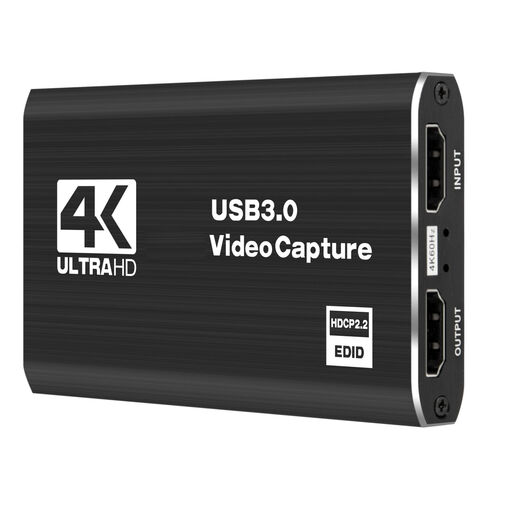
USB 3.0 video capture card with 4K60 passthrough
For console gaming when you want to pass the game picture through to a monitor and save the recording in Full HD.
Specifications list 4K60 input and passthrough, along with 1080p60 recording. The description mentions Windows, macOS and Linux.
View at Joybuy
 No image available
VIELLAN 4K HDMI Video Capture Card USB 3.0
For an HDMI game source and a separate gaming monitor, if recording at up to 1080p is sufficient.
The title specifies USB 3.0 and 1080p recording; 4K is listed for HDMI passthrough. The description mentions consoles and Windows, Mac and Linux.
View at Joybuy
Frequently asked questions
Do I need a capture card if the game is running on my recording PC?
Not necessarily: OBS Studio describes a game capture source for games running on your computer. Try this first. For footage from an external console, OBS Studio instead describes using a video capture device or another suitable connection method.
How do I connect an HDMI console, capture card and gaming monitor?
For a model with passthrough, connect the console to the HDMI input, the card’s HDMI output to the monitor, and the card to the recording computer via USB. Add the device there as a video capture source, and check the connections and cables for your specific model. Elgato describes this setup for the 4K X.
What should I check if the picture or sound is missing during my presentation?
First, check that the input signal is supported and that the audio sources are set up correctly in the software. Elgato explains that connecting a PS5 to the 4K X may produce a black screen if HDCP is enabled. Then check the audio sources and levels in OBS using a test recording.
What extra requirements might there be, and what applies to online purchases in Germany?
Depending on your setup, you may need extra cables, a storage device or a power supply. For stand-alone mode on the HD PVR Pro 60, Hauppauge specifically lists a USB power supply rated at 5 V and 1 A, which is not included. According to the Verbraucherzentrale, online purchases generally come with a 14-day right to cancel. The statutory guarantee against the seller is separate from a voluntary warranty.
Does buying a capture card automatically give me permission to stream any game and music publicly?
No. Buying the device does not automatically give you permission to use other people’s content. The Copyright Act covers exploitation rights such as public performance. According to the Federal Ministry of Justice and the Federal Office of Justice, this does not give a blanket answer as to whether permission or an exception applies to a particular game, piece of music or type of presentation. Check that you have the rights to use the content as you intend.


