Console reviewers with their own monitor
If you’re reviewing a console’s HDMI signal and want to view it on your monitor at the same time, check recording and passthrough separately. Elgato and AVerMedia specify different limits for their models.


If the tournament footage is already displayed on your streaming PC and you’re allowed to use it there, first check whether you can capture your screen or a window in OBS. You may not need a capture card at all. A card may be an option for a console or a second PC. Then compare recording quality, the signal to your own monitor, connections and audio routing. A 4K label alone doesn’t tell you what quality the recording will be.
If you’re reviewing a console’s HDMI signal and want to view it on your monitor at the same time, check recording and passthrough separately. Elgato and AVerMedia specify different limits for their models.
For an external HDMI source connected to a streaming laptop, the right computer connection and a practical cable setup matter. Elgato, AVerMedia and NZXT’s external models differ in their connections and signal processing.
If the material you’re reviewing is already on your streaming PC, you can first check whether direct screen or window capture will work. OBS Project describes screen capture and video capture as separate sources.
First, work out whether you need an external HDMI source. If you do need a capture card, check that its monitor signal, recording format, size, connections and audio routing all suit your particular setup.
A good fit if: the material is available as a window or screen signal on the same streaming PC, and you’re allowed to use it.
The trade-off: Direct capture doesn’t require extra hardware, but it won’t take the place of an HDMI input from a console or second PC.
A good fit if: you want to connect a console or second PC and view its signal on your own monitor.
The trade-off: Recording and passthrough have separate limits. On a small desk, you’ll also need space for the device and cables, plus a suitable USB port.
A good fit if: your regular setup includes a suitable desktop PC with a spare PCIe slot.
The trade-off: The card is installed inside the computer, so it’s not a general-purpose solution for a laptop.
| Buying criterion | What to check before you buy | Who it matters most to |
|---|---|---|
| Signal to your monitor | Check the HDMI input and output, as well as the supported resolution and frame-rate combinations, against your source and monitor. | If you need a suitable image on your monitor while reviewing an external source, the monitor signal is your top priority. Around 33% of consumers put it first. |
| Recording quality | Check the recording resolution and frame rate separately from passthrough. For HDR, check compatibility with your operating system and software too. | If detail and smooth motion matter in your review footage, check the recording specifications for the exact model. Around 25% of consumers put recording quality first. |
| Space and connections | Check the form factor, the USB port or PCIe slot required, the HDMI cables and computer compatibility. | If desk space is limited or you work on a laptop, you’ll need a connection setup that works with your equipment. Around 25% of consumers prioritise a compact setup. |
| Commentary and source audio | Check how the source audio is routed, then test your microphone and monitoring in OBS before streaming. | If you want game audio and spoken commentary to work clearly together, check the audio routing and make sure you haven’t selected duplicate OBS sources. Around 17% of consumers put commentary audio first. |
A card may receive a 4K signal or pass it through to a monitor without recording it in 4K. NZXT explicitly makes this distinction for the Signal HD60.
Check the input, passthrough and recording specifications separately for the exact model, and make sure its recording capability suits your planned review.
A PCIe card such as the AVerMedia Live Gamer 4K GC573 is installed inside a computer; a USB connection is a different form factor.
Before choosing, check whether your streaming computer is a suitable desktop PC with a spare PCIe slot or a laptop.
Selecting the same audio source twice in OBS can create an echo. OBS Project warns about this.
Make a short local test recording and check your microphone, source audio and monitoring together.
A capture card lets you record a signal, but it doesn’t tell you whether you’re allowed to publish someone else’s tournament footage or audio.
Before publishing, check the rights for the specific material you plan to use and, where relevant, whether the requirements for quotation are met.
The external models listed here — HD60 X, Game Capture 4K S and Game Capture 4K X — cater for different signal and connection requirements.
The external Live Gamer MINI GC311 is a Full HD option, while the Live Gamer 4K GC573 is an internal PCIe card for a compatible desktop PC.
The external Signal HD60 is another option if you want to add an HDMI source to a compact streaming setup.
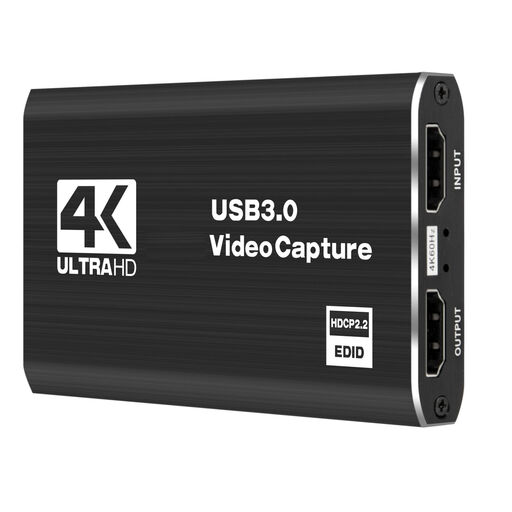
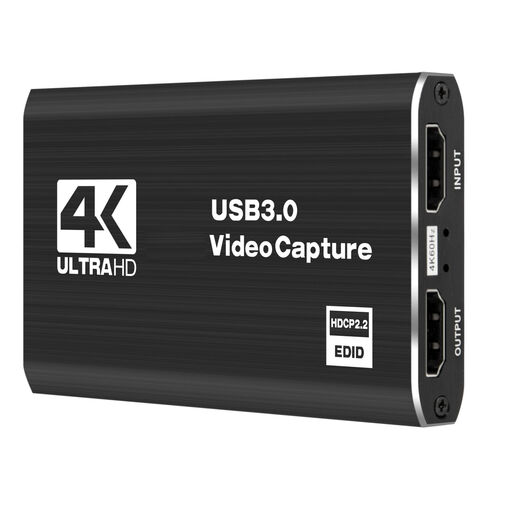
The Joybuy products below are video capture cards for external sources. For each model, check that the signal path, connections and recording quality suit your setup.
 No image available
If you want to connect an external source to your streaming PC, check this model’s specifications against your preferred recording format.
USB 3.0; 5 ports; for cameras, video recorders and live streaming.
 No image available
For an external video source, check the recording specification for the exact model before choosing it for a review.
5 ports; HD converter; for cameras, video recorders and live broadcasts.
 No image available
If you want to connect a console and commentary to your streaming setup, check that the listed video and audio connections suit your signal path.
HDMI input up to 4K/30 Hz; records at 1080p/60 Hz; for PC and laptop.
 No image available
If you’re considering several source devices for your review, check that this model’s connections match the devices you actually want to connect.
USB 3.0; 5 ports; audio recording; for cameras, recorders and live streaming.
 No image available
For an external HDMI source and commentary in your review, check that the listed video and audio connections are compatible with your computer.
USB 3.0; 1080p recording; 4K HDMI passthrough; compatible with Windows, macOS and Linux.
Not necessarily. If you’re allowed to use the material and it’s displayed on your streaming PC, OBS can capture screen or application content directly, without an external HDMI source. You’ll need to plan a separate HDMI connection for a console or second PC.
Add your microphone deliberately and check whether the same device is already active in OBS’s global audio settings. OBS Project warns that selecting a device twice can cause an echo. Test the source audio and commentary together before you stream.
Not as a general rule. Under the German Copyright Act, public communication is generally reserved to the rights holder. Quotation under § 51 UrhG may be permitted only if the relevant conditions are met and the extent used is justified by the purpose of the quotation. Whether you can use particular tournament material depends on the material, the rights and how you use it. A capture card doesn’t grant you the rights to use it.
No. An adapter or capture card doesn’t entitle you to circumvent effective technological protection measures. § 95a UrhG places limits on circumvention of this kind. AVerMedia also states that the Live Gamer MINI GC311 doesn’t support HDCP-protected signals.