A capture card makes most sense when your game is running on a console or a second PC and you want to bring it into OBS on another computer. If the game and OBS are running on the same PC, check OBS Game Capture first. Choose a card based on the HDMI signal and its capture and passthrough resolutions: 4K passthrough does not automatically mean 4K capture. In a shared room, plan separately for game audio, your microphone and any recordings that might pick up other people.
Who streams from a shared room?
Console streamers with a separate monitor
If you want to bring a console's HDMI picture into OBS on another computer, check the capture format and the picture on your gaming monitor separately. The OBS Project describes capture devices as one way to record or stream console gameplay in OBS.
Streamers in a shared room
When balancing game audio with your voice, make sure other people's voices or sounds aren't accidentally broadcast too. A capture card alone won't solve audio or privacy concerns; the OBS Project recommends checking audio sources and levels separately.
Two-PC streamers
If you play on one computer and send the HDMI signal to a second computer for your stream, the supported signal, monitor connection and audio routing all matter. The OBS Project lists capture cards as video capture sources.
What should you look for when buying?
First, work out where the game is running and what picture you want to keep on your gaming monitor. Then check the connections and audio routing for your stream.
| Consideration |
What to check before buying |
Who is it important to? |
| Signal path to the streaming PC |
Check that your gaming device, HDMI output and host computer are compatible. If you only have one gaming PC, try OBS Game Capture first. |
This signal path comes first if you want to bring a separate HDMI game source into OBS. Around 36% of consumers focus on an external game video source. |
| Audio and privacy |
Listen to game audio and your microphone separately in OBS, test the levels and avoid duplicate audio sources. |
If other people are in the room, you’ll want your voice and game audio to come through clearly without accidentally broadcasting them. Around 29% of consumers focus mainly on having control over their stream audio. |
| Gaming picture and capture |
For the exact model, compare input, passthrough and capture resolutions, along with frame rates; check HDR too, if relevant. |
If the picture on your gaming monitor matters more to you than the capture format, check the passthrough specification for the exact card. Around 21% of consumers prioritise the picture on their gaming monitor. |
| Connections and setup |
Check the host connection and the cables you need against the exact model. Before your event, test the picture, game audio and microphone in OBS. |
If you want everything working in good time, without any surprises with the connections, test your whole setup beforehand. Around 14% of consumers prioritise a straightforward setup. |
Common buying mistakes
-
Assuming “4K” means 4K capture
The specification may refer to the picture passed through to your monitor, while capture is limited to 1080p. AVerMedia lists 4K60 passthrough and 1080p60 capture for the StreamLine MINI+ GC311G2; NZXT also distinguishes between the passed-through and captured 4K signal for the Signal HD60.
For the exact model, compare capture and passthrough separately by resolution and frame rate.
If you later decide you want to capture in 4K, a card that only passes through 4K may mean you need to replace it.
-
Assuming the line-in is a ready-to-use microphone input
An analogue line-in isn't automatically a microphone input. Elgato describes the connection on the Game Capture 4K S as a stereo line-in; you'll also need to set up your audio sources correctly in OBS.
Before your charity stream, test your gaming device, microphone and headset together in OBS, checking each audio source separately.
Depending on your existing audio setup, you may need an additional compatible microphone or audio connection.
-
Automatically buying a capture card for a gaming PC running OBS
If your game and OBS are running on the same PC, OBS Game Capture may be all you need. Adding a capture card also means another signal path and extra cables.
First, decide whether you really need to connect a separate HDMI device, such as a console or a second PC.
An unnecessary signal path adds extra setup steps.
Brands to consider
AVerMedia
The official specifications distinguish the Full HD Live Gamer MINI GC311 from the StreamLine MINI+ GC311G2, which combines 1080p60 capture with 4K60 passthrough.
- According to AVerMedia, both capture and passthrough on the GC311 are limited to 1080p60.
- According to the manufacturer, the GC311G2 is a different option if you want to keep a 4K60 picture on your gaming monitor; this does not mean it captures in 4K.
Elgato
Elgato lists capture up to 2160p60 for the Game Capture 4K S.
- The listed connections include USB 3.0 Type-C and a stereo line-in.
- According to Elgato, HDR capture is currently limited to Windows and up to 1080p60. For a Full HD streaming setup, you may not need the additional capture capability.
NZXT
NZXT's Signal HD60 specifications are aimed at capturing signals from external consoles or PCs when 4K recording isn't needed.
- NZXT says the Signal HD60 can read and pass through a 4K60 signal.
- According to NZXT, it doesn't send this signal to the capture PC in 4K and doesn't support HDR.
Joybuy products for separate HDMI game sources
This Joybuy selection features capture cards for separate HDMI game sources, with different passthrough and capture specifications. Compare the figures for each model before choosing a signal path.
 No image available
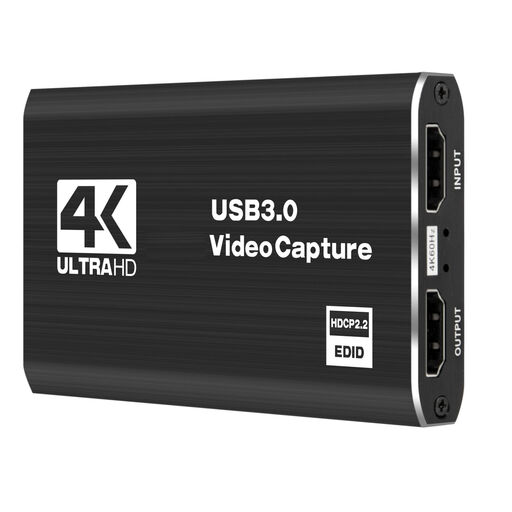
4K video capture card with 4K60 passthrough
For a separate HDMI game source, if 1080p60 capture and 4K60 passthrough suit your setup.
Specifications listed in the product description: 4K/60Hz input and passthrough, 1080p/60Hz capture and five connections.
View on Joybuy
 No image available
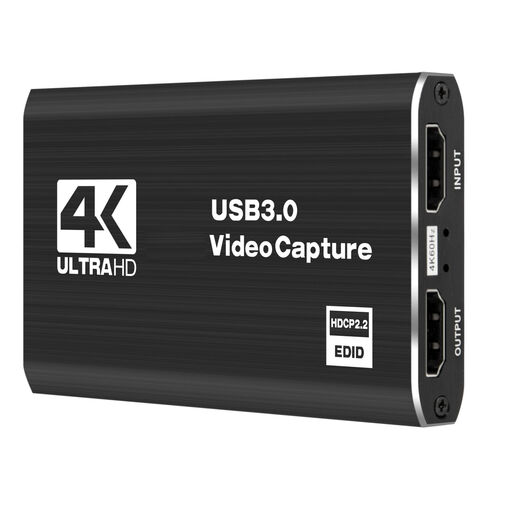
4K video capture card with loop-through
For a separate game source, if 1080p60 capture is enough for a 4K60 signal path.
Specifications listed in the product description: 4K@60Hz input and loop-through, plus 1080p@60Hz capture; the title lists five connections.
View on Joybuy
 No image available
HDMI capture card with input up to 4K30
For an HDMI game source, if an input signal up to 4K30 and 1080p60 capture suit your needs.
The product title lists HDMI input up to 4K 30Hz and capture at 1080p 60Hz. The description lists a microphone input and a headphone output.
View on Joybuy
 No image available
4K USB 3.0 video capture card with five connections
For a separate HDMI game source, if 1080p60 capture is enough with 4K60 passthrough.
Specifications listed in the product description: 4K/60Hz input and passthrough, plus 1080p/60Hz capture. The title lists USB 3.0 and five connections.
View on Joybuy
 No image available
VIELLAN 4K HDMI video capture card USB 3.0
For gaming and streaming with a separate HDMI game source, if 1080p capture is enough with 4K passthrough.
The title lists 1080p capture, 4K HDMI passthrough and USB 3.0. It also lists Windows, macOS, Linux, PS4, Xbox and Nintendo Switch as compatible systems and devices.
View on Joybuy
Frequently asked questions
Do I need a capture card to play a game on the same PC as OBS?
Not necessarily: the OBS Project offers Game Capture as a source. For a console or a second gaming PC, however, you'll need a suitable way to bring in the external signal. Also check whether Game Capture works with the specific game you want to play.
What's the difference between 4K passthrough and 4K capture?
Passthrough describes the picture sent on to your gaming monitor, while the capture resolution tells you what picture reaches the capture PC. AVerMedia lists 4K60 passthrough and 1080p60 capture for the StreamLine MINI+ GC311G2, so compare these figures separately for each model.
How do I connect a console using HDMI passthrough?
With a suitably equipped card, connect HDMI from your gaming device to the input, HDMI from the output to your gaming monitor, and USB to the capture PC. Then select the card as a video capture source in OBS. Check the connections and cables against the exact model.
How do I check the audio before a charity stream?
Check game audio and your microphone separately in OBS, then make a short test recording. The OBS Project warns that capturing the same audio source more than once can cause echo. Avoid adding a device both as a global source and again in a scene.
Can I simply include my housemates or music in the stream?
Not automatically. Check in advance whether other people will be heard or seen, and what rights apply to the specific music and audio recording. Germany's Federal Commissioner for Data Protection and Freedom of Information highlights personality rights in relation to recordings; GEMA explains that additional rights may be needed depending on how music is used. A capture card doesn't grant you the rights to publish a recording.


