What to look for when buying
First, count how many independent HDMI feeds you need. Then compare the audio routing, monitor output and connections on your streaming computer with your specific setup.
| What you need |
What to check before buying |
Who should pay particular attention |
| Number of independent video sources |
Count the HDMI feeds you need and check the recording formats and connection diagram for each input. |
If you want gameplay and another source to appear separately in your stream, pay particular attention to the number of capturable inputs. Around 33% of consumers rank separate video sources among their most important buying considerations. |
| Game audio and voices |
Plan where party chat and your microphone will be routed, then check the mix with a test recording. |
If you want game audio, your co-players and your commentary microphone to be clearly audible together, check the audio sources and look for any duplication in OBS. Around 27% of consumers prioritise voices and game audio. |
| Monitor and recording |
Compare your preferred pass-through mode separately with the recording format supported by the specific model. |
If you want to keep a particular monitor mode while gaming, check it separately from the recording quality. Around 20% of consumers prioritise pass-through to their monitor. |
| Computer connection |
Check the operating system, PCIe slot or USB speed. If you’re using several USB sources, check how they’re distributed across controllers, too. |
If you want to install a card in a desktop or use several USB sources, first check the connections and available controllers on your streaming computer. Around 20% of consumers prioritise the computer connection. |
Capture cards for one shared HDMI game feed
This selection is for external USB capture cards used with one shared HDMI game feed. It isn’t a substitute for a solution with several independently capturable HDMI inputs.
 No image available
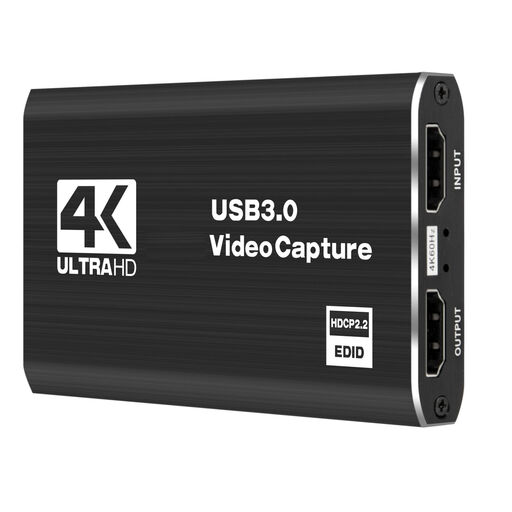
4K USB 3.0 capture card with 5 ports
For one shared HDMI game feed if you’re looking for an external USB capture card.
According to the product description: 4K/60 Hz input and pass-through, plus 1080p/60 Hz recording.
USB 3.0 and five ports are listed.
View at Joybuy
 No image available
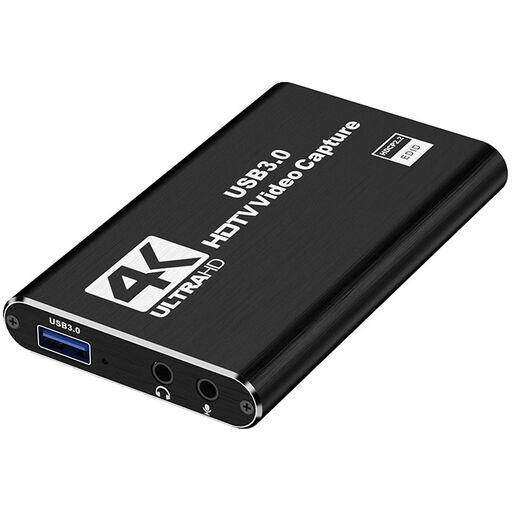
4K HDMI capture card with microphone input
For capturing one shared game feed if you want to use a separate microphone input.
According to the product description: HDMI input up to 4K 30 Hz and recording at 1080p 60 Hz.
USB 3.0, HDMI pass-through, a microphone input and a headphone output are listed; compatibility with PCs and laptops is also stated.
View at Joybuy
 No image available
4K USB 3.0 capture card with audio recording and 5 ports
For one shared HDMI game feed in a USB-based streaming setup.
According to the product description: 4K/60 Hz input and pass-through, plus 1080p/60 Hz recording.
USB 3.0, audio recording and five ports are listed.
View at Joybuy
 No image available
VIELLAN 4K HDMI video capture card
For one shared HDMI game feed if a microphone input and headphone output are useful for your setup.
According to the product description: 4K HDMI input and pass-through, plus 1080p recording.
USB 3.0, a microphone connection and a headphone connection are listed.
View at Joybuy
 No image available
VIELLAN HDMI video capture card with UVC/UAC
For one shared HDMI game feed if a microphone input and headphone output suit your audio setup.
According to the product description: recording up to 1080p and 4K HDMI pass-through.
USB 3.0, UVC/UAC, a microphone input and a headphone output are listed.
View at Joybuy
Frequently asked questions
Do I automatically need two capture cards for two players?
No, not if you’re both using the same HDMI game feed. For two independent HDMI feeds, you’ll need inputs that can be captured separately; AVerMedia lists two HDMI inputs for the Live Gamer DUO GC570D.
How can I check that game audio and voices are coming through properly in my stream?
Set up the audio sources you need in OBS, then make a test recording with the game, your co-players and your microphone before going live. OBS Project warns that capturing the same audio device globally and as an additional scene source can cause an echo; you can check levels and monitoring in the audio mixer.
Why isn’t my capture card showing a PS5 picture?
First, check the connection and supported signal. Sony explains that you can disable HDCP in the PS5 settings when using an external HDMI capture device; AVerMedia states that the GC570D cannot display, record or stream HDCP-protected signals. This doesn’t give you permission to stream protected content or someone else’s work without the necessary rights.
What happens if a product develops a fault after purchase in Germany?
According to information from the European Union, purchases from a trader are generally covered by a legal guarantee of at least two years from the date you receive the goods. This is separate from any additional manufacturer’s guarantee; if there’s a fault, the seller should be your first point of contact.
Can I simply stream my co-players and game content publicly?
Not just because a capture card can record the signal. The Rhineland-Palatinate State Commissioner for Data Protection and Freedom of Information explains the importance of consent or another legal basis when processing images in which people can be recognised. You should also check the relevant usage rights for any works you publish; what’s required depends on the content and circumstances.


