Demo on your own PC
If you’re demonstrating an application on the same computer that’s running OBS, you can start by trying a window or screen capture source. OBS Project describes both options; the window capture source captures a single window.


For a software demo on the same computer, a suitable window or screen capture in OBS is often all you need; a capture card is mainly relevant for external video signals. For a second PC, check the capture resolution and pass-through separately. For a camera, make sure it has a compatible, unencrypted HDMI output. A higher pass-through resolution does not automatically mean the capture resolution will be just as high.
If you’re demonstrating an application on the same computer that’s running OBS, you can start by trying a window or screen capture source. OBS Project describes both options; the window capture source captures a single window.
For an external HDMI signal, check the capture resolution, pass-through and connections separately. Elgato and AVerMedia list different capture formats for different models.
If you’d also like to include a camera feed, check that the camera’s HDMI output matches the input formats supported by the capture device. OBS Project lists video capture devices as a possible source.
Best for: Running OBS and the software you’re demonstrating on the same computer.
Consider: A window capture source shows a single window; a screen capture source may be more suitable if your workflow involves several windows.
Best for: Sending an unencrypted HDMI signal from a second PC to the computer doing the recording.
Consider: Capture and pass-through use separate formats; an HDMI output can also connect to a monitor.
Best for: Using a camera with a supported, unencrypted HDMI output as an additional source.
Consider: Check the camera format and device version; not every device specifies an HDMI pass-through output.
Best for: Connecting a demo computer that outputs video through DVI, VGA or component rather than HDMI.
Consider: Check the operating system, USB connection and any model-specific exclusions for the capture device.
Start by identifying the signal path: your own computer, a second PC, a camera or an older connection. The percentages below show the main buying consideration for software demos in a home studio.
| Buying priority | What to check | Who it matters most to |
|---|---|---|
| Do I need extra hardware? | Whether the demo runs on the same PC, and whether you want to show a window or the whole screen. | If I’m only showing software on the PC I use for recording, I want to try window or screen capture in OBS first. This is the deciding factor for around 36% of consumers. |
| Connect a second PC | Check for unencrypted HDMI, and compare capture resolution and pass-through separately. | If my demo PC outputs its own HDMI signal, I need a suitable input and, if required, a monitor connection. Around 29% of consumers cite this as their main priority. |
| Include a camera feed | Check the camera’s HDMI output and supported formats, and whether you need a pass-through output. | If I want to show my studio camera alongside the software, its HDMI signal needs to be compatible with the capture device. Camera integration is the main consideration for around 21% of consumers. |
| Special connection or higher resolution | Check the video output, capture format and computer requirements; don’t confuse pass-through with capture. | If my demo device has an older connection or I need a specific capture resolution, the exact signal path is crucial. Around 14% of consumers have this as their main priority. |
OBS offers window and screen capture sources. For a demo on the same computer, the right source may be all you need to capture the image.
Try recording your specific application locally before investing in extra hardware.
An extra device and HDMI cables offer no proven benefit for this signal path if an OBS source does the job.
A device may pass a higher-resolution signal through to a monitor than it can actually record. For the Elgato Game Capture Neo, the manufacturer lists pass-through of up to 2160p60 and capture of up to 1080p60.
Before buying, compare the specifications for input, pass-through and capture separately.
A matching plug alone doesn’t guarantee that the signal format and recording computer are compatible. StarTech excludes certain USB 3.0 host controllers for the USB3HDCAP.
Check the video output, operating system, host connection and any model-specific exclusions.
Incompatible cables or a card that your computer can’t use may prevent you from setting up the signal path you planned.
Elgato specifies that 2160p60 requires a compatible camera and the latest Cam Link 4K version.
If 2160p60 matters to you, check the exact device version and your camera’s HDMI output format.
The models covered here support external HDMI capture and adding a camera’s HDMI signal as a source.
The models listed offer external HDMI capture, with different supported capture formats.
The USB3HDCAP is designed for sources with HDMI, DVI, VGA or component output.
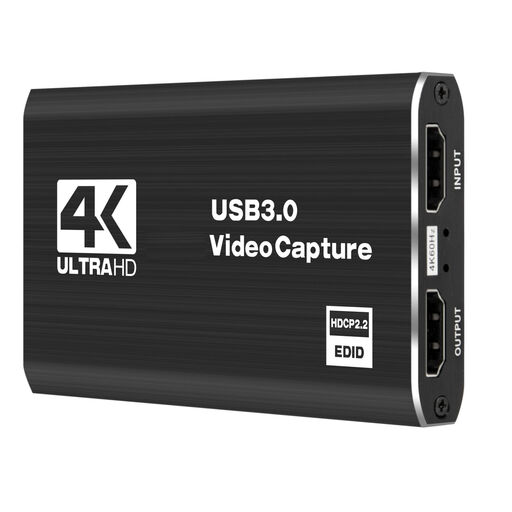
These products are designed for setups that send an external HDMI source to a recording computer. Check the capture format and pass-through specifications for the specific model.
 No image available
For an external HDMI source with a monitor connected via pass-through; the product description lists 4K/60 Hz input and pass-through, plus 1080p/60 Hz capture.
USB 3.0; five ports according to the product title. The description lists Windows, macOS and Linux as compatible systems.
 No image available
For an external HDMI source when you want to connect a monitor via HDMI pass-through.
The product title lists an HDMI input of up to 4K/30 Hz and 1080p/60 Hz capture. USB 3.0, a microphone input and a headphone output are also specified.
 No image available
For an external HDMI source when capture up to 1080p and 4K HDMI pass-through suit your signal path.
The product title lists UVC and UAC support, as well as a microphone input and headphone output. 4K is specified for pass-through, not capture.
For an application running on the recording PC, choose a suitable window or screen capture source. For a connected capture card, select the video capture device source, then choose the device. Make a short test recording before your demo to check the picture and sound.
No. Pass-through and capture refer to different signal paths. For the Elgato Game Capture Neo, the manufacturer lists pass-through up to 2160p60, but capture formats only up to 1080p60. Check both specifications separately for the model you’re considering.
OBS recommends MKV, as an unexpected interruption shouldn’t corrupt the entire file. OBS can then remux the recording for applications that require MP4; storage requirements and processing load depend on your recording and encoder settings.
Owning a capture card doesn’t automatically mean you’re allowed to publish a recording. If your recording involves processing other people’s personal data, you need an appropriate legal basis under the General Data Protection Regulation. Which basis applies depends on the purpose and circumstances. Where possible, use test data and remove any personal information that appears unintentionally before publishing.