Performers who need an overhead view
If you want to show the cards and your hands clearly on the table, pay close attention to camera position, capture area and focus. IPEVO lists a maximum capture area of 34.2 × 25.5 cm for the V4K PRO.


If you mainly want to show cards and hands from above, consider an adjustable USB document camera and check whether its focus distance and capture area suit your setup. For switching between your face and the table, a tilting webcam with a desk mode could be a good option; check the framing, lighting and mount. You may be able to avoid buying a camera by using a smartphone you already own, provided you can position it suitably and set it up with your computer.
If you want to show the cards and your hands clearly on the table, pay close attention to camera position, capture area and focus. IPEVO lists a maximum capture area of 34.2 × 25.5 cm for the V4K PRO.
If you want to show yourself and then the table, you’ll need a suitable monitor position and a mount that tilts securely. Logitech describes a Show Mode for the Brio 500 and MX Brio.
If you hold individual cards close to the camera, check the focus distance and lighting for your setup. IPEVO lists autofocus from 10 cm for the V4K PRO; CZUR describes several autofocus modes for the Fancy series.
First decide which view you’ll need most often for your performance, then check that the focus and framing suit your actual desk.
| Buying priority | What to look for | Who is this important to? |
|---|---|---|
| Showing the entire card area | Measure your playing area and compare it with the camera’s capture area at your intended camera height. IPEVO lists a maximum of 34.2 × 25.5 cm for the V4K PRO. | If I want to show the cards and my hands clearly while dealing, the frame needs to cover my playing area. Around 36% of consumers prioritise an overhead view. |
| Showing individual cards close up | Compare the stated focus distance with your planned camera position, and check how the cards look both still and in motion. IPEVO lists autofocus from 10 cm for the V4K PRO. | When I hold a card close to the lens, I want to show the detail sharply at the right distance without losing sight of the framing. Around 29% of consumers prioritise close-up detail. |
| Switching between your face and the table | Check whether you can tilt the camera from your monitor towards the table and keep it stable. Logitech describes the Brio 500 as tilting to show physical objects. | If I want to show myself first and then the cards, an easy change of view and a secure mount are important. Around 21% of consumers make this their main priority. |
| Taking room lighting and hand movements into account | Compare the resolution and frame rate available in each recording mode, and check how the cards look under your room lighting. Logitech lists the MX Brio as offering 4K at 30 or 1080p at 60 frames per second. | With quick hand movements and the lighting in my room, I want to check the right recording mode rather than focus only on the number of pixels. Around 14% of consumers prioritise these conditions. |
Resolution, focus distance and the area of the table captured are different things. For the MX Brio, Logitech lists 4K at 30 frames per second or 1080p at 60 frames per second; these are separate recording modes.
Check the focus distance and framing from your intended camera position before making your decision based on pixel count.
A webcam tilted towards the table and a document camera positioned above the playing area may give you different viewing angles. According to Logitech, how the Brio 500 mount is handled depends on how it is attached.
Compare the frame from a monitor-mounted webcam tilted towards the table with your actual playing area, and check that the mount remains stable when tilted.
Depending on your room layout, you may need another stable way to position the camera.
CZUR distinguishes between the Fancy Pro and Fancy S Pro, including by their sensor resolutions and autofocus modes. Similar model names don’t necessarily mean that the specifications are the same.
Before you buy, check the full model name and the specifications that matter for your setup.
The V4K PRO is a USB document camera designed for an adjustable view of your desk.
The Brio 500 and MX Brio are tilting webcams that could work if you want to switch between showing yourself and the table.
According to CZUR, the Fancy series combines document camera and webcam functions; the Fancy S Pro is an option for switching between desk views.
The Facecam Neo could be suitable if you’ll mainly be recording from the front.
The Tiny 2 is a motorised webcam for tracking people; OBSBOT also describes configurable desk and close-up modes.
The Joybuy products below are standard webcams for front-facing footage. For card tricks, check in particular whether the camera position and focus distance also work for your view of the table.
 No image available
An option for front-facing footage if you’re looking for a USB webcam with a microphone.
The product name specifies Full HD 1080P and Plug & Play.
 No image available
An option for front-facing footage if you’re looking for a webcam with a stated 99° field of view.
The product name specifies 4K, a 99° field of view and noise cancellation.
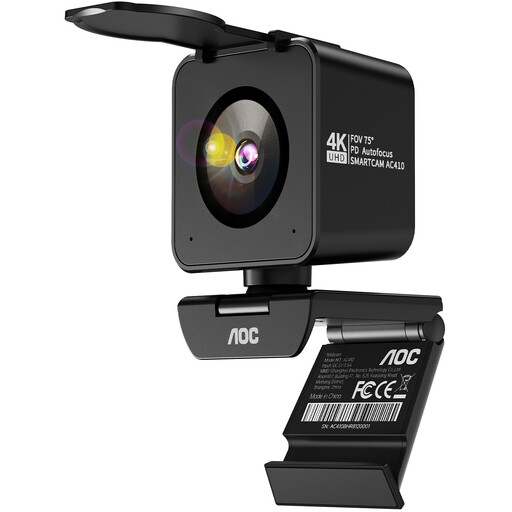 No image available
A front-facing webcam option if you’re looking for a model with stated autofocus and a desk stand.
The product name specifies PDAF autofocus, two microphones, a 75° field of view and USB-A/USB-C.
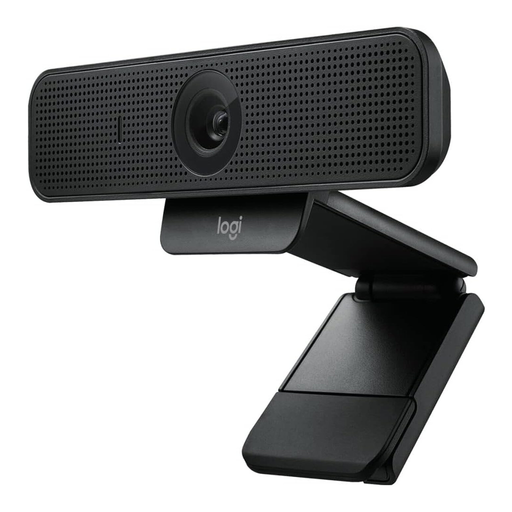 No image available
An option for front-facing footage if you’re looking for a webcam that attaches to a monitor or laptop.
The product name specifies HD 1080p, a 78° field of view and autofocus.
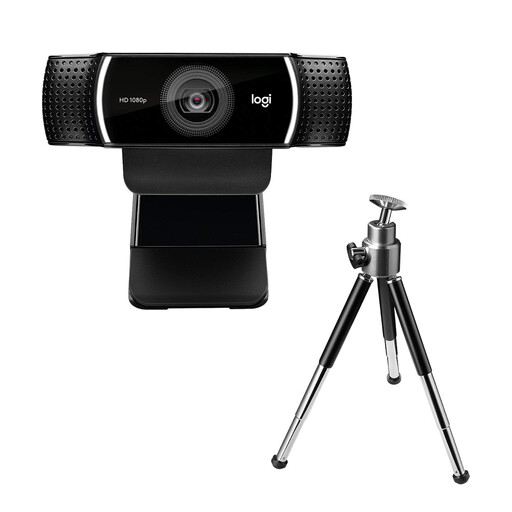 No image available
A USB webcam for front-facing footage; check whether your setup can provide the table view you want.
First, mark out the area for your cards and check the framing in the preview. Logitech describes how the Brio 500 tilts towards the table; in OBS Studio, you can add a webcam as a video capture source and position it in the frame.
Not just for the frame rate: Logitech lists the MX Brio as offering 4K at 30 frames per second or 1080p at 60 frames per second. Choose a mode based on whether resolution or motion is your priority, and check the focus and framing too.
Yes, if you can set up your smartphone to work with your computer. OBS describes ways to add a smartphone as a camera source; features and any additional costs depend on the solution you choose.
According to the Verbraucherzentrale, many online purchases usually come with a 14-day right to cancel; you must notify the seller that you’re cancelling. This is separate from your statutory rights if goods are faulty. A voluntary guarantee is not the same as your statutory consumer rights.
There’s no single answer that applies to every private or public performance. For video conferences held by organisations, the Datenschutzkonferenz notes that images and sound can contain personal data, and recordings need to be considered separately. If the requirements for recording other people haven’t been clarified, try to show only your own performance area.