If you already work with a computer and monitor, a pen tablet without a display is a natural choice. If you want to draw directly on the image you can see, a connected pen display may be right for you. For sketching without your home office computer, you’ll need a standalone tablet, and should check the drawing app, stylus and file-sharing options together. Whichever type you choose, consider the usable drawing area and whether the software, connections and space will suit your workspace.
Who are the different drawing devices suited to?
Those who draw directly on the image
If you want to edit eyes and mouths directly on the image on screen, a connected pen display could be a good fit. Make sure you have room for it and a suitable connection to your computer. Huion describes the Kamvas 13 (Gen 3) as a 13.3-inch FHD display; XPPen says the Artist Pro 16 (Gen 2) connects to a computer and may need an additional power supply.
Monitor users with limited desk space
If you already use a computer and monitor for drawing, a separate pen tablet is worth considering. Measure the casing as well as the active drawing area to make sure the device will fit alongside your other work essentials. Wacom lists an active area of 263 × 148 mm and casing dimensions of 291 × 206 mm for the Intuos Pro Medium.
Those who sketch without a computer
If you want to draw cartoon ideas without connecting to your home office computer, you’ll need a standalone tablet with a suitable drawing app. Samsung lists an S Pen in the stated contents of the Galaxy Tab S10 FE; Apple says the iPad Air M4 supports Apple Pencil Pro. Check the app and file-sharing options, as well as what’s included with the specific offer.
What should you consider when choosing?
Pen tablet without a display
A good fit if: You already draw using a computer and monitor, and don’t need to see the image beneath your pen tip.
The trade-off: You draw on a different surface from the one where you see the image. You’ll need a suitable computer and may need time to get used to looking at the screen as you draw.
Connected pen display
A good fit if: You want to draw outlines directly on the image on screen, and have room for the display and its connections.
The trade-off: A pen display isn’t a standalone computer. XPPen says the Artist Pro 16 (Gen 2) connects to a computer and may need an additional power connection.
Standalone tablet with a stylus
A good fit if: You want to sketch without connecting to your home office computer.
The trade-off: The drawing app and file-sharing options may differ from your desktop workflow. Stylus support alone doesn’t confirm that a stylus is included with the offer you choose.
| What matters to you | What to check before buying | Who is this important to? |
|---|
| Drawing directly on the image |
Compare the visible drawing area, device dimensions and set-up space, and the connections on the specific model. |
If I want to place small facial features directly on the image I can see, the position of the line beneath the pen tip matters to me. This is a priority for around 36% of consumers. |
| Controlled outlines |
Check that the stylus is pressure-sensitive, and look at brush and pressure curve settings, as well as support from the operating system, driver and drawing app. |
If I want to vary line width to create different facial expressions, my chosen brush also needs to respond to pen pressure in the right way. Around 29% of consumers prioritise outlines. |
| Fits your workspace |
Compare the active area and casing dimensions separately. If you’re choosing a display, also allow for its set-up, cable routing and power supply. |
If my desk is already taken up with a monitor and work essentials, I mainly want to know how much space the whole device needs. Around 21% of consumers say this is their main consideration. |
| Drawing without a computer |
Check the operating system and drawing app, stylus compatibility, what’s included and file-sharing options. |
If I want to sketch without connecting to my home office computer, I need a standalone tablet with a suitable app and stylus. Around 14% of consumers say this is their main priority. |
Common mistakes when choosing
-
Assuming a pen display can draw without a computer, like a tablet
A pen display needs to be connected to a computer. For the Artist Pro 16 (Gen 2), XPPen describes a computer connection and, if needed, an additional power connection.
First decide whether you want to draw without a computer. Then check the connections and what’s included with the specific model.
-
Confusing the active drawing area with the space the whole device needs
According to Wacom, the Intuos Pro Medium has an active area of 263 × 148 mm, while its casing measures 291 × 206 mm.
Measure the space available on your desk for the whole casing. If you’re choosing a display, also consider where it will sit and how you’ll route the cables.
-
Assuming more pressure levels automatically mean finer lines
How a line responds on screen also depends on the digital brush and its pressure settings. An advertised number of pressure levels doesn’t, by itself, guarantee a particular drawing experience.
Try a pressure-sensitive brush in your drawing app and adjust the pressure curve if needed before comparing stylus specifications.
-
Assuming stylus compatibility means a stylus is included
Samsung lists an S Pen, but no charging adapter, in the stated contents of the Galaxy Tab S10 FE. Apple’s confirmation that the iPad Air M4 supports Apple Pencil Pro doesn’t mean a Pencil is included with the offer you choose.
Check what’s included with the exact device variant and offer before making your decision.
Brands and device types at a glance
Wacom
Wacom offers pen tablets for drawing on an existing monitor. The Intuos Pro Medium is one option for a home office set-up with a separate pen input device.
- Wacom lists a Pro Pen 3, ExpressKeys, and USB and Bluetooth connectivity for the Intuos Pro Medium.
- This is a pen tablet without an image displayed on its surface. The active area and casing dimensions are different.
XPPen
With the Deco 01 V2 pen tablet and the Artist Pro 16 (Gen 2) connected display, XPPen offers two different ways to draw using a computer.
- XPPen lists an active area of 10 × 6.25 inches for the Deco 01 V2.
- According to XPPen, the Artist Pro 16 (Gen 2) needs a computer connection and may also require an additional power supply. Advertised pen specifications don’t prove that it’s independently better for cartoon drawing.
Huion
The Kamvas 13 (Gen 3) is a pen display option if you’re considering a 13.3-inch drawing area instead of a separate pen tablet.
- Huion lists a 13.3-inch FHD display and a battery-free PW600L pen for this model.
- Manufacturer information about colour and the pen doesn’t independently confirm whether the specific drawing app or connection will work with your computer.
Samsung
The Galaxy Tab S10 FE is an option for drawing on a standalone device, without being permanently connected to your home office computer.
- Samsung lists an S Pen in the stated contents of the Galaxy Tab S10 FE and FE+.
- Samsung notes that a charging adapter isn’t included in the stated contents. You should also check app compatibility and file-sharing options with your computer.
Apple
The iPad Air M4 is a standalone tablet option for anyone who wants to draw using iPadOS apps.
- Apple lists support for Apple Pencil Pro and 11- and 13-inch versions.
- Compatibility doesn’t confirm that a stylus is included with the offer you choose; check what’s included with the specific version.
Joybuy products for drawing without a computer
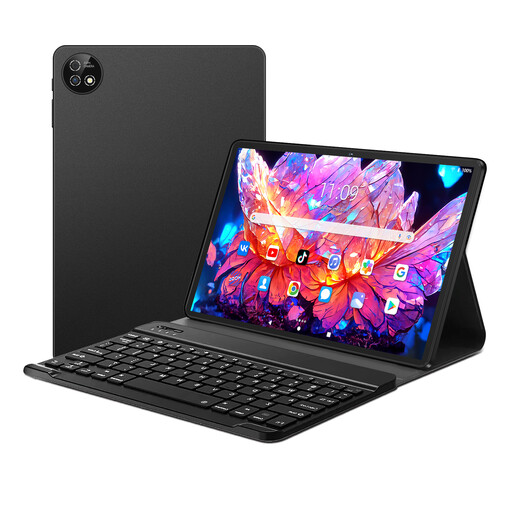
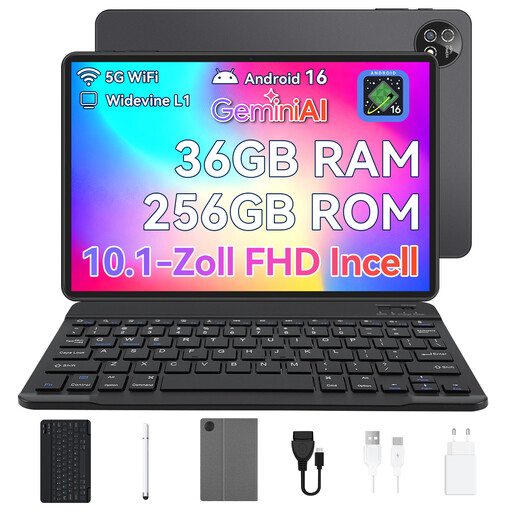
The Joybuy products below are standalone tablets with a stylus, for sketching without being permanently connected to your home office computer.
 No image available
10.1-inch tablet with keyboard and stylus, Android 16, 36 GB RAM, 256 GB ROM, 6000 mAh, 1 TB TF, 5G WiFi, Bluetooth 5.0, GPS
Described as a standalone Android tablet with a stylus, it’s suitable for creative projects and drawing without a connected home office computer.
10.1-inch display; Android 16; 36 GB RAM; 256 GB ROM; 6000 mAh battery; 1 TB TF; 5G WiFi; Bluetooth 5.0; GPS; keyboard and stylus.
View at Joybuy
 No image available
10.1-inch touch tablet, Android 16, 36 GB RAM (6+30), 256 GB storage, octa-core processor, keyboard set and stylus, black
This offer describes a tablet with a stylus for creative projects, making it a standalone option for sketching without a computer connection.
10.1-inch touch display; Android 16; 36 GB RAM (6+30); 256 GB storage; octa-core processor; keyboard set and stylus.
View at Joybuy
 No image available
Teclast ArtPad Pro 2025, 13.4-inch 2K display, T-Pen with 4096 pressure levels, Helio G99, 20 GB RAM (8+12 virtual), 256 GB, Dual-SIM 4G LTE, 10000 mAh, Android 15, Widevine L1
This standalone Android tablet comes with a T-Pen and is designed for drawing without a separate drawing computer.
13.4-inch 2K display; T-Pen with 4096 pressure levels; Helio G99; 20 GB RAM (8+12 virtual); 256 GB; Dual-SIM 4G LTE; 10000 mAh battery; Android 15; Widevine L1. The number of pressure levels alone doesn’t tell you how your chosen app and brush will respond to the pen.
View at Joybuy
Frequently asked questions
Are as many pressure levels as possible all you need for expressive cartoon outlines?
No. CLIP STUDIO PAINT describes pressure-sensitive line thickness for the G-Pen, while Krita offers an adjustable pressure curve. So, as well as checking the stylus, see how your chosen brush and app respond to your input. A manufacturer’s stated number of pressure levels doesn’t guarantee a particular drawing experience.
What should I check before connecting a pen display?
Check the connection on your specific computer and follow the instructions for the model you’ve chosen. For the Artist Pro 16 (Gen 2), XPPen describes a USB-C connection to the computer and an additional power connection if the display doesn’t light up; the instructions then call for driver installation. These steps won’t necessarily apply to every pen display.
In Germany, who is responsible if a product is faulty: the retailer or the manufacturer?
The statutory rights for faulty goods are generally against the seller; a voluntary guarantee is separate. If a product is faulty, the first step may be a repair or replacement. The consumer advice centre explains the difference; check the terms that apply to your specific purchase.
What does CE marking mean when you’re buying a product?
With CE marking, the manufacturer declares that the product concerned meets the relevant requirements for CE marking. The European Commission explains that this declaration relates to the requirements that apply to the product. CE marking isn’t independent proof of drawing comfort or app compatibility.
Can you put an old drawing device in your household rubbish in Germany?
No. The German Environment Agency explains that electrical waste must be collected separately from unsorted household waste; local recycling centres are one of the options for dropping it off. Removable batteries should be taken out and disposed of separately before you hand the device in.


