For old CD or DVD backups, consider an external drive whose list of supported media covers the discs you have. For Blu-ray backups, the drive must explicitly support Blu-ray reading. Make sure the connection and operating system are compatible with your computer, and check which software opens the backup archive and whether you need a password. A drive alone won’t restore your files.
Which drive is right for you?
Anyone with old CD or DVD backups
If you want to transfer files from existing discs to a computer without an internal drive, first check the type of disc and compare it with the external drive’s list of supported media. Germany’s Federal Office for Information Security also recommends checking that backups are complete and readable.
Anyone with a USB-C laptop
You’ll need to consider both the supported disc formats and whether the connection is right for your laptop. ASUS lists USB-C and USB-A for the ZenDrive U9M, and USB-C for the U8M, so the available connections vary by model.
Anyone with a backup archive
You may not be able to open an archive in the same way as a collection of individual files: depending on the backup format, you might need the software originally used to create it. You may also need the relevant password if the backup is encrypted, as Germany’s Federal Office for Information Security explains.
What to look for when choosing a drive
| Feature |
What to check |
Who it matters most to |
| Disc format |
Check the type of media on your disc against the media formats explicitly supported by the specific model. |
If I want to restore old CD or DVD backups, the drive must be able to read those exact formats. Blu-ray only matters if my archive includes Blu-ray discs. Around 36% of consumers put support for the right disc format first. |
| Connection and operating system |
Check the connection, any included cable or adapter, and the model’s stated operating system requirements against your computer. |
I want to connect the drive directly to my home office computer, so the connector and supported operating system must be compatible. Around 29% of consumers prioritise connection and compatibility. |
| Accessing the backup |
Check whether the disc contains individual files or an archive, and which software created it. If it’s encrypted, have the required password ready. |
If the backup is stored as an archive, I’ll need the right software and, if it’s encrypted, the relevant password. Around 21% of consumers put access to their backup files first. |
| Condition and making another backup |
Take the condition of the disc into account, and check that restored files are complete and readable. |
If a disc is old, dirty or damaged, I want to know whether the data is still readable and how to check any successful copies afterwards. Around 14% of consumers prioritise handling discs at risk and making another backup. |
How to avoid common buying mistakes
-
Assuming a ‘DVD drive’ supports Blu-ray
CD/DVD and Blu-ray drives may support different types of media. A drive listed as supporting CD and DVD isn’t automatically suitable for Blu-ray backups.
Check the label on your disc and compare it with the list of media supported by the exact model.
-
Looking only for ‘USB’
Connections and included accessories vary by model. Don’t assume a drive will connect to your computer just because its listing says ‘USB’.
Check which ports are free on your computer and compare them with the drive’s connection and included accessories.
-
Confusing disc-burning software with recovery software
Software for burning discs won’t necessarily open an archive created with different backup software. Encrypted backups may also require the original password.
Before buying additional software, find out how the backup was created and what you need to open it.
-
Keeping the disc as your only backup after opening it once
A drive being recognised or a file opening doesn’t confirm that all the data is complete and readable. Germany’s Federal Office for Information Security recommends checking backups regularly.
Copy the restored files to another suitable storage medium, then check that the copy is readable.
Useful brands to consider
ASUS
The documented ZenDrive models U9M (SDRW-08U9M-U) and U8M (SDRW-08U8M-U) are CD/DVD drives with different connection options.
- ASUS Germany lists USB-C and USB-A for the U9M, and USB-C for the U8M. Both models are listed as supporting CD and DVD media and Windows 11.
- The stated CD/DVD specifications don’t, on their own, confirm Blu-ray support. Manufacturer information about supported media isn’t an independent test of whether old, damaged discs can be read.
Verbatim
The documented models 43886 and 43889 differ in their support for CD, DVD and Blu-ray.
- Verbatim lists various CD and DVD reading modes, as well as cables and adapters, for model 43886. The manufacturer describes model 43889 as a Blu-ray drive that also supports DVD and CD.
- This information applies to the specific models, not every drive from the brand. The Nero software listed for these models is limited to Windows and PCs.
Hitachi-LG Data Storage
The GP96 family offers another CD/DVD option. Check the exact model number before buying.
- The manufacturer describes CD/DVD functionality and compatibility with Windows and Mac for the GP96 family.
- Information about the product family doesn’t automatically confirm the specifications of every version, such as the GP96YB70 or a regional variant.
Transcend
The Slim Portable DVD Writer, order code TS8XDVDS-K, is a CD/DVD option supplied with a USB-A cable.
- Transcend lists CD/DVD support and requirements for Windows and macOS.
- The manufacturer doesn’t guarantee normal operation with USB hubs or unspecified extension cables. If your computer only has USB-C, check how you’ll connect the drive before buying.
CD/DVD drives at Joybuy
The products listed here are external CD/DVD drives. Compare the stated disc formats and connections with your backup and computer. Blu-ray backups require a drive that explicitly supports Blu-ray reading.
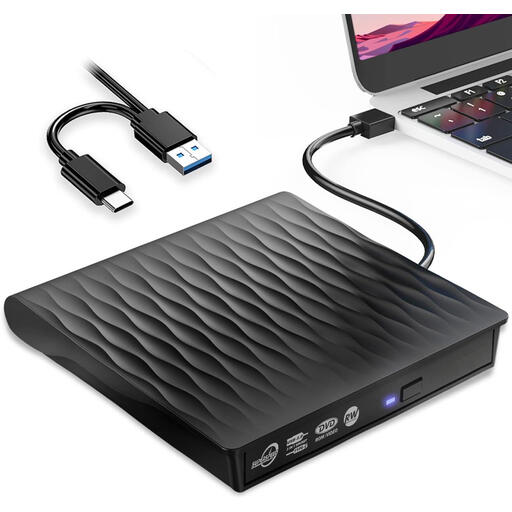 No image available
External DVD drive with USB 3.0, USB-C and USB-A
For CD and DVD backups, if the listed connection options are compatible with your computer.
Connections: USB 3.0, USB-C and USB-A. The product listing names laptops, PCs and Macs, and Windows and Linux.
View at Joybuy
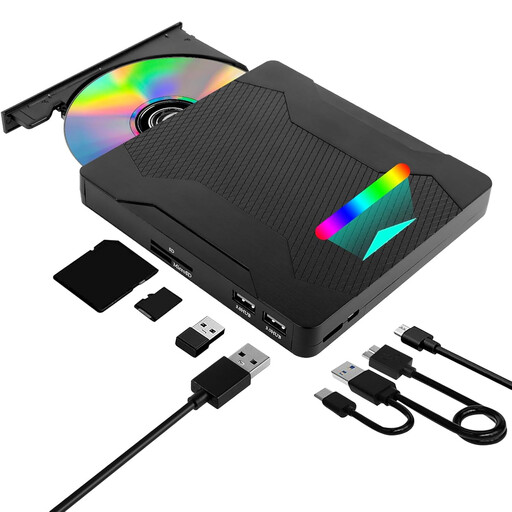 No image available
7-in-1 DVD burner with USB 3.0/2.0 and Type-C
For CD/DVD backups, if the Type-C connection and stated operating system are compatible with your computer.
The product description lists support for reading and writing CD-R, CD-RW, DVD-R, DVD-RW and DVD-RAM. Windows and Mac are listed as compatible systems.
View at Joybuy
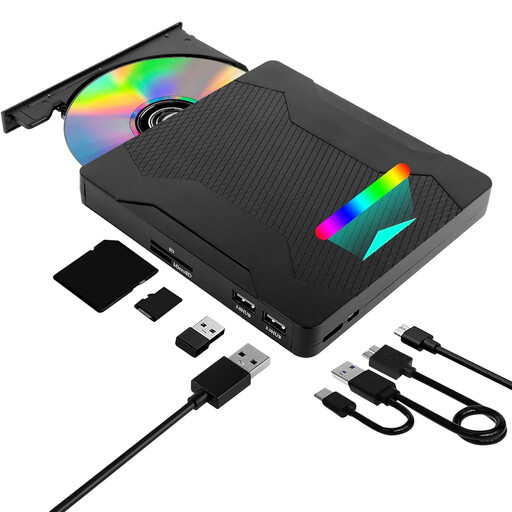 No image available
7-in-1 DVD drive with USB 3.0 and Type-C
For CD or DVD backups on a computer whose connection and operating system match the product specifications.
Supported formats include CD-R, CD-RW, DVD-R and DVD-RW, and the listed operating systems are Windows, Linux and Mac OS.
View at Joybuy
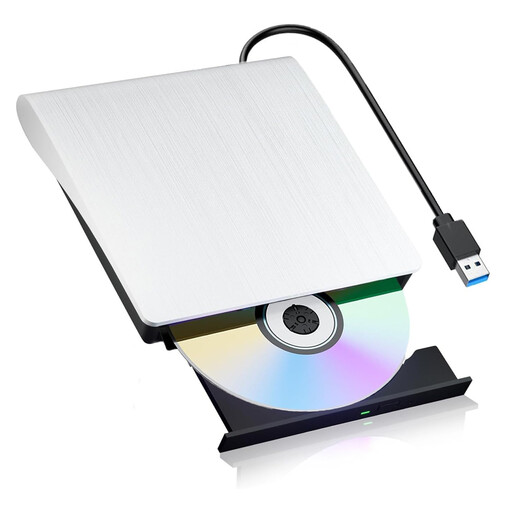 No image available
External DVD drive with USB 3.0
For CD/DVD backups, provided the disc formats and USB connection are compatible with your setup.
The product description lists DVD±R, DVD±RW, CD-R and CD-RW, with support for reading and writing. Windows and Mac are listed as compatible systems.
View at Joybuy
Frequently asked questions
Will a DVD drive work with every old backup disc?
No. Check the type of disc against the list of media supported by the specific model. Verbatim lists CD and DVD modes for its CD/DVD model 43886. Its separate model 43889 also supports Blu-ray media, according to the manufacturer.
What can I do if Windows doesn’t show the connected drive?
First, check whether the drive appears in Device Manager and whether an error code is shown. Microsoft outlines possible driver and configuration issues, along with steps for updating or reinstalling drivers. These steps won’t resolve every possible cause.
Will the included disc-burning software automatically make my old backup readable?
Not necessarily. The format in which the files were originally backed up also matters. Check which backup software created the archive and whether you need a password. The Nero software listed for Verbatim 43886 is only compatible with Windows.
What should I do after reading the files?
Check that the newly backed-up files are present and readable, and keep another backup on a suitable storage medium. Germany’s Federal Office for Information Security recommends checking backups from time to time to make sure they’re complete and readable.
Can I copy files from old discs in Germany?
When it comes to your own files, the legal position doesn’t depend on the drive alone. Copies of third-party copyrighted works are subject to the conditions in § 53 UrhG; under the conditions set out there, § 95a UrhG protects effective technological measures against circumvention. The rules on private copying don’t apply across the board to copies made for commercial purposes.


