If you regularly match colours to a specific print process, a calibratable monitor, the right print profile and suitable lighting are worth considering. For checking fine linework and poster lettering, a sharp image and a comfortable working area matter; neither 4K nor a wide colour gamut alone guarantees a good match in print.
Which monitor is right for you?
Matching print colours
You regularly compare poster designs with a specific print result and want to match your monitor, print profile and viewing light. EIZO Germany and Fogra identify colour management, soft proofing and lighting conditions as important parts of this workflow.
Editing scans and layouts
You clean up scanned drawings and check fine lines or lettering in your layout. Adobe distinguishes the size an image appears on screen from its print size and the pixel dimensions of the image file.
Designing the occasional poster
You create posters for individual concerts and want a suitable layout workstation without automatically setting up a complex soft-proofing workflow. What matters is which colour and calibration features you’ll actually use.
What should you look for when buying?
First decide whether your priority is print colours, checking fine scan details or a straightforward layout workspace. You can then compare the connections and calibration requirements.
| Your priority |
What to check before buying |
Who is it important to? |
| Assessing print colours |
The model’s colour modes and calibration options; the printer’s profile requirements and the lighting used to assess the print. |
If I need to match colours repeatedly to a specific print process, I need a calibratable workflow with the right profile and suitable lighting. Around 31% of consumers put matching print colours first. |
| Checking fine scan lines |
The monitor’s native resolution and usable display size; the source file’s pixel dimensions at the planned print size. |
When retouching, I want to inspect lines and lettering at a larger size without confusing screen resolution with the image data in the scan. Around 25% of consumers prioritise checking scan details. |
| Making the most of your layout space |
Screen size and desk space; how easy it is to read your software at your preferred scaling. |
If I want the poster and tools to remain visible at the same time, I look for a workspace that suits my display settings and scaling. Around 19% of consumers prioritise layout space. |
| Connecting a laptop |
Your computer’s video output and USB-C DisplayPort Alt Mode support; the power delivery you need and any additional connections. |
For a single-cable setup, I want to make sure my computer supports video transmission and provides enough power for charging. Around 13% of consumers prioritise having the right computer connection. |
| Keeping things simple |
Whether a measuring device and software are required; which profiles and checks your print workflow calls for. |
If I only design a concert poster now and then, I want to keep calibration and set-up manageable. Around 12% of consumers put keeping this effort to a minimum first. |
Common misconceptions
-
Assuming an Adobe RGB specification guarantees a particular print result
Colour gamut coverage alone doesn’t tell you how a scan, monitor and specific print process are matched to one another.
Before choosing, check the printer’s profile requirements and how you’ll assess the print.
Regular colour matching can take time for profiles and calibration, and may require a measuring device.
-
Confusing screen resolution with scan and print resolution
More monitor pixels can’t add image information that’s missing from the source file.
Check the pixel dimensions and planned print size separately from the monitor specifications.
If the source files aren’t suitable, you may need to digitise them again or edit them further.
-
Assuming USB-C is a complete single-cable solution
A USB-C connection on its own doesn’t confirm that it supports the video transmission you need or can provide enough power for your laptop.
Compare your computer’s video support and power requirements with the specifications for the exact monitor model.
Depending on the connection and power requirements, you may need a separate charger or an additional connection solution.
Key brands at a glance
The details below apply to the model ranges and manufacturer specifications mentioned; they are not a general assessment of every product from each brand.
EIZO
The ColorEdge CG2700X and CS2740 are documented 4K wide-gamut monitors for colour and graphics work.
- EIZO specifies an integrated self-calibration sensor for the CG2700X. The manufacturer lists hardware calibration for the CS2740.
- The CS2740’s stated USB-C power delivery is up to 60 W. This feature isn’t standard across all EIZO models.
BenQ
According to BenQ, the PhotoVue SW272U combines a 27-inch 4K display with an Adobe RGB mode and hardware calibration.
- BenQ specifies 99% Adobe RGB and 90 W USB-C for the SW272U, and lists a factory calibration report and an included shading hood.
- These are the manufacturer’s specifications for the SW272U, not an independent measurement of the specific unit you buy.
ASUS
The ProArt PA279CRV is a documented 27-inch 4K monitor with sRGB and Adobe RGB modes.
- ASUS specifies 99% Adobe RGB, an adjustable stand and 96 W USB-C Power Delivery for this model.
- ASUS notes that product specifications may vary by region. The colour gamut specification alone doesn’t guarantee soft proofing.
LG
The LG 27UP850K-W is a documented 27-inch 4K IPS monitor with USB-C and an adjustable stand.
- LG specifies 95% DCI-P3 as a typical value for this model and lists support for LG Calibration Studio.
- According to LG, the software isn’t included. The DCI-P3 specification doesn’t indicate Adobe RGB coverage.
Joybuy monitor options for layout work
These models offer screen options for checking scanned drawings and working on poster layouts; the listed specifications don’t replace checking your print workflow.
 No image available
TCL 32X3A 32-inch OLED+ monitor
The stated 4K UHD resolution is relevant for viewing fine details in drawings; it says nothing about the print quality of the scanned original.
As stated in the product title: 32 inches, 3840 × 2160 pixels and OLED+.
View at Joybuy
 No image available
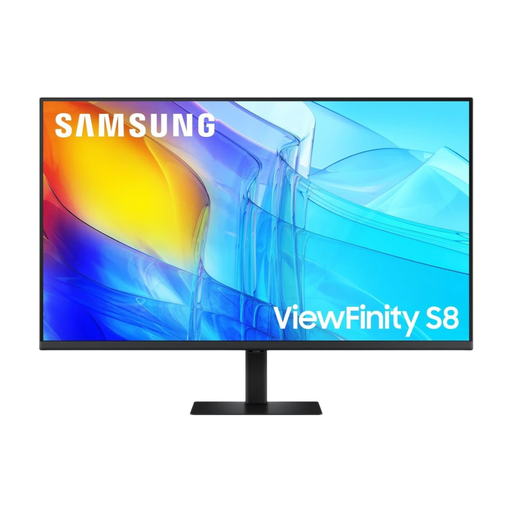
Samsung 37-inch ViewFinity S8 S80D UHD monitor
The stated UHD resolution and screen size may suit scan and layout work; check that the interface is comfortable to use with your preferred scaling, too.
As stated in the product title: 37 inches and UHD.
View at Joybuy
 No image available
CRUA CR320QB 32-inch curved 4K monitor
The 4K specification is useful for viewing fine details on screen, while the curve and size should suit your planned seating position.
As stated in the product title: 32 inches, 4K UHD at 3840 × 2160 pixels, 3000R curvature and 100% sRGB.
View at Joybuy
 No image available
INNOCN 40C1U 40-inch 5K ultrawide monitor
The 40-inch 21:9 format may be useful if you want the poster design and tools visible side by side.
As stated in the product title: 5120 × 2160 pixels, IPS, USB-C with 65 W Power Delivery and 87% Adobe RGB.
View at Joybuy
 No image available
INNOCN CB27U1 27-inch 4K UHD monitor
The stated 4K resolution is useful for checking fine scan details on screen; compare the USB-C specification with your computer’s requirements.
As stated in the product title: 27 inches, 3840 × 2160 pixels, IPS and USB-C with 90 W Power Delivery.
View at Joybuy
Frequently asked questions
Can a 4K monitor make up for a low-resolution scan when printing a large poster?
No. Monitor resolution describes the pixels displayed; print size and the pixel dimensions of the image file also matter for the printed result. Adobe recommends considering on-screen appearance and print size separately. So check the scan at the intended print size.
How can I compare the screen colours with the print effectively?
Use a profile suited to your print process and assess the print under suitable lighting. Fogra provides resources for colour-critical monitor work and lighting conditions; a monitor on its own doesn’t replace these steps.
Is USB-C on a monitor enough to provide a video signal and charge my laptop?
Only if your computer supports the right video transmission and the power delivery is sufficient. EIZO specifies DisplayPort Alt Mode and up to 60 W for the CS2740; BenQ specifies DisplayPort Alt Mode and 90 W for the SW272U. Compare these figures with your laptop’s requirements.
What are my rights when buying a monitor online for personal use in Germany?
When buying remotely from a business seller, you generally have 14 days from delivery to withdraw from the purchase; exceptions and possible return costs should be taken into account. The European Union’s Your Europe service also explains that faulty goods are covered by a statutory guarantee of at least two years from receipt. This is separate from any voluntary manufacturer’s warranty.


