Editing long rehearsal recordings
If you’re reviewing a lot of raw footage, you’ll need a plan for originals, working files and backups. The Verbraucherzentrale explains that a backup is a separate copy designed to protect against data loss.


Choose a desktop for long choir rehearsal videos based on what matters most for your footage: storage space, multiple camera tracks or syncing a separate audio recording. A compact computer may be a good fit if external drives and ports suit your workflow; a tower is worth considering if you want internal drives or room to upgrade later. Adobe describes proxies as a possible aid when working with demanding footage, but they’re no substitute for space to store the originals or a separate backup.
If you’re reviewing a lot of raw footage, you’ll need a plan for originals, working files and backups. The Verbraucherzentrale explains that a backup is a separate copy designed to protect against data loss.
If you’re bringing together several angles of a rehearsal, check how your editing software supports syncing and editing camera tracks. Adobe describes how to use multi-camera sequences in Premiere.
If the video and audio were recorded separately, matching them up and syncing them are part of the editing workflow. Adobe describes various ways to combine audio and video in Premiere.
A good fit if: You have limited desk space and organise project media and backups on external drives.
The trade-off: Check the ports and how much extra storage you’ll need. Apple’s listed base configuration of the Mac mini M5 Pro has 24 GB of unified memory and a 512-GB SSD.
A good fit if: You want to plan separate internal drives for media and cache, or upgrade the computer later.
The trade-off: Specifications vary by listing. HP lists 32 GB of RAM and a 2-TB SSD for the Z2 Tower G1i C9MU1ET#ABD, while Lenovo offers different configurations of the ThinkStation P3 Tower Gen 2.
A good fit if: You’re looking specifically for a macOS system with Apple’s listed video media engines and more unified memory.
The trade-off: Apple lists 36 GB of unified memory for the Mac Studio M5 Max. This doesn’t tell you how much time it will save when editing your particular choir video.
| What matters | What to check before buying | Who will value this? |
|---|---|---|
| Storage for raw footage | Estimate how much space your files will need and plan for fast working storage and a separate backup location. | If your long original recordings, project files and backups all need space, a well-planned storage setup is especially important; around 36% of consumers put storage and raw footage first. |
| Multiple camera tracks | Consider resolution, codec, number of tracks and your editing software’s recommendations. For Premiere on Windows, Adobe recommends at least 32 GB of RAM for 4K. | If you want to sync several angles and review them on the timeline, focus on how your specific files fit into your workflow; around 29% of consumers prioritise multi-camera playback. |
| Separate choir audio | Check that your editing software supports a synchronisation method that suits your recordings, and allow space for project and cache files. | If the choir was recorded separately, you’ll want to match the video and audio accurately; around 21% of consumers prioritise audio synchronisation. |
| Form factor and entry-level setup | Compare the full RAM and SSD specifications, along with the ports you’ll need for additional drives. | If desk space or a suitable initial specification is important to you, look at the complete package rather than just the product range name; around 14% of consumers prioritise form factor or entry-level specifications. |
The system, media and cache all take up storage. A working copy won’t protect your original files from data loss.
You may need extra drives for working files and separate backups.
Estimate how much space your raw files will need, and plan separate storage for working files and backups.
Lenovo also lists configurations with 8 or 16 GB of RAM in the ThinkStation P3 Tower Gen 2 range. For Premiere on Windows, Adobe recommends at least 32 GB for 4K.
A lower-spec model may mean upgrading it or choosing a different configuration.
Compare the RAM and SSD specifications of the exact listing with the editing work you have planned.
Adobe describes proxy files as a possible workflow for high-resolution or processor-intensive footage. A single graphics card specification won’t tell you how your specific footage will perform.
Proxy files may need extra storage space.
Test a representative source clip, and consider the codec, camera tracks, storage and proxy workflow together.
The Mac mini and Mac Studio are compact macOS options. Check the specific specifications against your footage and storage plan.
The Z2 Tower range offers configurable workstations. Compare the specifications of the specific listing.
The ThinkStation P3 Tower Gen 2 is a configurable Windows workstation.
The ProArt Station PD5 PD500TE is a tower range designed for content creation.
The Precision 5860 is a configurable tower for buyers looking to plan for expansion options.
The following HP Z workstations include both tower and mini models. Compare the RAM and SSD specifications of each with your recordings, and plan a separate backup for your originals.
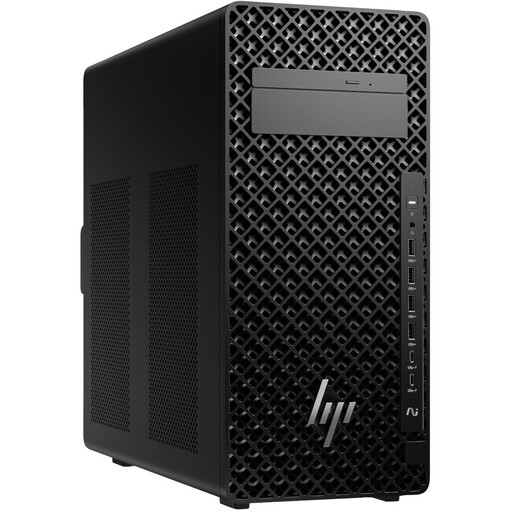 No image available
This tower model may suit a workstation where you want to consider internal storage options.
The title lists a Core Ultra 7 265 with 20 cores and 32 GB of DDR5 RAM at 5600 MHz. For Premiere on Windows, Adobe recommends at least 32 GB of RAM for 4K.
Plan a separate backup for your original recordings too.
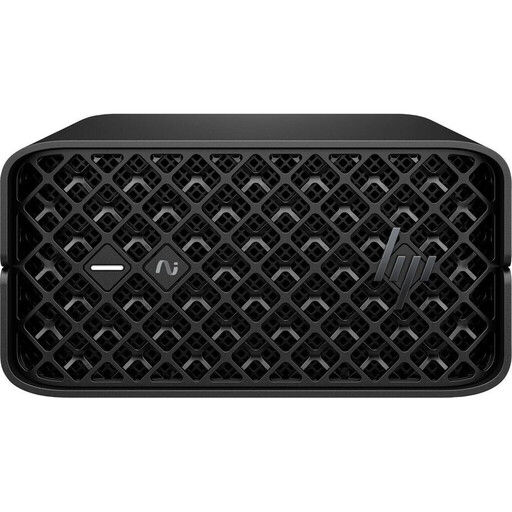 No image available
This mini model is an option if you’re looking for a smaller computer while also considering the listed memory and storage specifications.
The product title lists 128 GB of RAM and a 2-TB SSD. Check that the ports and storage setup suit your working and backup workflow.
A working SSD isn’t a substitute for a separate backup of your original recordings.
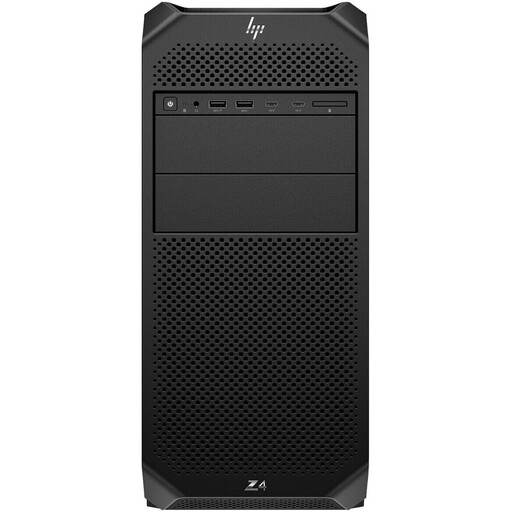 No image available
This tower configuration is worth considering if you want to compare the listed RAM and graphics specifications with your editing software.
The product title lists a Xeon W3-2535, 64 GB of RAM, a 1-TB NVMe SSD and an RTX 4000 Ada. No single component can predict how your specific footage will perform.
Plan a separate backup for your original recordings.
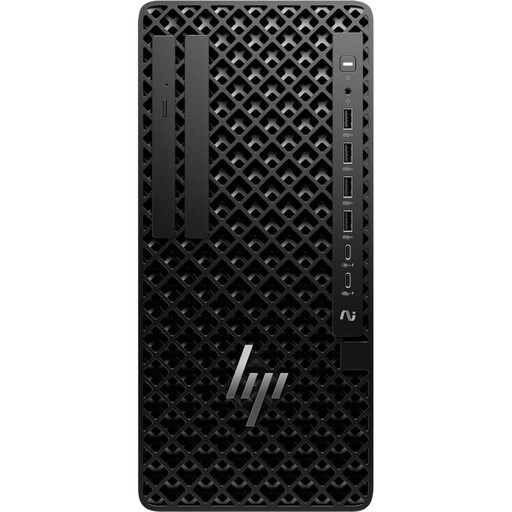 No image available
You can compare these specifications with an editing workflow that involves several tracks and local project files.
The product title lists a 24-core Core Ultra 9 285, 64 GB of DDR5 RAM at 5600 MHz and a 1-TB SSD.
Plan a separate backup destination for your original recordings.
No image available
This tower model is an option if you’re looking for a system with the RAM and SSD specifications listed in the title.
The product title lists a 20-core Core Ultra 7 265, 32 GB of DDR5 RAM at 5600 MHz and a 1-TB SSD. For Premiere on Windows, Adobe recommends at least 32 GB of RAM for 4K.
The working SSD isn’t a substitute for a separate backup of your raw footage.
Not as your only guide when buying. Adobe describes the minimum specifications as a starting point for HD and recommends at least 32 GB of RAM and an additional fast media drive for Premiere on Windows at 4K. Also factor in the codec and number of concurrent tracks.
Adobe Premiere supports multi-camera sequences and various ways to synchronise audio and video. The method that suits your recording will depend on the files you have and how they were recorded.
No. A working drive and a backup serve different purposes. The Verbraucherzentrale recommends backing up data to protect against data loss, so make sure you have a separate backup for important original recordings.
Allow for any working, external and backup drives you need, as well as editing software if applicable. The Verbraucherzentrale distinguishes statutory rights relating to faulty goods from a voluntary guarantee. Check the guarantee terms and the exact configuration separately.
Not automatically just because you’re able to edit the recording. If people are recognisable, you’ll need to check the legal basis for processing their personal data and the rules on distributing or publicly displaying images of people. § 22 KunstUrhG generally requires the consent of the person depicted; exceptions and the data protection assessment depend on the individual circumstances. Check the rights to any music used before publishing the video, too.