Editing with multiple audio tracks
When reviewing long choir rehearsals, you’ll want to arrange the camera footage, separate audio tracks and waveforms clearly. Your editing software handles the actual audio synchronisation.


For long choir rehearsals with multiple audio tracks, the main thing is to have enough screen space for the timeline, waveforms and tools. If you want to check 4K image detail or assess colours for a specific video workflow, native 4K resolution or a suitable colour mode becomes more important. It’s your editing software, not your monitor, that synchronises separate audio recordings.
When reviewing long choir rehearsals, you’ll want to arrange the camera footage, separate audio tracks and waveforms clearly. Your editing software handles the actual audio synchronisation.
If you’re checking image detail or correcting colours for a specific video output, look for suitable colour modes and a calibration method that you can actually use in your workflow.
If you edit on a laptop, the video connection, USB-C or Thunderbolt power delivery and desk space all need to suit your existing device and workspace.
First decide whether your editing setup needs to prioritise an overview of multiple tracks, image assessment or laptop connectivity.
Best suited to: keeping long rehearsals, clips, audio tracks and tools visible at the same time.
Trade-off: According to Philips, the 34-inch Philips 346B1C/00 offers 3.440 × 1.440 pixels, but not native 4K resolution.
Best suited to: assessing 4K image detail and colours for a Rec.709 workflow.
Trade-off: Manufacturers’ specifications for resolution and colour modes don’t replace the right project settings or checking the specific device.
Best suited to: making colour-critical decisions regularly for a specific output workflow.
Trade-off: The extra calibration features aren’t automatically necessary if your editing is primarily focused on audio.
The following buying considerations are for long choir rehearsals with separate audio recordings. The percentages are rough guides for this particular choice.
| Priority | What to check when buying | Who it matters most to |
|---|---|---|
| Overview of the timeline and audio tracks | Aspect ratio, horizontal resolution, desk space and editing software layout. | If I want to see long recordings and multiple audio tracks at a glance, a wide workspace is important. Around 36% of consumers prioritise the timeline and audio tracks. |
| Colour reproduction for video output | A suitable colour mode, colour gamut specifications and a calibration method suited to your workflow. | If I’m assessing colours for a specific output, I want to be able to set the right mode. Around 29% of consumers give colour assessment the highest priority. |
| Video detail | The monitor’s resolution and screen size, as well as the source footage and preview size in the editing software. | If I want to check detail in 4K footage, native resolution matters more to me than extra timeline width. Around 21% of consumers prioritise checking image detail. |
| Laptop and workspace | The video output from the laptop port, required charging power, cables, and the monitor’s size and adjustability. | If I’m editing on my existing laptop, the connection, power supply and desk space all need to work together. Around 14% of consumers prioritise laptop connectivity. |
A monitor displays the editing interface; separate audio and video files are synchronised in the software.
Check how your editing software synchronises audio and video, then choose a monitor with the timeline space you need.
The Philips example, with 3.440 × 1.440 pixels, can’t display a 3.840 × 2.160 image at native resolution.
Before buying, decide whether you need more room for audio tracks or a native 4K preview on the same display.
A USB-C port on a monitor alone doesn’t prove that your laptop can output the video signal you need or receive enough power to charge.
Check your laptop’s port, its power requirements and the specifications for the specific monitor.
Depending on your laptop and monitor, you may also need a suitable cable or a separate power supply.
The Creative Pro PD2705U and PD2732U models offer different colour and connectivity features.
The ProArt PA279CRV is a 27-inch 4K option with a Rec.709 preset and other colour modes.
The ColorEdge CS2740 is designed for a 4K workflow that requires hardware calibration.
The B-Line 346B1C/00 is a 34-inch ultrawide example, giving you a wide editing workspace.
The UltraSharp U2725QE is a 27-inch 4K option with a Thunderbolt hub for a more extensive laptop workspace.
These monitors cover wide ultrawide workspaces, 4K image checking and laptop setups, with a range of resolutions.
 No image available
The wide screen is a good fit if you want to arrange clips and multiple audio tracks side by side.
5.120 × 2.160 pixels, IPS, 100 Hz and 21:9; USB-C with 65 W Power Delivery; height-adjustable stand.
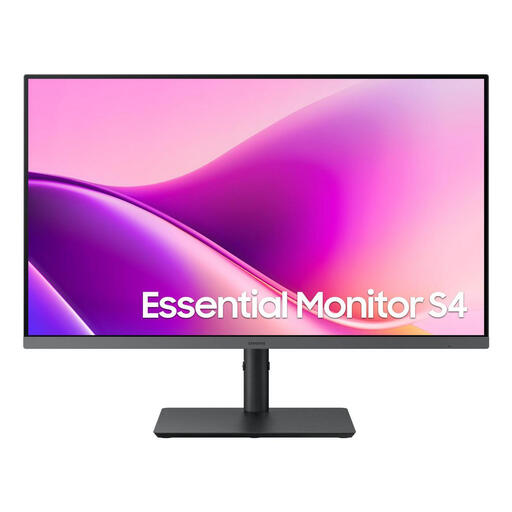 No image available
An option for a 27-inch editing setup if a native 4K preview isn’t one of your top priorities.
FHD resolution, IPS, 100 Hz and USB-C.
 No image available
Native 4K resolution is a good fit if you want to check image detail and use the monitor with a laptop setup.
3.840 × 2.160 pixels, IPS, 120 Hz and USB-C with 90 W Power Delivery; height-adjustable stand.
 No image available
An option for a 27-inch editing setup with laptop docking; its resolution is WQHD rather than native 4K.
IPS, 100 Hz, USB-C with 98 W Power Delivery, daisy chaining and KVM; integrated webcam.
No. The monitor displays the editing interface; synchronisation happens in the software. Blackmagic Design explains how DaVinci Resolve can synchronise using timecode or audio waveforms, as well as offering a manual method.
Compare the video output from your laptop port and the charging power you need with the specifications for the specific monitor. BenQ lists 65 W Power Delivery for the PD2705U and ASUS lists 96 W for the PA279CRV; these monitor specifications alone don’t guarantee single-cable operation with your laptop.
Many online purchases come with a 14-day right to cancel, although there are exceptions. The European Consumer Centre Germany explains this period in its information dated 15 April 2026. According to the Centre for European Consumer Protection’s information dated 30 April 2026, the statutory warranty period for new goods is two years; this is separate from a manufacturer’s guarantee. When cancelling a purchase, consumers often have to pay the return postage themselves unless the retailer covers it.
Don’t put it in your household rubbish. The German Environment Agency lists recycling centres and retailers as options for returning old electrical equipment. It also describes return options for large old appliances when buying a similar new one, including online purchases with delivery.