First, choose an operating system that works with your editing software. Then check that the source codec, memory, media drive and connections suit your choir recordings. A Mac mini could be a good fit for a macOS workflow, while a configurable Windows mini PC may be preferable if you need to choose a specific memory configuration or want the option to upgrade later. Proxies can make demanding footage easier to edit, but they require extra preparation and storage. Specifications alone can’t guarantee smooth playback with any particular number of camera tracks.
Which mini PC is right for you?
Editing footage from multiple cameras
If you switch between different angles of the same choir rehearsal, a useful preview and synchronised video and audio tracks are important factors to consider. Adobe explains that Premiere can synchronise clips using an audio track, among other methods.
Footage from different cameras
If your footage uses different formats or codecs, check how your editing software and specific hardware handle your files. Adobe documents codec support for hardware-accelerated decoding and proxy workflows.
Long rehearsals and extensive archives
If you keep your originals and editing projects, you’ll need space for media and working files as well as your system drive. Adobe recommends fast SSD or NVMe drives for media in Premiere.
What should you look for when buying?
Start by checking whether macOS or Windows is the right fit for your workspace and editing software. If your footage is demanding to decode, a proxy workflow may also help, whatever your operating system: Adobe describes proxies as lighter copies of original files that require extra preparation and storage.
Mac mini with macOS
A good fit if: Your editing software and other tools run on macOS, and you can choose the memory and SSD configuration you need when you buy.
What to weigh up: Apple’s codec information applies to compatible files, but doesn’t confirm how many camera tracks can play back simultaneously.
Configurable Windows mini PC
A good fit if: Your software runs on Windows and you want to choose the RAM, SSD or connections on a specific model, or upgrade them later.
What to weigh up: A product family doesn’t tell you which components are installed or how your project will play back, so check the exact configuration.
| Priority |
What to check before buying |
Who it matters most to |
| Multiple camera tracks and synchronised audio |
If possible, test your own footage in the editing software you plan to use. Check its multicam and audio synchronisation features, as well as the specific configuration. |
If I need a useful preview and synchronised audio when switching between camera angles, I check the software and specifications. Around 36% of consumers put multicam preview first. |
| Source codec and preview |
Find out the codec, resolution and frame rate of your files. Check that they’re compatible with your editing software and specific hardware, and allow for proxies if needed. |
When I’m working with footage from different cameras, I check the formats against the software and hardware, and consider whether I might need proxies. Around 29% of consumers prioritise support for their source formats. |
| Storage for media and working files |
Estimate how much space your footage will need. Check the SSD, upgrade options and connections for a fast media drive. Treat your working drive and backup as separate things. |
If I want to keep long rehearsals, originals, cache files and working copies, I estimate how much storage and media drive space I’ll need. Around 21% of consumers put media storage first. |
| Complete configuration |
Check the actual RAM, SSD, operating system and connections included with the specific model. |
If I want to start editing without adding anything later, I check what’s included and the configuration I’ve ordered. Around 14% of consumers prioritise a complete setup. |
Avoid common buying mistakes
-
Confusing more monitor connections with smoother playback of more camera tracks
Support for multiple screens refers to connected displays, not the preview performance of an editing project.
Check your source footage, editing software and specific configuration using a representative project.
-
Looking only at the size of the system SSD
Originals, cache files and proxies all need extra storage space on top of the operating system.
Estimate your needs based on your footage and check where you can store media and working files.
-
Assuming the maximum supported specification is what’s included
RAM, SSD and operating system can vary between configurations within the same product family.
Before buying, check the details for the specific configuration and what’s actually included.
Key brands at a glance
Apple
The Mac mini is a compact macOS option. Apple Germany’s specifications list different memory and SSD configurations for current M6 and M5 Pro models.
- Apple lists hardware acceleration for H.264, HEVC and ProRes, which is relevant for compatible files.
- Codec information isn’t a measure of multicam performance. Match the memory and SSD to your specific project.
ASUS
ASUS describes the NUC 15 Pro+ as a compact, Windows-focused product family with Intel Core Ultra processors.
- ASUS lists tool-free upgrades and support for multiple displays as features of the product family.
- These are manufacturer claims, not independent measurements of multicam performance. Check the specifications of each individual model.
Lenovo
The ThinkCentre M75q Gen 5 Tiny is a compact Windows option for workspaces where access to memory and SSD modules may be important.
- Lenovo describes access to the SSD and memory modules as tool-free.
- Check whether the specific model you order includes a suitable SSD; an accessible module design doesn’t determine which specifications are supplied.
Mini PCs at Joybuy
This selection includes Windows mini PCs with different RAM and SSD configurations. Compare the specific configuration with your editing software, recording formats and storage needs. Adobe recommends at least 32 GB of RAM for Premiere on Windows or Intel-based Mac systems; the models listed below have between 8 and 24 GB.
 No image available
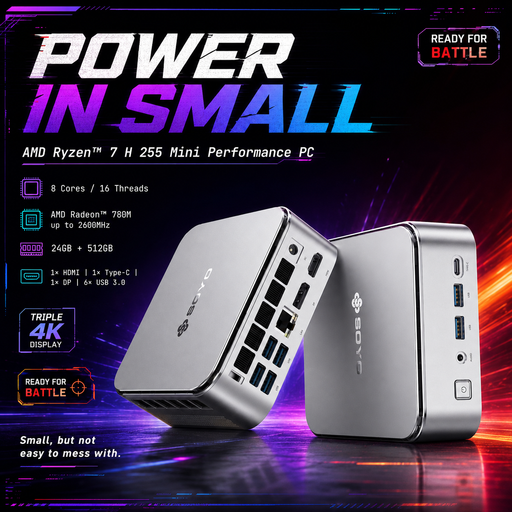
SOYO S4PLUS mini PC, Ryzen 7 H 255, 24 GB RAM, 512 GB NVMe SSD
This model could suit an editing setup if 24 GB of RAM and the listed SSD meet the needs of your software and project.
Specifications include 8 cores and 16 threads, speeds of up to 4,9 GHz, 24 GB LPDDR5 RAM and a 512 GB PCIe 3.0 NVMe SSD. The RAM is below Adobe’s recommendation for Premiere on Windows.
View at Joybuy
 No image available
FIREBAT F1 mini PC, Ryzen 5 7640HS, 24 GB RAM, 512 GB PCIe 4.0 SSD
Consider this model if its listed specifications suit your source formats and storage requirements.
Specifications include 6 cores and 12 threads, 24 GB LPDDR5 RAM and a 512 GB PCIe 4.0 SSD. The RAM is below Adobe’s recommendation for Premiere on Windows.
View at Joybuy
 No image available
FIREBAT R3 mini PC, Ryzen 5 7430U, 16 GB RAM, 512 GB SSD
Before choosing this model, compare its listed specifications with what your editing project needs.
The product title lists 6 cores and 12 threads, 16 GB LPDDR4 RAM and a 512 GB SSD. The RAM is below Adobe’s recommendation for Premiere on Windows.
View at Joybuy
 No image available
SOYO Y5Pro mini PC, Intel Core i5 8250U/8350U, 8 GB RAM, 256 GB SATA SSD
Consider the listed specifications carefully if you’re planning to use this mini PC with multiple camera tracks.
The product title lists 8 GB DDR4 RAM and a 256 GB SATA SSD. Both are below Adobe’s respective recommendations for Premiere RAM and a fast media drive, so check your specific needs and whether an upgrade is possible.
View at Joybuy
 No image available
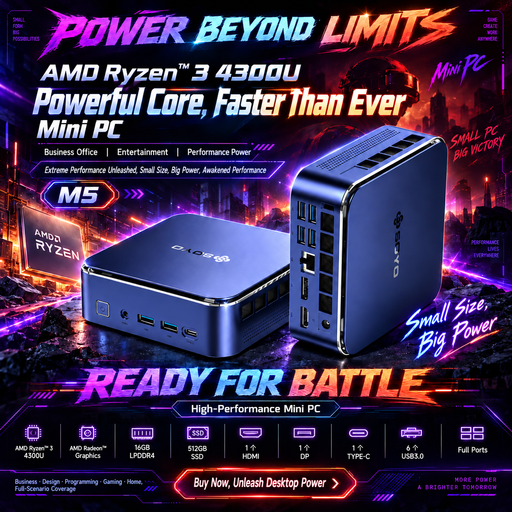
SOYO M5 mini PC, AMD Ryzen 4300U, 16 GB RAM, 512 GB SSD
Assess this model against your editing software and storage needs, rather than assuming its compact design makes it suitable for multicam editing.
Specifications include 4 cores and 4 threads, speeds of up to 3,7 GHz, 16 GB LPDDR4 RAM and a 512 GB SATA SSD. The RAM and drive differ from Adobe’s relevant recommendations for Premiere on Windows and media drives.
View at Joybuy
Frequently asked questions
Do I automatically need a mini PC with a dedicated graphics card for multiple cameras?
The number of cameras alone doesn’t mean you need a dedicated graphics card. Source format, editing software and the specific configuration are among the factors that matter. Test representative footage and consider a proxy workflow before choosing a graphics card based solely on the number of tracks.
How do I synchronise separately recorded choir audio and camera footage?
Adobe Premiere offers several ways to synchronise multicam source sequences, including using a suitable audio track or timecode. The method that works depends on the recording information you have available.
Where should I store cache files and video footage?
Adobe recommends fast SSD or NVMe drives for media and the media cache in Premiere. Check the available internal or external storage and how much space your project needs. When clearing working files, don’t delete originals or backups you still need.
What warranty applies when buying a mini PC for personal use?
For consumer purchases in the EU, faulty goods are generally covered by a statutory minimum two-year guarantee from the seller, as explained by Your Europe. An additional manufacturer’s warranty doesn’t replace these rights. If you’re buying for a club or for business use, check separately whether you’re purchasing as a consumer.
Can I simply publish an edited choir video?
There’s no one-size-fits-all answer. The data protection authority of Rhineland-Palatinate notes that a legal basis under data protection law is needed to record and use identifiable people. Section 78 of the German Copyright Act (UrhG) also covers performers’ rights when a performance is made available to the public. Whether a particular publication is permitted depends, among other things, on the people involved, the rights concerned and how you plan to use the video.


