If you already have a compatible iPad or Galaxy Tab and mainly want to sketch or annotate, a stylus designed for your device is a natural place to start. For editable symbols and electrical connections, however, you’ll need a suitable circuit diagram app. A graphics tablet adds pen input to your computer, but doesn’t replace the screen or editing software. A pen display lets you draw directly on the diagram shown on screen, but takes up extra space and needs a suitable connection to your computer.
Which input option is right for you?
PC circuit diagram designer
If you want to edit symbols and electrical connections and already use a computer, start by choosing suitable software, then pick an input surface that fits your desk. KiCad’s documentation describes the schematic editor as part of the programme’s circuit diagram features.
Tablet sketcher
If you want to sketch or add notes directly on an iPad or Galaxy Tab you already own, check that the stylus matches your exact device model. Apple Support lists compatible iPad models and system requirements; Samsung specifies certain Galaxy Tab series for the S Pen EJ-PX710.
Drawing with limited desk space
If there’s little room beside your screen and keyboard, consider the overall dimensions, cable routing and how you’ll use the device. XPPen lists the Deco mini7 V2’s overall dimensions as 260,2 × 162,2 mm; Huion describes the Inspiroy 2 S as a separate graphics tablet with controls.
What should you look for when buying?
Stylus for a tablet you already own
A good fit if: you want to sketch or add notes directly on a compatible iPad or Galaxy Tab.
Keep in mind: A stylus doesn’t automatically come with an app for editing circuit diagrams. You’ll also need to check device compatibility.
Graphics tablet without a screen
A good fit if: you already have a computer and screen, and have room on your desk for a separate drawing surface.
Keep in mind: You draw on the tablet while looking at a separate screen. Your operating system, connection and, where required, drivers must all be compatible.
Pen display connected to a computer
A good fit if: you want to draw directly on the diagram displayed on screen and your computer supports the connection required.
Keep in mind: The display takes up extra space and needs a suitable connection. It doesn’t replace circuit diagram software.
| What matters |
What to check before buying |
Who is it important to? |
| Device and software compatibility |
Check the exact tablet model or operating system, the connection and the software you’ll be using. |
If I’m looking for a stylus or graphics tablet to use with a device I already own, I want to know in advance whether both will work with my software. Around 33% of consumers put compatibility first. |
| Desk space and drawing style |
Compare the overall dimensions with the available space, allowing room for your hand and cables. |
At a small desk, I want to know whether a separate drawing surface will be enough or whether there’s room for an additional display. Around 27% of consumers prioritise available space and layout. |
| Editable circuit diagrams |
Check whether the software lets you edit symbols and connections, and what saving options it offers. |
If I want to edit electrical connections and symbols later, a freehand sketch may not be enough. Around 27% of consumers prioritise editable diagrams. |
| Additional devices and features |
Check which cables and connections you’ll need, and whether your software includes the storage and editing features you require. |
If I want to use devices I already own, I want to know before buying whether I’ll need an additional connection or app. Around 13% of consumers pay particular attention to these extra requirements. |
Common buying pitfalls
-
Confusing the active drawing area with the space the tablet takes up
A graphics tablet’s active area isn’t the same as its overall dimensions. For example, XPPen lists the Deco mini7 V2’s overall dimensions as 260,2 × 162,2 mm.
Compare the overall dimensions with the space you actually have, allowing room for your hand and cables.
-
Choosing a stylus without checking your device model
Apple’s Pencil compatibility depends on the iPad model and, in some cases, the system version. Samsung specifies certain Galaxy Tab series for the S Pen EJ-PX710.
Make a note of your device’s full model name and check the manufacturer’s compatibility details before buying.
-
Assuming a pen display is a standalone circuit diagram computer
XPPen describes the Artist 12 (2nd Generation) as a display that connects to a PC.
Check the signal and power connections for your computer. Depending on your setup, you may need a compatible port or suitable cable.
You may also need a suitable computer and cable connection to use it.
-
Assuming a freehand sketch is the same as an editable circuit diagram
In the app described in the German Apple App Store, BASIC and PRO differ in whether you can reopen and edit saved circuit diagrams.
Before buying, decide whether you’ll need to edit symbols and connections later, then check that your chosen app has the features you need.
Key brands at a glance
XPPen
The Deco mini7 V2 is a compact graphics tablet without a screen, while the Artist 12 (2nd Generation) lets you draw on a connected display.
- XPPen lists the Deco mini7 V2’s overall dimensions as 260,2 × 162,2 mm and says it comes with a battery-free stylus.
- The Artist 12 (2nd Generation) needs a connection that suits your computer setup. Neither device replaces circuit diagram software.
Huion
The Inspiroy 2 S is designed for users looking for a separate drawing surface with built-in controls.
- Huion lists a battery-free stylus, six press keys and a scroll wheel.
- Check that the connection, drivers and controls work with your computer and circuit diagram software.
Apple
Apple Pencil is designed for direct input on specifically compatible iPads.
- Apple Support lists compatibility by iPad model; Apple Pencil (USB-C) pairs and charges via USB-C.
- Apple Pencil isn’t a universal tablet stylus and doesn’t provide circuit diagram features on its own.
Samsung
The S Pen EJ-PX710 is designed for the Galaxy Tab series specified by Samsung.
- Samsung lists pressure and tilt detection.
- According to Samsung, Bluetooth-enabled Air Command features require the stylus to be charged, and functionality may vary by app. This doesn’t confirm support for any particular circuit diagram app.
Wacom
Intuos S Bluetooth is a screen-free input option for a workspace with a computer already set up.
- Wacom describes using the model with a Mac or PC and confirms its Chromebook compatibility.
- Check the exact model and make sure its connection works with your computer and software.
Joybuy products for direct input on an iPad
The Joybuy products below are styluses for direct input on compatible iPads. Check your exact iPad model before choosing one; a stylus doesn’t replace circuit diagram software.
 No image available
iPad stylus, USB-C fast charging, 2018–2026 models
For direct stylus input on a compatible iPad. Check your exact model before buying.
The product title lists iPad models from 2018–2026 and USB-C fast charging. According to the product details, the stylus isn’t pressure-sensitive.
Joybuy
 No image available
iPad stylus, USB-C fast charging, 2018–2025 models
For drawing and taking notes on a compatible iPad. Check support for your specific model.
The product title lists iPad models from 2018–2025 and USB-C fast charging.
Joybuy
 No image available
Universal touchscreen stylus for iOS and Android
For drawing and sketching on capacitive touchscreens. Check that it works with your device and the app you plan to use.
The product title lists iOS and Android devices, USB-C fast charging, an LED indicator and a magnetic design.
Joybuy
 No image available
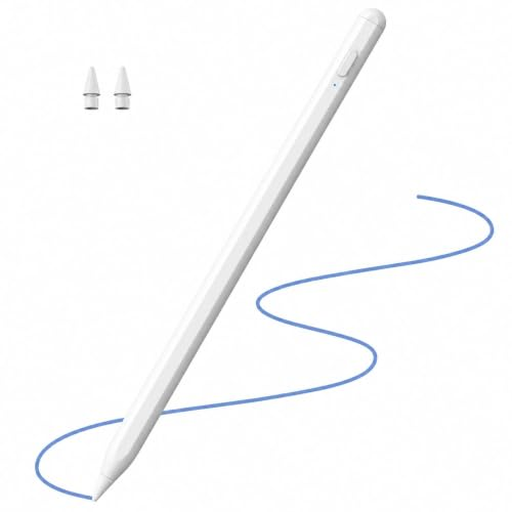
iPad stylus, 2X fast charging, palm rejection and tilt support
For direct input and sketching on a compatible iPad. Check your exact model before buying.
The product title lists iPad models from 2018–2026, 2X fast charging, palm rejection and tilt support.
Joybuy
 No image available
iPad stylus with USB-C, tilt detection and palm rejection
For direct input on selected iPad models. Check the product details against your specific model.
The product title lists USB-C charging, tilt detection, palm rejection, magnetic attachment and an LED battery indicator.
Joybuy
Frequently asked questions
Is a stylus enough to create an editable circuit diagram?
No. You’ll also need suitable software to edit symbols and electrical connections. KiCad’s documentation describes these features in its schematic editor; for mobile apps, check what each one can do.
What should I check before connecting a graphics tablet?
Check the operating system and connections against the details for your exact model. Huion describes connecting the Inspiroy 2 to a computer via USB and installing the appropriate driver. Also check the connection requirements for the graphics tablet you’ve chosen.
What can I check if a stylus isn’t working?
Start with the manufacturer’s instructions for your specific model. Check the connection, driver or pairing before replacing any accessories. Apple Support explains how to pair and charge Apple Pencil (USB-C), while Huion describes driver installation for the Inspiroy 2.


