First decide whether you want to sketch freehand or edit an editable circuit diagram in an EDA application: these are different workflows. By a bright window, the screen’s orientation and surface matter too — and an anti-glare finish won’t block direct sunlight. KiCad’s documentation describes symbols, connections and electrical checks as software features, not pen features.
Who draws circuit diagrams by a window?
Circuit diagram editors
If you want to maintain component symbols and connections in an editable circuit diagram, first check the features of your EDA application, then see whether pen input would complement your workflow. KiCad’s documentation covers symbols and electrical connections, among other things.
Window-side sketchers
When drawing ideas and notes in plenty of daylight, the readability of the screen you’re looking at and an adjustable viewing angle are important. The DGUV recommends positioning your viewing direction parallel to the window front when working at a screen.
Sketching on the move
If you want to move between workspaces and sketch without a connected pen display, compare a standalone tablet and a specifically compatible pen with a computer-based setup. Apple lists support for certain Apple Pencil models with the iPad Air M4.
What should you consider when choosing?
Graphics tablet without a display
A good fit if: You already have a computer and a well-positioned monitor, and want a separate input surface. Wacom lists an active area of 263 × 148 mm for the Intuos Pro Medium.
Consider: You draw on the tablet and look at a different screen, so reflections on that screen still matter.
Connected pen display
A good fit if: You want to work directly on the drawing shown on screen and have a computer with suitable video and data connections. Huion describes the Kamvas 16 (Gen 3) as having nano-etched glass.
Consider: The display needs desk space and depends on your computer; an anti-glare surface won’t eliminate light from a window.
Standalone tablet with a pen
A good fit if: You mainly want to create handwritten sketches or annotations wherever you are, and have checked the app you plan to use and its file workflow.
Consider: A mobile sketching app isn’t automatically a substitute for the features of desktop EDA software. A compatible pen is not included in the listed tablet contents for Apple’s iPad Air M4.
| Priority |
What to check before buying |
Who it matters to most |
| Readability by a window |
The surface of the exact model and how the monitor or display is positioned in relation to the window. |
If I need to see my drawing and the background clearly in daylight, I’ll also check the viewing angle. Around 29% of consumers are likely to consider readability their top priority. |
| Editable circuit diagram |
Whether you need a hand sketch or a file for your specific EDA application; test pen input and saving on your computer. |
If you want to keep editing symbols and connections in your own EDA application, check the software workflow before buying a device. Around 29% of consumers are likely to prioritise an editable circuit diagram. |
| Drawing directly on screen |
Display size, viewing angle, space required, and the video, data and power connections of the exact model. |
If I want to see the pen tip directly on the drawing on screen, I need a suitable display setup. Around 24% of consumers are likely to consider drawing directly on screen their top priority. |
| Portability and setup |
Whether a computer is needed, pen compatibility and what’s included, as well as the files supported by the app you plan to use. |
If you often change workspaces and want to keep your setup simple, compare standalone and connected devices. Around 18% of consumers are likely to prioritise portability and ease of setup. |
Common buying mistakes
-
Assuming more pressure levels mean better circuit diagrams
The number of pressure levels doesn’t tell you whether an application supports symbols, electrical connections or checks.
First, test the symbol, wiring and export workflow you plan to use in your specific application.
-
Mistaking a connected pen display for a standalone tablet
A pen display is designed for direct input on the drawing shown on screen, but it needs a suitable computer and compatible connections.
Before buying, check the complete setup for the exact model, including the video signal, data connection and power supply.
-
Assuming an anti-glare finish protects against direct sunlight
Incoming light and reflections can affect readability, even on an anti-glare surface.
Take the screen’s position in relation to the window into account, and make sure you can adjust your glare protection.
-
Assuming a pen comes with a standalone tablet
Supported pen models and what’s actually included are listed separately. Apple lists a USB-C Charge Cable with the iPad Air M4, but no Apple Pencil in the tablet contents.
Compare the exact tablet offer with the compatible pen you want to use.
Relevant brands at a glance
Wacom
Graphics tablets without a display, such as the Intuos Pro Medium, for input on your existing computer and monitor.
- Wacom lists an active area of 263 × 148 mm, programmable controls and USB or Bluetooth connectivity for the Intuos Pro Medium.
- The drawing surface doesn’t show an image of its own, so readability depends on the monitor you use.
XPPen
Connected pen displays such as the Artist Pro 16 (Gen 2), for working directly on the drawing shown on screen.
- XPPen describes this model as having an integrated stand, two connection options and a pen with 16K pressure levels.
- These specifications don’t prove a particular level of readability in direct sunlight or that the pressure levels offer an advantage for EDA features.
Huion
Kamvas pen displays such as the Kamvas 16 (Gen 3), for working directly on screen.
- Huion lists a 15.8-inch screen, 2,560 × 1,440 pixels and nano-etched glass for this model.
- How well the surface works by a window also depends on the light and how the display is positioned.
Apple
Standalone iPad Air M4 tablets for sketching on the move with a compatible Apple Pencil.
- Apple lists an anti-reflective coating and support for certain Apple Pencil models on the 11- and 13-inch versions.
- The brightness specification varies by size; an Apple Pencil is not included in the listed tablet contents. This doesn’t tell you anything about the EDA features of a particular app.
Samsung
The Galaxy Tab S10 FE series as a standalone tablet option for pen sketching.
- Samsung lists up to 800 nits for the series, specifically in High Brightness Mode, and lists an anti-reflective film for certain models.
- The peak brightness in High Brightness Mode and the accessory details aren’t an independent test of readability beside a bright window. Check the FE and FE+ separately for film size and features.
Joybuy products
The following Joybuy options are suitable for hand-drawn sketches or pen input on a standalone tablet; they aren’t automatically a substitute for an editable EDA circuit diagram.
 No image available
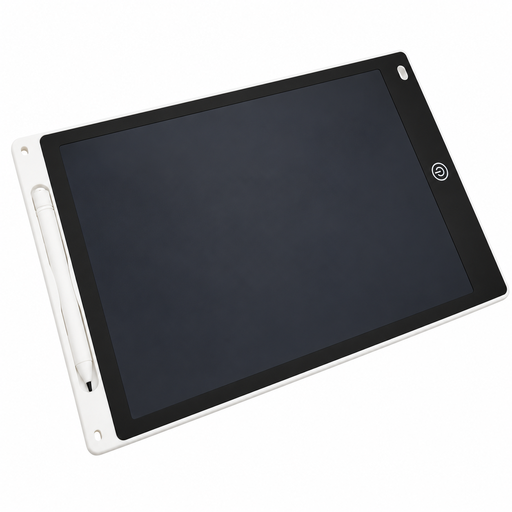
12-inch LCD drawing tablet with pen and erase function
For repeat freehand sketches: the pressure-sensitive surface can be erased at the touch of a button and locked to prevent accidental erasing.
The stated drawing area measures 230 × 165 mm. According to the product description, children aged 5 and over should use the device only under adult supervision; keep button batteries out of children’s reach.
View at Joybuy
 No image available
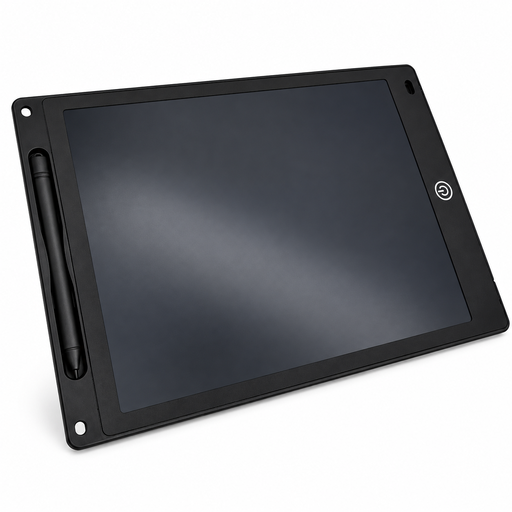
12-inch LCD writing tablet with pen and erase function
For reusable handwritten sketches: the tablet has an erase button and a lock to prevent accidental erasing.
The product is listed as 12 inches and 5 mm thick. The button cell for the erase function may not be included; keep batteries away from children.
View at Joybuy
 No image available
TECLAST ArtPad Pro, 12.7-inch, 2K display
For freehand digital sketches on a standalone tablet: the product details list Android 15 and an included pen. Check separately whether your preferred EDA application and file workflow will work with it.
A 2K display and 4,096 pressure levels are listed. The safety instructions advise avoiding prolonged exposure to sunlight.
View at Joybuy
Frequently asked questions
Can a drawing tablet automatically turn a hand sketch into an electrically checkable circuit diagram?
There’s no evidence that this is a hardware feature. KiCad’s documentation describes symbols, connections and electrical checks as features of its schematic editor. Check separately whether your chosen software can import hand sketches or requires you to enter details manually.
Is an anti-glare display enough right next to a window?
Not necessarily. The DGUV notes that direct and reflected sunlight can affect visibility, and recommends positioning your viewing direction parallel to the window front when working at a screen. Also plan for adjustable glare protection; this still can’t guarantee how the device’s surface will perform in your workspace.
What should I check before connecting a pen display?
For the exact model, check that the video signal, data connection and power supply are compatible with your computer, then check the drivers and drawing software. A USB-C port on its own doesn’t guarantee that the complete connection setup you need will work.
Should I budget for a separate stylus with the iPad Air M4?
Check the specific offer: Apple lists Apple Pencil Pro and Apple Pencil (USB-C) as supported pens, but the tablet contents include only the iPad Air and a USB-C Charge Cable. Compatibility doesn’t mean a pen is included.


