Teachers printing text-based route sheets
If you print ready-made directions multiple times, check whether the maps and symbols are still clear without colour. Brother lists A4 duplex printing and a 250-sheet paper tray for the HL-L2400DW.


If your directions are easy to read in black and white and you only print digital files, a mono laser printer should do the job. For class sets you print regularly, consider paper handling, duplex printing and the cost of compatible consumables. If your maps need colour, or you want to scan and copy paper originals, a colour printer or multifunction device may be a better fit. Also check the connections, footprint and whether you have a suitable place for everyone to use it.
If you print ready-made directions multiple times, check whether the maps and symbols are still clear without colour. Brother lists A4 duplex printing and a 250-sheet paper tray for the HL-L2400DW.
If colours convey information along the route, a test print can help you decide whether black and white will be enough. For a colour printer, remember to consider its footprint and the toner cartridges you’ll need.
If you regularly need to scan or copy existing route sheets, you could choose a multifunction device instead of a printer on its own. Brother lists an automatic document feeder for 50 sheets among the DCP-L2660DW’s features.
| What you need | What to look for | Who it matters most to |
|---|---|---|
| Readability in black and white or colour | Print an original route at its actual size and check the lines, symbols and key; choose colour printing if needed. | If colours on my map distinguish routes or instructions, I want to be sure they won’t be confused in black and white. Around 30% of consumers focus mainly on how easy their original is to read. |
| Class sets and ongoing costs | Compare print volume with paper tray capacity and automatic duplex printing; factor in compatible toner and, where applicable, a separate drum unit. | If I regularly print several copies for a group, paper handling and consumables matter more to me than a single speed figure. Around 30% of consumers prioritise print volume and running costs. |
| Scanning and copying | Check whether you actually need to process paper originals and whether you’ll need an automatic document feeder. | If my routes are only available on paper, I want to be able to scan or copy them without needing another device. Around 20% of consumers focus on handling paper originals. |
| Connection and placement | Check with your school’s IT team whether you need Wi-Fi, LAN or USB; measure the printer and find a well-ventilated spot. | If several people will use the printer, it needs to work with the school network and fit sensibly in a small room. Around 20% of consumers check connections and placement first. |
Compatible toner cartridges and, where applicable, a separate drum unit should be included in your ongoing cost calculations. The Brother HL-L2400DW uses separate toner and drum units; HP warns that cartridges without an HP chip may be restricted in the LaserJet Pro 3002dw.
Before buying, check the compatibility and yield of replacement supplies for the specific model, and compare them with the route sheets you print.
For the HL-L2400DW, budget separately for toner and the drum unit. The actual cost per page depends on factors including cartridge yield and print content.
Colours used to mark different routes on screen may be harder to tell apart on a black-and-white printout.
Try printing one of your own templates in black and white at its actual size, then check the lines, symbols and key before committing to this type of printer.
Connections vary between models. Canon lists LAN and Wi-Fi for the i-SENSYS LBP122dw, while an independent review notes that the Brother HL-L2400DW does not have a LAN connection.
Before choosing a model, check with your school’s IT team which connections and devices are supported.
The information below relates to the models listed and should not be taken as applying to every product from each brand.
The HL-L2400DW is a mono printer, while the DCP-L2660DW also offers scanning and copying.
The i-SENSYS LBP122dw is a mono printer with LAN and Wi-Fi.
The ECOSYS PA2101cwx is a colour laser printer for keeping colour-coded distinctions on your routes.
The LaserJet Pro 3002dw is a mono model with duplex printing.
The Joybuy models below include mono printers, multifunction devices and a colour laser multifunction device. The right choice depends on whether you only print digital routes, need to process paper originals or want to retain colour information.
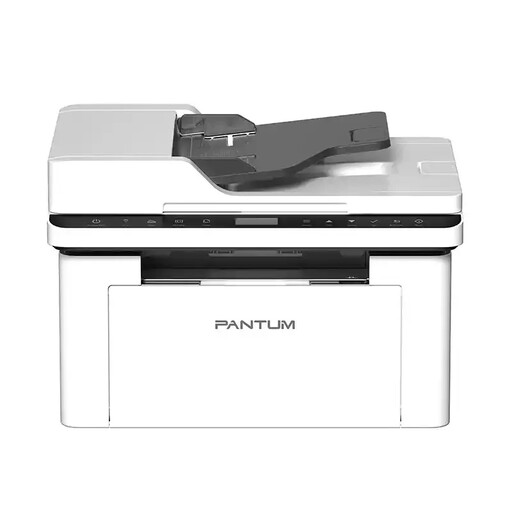 No image available
A good fit if you print black-and-white A4 routes and also want to scan or copy paper originals.
The product title lists an ADF and Wi-Fi; the description lists a 150-sheet input capacity, as well as printing, scanning and copying functions.
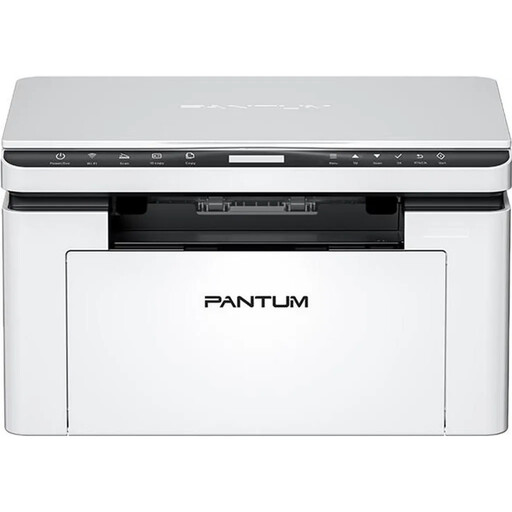 No image available
An option for black-and-white A4 routes if you also need scanning and copying, and a LAN connection is suitable.
The product title lists dual-band Wi-Fi and Ethernet. The description includes manual duplex printing, as well as printing, scanning and copying functions, so double-sided printing is not automatic.
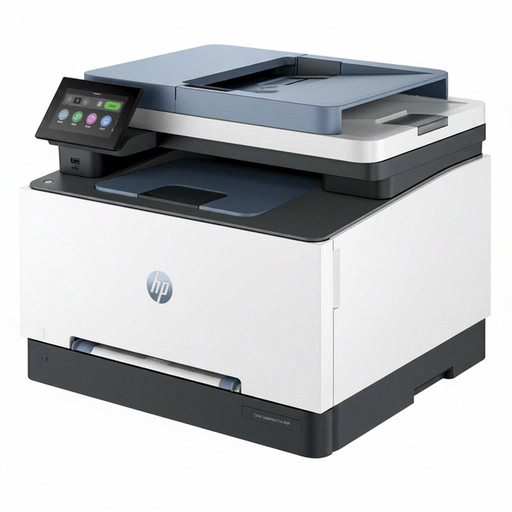 No image available
Worth considering if your route maps need colour and you also want to scan or copy originals.
The product title lists automatic double-sided printing. The description gives an input capacity of 350 sheets, alongside colour printing, scanning and copying functions; connections listed include Wi-Fi, Ethernet and USB.
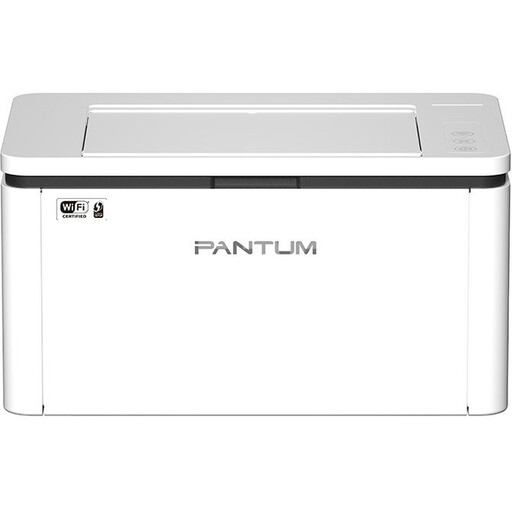 No image available
A straightforward option for printing digital A4 directions if black and white is enough and you don’t need scanning or copying.
The product title lists 22 ppm, Wi-Fi and Bluetooth. The description lists A4 printing and manual duplex printing, so double-sided printing is not automatic.
No, where to put it is a matter of planning. The German Social Accident Insurance (DGUV) recommends well-ventilated printer rooms, particularly for shared printers, and advises against directing exhaust air towards workstations. This placement guidance comes from a DGUV information sheet dated September 2015; it is not a blanket legal ban on having printers in classrooms.
Yes, if the lines, symbols and instructions on your specific template remain clear without colour. Try printing a route in black and white at its actual size. If important distinctions are lost, consider a colour model.
Automatic duplex printing can reduce the number of sheets you need when your originals are easy to read on both sides. Before choosing, check that your route maps work double-sided and whether the specific model offers automatic or only manual duplex printing.
A multifunction device is a good option if you regularly need to scan or copy paper originals. If you only work with digital files, the extra scanning and copying functions aren’t essential. If you’re handling stacks of paper, also check whether the device has an automatic document feeder.