If you regularly print whole batches of photos, a photo ink tank printer with the right photo paper size is likely to be the better choice. For occasional photos alongside worksheets, scans and copies, an all-in-one printer may be more practical. Canon lists six refillable photo inks for the PIXMA G650, while the PIXMA TS7750i offers borderless 10-×-15-cm photos as well as document functions. Also check the space available, paper feed and whether the printer is suitable for your school network. If people are recognisable in the photos, you must also consider the appropriate legal basis for processing them.
Which printer is right for you?
Classes that regularly print batches of photos
If you regularly print several holiday photos, plan for the photo size, suitable paper and ink consumption together. Canon lists borderless printing in sizes including 10 × 15 cm for the PIXMA G650; Druckerchannel describes the model as a straightforward photo ink tank printer.
Teachers with occasional photo projects
If you mainly print worksheets, scans or copies alongside the occasional photo, document functions and the space required are important factors to consider. Canon lists these functions for the PIXMA TS7750i.
Classes with varied printing needs
If you often switch between photo and plain paper, consider how the printer feeds different media. Epson describes the EcoTank ET-8500 as having separate photo and A4 paper trays; Brother lists a paper tray and a single-sheet feed for the DCP-T780DW.
What should you look for when buying?
The percentages refer to consumers choosing an inkjet printer for holiday photos in a small classroom; each row represents the respondent’s main priority.
| Priority |
What to check before buying |
Who is it important to? |
| Photo size and image quality |
Check whether the printer can produce borderless prints in your preferred size, and which photo paper is suitable. Canon lists borderless 10-×-15-cm photos for the PIXMA G650 and PIXMA TS7750i. CHIP notes that copier paper absorbs more ink, which can make colours look less vibrant. |
If photo size and the right paper for a good-looking print matter to me, I check these things first. Consumers who prioritise the photo result and paper are likely to make up around 33%. |
| Ink and paper for batches of photos |
Compare photo specifications only when the sizes and stated conditions match. Canon’s figures for the PIXMA G650 and PIXMA TS7750i, and Epson’s figures for the ET-8500, relate to different models and conditions. You should also factor in paper and maintenance. |
If I regularly print photos for a group, I want to plan for ink and suitable photo paper together. Consumers with this priority are likely to make up around 27%. |
| Other classroom tasks |
Check which functions, paper feeds and amount of space you actually need. Canon lists scanning, copying and automatic duplex printing on suitable plain paper for the PIXMA TS7750i; Brother lists scanning and copying for the DCP-T780DW. |
If I also need to print worksheets, scan or copy documents alongside the occasional photo, I value being able to use one device for several tasks. Consumers who prioritise this versatility are likely to make up around 20%. |
| Set-up and shared access |
Check that the connections and supported printing methods are compatible with the school devices you actually use and your IT requirements. Canon lists Wi-Fi, Wi-Fi Direct and USB for the PIXMA TS7750i; Wi-Fi alone does not confirm that a printer can connect to every school network. |
If several devices in the classroom need to send print jobs, I want to check in advance how they will connect and what requirements apply. Consumers who prioritise shared use are likely to make up around 20%. |
Avoid common misconceptions
-
Using document page yields to work out the cost per photo
Manufacturer figures may relate to document pages or to photos printed under specific size and test conditions. A page yield for documents therefore cannot be used as a photo yield.
For planning, use only figures that state the photo size and conditions, and budget separately for photo paper and maintenance.
For repeated photo-printing sessions, you’ll need to budget for suitable photo paper as well as ink.
-
Assuming automatic duplex printing works with photo paper
For the PIXMA TS7750i, automatic duplex printing applies to suitable plain paper; Canon says the G650’s duplex printing can be selected manually. So the word ‘duplex’ alone does not mean that photo paper can be printed on both sides automatically.
Check which paper types and sizes are supported by the duplex mode on the specific model.
-
Assuming Wi-Fi means the printer will work on the school network straight away
A Wi-Fi connection does not prove that the printer can connect to the school’s IT system or meet its access requirements.
Before buying, check which devices are used, how they print and what the school’s IT requirements are.
Printer brands to consider
Canon
The models listed suit different uses: photo ink tank printing with the PIXMA G650 and all-in-one printing with the PIXMA TS7750i.
- Canon lists six refillable photo inks and borderless photo sizes for the G650. Druckerchannel describes it as a straightforward photo ink tank printer.
- According to Canon, the G650 offers manually selectable duplex printing. On the TS7750i, automatic duplex printing is for suitable plain paper.
Epson
According to Epson, the EcoTank ET-8500 is a photo ink tank printer with separate photo and A4 paper trays.
- Epson lists a six-colour ink tank system, with separate paper feeds for photos and A4.
- Manufacturer photo figures should not be compared with yields for other models unless the sizes and conditions are the same.
Brother
The DCP-T780DW is a document-focused all-in-one ink tank printer, and Brother also lists photo paper as a supported media type.
- Brother lists Wi-Fi, scanning and copying, as well as a paper tray and a single-sheet feed.
- The stated ink yield relates to pages; it does not confirm a photo yield or provide an independent comparison of photo quality.
HP
The Smart Tank 7305 is an all-in-one option for mainly printing documents, with occasional photo printing.
- HP lists printing, scanning and copying, as well as an automatic document feeder and photo printing as a use case.
- The specifications do not allow a direct comparison of photo yield with specialist photo models. HP also advises taking care when handling liquid ink directly.
Joybuy products on this topic
The following Joybuy models are all-in-one inkjet printers for classroom printing, scanning and copying. If you want to use one to print holiday photos, check which photo paper sizes it supports first.
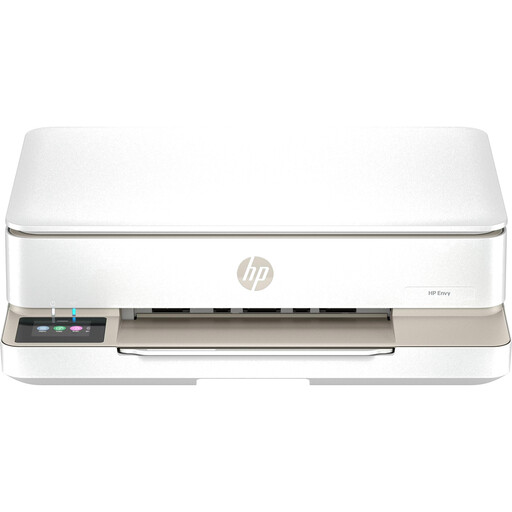 No image available
HP Envy 6120 All-in-One Wireless Inkjet Printer
A good fit if you also need to scan and copy in the classroom; for photo printing, check which paper sizes the printer supports.
- Automatic duplex printing
- Dual-band Wi-Fi and USB 2.0
- 100-sheet input tray
View at Joybuy
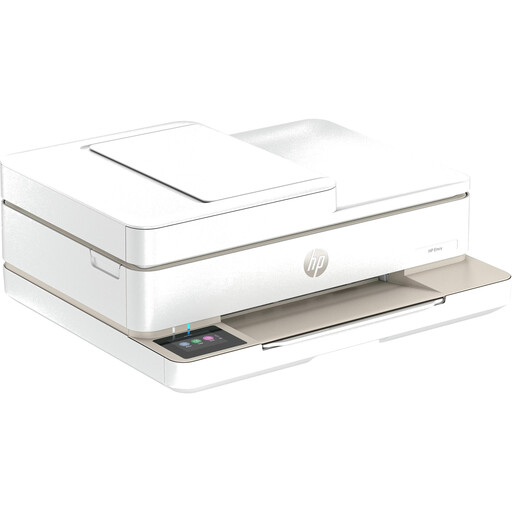 No image available
HP Envy 6520 All-in-One Wireless Inkjet Printer
A good fit if you need to scan or copy multi-page documents as well as print; for holiday photos, check which photo papers and sizes the model supports.
- Automatic duplex printing
- Dual-band Wi-Fi, Bluetooth and USB 2.0
- Automatic document feeder
- 125-sheet input tray and colour touchscreen
View at Joybuy
Frequently asked questions
Is ordinary copier paper suitable for holiday photos?
For photo prints, use inkjet photo paper supported by your printer. CHIP notes that ordinary copier paper absorbs more ink, which can make colours look less vibrant.
What can I do about streaks after a long break from printing?
For affected EcoTank and Expression printers, Epson recommends running a nozzle check first and, if needed, cleaning the print head using the maintenance functions. Check the ink level before cleaning. This guidance applies to the Epson printers mentioned and is not a general promise that the issue can be repaired.
Does automatic duplex printing mean photo paper can be printed on both sides?
No, you can’t tell from the duplex specification alone. On the Canon PIXMA TS7750i, automatic duplex printing applies to suitable plain paper. Check which paper types and sizes are supported by the model you’re considering.
Is Wi-Fi enough to make the printer work in the classroom?
Not necessarily. Check that the available connections and printing methods are compatible with the school devices you use and the school’s IT requirements. A Wi-Fi specification on its own does not confirm that the printer can connect to a particular school network.
Can recognisable photos of pupils simply be printed and shared?
There is no universal yes or no. The Rhineland-Palatinate State Commissioner for Data Protection and Freedom of Information classifies recognisable photos of living people as personal data. According to the Federal Commissioner for Data Protection and Freedom of Information, processing requires a legal basis under Article 6(1) of the GDPR. Whether a particular school may print or share photos depends on the purpose and the applicable school and state laws. Guidance from Rhineland-Palatinate does not automatically apply to every German state.


