If your priority is arranging lots of clips, audio tracks and titles side by side, focus on usable timeline space. For a native 4K preview, you’ll need 3840 × 2160 pixels. If you regularly make colour decisions for a specific output target, the right colour mode and, where appropriate, a calibration workflow are important. A wide 3440 × 1440 monitor gives you more horizontal space, but it isn’t native 4K. Also check the connections, scaling and available desk space.
Which monitor suits you?
Editing teams working with lots of tracks
When footage, music, dialogue and titles fill a busy timeline, screen space for your editing interface matters. Adobe describes the timeline as a chronological arrangement of video and audio clips, effects and transitions.
Those responsible for reviewing the image
If you compare footage from different cameras or assess the finished image for a specific output target, check the colour mode and calibration workflow for the exact model. BenQ and EIZO both list model-specific features and colour gamut specifications.
Teams sharing an editing workstation
If different people or computers use the same workstation, the video connections, power delivery and adjustment options need to suit your setup. USB-C specifications and height adjustment vary by model.
What to look for when buying
First decide whether timeline space, a 4K preview or image assessment matters most at your editing workstation. Then make sure the connections and setup suit your existing workspace.
| Priority |
What to check before buying |
Who it matters most to |
| Space for multiple tracks |
Timeline in your editing software; usable screen space at your usual scaling setting |
If I want to see lots of clips and audio tracks side by side, timeline width is my top priority. Around 36% of consumers in this scenario prioritise space for multiple video and audio tracks. |
| Colour for reviewing films |
The right colour mode and, where appropriate, calibration for the specified output target |
If I need to assess footage for a specific output target, a consistent colour workflow matters more than extra width. Around 29% of consumers prioritise colour control. |
| Preview resolution |
3840 × 2160 and how it looks at your chosen scaling setting; a suitable video output on your computer |
If I want to check 4K footage in the preview, I look for the right resolution and am willing to sacrifice some timeline width if necessary. Around 21% of consumers put 4K image checking first. |
| Connections and setup |
Video signal and your computer’s charging requirements; desk space and adjustment range |
For a shared editing workstation, I want to be able to set up the monitor to suit the computers and seating position. Around 14% of consumers prioritise connections and setup. |
Avoid common misconceptions
-
Assuming ultrawide means native 4K preview
A wide format can give you more horizontal workspace without offering native 4K resolution. For example, the LG 34WR55QC-B is listed at 3440 × 1440, not 3840 × 2160.
Decide whether timeline width or native 4K display is more important to you.
-
Assuming a wide colour gamut guarantees accurate film colours
Colour gamut coverage and colour mode are different specifications. When assessing an image, what matters is your chosen output target and the colour workflow you use.
Check the mode you need and the conditions attached to the specifications for the exact model, rather than comparing percentages alone.
-
Choosing a USB-C port without checking your computer
A USB-C port on a monitor doesn’t guarantee that your computer can output a suitable video signal through it or receive enough power. ASUS lists 96 W USB-C Power Delivery for the PA279CRV, while BenQ lists 65 W for the PD2705U.
Check the video output and charging requirements of each computer against the monitor’s specifications.
Depending on your computer, you may need an additional connection or a separate power supply. Check this before setting up your editing workstation.
Brands and model examples
ASUS
The ProArt PA279CRV is a 27-inch 4K model with several colour modes.
- ASUS lists a Rec. 709 mode, 96 W USB-C Power Delivery and 130 mm of height adjustment for this model.
- USB-C compatibility also depends on your computer’s connections. These specifications are from ASUS Germany.
BenQ
The DesignVue PD2705U is a 27-inch 4K model with a Rec. 709 mode.
- BenQ lists 99% Rec. 709 and sRGB coverage, as well as 65 W USB-C Power Delivery, for this model.
- These are manufacturer specifications for the PD2705U, not independent test results or claims about all BenQ monitors.
EIZO
According to the manufacturer, the ColorEdge CS2740 combines a 4K display with hardware calibration.
- EIZO lists 100% Rec. 709 coverage and hardware calibration of brightness, white point and gamma/EOTF for this model.
- Whether this additional workflow is worthwhile depends on whether you regularly work to a defined output target.
LG
The 34WR55QC-B is an example of a wide 21:9 alternative to a native 4K preview.
- LG lists this model at 3440 × 1440 pixels with a 21:9 aspect ratio.
- LG currently lists the 34WR55QC-B as no longer available on its German website. This says nothing about other LG models.
Dell
The UltraSharp U2723QE is a 27-inch 4K model featured in an independent video editing ranking.
- Fixthephoto ranked the model at number 1 in its 2026 ranking. This is its position in an external list, not a claim that it is universally the best.
- Dell Germany currently lists the U2723QE as unavailable. This doesn’t indicate the availability of other UltraSharp models.
Joybuy products for timeline work and image checking
The selection below includes wide ultrawide monitors for extra timeline space, as well as 4K models for a high-resolution preview. The wide models are not listed with native 4K resolution.
 No image available
CRUA 49-inch DQHD ultrawide monitor
For an editing workstation where you want room for lots of clips and tracks side by side; the resolution isn’t native 4K.
49 inches, 32:9 and 5120 × 1440; 165 Hz; height-adjustable stand; HDMI 2.1 and DisplayPort 1.4.
View at Joybuy
 No image available
INNOCN E34A1R 34-inch UWQHD curved monitor
For anyone who wants extra horizontal timeline space while editing; the listed resolution isn’t native 4K.
34 inches, 21:9 and 3440 × 1440; VA panel; 200 Hz; PIP/PBP; height-adjustable.
View at Joybuy
 No image available
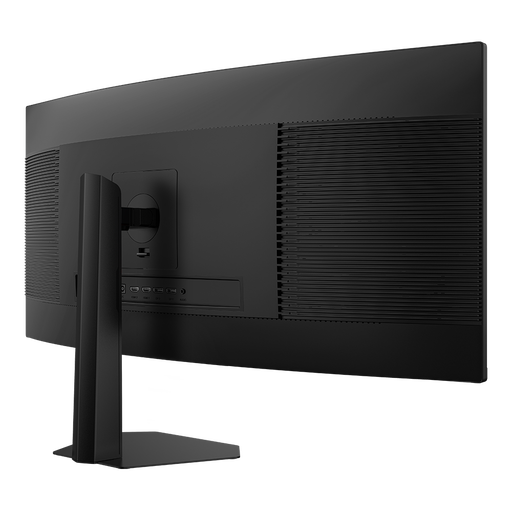
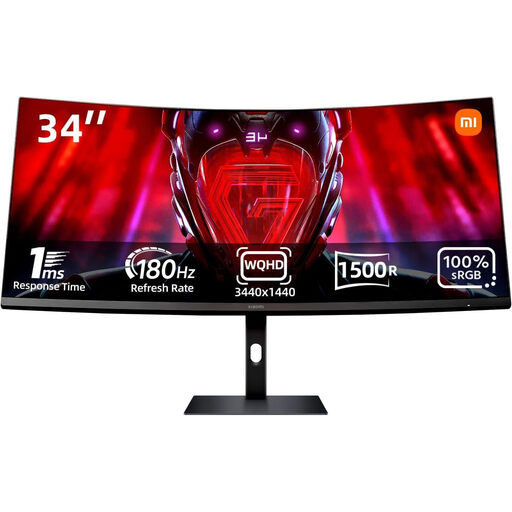
Xiaomi G34WQi 34-inch ultrawide monitor
For anyone who prioritises a wide timeline over a native 4K preview.
34 inches, 21:9 and 3440 × 1440; 180 Hz; 100% sRGB according to the product listing.
View at Joybuy
 No image available
ASUS ROG Swift OLED PG32UCDMR 32-inch 4K UHD monitor
For anyone who prioritises a 4K preview on a 16:9 screen; compared with wider 21:9 models, there’s less horizontal space for the timeline.
32 inches and 3840 × 2160; USB-C with 90 W Power Delivery; HDMI 2.1 and DisplayPort 2.1.
View at Joybuy
 No image available
KOORUI G2741L 27-inch 4K UHD monitor
For anyone who prioritises 4K image checking on a 27-inch screen; the 16:9 format offers less horizontal timeline space than a wider 21:9 format.
3840 × 2160; 100% sRGB and 95% DCI-P3 according to the product description; 100 mm height adjustment; HDMI 2.1 and DisplayPort 1.4.
View at Joybuy
Frequently asked questions
Do I need an ultrawide monitor to work with multiple video tracks?
No. A wide monitor can help if the timeline is the bottleneck. For a native 4K preview, however, you’ll need a resolution of 3840 × 2160. Check how your editing software lets you arrange the timeline and preview.
Is one USB-C cable enough for video and power?
Only if your computer outputs a suitable video signal through that connection and its power requirements are within the monitor’s capacity. ASUS lists 96 W USB-C Power Delivery for the PA279CRV and BenQ lists 65 W for the PD2705U. Check these figures against your computer’s requirements.
Do I need to calibrate regularly for a club film?
If you want to assess colours against a defined output target, choose a suitable colour mode and, where appropriate, plan a calibration workflow. A monitor’s features won’t determine your output target or a calibration schedule that suits every project.
How can I compare the power consumption of different monitors?
For monitors of a similar size, compare the EU energy labels and product data sheets. The European Commission describes an efficiency scale from A to G for electronic displays. To estimate your own electricity costs, you’ll also need to know how long you use the monitor and your electricity tariff.
What rules apply when buying a monitor online in Germany?
For an ordinary consumer purchase made at a distance, you generally have a statutory right to cancel. Section 312g of the German Civil Code (BGB) sets out exceptions, while Section 355 specifies a 14-day period. Claims for faulty goods are separate: under Section 438 BGB, the limitation period for goods is generally two years from delivery. The specific contract and statutory requirements apply; the Federal Ministry of Justice and the Federal Office of Justice publish the provisions mentioned here.


