Editing team working with long timelines
If you’re bringing lots of clips and tracks together to make a long anniversary film, having more of the timeline and tools in view can make editing at your workstation easier.


When editing a long club film, a 21:9 ultrawide is worth considering if you want to see lots of tracks and tools at once. For native 4K detail and checking a Rec.709 output, a suitable 4K monitor may be a better fit. Dell lists the U3425WE as having a resolution of 3440 × 1440 pixels, so it cannot display a native preview at 3840 × 2160 pixels. A monitor alone won’t make large project files run more smoothly.
If you’re bringing lots of clips and tracks together to make a long anniversary film, having more of the timeline and tools in view can make editing at your workstation easier.
If you’re assessing picture detail and colour before a screening, your monitor should suit your resolution, output format and colour workflow.
If you regularly reconnect your editing laptop or move between workstations, make sure the video connection, cable and, where needed, charging power are all compatible.
Base your decision on the projects you typically work on, and decide whether workspace, colour matching, laptop connectivity or checking native 4K detail matters most to you.
| Buying priority | What to look for | Who it matters most to |
|---|---|---|
| Timeline and workspace | Test your window layout with a typical project and check that everything is easy to read at your preferred scaling. | If I want to see lots of tracks and tools at once, the available width matters most to me. Around 36% of consumers put timeline space first. |
| Colour for output | Decide on your output format, then check the appropriate colour mode and, where relevant, the calibration workflow. | If I’m approving colours for a specific output, I want to choose a monitor that suits that colour workflow. For around 29% of consumers, assessing output colours is the main priority. |
| Laptop connectivity | Check that the video output, monitor input, cable and required charging power are compatible with your specific laptop. | If I often reconnect my editing laptop, I want to know whether video transmission and power delivery will work together. Around 21% of consumers prioritise laptop connectivity. |
| Native 4K detail | Consider your source footage, preview window and scaling; check the performance of your editing computer separately. | If I want to assess UHD picture detail, a suitable 4K preview matters more to me than extra timeline width. Around 14% of consumers focus on checking 4K detail. |
An ultrawide with 3440 × 1440 pixels provides a different workspace from a native 3840 × 2160 preview. Its extra width doesn’t replace checking UHD detail.
Before you buy, decide whether timeline space or native 4K checking matters more for your editing workflow.
Colour gamut coverage, your chosen output colour space and calibration each answer different questions. A high coverage figure alone doesn’t prove that the mode you’re using is accurate or that the screen is uniform.
Check the colour mode for your planned output and the calibration workflow for the specific model. Depending on your needs, you may also need calibration equipment and to recalibrate regularly.
A stated charging power rating doesn’t tell you on its own whether it’s suitable for your laptop or whether the video signal will be carried over the connection you’re using.
Check your laptop’s connection, video signal, cable and charging needs against the monitor you’ve chosen. Depending on the connection setup, you may need a suitable cable or a separate power supply.
Screen space won’t reduce the processing demands of large video files. Adobe describes proxies as low-resolution copies of source footage that require their own media and editing workflow.
Test your project and consider screen requirements separately from your computer, media and storage needs. Setting up a suitable proxy or storage solution may involve extra work.
The UltraSharp models mentioned offer a versatile hub-based workstation and a larger 4K alternative.
BenQ offers the PV3200U for video editing and Rec.709 workflows.
The ColorEdge CS2740 is aimed at buyers who prioritise a repeatable calibration workflow over maximising screen width.
The ProArt PA279CRV is a more compact 27-inch 4K option with several colour modes and USB-C.
The UltraWide 34U650A-B is another 34-inch 21:9 option if a wide workspace matters more than a native 4K preview.
The Joybuy products below include 4K monitors for checking detail and ultrawide models for a wider editing workspace. Before choosing, check your window layout, laptop connections and colour workflow; a monitor alone won’t speed up large project files.
 No image available
A 4K option if you want to check UHD picture detail at your editing workstation.
27 inches, IPS, 4K UHD, 3840 × 2160 pixels, 60 Hz.
 No image available
A wide workspace if you want to see several tracks side by side along a long timeline.
40 inches, IPS, 5120 × 2160 pixels, 21:9, 100 Hz.
 No image available
A compact 4K option for checking UHD detail; make sure its laptop connectivity suits your device.
IPS, 3840 × 2160 pixels, 120 Hz, USB-C with 90 W Power Delivery, HDMI and DisplayPort.
 No image available
A larger 4K option if you want to assess UHD detail on a bigger screen.
31.5 inches, QD-OLED, 3840 × 2160 pixels, DisplayHDR True Black 400.
 No image available
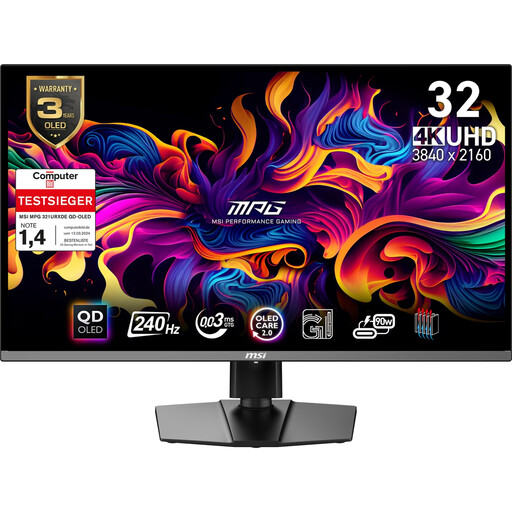
A 32-inch 4K option if you want to consider UHD detail and laptop connectivity at the same editing workstation.
OLED, 3840 × 2160 pixels, 240 Hz, USB-C with 90 W Power Delivery, USB hub.
The product description recommends leaving the OLED Care features enabled to reduce the risk of burn-in.
No. More screen space won’t reduce the processing needed for playback. Adobe describes low-resolution proxies as a way to edit more smoothly in Premiere; consider this media workflow separately from your monitor purchase.
First, set the project’s output colour space; Adobe specifies Rec.709 for an SDR sequence. Then choose a compatible monitor colour mode and, if you’ll be approving colours regularly, check the calibration workflow. Calibration can’t expand a monitor’s colour gamut if it’s too small.
Check whether your colour workflow requires calibration equipment, or whether your laptop needs a suitable cable or a separate power supply. For a private consumer purchase, statutory rights against the seller are distinct from a voluntary guarantee. The Verbraucherzentrale states that new goods generally have a two-year period from delivery or receipt; whether these consumer rules apply to a specific purchase by a club depends on the parties to the contract.
The EU energy-labelling rules explained by EUR-Lex generally cover electronic displays, including monitors; certain professional displays are subject to exemptions or different requirements. So check the product information for the specific model rather than assuming it’s exempt just because it’s described as a “professional monitor”.