Start by choosing a monitor based on whether you’ll mainly be designing digital pages or preparing a colour-critical print: for layouts, you’ll want clear, readable views and a screen that can be positioned comfortably; for print proofing, you’ll also need calibration and a profile for the specific output process. If you share a desk, check the connections on each laptop and make sure there’s enough room for the monitor stand. A colour gamut specification alone doesn’t guarantee accurate print colours; Adobe explains that calibration, ambient light and the print profile are all part of the colour workflow.
Which monitor is right for you?
Designers preparing print layouts
If you’re checking images and club colours for a potential print run, you’ll need to consider the monitor profile, calibration and the conditions of the specific print process together. Adobe explains these points in its guidance on colour management and proofing.
People using different laptops
If several people share the same workstation, the right video, data and charging connections—as well as a convenient way to switch between devices—can be important. BenQ, EIZO, Dell and ASUS list different connections and KVM features, so check what’s available for the computers you’ll actually use.
People working on layouts and proofreading
If you regularly check pages, text and image details, consider resolution, scaling and screen position together. The Federal Institute for Occupational Safety and Health covers the design of computer workstations, while PRAD also describes the potential benefits of portrait orientation for long documents.
What should you look for when buying?
First, decide whether you need to assess colours for a specific print job. Then check the connections, readability and adjustment options against the requirements of your shared workstation.
| Priority |
What to check before buying |
Who should pay particular attention |
| Colour and print |
Check the colour mode and calibration options. If you’re planning a print run, also check the profile for the specific output process. |
If I need to assess club colours for a specific print job, a colour gamut specification alone isn’t enough. Around 31% of consumers say colour and printing are their top priority. |
| Switching between computers |
Check the video output, charging power required and cables for each laptop. If you’re using two computers, also look at the KVM connections and switching options. |
If we switch between laptops at the same desk, I want to make sure we can handle the video signal and power without unnecessary cable changes. Around 25% of consumers put switching between computers first. |
| Readability and layouts |
Consider your preferred text size, operating system scaling and the resolution supported by your computer together. |
When setting small text, I want to be able to check pages and image details clearly. Around 25% of consumers prioritise checking layouts and text. |
| Adjusting the workstation |
Check height, tilt and swivel adjustments, the space required by the stand and, if needed, compatibility with a suitable VESA mount. |
If several people use the workstation, I want to be able to adjust the screen to suit each person’s seating position. Around 19% of consumers prioritise a flexible workstation setup. |
Common buying pitfalls
-
Assuming colour gamut coverage guarantees print-ready colours
A stated sRGB or wider colour gamut doesn’t automatically reflect the conditions of a specific print job. Calibration, paper and the print profile also affect how colours appear.
Before you buy, decide whether the handbook will stay digital or be printed with colour accuracy in mind. If you’re planning a print run, it’s best to confirm the profile and proofing requirements for the intended output process.
-
Buying USB-C without checking the whole connection setup
USB-C alone doesn’t tell you whether your laptop’s port supports video output or provides the charging power you need. The right connection depends on the features of the specific computer and monitor.
Make a note of the ports and power requirements for each laptop, then compare them with the monitor specifications.
Depending on the equipment you already have, you may need suitable cables, a power supply or a docking solution.
-
Comparing only resolution or screen size
At 27 inches, a 4K display may require more system scaling. The stand and desk also affect how easily you can adjust the screen at a shared workstation.
Check a handbook page at your preferred text size, and measure the available desk space, including room for any adjustments.
Key brands at a glance
BenQ
The DesignVue range includes models for design work. For the PD2705Q, BenQ Germany lists QHD, an sRGB mode, USB-C and an adjustable stand.
- The listed features may suit digital layouts and a compatible computer connected via USB-C.
- The colour specifications come from the manufacturer and don’t replace a calibrated proof for print projects.
Dell
According to Dell Germany, the UltraSharp U2724DE is a 27-inch QHD monitor with a Thunderbolt 4 hub.
- The hub features may be useful when switching between compatible laptops.
- QHD has fewer pixels than the 4K models considered here; the hub alone doesn’t prove the monitor is suitable for colour-accurate print preparation.
ASUS
For the ProArt PA278CGRV, ASUS lists QHD, sRGB, USB-C Power Delivery and Auto-KVM.
- Auto-KVM and USB-C may be useful at a workstation with two suitably connected computers.
- How useful they are depends on your colour workflow and connected devices; the manufacturer’s specifications aren’t an independent test of this model.
LG
According to LG Germany, the LG UltraFine 27UP850K-W is a 27-inch 4K monitor with USB-C and typical DCI-P3 coverage of 95%.
- The extra resolution may be useful for viewing fine details.
- Typical colour gamut coverage doesn’t confirm the accuracy of an individual monitor or its match with a particular print process.
EIZO
The FlexScan EV2740X is a 27-inch 4K office monitor with USB-C docking, KVM and ergonomic adjustment options. EIZO lists sRGB as its maximum typical colour gamut. On 2 November 2026, PRAD ranked the model first in its list of 27- to 28-inch office monitors.
- PRAD has tested the EV2740X for office use; its docking and adjustment options may be useful at a shared workstation.
- The ranking is for office use and doesn’t rate the monitor for colour-accurate print production.
Joybuy monitors for layouts and fine details
The Joybuy products below include QHD and 4K monitors for page layouts and detailed views. Compare the resolution, screen size and adjustment options with the way you work and the needs of your shared desk.
 No image available
Z-Edge AGEX 27-inch QHD monitor
At 27 inches, the QHD resolution is an option if you want to check page layouts on a QHD screen.
The product title lists a height-adjustable stand.
Joybuy
 No image available
TCL 32X3A 32-inch OLED monitor, 4K UHD
This 32-inch 4K model is worth considering if you’d like to view layouts and image details on a larger screen.
The product title lists 3840 × 2160 pixels and OLED+.
Joybuy
 No image available
MSI MAG 274UPDFDE E16M, 27-inch monitor
If you’re looking for a 27-inch UHD monitor for layouts, you could add this model to your shortlist.
The product title lists Mini LED and Rapid IPS, as well as 160 Hz at UHD and 320 Hz at FHD.
Joybuy
 No image available
MSI PRO MP273UPDE E6, 27-inch 4K UHD IPS monitor
This 27-inch 4K model is worth comparing if you want to check pages and fine details on a UHD screen.
The product title lists IPS and 60 Hz.
Joybuy
 No image available
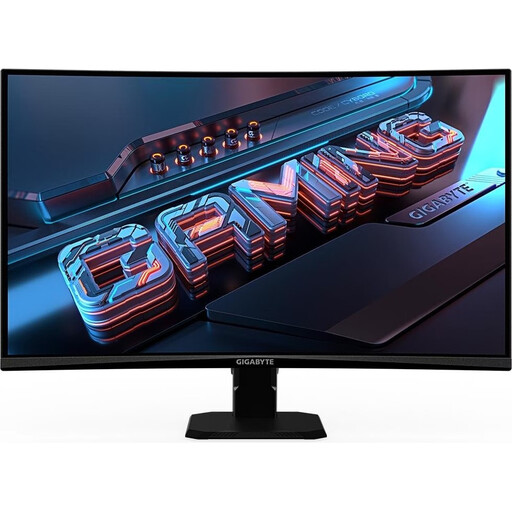
Gigabyte GS27QCA, curved 27-inch QHD monitor
If you prefer QHD at 27 inches and are considering a curved screen, you can compare this model with flat monitors.
The product title lists 180 Hz and 1 ms.
Joybuy
Frequently asked questions
Is an sRGB specification enough to approve the handbook’s print colours?
No. For a meaningful soft proof, the monitor profile needs to match the output conditions. A physical proof also needs the profile for the specific printer and paper combination. Check the output specifications with your printer before assessing colours as final. Adobe explains these requirements in its guidance on colour management and proofing.
Can any laptop transfer video and charge through a single USB-C cable?
No. Check whether the port on the specific laptop supports video output and how much charging power it needs. Compare both with the monitor specifications and the cable you’ll use; otherwise, you may need a separate video connection or power supply.
What should the team readjust after changing seats?
Adjust the screen position and, if necessary, scaling for each person, and watch out for distracting reflections. For colour-critical work, any changes to brightness or colour settings should also fit with the calibration and profile workflow you’re using.
What does a monitor’s energy label in Germany tell you?
The EU energy label rates electronic displays on a scale from A to G. Compare the label and model specifications for the devices you’re actually considering; an energy rating says nothing about suitability for print colours. The European Commission explains the energy label for electronic displays.
Does the ASR A6 workplace rule automatically apply to every volunteer designing a handbook?
No. The Federal Institute for Occupational Safety and Health describes the scope of the rule as computer work at workplaces and teleworking locations, and lists private use as an exception. Whether a particular club workstation is covered depends on how it is actually used and organised; this doesn’t create a general requirement to buy a particular monitor model.


