Website editors
If you edit text and page layouts, you can keep the editor and preview open on separate screens. Whether one external monitor is enough depends on whether you also use your computer’s screen.


The key question is whether you want to use your laptop screen alongside one monitor, or two external monitors: to use two external displays, your computer must support that setup too. For text and page layouts, consider the available workspace and how the screens will be positioned. For photos and graphics, stated colour specifications may matter more; for a laptop setup with fewer cables, docking connections may be the priority. A DisplayPort output on the monitor alone does not guarantee a second extended screen.
If you edit text and page layouts, you can keep the editor and preview open on separate screens. Whether one external monitor is enough depends on whether you also use your computer’s screen.
If you also edit club photos and graphics, documented colour specifications may help you choose. Bear in mind, too, that the finished website will also be viewed on the second screen.
If you want to connect your workstation with as few cables as possible, check video output, power delivery and support for the number of displays you need on your specific laptop model.
A good fit if: you mainly work on text and page layouts and want to view the editor and preview separately. The screen size and resolution should suit your desk and computer.
Consider: A larger display takes up more desk space; specialist docking or colour features aren’t essential for every website task.
A good fit if: you regularly edit club photos, graphics or website colours and want to compare the specifications for the exact model.
Consider: Manufacturer claims about colour gamut don’t guarantee that your website will look the same on every other screen.
A good fit if: you want to connect a compatible laptop with as few cables as possible, and the model’s charging capacity and video output suit your computer.
Consider: A USB-C port on the monitor doesn’t guarantee the right power supply or that your laptop supports two external displays.
| Buying priority | What to check | Who it matters most to |
|---|---|---|
| Workspace for the editor and preview | Compare the screens you already have, the desk space available, and the diagonal size and native resolution of the displays you’re considering. | If you want the editor and preview to be clearly legible at the same time, usable screen space is key. Around 31% of consumers prioritise workspace. |
| Connectivity for two displays | Check your computer model and how many external displays it supports; verify video output, charging capacity and the complete signal path. | If your specific computer needs to run the setup you want, check its connections and display support before buying. Around 31% of consumers put connectivity first. |
| Displaying club photos and graphics | Check the colour gamut and calibration specifications for the exact model, and view the finished website on both displays. | If you edit photos or graphics, verifiable colour specifications are particularly important. Around 23% of consumers prioritise image quality. |
| Adjustable positioning | Check height and tilt adjustment, as well as the stand’s footprint or mounting options for both screens. | If you want to arrange the setup to suit your seating position and desk, consider the adjustment options and space required. Around 15% of consumers pay particular attention to positioning. |
Video output and charging capacity need to suit your computer and its requirements. The number of external displays you can use also depends on the specific model.
Before buying, check your laptop model, video output and required power against the specifications for that exact monitor.
Depending on your setup, you may also need a compatible video connection, a separate power supply or another docking solution.
The output on the monitor is only one part of the connection. Your computer must also support the multi-screen setup you have in mind.
Decide whether you mean a laptop plus one monitor or two external displays, then check the complete signal path for that setup.
Colour specifications apply to the model in question; the finished website may look different on another screen.
Use the specifications for the exact monitor to help you choose, then check the finished page on the second display as well.
The DesignVue PD2705Q is a 27-inch QHD option for regularly editing club photos and graphics.
According to Lenovo, the ThinkVision T27h-30 combines a 27-inch QHD work monitor with USB-C docking and a DisplayPort output.
The Series 5 Pro 527pu is a QHD docking option for a compatible laptop and a planned multi-screen workstation.
The UltraSharp U2724DE is a 27-inch QHD option with a Thunderbolt hub for computers with compatible ports.
The UltraFine 27UP850K-W is a 27-inch 4K option for detailed work or image previews.
This selection includes monitors for adding a screen when working with an editor and website preview, with options for adjustable positioning and image work.
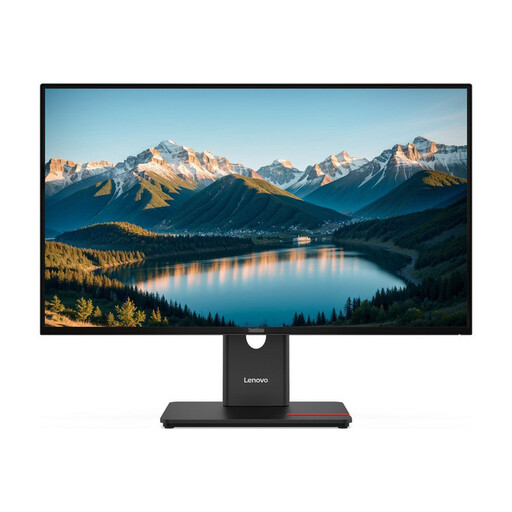 No image available
As an additional screen for your editor and preview; according to the product specifications, the stand adjusts for height, tilt, swivel and pivot.
27 inches; 2560 × 1440 pixels; 99% sRGB; HDMI, DisplayPort and USB-C.
 No image available
A 27-inch QHD option for an additional work screen; according to the product description, the stand tilts.
27 inches; 2560 × 1440 pixels; IPS; 99% sRGB; HDMI and DisplayPort.
 No image available
Could be worth considering if you want a wide workspace for content and previews; according to the product specifications, the display is around 94.4 cm wide with the stand. Check that you have enough room.
40 inches; 5120 × 2160 pixels; IPS; USB-C with 65 W Power Delivery; USB hub; PIP/PBP.
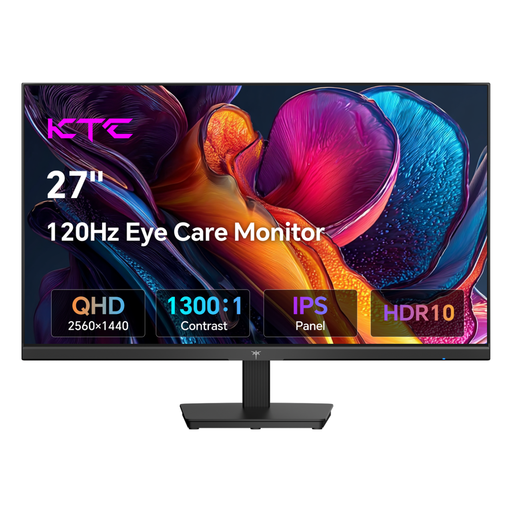 No image available
An option for working with photos and graphics if the listed colour specifications are important to your choice.
27 inches; 2560 × 1440 pixels; IPS; 123% sRGB; HDMI and DisplayPort; VESA mounting according to the product specifications.
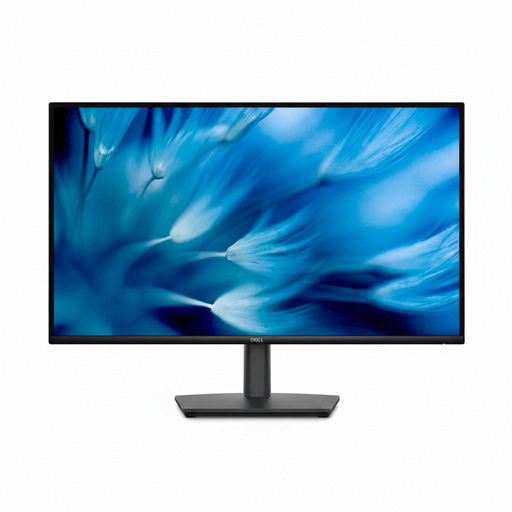 No image available
An additional work screen if adjustable positioning is important for your workstation.
2560 × 1440 pixels; IPS; HDMI and DisplayPort; according to the product specifications, a 130 mm height-adjustable stand with tilt, swivel and pivot functions.
Yes, if you want to use your laptop screen as one of the two displays and your computer supports the external monitor. For two additional external monitors, check your computer’s model specifications and the connections you’ll need.
No. The DisplayPort output is just one part of the signal path; your computer must also support the multi-screen setup you want. Apple notes that the number of external displays depends on the specific Mac model.
Connect the displays supported by your computer and choose an extended desktop rather than a mirrored one. Then decide which screen you want to use for each view and arrange the displays to suit your workspace.
Consumers who buy online generally have a 14-day right to cancel, as explained by the Verbraucherzentrale. Your statutory rights against the seller are separate from any voluntary guarantee. Whether a purchase made directly by a club is covered by the same consumer rules depends on who the contracting party is.
According to its scope, the Federal Institute for Occupational Safety and Health’s ASR A6 applies to screen work in workplaces and at teleworking stations; it does not automatically apply to private use outside such teleworking stations. Whether a particular club workstation falls within its scope depends on how it is classified in practice.