Who are these monitor options suited to?

Readers of code and documentation

If you read long functions, local documentation or test logs and want to scroll less vertically, a taller display format is worth considering. PRAD notes that the BenQ RD280U offers extra vertical space; that doesn’t mean it will boost productivity for everyone.

Users working with an editor and preview

If you want to see source code, a puzzle preview and possibly a debugging window at the same time, the way you arrange your windows and the legibility of your chosen scaling are key.

Laptop developers at a desk

If you want to connect your display, input devices and possibly power through suitable ports, the specific monitor’s features need to match your laptop and cables.

What should you consider when choosing?

Taller 3:2 display

A good fit if: You mainly want to see longer sections of code, documentation or logs at once. BenQ lists the RD280U as a 28.2-inch display with a resolution of 3840 × 2560 pixels; PRAD notes that it has 400 more vertical pixels than a typical 4K UHD display.

Consider: A taller format isn’t automatically the most practical choice for placing wide windows side by side. Check that you have enough desk space and that everything is legible at your preferred scaling.

27-inch, 4K and 16:9

A good fit if: You want to arrange your editor and puzzle preview on a widescreen display, while making use of plenty of pixels for text or graphics. EIZO specifies a resolution of 3840 × 2160 pixels and USB-C with DisplayPort Alt Mode for the EV2740X.

Consider: Increasing the text size doesn’t automatically give you more usable window space. Check the layout at the scaling you actually plan to use.

27-inch, QHD and 16:9

A good fit if: You want a widescreen layout for your editor and preview, along with ports to suit your laptop. Dell lists a resolution of 2560 × 1440 pixels and a Thunderbolt 4 hub for the U2724DE; Lenovo specifies the same resolution for the ThinkVision P27h-30.

Consider: QHD has fewer pixels than the 4K examples mentioned here. Hub features and compatibility vary by model and laptop.

What matters What to check before buying Who is it most relevant to?
Vertical space for code, documentation and logs Aspect ratio, native resolution, screen size, and legibility at your chosen font size and scaling. If I want to read long sections of code or logs without interruption, I pay particular attention to the visible vertical space; around 27% of consumers prioritise this.
Editor and preview on screen at the same time How the windows fit together at your usual font size, as well as the aspect ratio and resolution. If I use an editor, puzzle preview and debugging window side by side, a legible overall layout matters to me; around 27% of consumers prioritise seeing everything at once.
Ergonomic positioning Height adjustment, tilt, desk space, reflections and positioning at your usual viewing distance. If I want to adjust the screen to suit my desk and individual vision needs, I check the adjustment options and space required; around 20% of consumers prioritise positioning.
Laptop docking Your laptop’s video output, charging requirements, and the monitor’s ports, cables and hub features. If I want to connect the display, data and possibly power through a suitable connection, I check that the laptop and monitor features match; around 13% of consumers put docking first.
Energy use and essential features The EU energy label for the specific model, and the ports or extra features you actually need. If I want to avoid unnecessary features and compare the stated energy use, I check the specific model; around 13% of consumers pay particular attention to these points.

Common buying mistakes

  • Choosing based on pixel count alone

    Resolution alone won’t tell you how well code, previews and logs will fit together at your preferred font size. More pixels don’t automatically mean more usable workspace when you increase text scaling.

    Before comparing formats, sketch out your window layout using the font size you actually use when coding.

  • Assuming USB-C means a complete docking solution

    A USB-C port on its own doesn’t tell you whether video, data and sufficient charging will all work together in your setup. The video and charging features described vary by model.

    Check your laptop, monitor port and cable separately for the features you need.

  • Confusing a warranty with your statutory rights for faulty goods

    A voluntary warranty and your statutory rights when goods are faulty are different entitlements, and may come with different terms.

    Keep your proof of purchase and product description, and check the warranty terms separately from your statutory rights.

Brands worth considering

BenQ

The RD programming monitor series may appeal to buyers who particularly value vertical space for viewing code; the RD280U example described here uses a 3:2 format.

  • BenQ specifies a resolution of 3840 × 2560 pixels, 60 Hz via DisplayPort or USB-C, and 90 W USB-C Power Delivery for the RD280U. PRAD highlights its extra vertical space.
  • PRAD notes that image uniformity could be improved on the RD280U. Manufacturer claims about concentration or eye comfort don’t prove that the monitor has these effects.

EIZO

The FlexScan EV2740X is a 27-inch 4K example for a widescreen editor-and-preview layout with docking.

  • EIZO specifies a resolution of 3840 × 2160 pixels, USB-C with DisplayPort Alt Mode, up to 94 W power delivery and a network port for this model.
  • How much of the higher resolution is practically usable also depends on your preferred text scaling. You can’t assume other FlexScan models have the same features.

Dell

The UltraSharp series is represented here by the U2724DE, a 27-inch QHD option with a Thunderbolt hub.

  • Dell lists a resolution of 2560 × 1440 pixels at 120 Hz and a Thunderbolt 4 hub for the U2724DE.
  • This model has fewer pixels than the 4K examples mentioned here. Check that the hub works with your computer rather than assuming its features will suit every setup.

Lenovo

The ThinkVision P27h-30 is a 27-inch QHD example for buyers looking for USB-C docking with a network port.

  • Lenovo lists a resolution of 2560 × 1440 pixels, USB-C docking with up to 100 W, Ethernet and KVM for this model.
  • Multi-screen and charging features require compatible devices and connections. These specifications don’t automatically apply to other ThinkVision models.

LG

The Ergo and DualUp examples show a movable stand and an especially tall format, respectively.

  • LG lists a clamp-style stand and 4K resolution at 27 inches for the 27UN880P-B. The 28MQ780-B has a 16:18 format and a resolution of 2560 × 2880 pixels.
  • LG’s German product pages list both models as no longer available. They are therefore useful for comparing formats and ergonomics, not confirmed current buying options.

Joybuy monitors for code and previews

The Joybuy models below include 27-inch QHD or WQHD options, as well as a few 4K monitors. Compare them based on how you arrange your code and preview, the scaling you need, and which ports are compatible with your computer.
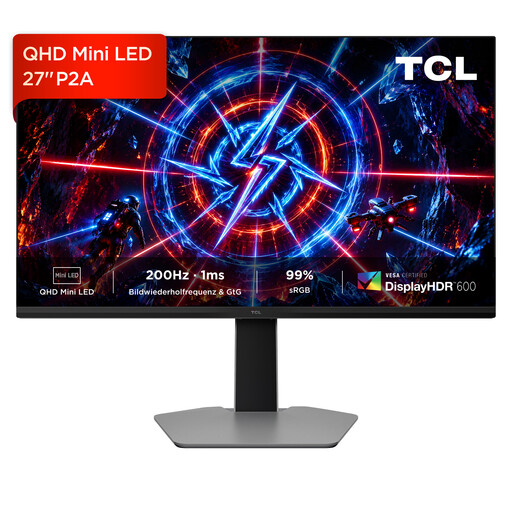
TCL 27P2A 27-inch Mini-LED monitor, QHD, 200 Hz

TCL 27P2A, 27-inch Mini-LED monitor, QHD, 200 Hz

Worth considering if you’re looking for a QHD display for code and previews, and the adjustable setup described suits your workspace.

Listed in the product name: QHD (2560 × 1440), 200 Hz and IPS panel.

View at Joybuy

KTC M27P6 27-inch MiniLED monitor, 4K, Type-C 65 W and KVM

KTC M27P6, 27-inch MiniLED monitor, 4K 160 Hz / FHD 320 Hz

Could be a good fit if you’re looking for a 4K model for code and previews, and the listed connectivity and positioning options suit your computer and desk.

Listed in the product name: Type-C with 65 W, KVM, and a height-adjustable stand with tilt and swivel functions.

View at Joybuy
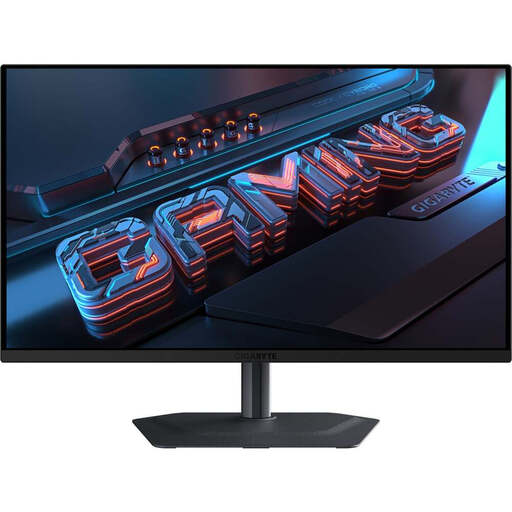
GIGABYTE MO27Q2A 27-inch QHD QD-OLED monitor, 240 Hz

GIGABYTE MO27Q2A, 27-inch QHD QD-OLED monitor, 240 Hz

A possible QHD option for an editor and preview, if the stand adjustments described suit your workspace layout.

Listed in the product name: 2560 × 1440 pixels and 240 Hz. The stated USB-C power delivery is 18 W; whether that’s enough for your laptop depends on its charging requirements.

View at Joybuy
GIGABYTE G27Q20 27-inch QHD monitor, 200 Hz, height-adjustable

GIGABYTE G27Q20, 27-inch QHD monitor, 200 Hz, height-adjustable

Worth considering if you want QHD for coding and can make use of the height and tilt adjustments described at your desk.

Listed in the product name: 200 Hz and an overclocking specification of 210 Hz.

View at Joybuy

MSI PRO MP275QPDGDE 27-inch WQHD docking monitor, USB-C 98 W, KVM and webcam

MSI PRO MP275QPDGDE, 27-inch WQHD docking monitor, 100 Hz

Could be a good fit if you’re looking for a WQHD monitor with docking features and its ports and charging capacity suit your laptop.

Listed in the product name: USB-C with 98 W Power Delivery, daisy chaining, KVM and an integrated webcam.

View at Joybuy

Frequently asked questions

Does a monitor store the local data for my puzzle generator?

Plan to store it on your computer and its storage device, not according to the screen resolution or a monitor hub. Choose a monitor based on how you want to view your code, preview and files.

What should I check when connecting my laptop?

Compare your laptop’s video output and charging requirements with the features of the specific monitor port and cable. EIZO lists DisplayPort Alt Mode and up to 94 W via the USB-C upstream port for the EV2740X; still, check that this connection is compatible with your laptop.

How should I set up my monitor for longer working sessions?

Adjust the screen position and text size to suit your workspace and individual vision needs, and check the height, tilt and any distracting reflections. The Federal Institute for Occupational Safety and Health describes this adjustment as important for office screen work; no particular monitor can reliably prevent discomfort.

Where can I compare stated energy consumption?

For monitors covered by the scheme, the EU energy label shows efficiency classes from A to G. Compare the label for the specific model; the European Commission’s EPREL product database may also contain additional model information.

What rights apply when buying a monitor online as a private consumer in Germany?

For a distance contract with a trader, you generally have a 14-day right to cancel from the date the goods are delivered; exceptions apply. Your statutory rights for faulty goods and a voluntary warranty are different entitlements, as explained by Your Europe and the Verbraucherzentrale.