When developing a household budgeting app, the first thing to consider is whether you can read your code, test results and preview side by side at your usual font size, and whether everything will fit on your desk. QHD, 4K and ultrawide monitors each have different strengths. If you use a laptop, you should also check that it supports the required video output and charging power. A monitor feature won’t make automated tests more reliable.
Which monitor is right for you?
Developers working with multiple views
If you want to read code, test output and your budget app preview side by side, the window layout, font size and available desk space all need to work together. For working with several software applications, the DGUV recommends a widescreen format or two monitors.
Developers using a laptop
If you connect your laptop at your desk, check that the monitor, computer and cable support the required video output, data connection and power supply. Specifications vary by model.
Developers sharing a home desk
If lighting or seating conditions vary, clear text and a setup that fits your available space are important. The DGUV highlights lighting, glare and an ergonomically designed workstation as relevant considerations for screen-based work.
What to consider when buying
For this kind of development work, a clear, readable window layout should come before extra features. Next, consider your laptop connections, monitor positioning and the specifications you actually need.
27-inch QHD
A good fit if: you want a manageable workspace for your editor and a few additional windows. Dell lists the U2724DE as a 27-inch monitor with a resolution of 2560 × 1440 pixels.
The trade-off: The QHD models mentioned here have fewer native pixels than the 4K models described below. Font size and scaling affect how much you can comfortably fit on screen.
27 to 31.5-inch 4K
A good fit if: you want more native pixels for your code, test logs and preview, and can comfortably read the text at your chosen scaling. ASUS lists a resolution of 3840 × 2160 pixels for the PA279CRV; BenQ lists the same resolution for its 31.5-inch RD320UA.
The trade-off: The larger BenQ model and its stand or arm need to fit your available space. Colour or coding modes don’t, in themselves, offer an advantage for automated testing.
34-inch ultrawide
A good fit if: you want to arrange development windows side by side across a wider screen and your desk can accommodate it. AOC lists a resolution of 3440 × 1440 pixels for the CU34P3CV.
The trade-off: The AOC has 1440 vertical pixels, fewer than the 2160 on the 4K models mentioned here. Check how your chosen window layout looks and whether the text is easy to read.
| Consideration |
What to check before buying |
Who it matters most to |
| Readable space for code, tests and previews |
Arrange your windows at your usual font size and scaling; compare screen size and resolution together. |
When I have my editor, test results and preview open at the same time, I want to be able to read all three clearly. Around 42% of consumers put readable screen space first. |
| Laptop connection and docking |
Check your laptop’s video output, cable, USB-C features and required charging power against the specifications of the monitor you’re considering. |
When I want to connect my laptop at my desk with one cable, the video output and power supply need to work with my devices. Around 25% of consumers prioritise laptop connectivity. |
| Ergonomic setup |
Check the adjustment range and monitor dimensions against your desk, lighting and seating position. |
When I share a workspace or work in changing light, I want to be able to position the screen to suit me. Around 17% of consumers say monitor positioning is their top consideration. |
| Upfront and running costs |
Only pay for the connections and accessories you need; compare the energy information for similar models. |
When I want to avoid unnecessary features and running costs, I compare the specifications and energy data for the models I’m considering. Around 16% of consumers put total costs first. |
Common monitor-buying mistakes
-
Comparing pixel counts without checking your window layout
More native pixels don’t automatically mean that you can fit your code, tests and preview side by side in a practical way at your preferred font size. Scaling and the space available also affect your workspace on screen.
Try arranging your editor, test output and preview at your preferred size, and measure the space available on your desk.
-
Assuming every USB-C port provides a complete laptop docking solution
A USB-C port alone doesn’t tell you whether it supports video, data and the charging power you need. The power supplied varies between models.
Before you buy, compare the specifications for the monitor, laptop and cable.
Depending on the connections you need, you may also need a charger, cable or hub.
-
Confusing the manufacturer’s warranty with your statutory rights
A voluntary manufacturer’s warranty comes with its own terms and conditions. For faulty goods, your statutory rights are generally against the seller, as explained by the Verbraucherzentrale.
Keep your proof of purchase and contact the seller first if there’s a fault.
Key brands to consider
Dell
The UltraSharp U2724DE is a 27-inch QHD option with a laptop hub.
- Dell lists Thunderbolt 4, an integrated hub, height adjustment and up to 90 W power delivery for this model.
- QHD has fewer native pixels than the 4K models mentioned here. These specifications don’t apply to every Dell monitor.
ASUS
The ProArt PA279CRV is a 27-inch 4K option with colour modes.
- ASUS lists 4K, several colour modes, height adjustment and 96 W USB-C Power Delivery for this model.
- Colour modes won’t necessarily be useful for every budgeting app, and don’t offer an advantage for automated testing.
BenQ
The RD320UA is a 31.5-inch 4K monitor with USB-C and coding modes.
- BenQ lists USB-C with 90 W power delivery, KVM and adjustable modes for this model.
- The screen and stand or arm need space. Coding modes are manufacturer features, not independent proof of increased productivity.
EIZO
The FlexScan EV2740X is a 27-inch 4K option with USB-C docking and KVM.
- EIZO lists 94 W power delivery via USB-C, LAN and KVM for this model.
- Whether these features are worth it depends on the devices you want to connect.
AOC
The CU34P3CV is a 34-inch ultrawide option for arranging development windows across a wider screen.
- AOC lists a curved VA panel with 3440 × 1440 pixels and USB-C with up to 65 W power delivery for this model.
- Its 1440 vertical pixels are different from the 2160 on the 4K models mentioned here.
Joybuy monitors for coding, testing and previews
This selection includes wide ultrawide workspaces, as well as 27-inch QHD and 4K models. Some monitors are listed with USB-C docking features. Check that the format, connections and dimensions suit your workspace and laptop.
 No image available
CRUA 49-inch DQHD curved monitor, 32:9
The wide format could work well for arranging several windows side by side, if you have enough desk space.
49 inches, 32:9 and 5120 × 1440 pixels; 165 Hz; HDMI 2.1 and DisplayPort 1.4; height-adjustable stand.
The 49-inch format needs plenty of desk space.
View at Joybuy
 No image available
INNOCN 40C1U 40-inch 5K ultrawide monitor
The wide 40-inch format is an option if you want to arrange several development views on one screen and have the desk space for it.
21:9 and 5120 × 2160 pixels; IPS; 100 Hz; USB-C with 65 W Power Delivery; PIP/PBP.
Listed width: 944,1 mm.
View at Joybuy
 No image available
KTC M27P6 27-inch 4K Mini LED monitor, White
The 27-inch format and 4K resolution are an option for displaying code, test results and previews on one screen; check that text is readable at your chosen scaling.
3840 × 2160 pixels; 4K at 160 Hz or FHD at 320 Hz; USB-C with 65 W; KVM; height, tilt and swivel adjustment.
View at Joybuy
 No image available
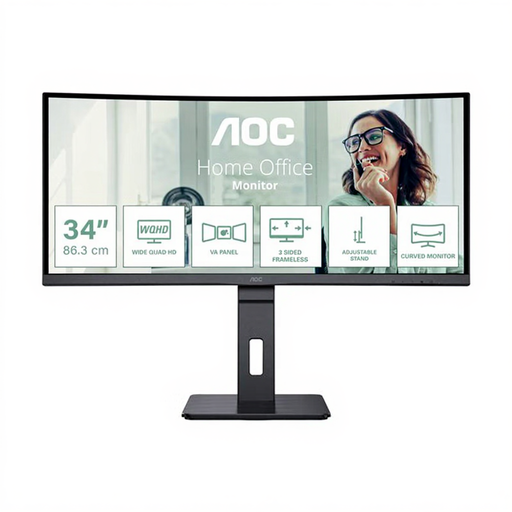
AOC Pro-Line CU34P3CV 34-inch curved ultrawide monitor
The 34-inch ultrawide format could suit you if you want to arrange code, tests and previews side by side across a wider screen.
21:9 and 3440 × 1440 pixels; 100 Hz; USB-C with up to 65 W; KVM and RJ45.
View at Joybuy
 No image available
MSI PRO MP275QPDGDE 27-inch WQHD docking monitor
The 27-inch WQHD format is an option for a compact workspace on screen. The docking features are useful if you’re connecting a compatible laptop and peripherals.
2560 × 1440 pixels; USB-C with 98 W Power Delivery; KVM, daisy chain, RJ45 and four USB-A ports; height, tilt, swivel and pivot adjustment; built-in webcam.
View at Joybuy
Frequently asked questions
Do I need a special coding monitor for automated tests?
No, a coding mode isn’t essential for automated testing. What matters is whether you can comfortably read and arrange your editor, test results and preview at your preferred font size. BenQ describes its relevant picture modes as features of its models.
Can I connect my laptop with a single USB-C cable?
Only if your laptop and cable support the video output you need, and the specific monitor supplies enough power for your computer. Manufacturers list different power outputs, including up to 65 W for the AOC CU34P3CV and up to 90 W for the Dell U2724DE.
How should I position my monitor for longer development sessions?
Adjust the available height and tilt settings to suit your seating position, and take lighting and glare into account. The DGUV includes monitor positioning and lighting as part of healthy screen-based work; an adjustable monitor alone won’t replace getting the setup right.
How do I compare energy use and running costs?
Compare the EU energy label and product information for similar monitors; the European Commission rates electronic displays on a scale from A to G. Your actual electricity costs will depend on factors including how long you use the monitor, its model-specific energy consumption and your electricity tariff.
What are my rights when buying a monitor online in Germany for personal use?
For online purchases, you generally have a 14-day right to cancel, as explained by the Verbraucherzentrale. For faulty goods, statutory rights generally apply against the seller; the Verbraucherzentrale says these rights last for two years. A voluntary manufacturer’s warranty is separate.


