Which monitor suits you?

Developers who keep several windows open

If you want your editor, application preview and documentation visible at the same time, clear text and enough room to arrange your windows are essential. BenQ describes the RD320UA as a large monitor with coding modes; these manufacturer features alone do not prove that it will improve your work.

Developers who use a laptop

If you switch between working on the go and at your desk, check that the monitor's connections meet your laptop's video and charging requirements. Dell lists a USB-C hub for the P2725DE; the functions you can use depend on your particular device configuration.

Developers who spend long hours at the screen

For longer sessions, an adjustable setup and the position of your screen in relation to windows and lights can be important factors. The BAuA-ASR A6 applies within its defined scope of professional use and is not a blanket requirement for every home workspace.

What to consider when buying

27-inch QHD with USB-C docking

A good fit if: You use a laptop and want to work with code and previews side by side, while bringing your connections together at the monitor.

Things to weigh up: Dell lists a 27-inch screen, 2560 × 1440 pixels and a USB-C hub for the P2725DE. QHD has fewer pixels than 4K; video output and charging power must be compatible with your laptop.

27-inch 4K

A good fit if: You want more pixels on a 27-inch screen and the text size and scaling work for your viewing distance.

Things to weigh up: LG lists 4K and USB-C for the 27UP850K-W. Whether text is comfortable to read also depends on your chosen scaling.

A large monitor for coding

A good fit if: You want to have your development environment, documentation and preview on one screen, and have enough desk space.

Things to weigh up: BenQ lists a 31.5-inch 4K screen, coding modes and a flexible arm for the RD320UA. Both the screen and arm need to suit your desk and viewing distance.

What matters when buying What to check Who it matters to most
Arranging code and other windows so they are easy to read Check the screen size, native resolution and the text and operating system scaling you want at your usual viewing distance. When I have my editor, preview and documentation open side by side, I want to read the text without constantly zooming in; around 33% of consumers put readability and room for windows first.
Connecting a laptop Check the computer's video output, USB-C video support and required charging power against the specifications of the particular monitor. When switching between my laptop and desk, I want to connect the video signal and power supply I need; around 25% of consumers prioritise laptop connectivity.
Positioning the monitor to suit your space Consider the adjustment options, stand dimensions and screen surface, as well as the position of windows and lights. During long sessions, I want to adjust the height and angle to suit my workspace and take distracting reflections into account; around 25% of consumers focus on positioning.
Considering space and energy information Check the dimensions of the monitor and stand, as well as the EU energy label for the specific models you are comparing. When desk space is limited, I want to consider the screen size and ongoing energy use rather than choosing on resolution alone; around 17% of consumers prioritise space and running costs.

Common misconceptions

  • Assuming local storage is a monitor feature

    Whether flashcards are stored locally is decided by the application on your computer or in your browser. Screen resolution and monitor brand do not determine where they are stored.

    Plan and check your storage and backups separately from your monitor purchase.

  • Assuming USB-C automatically provides full laptop docking

    A USB-C port on a monitor does not guarantee that every laptop can output video through it or receive enough power to charge.

    Check the specific video and power specifications for both your laptop and monitor.

    Depending on your laptop, you may need additional cables or a separate power supply.

  • Choosing 4K without considering text size and desk space

    More pixels are no substitute for suitable scaling and a well-positioned screen. A larger format also needs more room on your desk.

    Choose based on how you arrange your windows, how readable the text is and the space available on your desk.

Key brands at a glance

Dell

The P2725DE is a 27-inch QHD model with a USB-C hub, designed for a laptop-based workspace.

  • Dell lists 2560 × 1440 pixels, 100 Hz and USB-C hub features for this model.
  • Check the specific connection options and charging power your laptop needs.

BenQ

The RD320UA is a large model with coding modes for people who want more workspace on a single screen.

  • BenQ lists a 31.5-inch 4K screen, a Nano Matte surface and a flexible arm.
  • Coding modes are manufacturer features, not independent proof of improved work; the screen and arm also take up space.

LG

The 27UP850K-W combines a 27-inch 4K screen with USB-C and an adjustable stand.

  • LG lists a 27-inch UHD 4K display and a stand that tilts, swivels and adjusts in height for this model.
  • The right text size depends on your scaling and how you use the screen.

EIZO

The FlexScan EV2795 combines 27-inch QHD with docking, LAN and KVM for a flexible connected workspace.

  • EIZO lists DisplayPort Alt Mode and a maximum power supply of 70 W via the USB-C input.
  • If your laptop needs more charging power, you will need to check its power supply separately; connections may vary between FlexScan models.

Lenovo

The ThinkVision P27h-30 offers QHD and USB-C docking, including Ethernet and KVM.

  • Lenovo lists USB-C docking, Ethernet and charging of up to 100 W for this model.
  • Using the docking and multi-computer features depends on the connected devices and their video support.

Joybuy monitors

The models below include QHD and UHD screens in 27- and 32-inch sizes. Choose based on how much room you need for windows, the resolution and the space available.

Z-Edge AGEX 27-inch QHD monitor

Z-Edge AGEX 27-inch QHD monitor

The 27-inch QHD format is worth considering if you want to arrange code and previews on one screen.

27 inches, QHD (1440p), 144 Hz, Fast IPS, height-adjustable stand, DisplayPort and HDMI.

View at Joybuy

TCL 32x3A 32-inch OLED monitor

TCL 32x3A 32-inch OLED monitor

The larger format may suit you if you want to fit several work windows on one screen and have enough desk space.

32 inches, OLED, 4K UHD (3840 × 2160), 240 Hz; 480 Hz at FHD according to the product name.

View at Joybuy

MSI MAG 274UPDFDE E16M 27-inch UHD monitor

MSI MAG 274UPDFDE E16M 27-inch UHD monitor

The 27-inch UHD format is an option if you want a high resolution on a compact screen; remember to consider suitable scaling.

27 inches, UHD, 160 Hz at UHD and 320 Hz at FHD, Mini-LED and Rapid IPS.

View at Joybuy
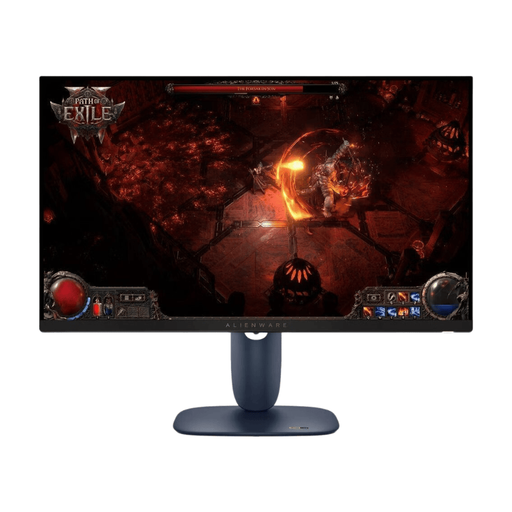
Dell Alienware AW2725DM 27-inch WQHD monitor

Dell Alienware AW2725DM 27-inch WQHD monitor

The 27-inch WQHD format may suit code and previews if this resolution works for the way you want to arrange your windows.

WQHD, IPS, LED, 16:9 aspect ratio and 180 Hz.

View at Joybuy
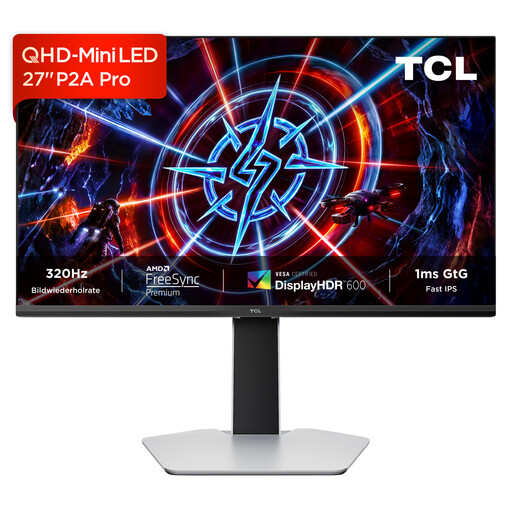
TCL 27P2A Pro 27-inch QHD monitor

TCL 27P2A Pro 27-inch QHD monitor

The 27-inch QHD format may be suitable for having your development environment and preview on one screen.

QHD (2560 × 1440), 320 Hz, Mini-LED and IPS panel.

View at Joybuy

Frequently asked questions

Does a monitor store my trainer's flashcards locally?

No, the monitor does not control where flashcards are stored. For a browser-based application, for example, IndexedDB enables client-side storage of structured data, according to MDN Web Docs. Plan and check storage and backups within your application.

What should I check when connecting a laptop?

Check that the laptop's video output matches the monitor's input and, if using USB-C, make sure it provides the charging power you need. EIZO lists DisplayPort Alt Mode and a maximum of 70 W via the EV2795's USB-C upstream port; this does not guarantee that every laptop will receive enough power to charge.

How should I position my screen for longer periods of work?

Position the screen so that the viewing angle and brightness suit you and the room, and take distracting reflections into account. The BAuA-ASR A6 applies to screen-based work within its defined scope of professional use; it is not a blanket requirement for monitors used at home.

What ongoing costs and rights should I consider when buying online?

Compare the energy consumption of each model using its EU energy label and corresponding EPREL entry. For a qualifying consumer purchase, statutory rights against the seller should be distinguished from a voluntary guarantee. The Verbraucherzentrale says that online orders generally come with a 14-day right to cancel; the applicable terms and deadlines depend on the specific purchase.

Do screen regulations also apply to my home coding setup?

Not simply because you code at home. The BAuA-ASR A6 applies to workplaces and teleworking workplaces; section 1 of the German Workplace Ordinance sets out specific limits, including use in private homes outside workplaces or teleworking workplaces. The relevant scope depends on the particular teleworking setup established for work.