First, decide whether you want to draw directly on a compatible tablet or use a pen tablet with your computer. For an iPad or Galaxy Tab, the device model, stylus and drawing app all need to work together. On a computer, you’ll need a compatible device and, with a pen tablet without a screen, you’ll need to get used to looking at the monitor rather than your hand. Manufacturers’ specifications for pressure, tilt and buttons describe features; they aren’t comparative, real-world tests.
Which option suits you?
Comic artists who already own a tablet
If you want to draw your lines directly on an iPad or Galaxy Tab, first check that the stylus is compatible with your device model and that your drawing app supports the brushes you want to use. Apple Support Germany and Samsung Germany list compatibility for specific models and stylus versions.
Comic artists working on a computer
If you already have a drawing app and monitor, a pen tablet can give you a way to draw on your computer without needing to buy a new tablet computer. With a model that has no screen, you draw on the tablet surface while looking at the monitor. Clip Studio Paint says this hand-eye coordination takes a little practice.
Artists with lots of steps in their workflow
If you often switch between the brush, eraser, undo and zoom tools while inking, customisable buttons or other controls could make a difference to your workflow. The commands you can assign depend on the device and its settings.
What to look for when buying
If you want to ink a comic page digitally at your desk at home, your choice will mainly depend on how you want to control your lines, which device you already use and how your workspace is set up.
Apple Pencil with an iPad you already own
A good fit if: you want to draw directly on an iPad and can check its exact model name first. Apple lists selected iPads and iPadOS 17.5 or later as compatible with the Pencil Pro.
Bear in mind: The Pencil doesn’t replace an iPad. Apple’s technical specifications for the Apple Pencil (USB‑C) list tilt support, but not pressure sensitivity.
S Pen with a Galaxy Tab
A good fit if: you already use a Galaxy Tab that Samsung lists as compatible with your chosen stylus version. Samsung lists pressure and tilt recognition for the EJ-PX710.
Bear in mind: Samsung lists a separate S Pen version for certain FE tablets, so check the full model name.
Pen tablet without a screen, used with a computer
A good fit if: you want to keep using your computer and drawing app, drawing on the tablet while looking at the monitor. Huion and XPPen list customisable buttons on selected models.
Bear in mind: Hand-eye coordination takes some getting used to, and your computer remains part of your drawing setup.
Pen display used with a computer
A good fit if: you want to draw directly on the displayed comic page while continuing to work with a computer.
Bear in mind: A pen display isn’t a standalone computer. Check the connections you need and the space available on your desk. Clip Studio Paint’s buying guide describes pen displays as typically more expensive than pen tablets without a screen.
| Priority |
What to check when buying |
Who it matters most to |
| Controlled inking strokes |
Pressure and tilt support on the specific stylus, and how the drawing app’s brush uses these features. |
If you need varied strokes and clean outlines, check whether the stylus and brush support the control you want. Around 36 % of consumers put line control first. |
| Compatibility with a device you already own |
Exact iPad or Galaxy model; for computer tablets, check the operating system, connection, driver and app. |
If you want to keep using your existing device, check its exact model name against the stylus or tablet’s compatibility information. Around 29 % of consumers put device compatibility first. |
| Desk workflow |
Shortcuts you need, buttons within easy reach, drawing surface size and space for your hand. |
If you often switch between the brush, eraser, undo and zoom tools while inking, easy-to-reach controls could be important. Around 21 % of consumers put a smoother workflow first. |
| Complete drawing setup |
Hardware you already own, included styluses and cables, and the app you’ll need. |
If you want to keep additional purchases to a minimum, check what you already own and what’s actually included in the set. Around 14 % of consumers put the total cost of their drawing setup first. |
Common buying misconceptions
-
“Works with iPad” or “S Pen” is enough detail about the model
Compatibility can vary depending on the iPad or Galaxy Tab model and the stylus version. If the stylus isn’t compatible, you may need to buy another one.
Check the exact device model and full stylus name against the relevant manufacturer’s compatibility list.
-
A pen tablet without a screen is a standalone drawing display
With a pen tablet that has no screen, you draw on its input surface and see the result on a separate screen. You’ll still need a suitable connected device.
Before you buy, decide whether you want to draw directly on a screen or use the monitor of a computer you already own.
If you don’t already have a suitable device, you’ll need to include one in your drawing setup.
-
Every version in a product range comes with the same items
Wacom describes the One S as available both as a version for people who already have a stylus and cable, and as a set with a standard stylus and USB-C cable.
Check the full variant code and the list of items in the box before choosing an offer.
Any stylus or cable you need must be compatible with the accessories you already own.
Brands to consider
Apple
Apple Pencil versions are designed for specific iPads and are worth considering if you want to draw directly on an iPad.
- Apple lists features for the Pencil Pro including rotation, double-tap and magnetic charging.
- These features and compatibility don’t apply to every Pencil version and iPad. Apple Support Germany lists selected iPads and iPadOS 17.5 or later as compatible with the Pencil Pro.
Samsung
S Pen versions are designed for specific Galaxy devices and may suit you if you want to draw on a compatible Galaxy Tab.
- Samsung lists pressure and tilt recognition for the S Pen EJ-PX710.
- Samsung lists a separate version for certain FE tablets. Don’t assume app-dependent extra features will be available with every S Pen.
Wacom
The Wacom One S is a compact pen tablet without a screen, designed to work with a compatible device.
- Wacom lists support for Windows, macOS, Android and ChromeOS.
- What’s included depends on the version: one is described for people who already have a stylus and cable, while a separate set includes a standard stylus and USB-C cable.
Huion
The Inspiroy 2 M is a pen tablet without a screen, with controls for drawing on a connected device.
- Huion lists a battery-free PW110 stylus, tilt support, pressure levels, a scroll wheel and customisable buttons.
- These manufacturer specifications describe the features, not a speed advantage or better line quality compared with other models.
XPPen
The Deco 01 V3 is a pen tablet without a screen, with a drawing area and shortcut buttons.
- XPPen lists a 10 × 6,25-inch drawing area, a battery-free stylus and eight customisable buttons.
- For the Android use described, XPPen specifies Android 10.0 or later and excludes foldable smartphones.
Joybuy products
This selection includes styluses for drawing directly on compatible iPad and other iOS or Android touchscreens. Check that your specific device model is supported before buying.
 No image available
ZSPEED stylus for iPad with wireless charging
For drawing directly on a compatible iPad. The product details list tilt recognition for shading and artistic effects.
Features palm rejection and a replaceable spare tip. Magnetic charging is mentioned in the product title.
Compatibility is limited to the iPad models listed there.
View at Joybuy
 No image available
Universal touchscreen stylus for Android and iOS
Described as a drawing and sketching stylus for compatible Android and iOS touchscreens.
The product title mentions fast charging, an LED indicator and a magnetic design.
Check that your specific device is supported before buying.
View at Joybuy
 No image available
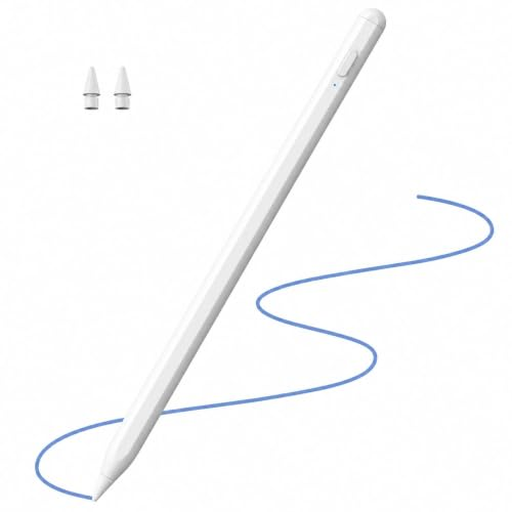
Stylus for Apple iPad (2018–2026), 2X Fast Charging
For drawing and creative work with compatible iPads. The product details list tilt support for shading.
Features palm rejection; the title lists 2X Fast Charging.
Check the model information against your iPad before relying on compatibility.
View at Joybuy
 No image available
Active stylus for iOS and Android with dual-touch functionality
For drawing on compatible iOS and Android touchscreens. The product details list drawing and writing as uses.
Rechargeable and featuring dual-touch functionality, according to the product title.
Check compatibility with your specific device and drawing app.
View at Joybuy
 No image available
iPad stylus with USB-C charging port and tilt recognition
For sketching and illustration on selected compatible iPads. The product details list tilt recognition for varied line widths and shading.
Features palm rejection, magnetic attachment and an LED battery indicator. The product title mentions a USB-C charging port.
According to the description, the magnetic attachment is for storage only; wireless charging isn’t supported.
Compatibility is limited to selected iPad models.
View at Joybuy
Frequently asked questions
Will any stylus do for varied inking strokes?
No. First check that the stylus is compatible with your device model and that your drawing app supports the brush you want to use. Samsung lists pressure and tilt for the EJ-PX710. Apple’s technical specifications for the Pencil (USB‑C) list tilt support, but not pressure sensitivity.
What should I check before setting up a pen tablet with my computer?
Check the operating system, connection, required drivers and what’s included with the specific version. Wacom describes the One S both as a version for people who already have a stylus and cable, and as a set with a standard stylus and USB-C cable.
How can I keep my drawing setup organised when working on longer comic pages?
If your device and drawing app allow it, assign frequently used commands such as undo, changing tools and zoom to buttons within easy reach. Huion says its scroll wheel and buttons can be customised using the driver; other devices have their own settings.
What costs and rights should I consider when buying online in Germany?
Allow for any hardware you don’t already own and accessories that aren’t included in the set. For distance contracts, consumers generally have a 14-day right of withdrawal under § 355 BGB, subject to statutory exceptions. If goods are faulty, you have statutory consumer rights. Verbraucherzentrale says these generally apply for two years from delivery or receipt. A voluntary guarantee is separate from these rights.


