Comic artists using two monitors
If you want to use your existing screens for the comic page and your tools, pay particular attention to mapping the pen area to the monitor you want to use.


If you use two suitable monitors and are happy to draw on a separate surface, a graphics tablet without a display could be a good option; map its active area to the screen you want to use. If you want the comic page to appear directly beneath your pen as you draw, consider a connected pen display. Using an iPad as a second display requires a suitable Mac and compatible devices, while a Galaxy Tab needs to support Samsung’s Second Screen feature. For pressure-sensitive ink lines, your stylus and brush in the drawing app must also support pressure input.
If you want to use your existing screens for the comic page and your tools, pay particular attention to mapping the pen area to the monitor you want to use.
A pen display is worth considering if you want to see the line directly beneath the pen as you ink, and have room for an extra screen at your workspace.
For an iPad with a Mac, or a supported Galaxy Tab with Windows, the second-screen connection and stylus need to be compatible with the specific device model.
First decide where you want the comic page to appear as you draw. Then check screen mapping, pen input and device compatibility.
A good fit if: you want to ink on an existing monitor and don’t need an image to appear directly on the drawing surface.
The trade-off: the drawing surface and the line you see are in different places; the tablet doesn’t replace a second monitor.
A good fit if: you want to see the comic page beneath your pen and connect the display to your computer as an extra screen.
The trade-off: the display needs desk space and the right video, USB and power connections for your specific computer and model.
A good fit if: you have a suitable Mac and a Sidecar-compatible iPad, and want to use your drawing app on the iPad. Apple describes Sidecar as a way to extend or mirror your Mac desktop.
The trade-off: Sidecar works between a Mac and an iPad; Apple Pencil compatibility depends on the exact iPad model.
A good fit if: you use Windows and a Galaxy Tab supported by Samsung. Samsung says Second Screen supports extended and duplicated displays, as well as S Pen input.
The trade-off: Samsung lists requirements for the computer and tablet, and notes that some features may be limited depending on the computer.
| What matters | What to check before buying | Who it matters most to |
|---|---|---|
| Variable ink lines | Check that the stylus and drawing app support pressure input for your chosen brush. CLIP STUDIO PAINT says that the G-pen’s line width varies with pressure. | If I want to vary my strokes by pressing harder or more lightly, the stylus and brush need to respond appropriately to pressure. Around 33% of consumers put control over variable ink lines first. |
| Pen mapping across two screens | Check whether you can map the active pen area to the monitor you want to use in extended mode, and make sure the cursor and comic page line up. | If getting the pen, cursor and comic page mapped correctly is my main concern, extended mode matters most. Around 25% of consumers say screen mapping is their top priority. |
| Drawing directly on the comic page | Compare the active area, device dimensions and connections of the specific models with the space available at your workspace. | If I want to see the line directly beneath my pen, having a visible drawing surface is essential. Around 25% of consumers prioritise drawing directly on screen. |
| Tablet as a second display | Check that the computer, tablet model, system requirements and stylus are all compatible. Apple lists Pencil compatibility by iPad model; Samsung sets out the requirements for Second Screen. | If I want to use an existing or planned tablet with a compatible stylus as a second display, I need to check that every device in the setup works together. Around 17% of consumers say tablet compatibility is their top priority. |
The video signal, pen input and power supply all need to work with your specific computer and model; the shape of the plug alone won’t tell you that.
Before you buy, check the connection diagram and what’s included with the exact model variant.
Depending on the connection setup, you may need a suitable cable, an adapter or an additional power supply.
A graphics tablet gives you an active drawing surface, but doesn’t display the artwork itself.
First decide whether you want to draw on an existing screen or directly on the visible comic page.
Apple lists Pencil compatibility by iPad model, and the tablet and second-screen connection have their own requirements too.
Check the tablet model, stylus model and second-screen feature separately against the specifications for your exact devices.
Intuos Pro is a graphics tablet without a display, designed for use with existing screens; Cintiq is a drawing display supplied with a Pro Pen 3.
The Artist range includes connected pen displays for drawing directly on a computer screen.
The Kamvas range includes pen displays for drawing on an additional connected screen.
With Sidecar, an iPad can act as a second display for a compatible Mac.
Supported Galaxy Tabs with an S Pen can act as a second display for a Windows computer using Samsung’s Second Screen feature.
This selection includes styluses for drawing on compatible iPads. Before you buy, check that your specific iPad model is supported.
 No image available
For drawing on compatible iPads; check your exact tablet model before buying.
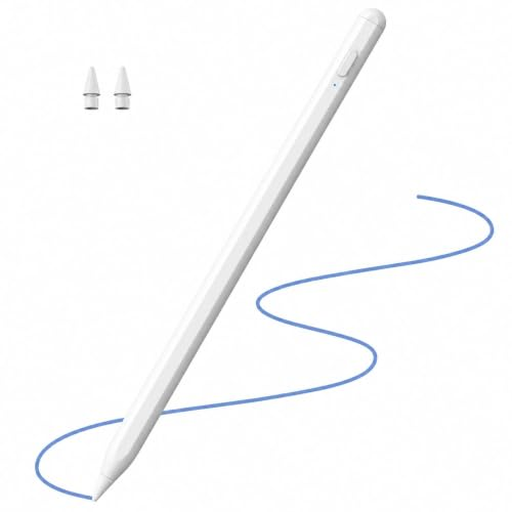
The product title lists the iPad Pro 11-inch (4th, 3rd, 2nd and 1st generations), Pro 12.9-inch (6th, 5th, 4th and 3rd generations), Air 4/5 and iPad mini. Magnetic charging and replacement tips are listed, along with tilt recognition and Palm Rejection.
 No image available
For drawing on compatible iPads; check compatibility with your exact model.
The product title lists iPad models from 2018–2025. USB-C fast charging and magnetic attachment are listed, along with tilt recognition and Palm Rejection.
 No image available
For drawing on compatible iPads; check your exact model before buying.
The product title lists iPad models from 2018–2026. 2X fast charging, tilt recognition and Palm Rejection are listed.
 No image available
For selected iPad models; check compatibility with your specific tablet.
A USB-C charging port, magnetic attachment and LED battery indicator are listed. The product description also mentions tilt recognition and Palm Rejection.
 No image available
For drawing on compatible iPads; check your exact device model before buying.
The product title lists iPad models from 2018–2026 and USB-C fast charging. Tilt recognition and Palm Rejection are also listed. According to the product description, the stylus isn’t pressure-sensitive, which limits your ability to vary line weight using pressure.
Select extended mode and use the appropriate device driver to map the active pen area to the screen you want to use. XPPen documents this option for the Artist 16 (2nd Gen); check the relevant instructions for other models.
Apple describes Sidecar as a way to use an iPad as a second display for a Mac. This doesn’t mean Sidecar is supported on Windows; you’d need to check whether another connection method is available.
No. Apple lists different compatible iPad models for Apple Pencil Pro, USB-C, and the 1st and 2nd generations, with system requirements for some models. Before buying, check your exact iPad model against the compatibility list.
Check which replacement tips and accessories are available for your specific stylus model. Your statutory consumer rights are separate from any additional voluntary warranty on offer.