If you already work on a computer and have limited desk space, a small pen tablet is a sensible place to start. If you want to draw directly on the image displayed on screen, consider a connected pen display, provided you have enough space and the computer and ports are compatible. If you don’t have a permanent place for a computer, a standalone tablet with a compatible stylus is the right type of device. Also consider whether you’ll be drawing letters by hand or using software tools mainly to add dialogue and speech bubbles.
Which type of device is right for you?
Lettering with limited desk space
If you already use a computer and want to take up as little extra desk space as possible, a small pen tablet can complement your existing screen. Wacom describes the One Small as a pen tablet; Wacom eStore Germany lists the small version as measuring 188 × 141 × 8 mm. The device itself does not have a screen.
Handwriting directly on your comic
If you want to draw letters and lines directly on the image displayed on screen, consider a connected pen display. XPPen says the Artist 12 (2nd Gen) can be connected to a computer, while Huion lists a 13.3-inch display for the Kamvas 13 (Gen 3).
Lettering without a dedicated computer
If you want to put your device away after work or carry on without a connected computer, consider a standalone tablet with a compatible stylus. Samsung lists S Pen support for the Galaxy Tab S10 Lite; Apple lists different Pencil compatibility options depending on the iPad model.
What should you consider when buying?
Small pen tablet without a display
A good fit if: you already work on a computer, are happy to look at its monitor and need to keep extra desk space to a minimum.
The trade-off: Your hand moves across the tablet while the image appears on the monitor, so you’ll need to be comfortable working this way.
Connected pen display
A good fit if: you want to draw letters directly on the image displayed on screen and have room for an additional screen beside your computer.
The trade-off: The display isn’t a standalone computer. Its connection, cable and, where necessary, power supply must be compatible with your computer and model.
Standalone tablet with a stylus
A good fit if: you want to draw without a connected computer or put your drawing surface away when you’ve finished.
The trade-off: Check that your chosen stylus is compatible with the exact tablet model and that your drawing or lettering app is available for it.
| Consideration |
What to check before buying |
Who should pay particular attention? |
| Space and set-up |
Measure the space you’ll need for the complete set-up. Wacom eStore Germany lists the One Small as measuring 188 × 141 × 8 mm; these are the tablet’s dimensions, not the space needed for the computer and keyboard too. |
If I need to fit a computer, keyboard and drawing surface on a small desk, I want to work out how much room the complete set-up will take. Consumers who prioritise space requirements make up around 33%. |
| Hand-drawn strokes |
Check that the stylus and drawing app support the pressure control you want. Apple Support Germany describes the Apple Pencil (1st generation) as pressure- and tilt-sensitive. |
If I form letters by hand, I want the stylus and, where relevant, pressure sensitivity to work with my app. Consumers whose main concern is hand-drawn strokes make up around 25%. |
| Working without a computer |
Check the exact tablet version against the compatible stylus. For the iPad (A16), Apple Support Germany says that a USB‑C to Apple Pencil Adapter is needed to pair and charge the 1st generation Pencil. |
If I want to draw without a permanently connected computer and put my device away afterwards, I need a standalone option. Consumers who prioritise working independently of a computer make up around 25%. |
| Dialogue and speech bubbles |
Check the text and speech-bubble features available in your chosen app for your operating system. CLIP STUDIO PAINT describes features including a text tool and a story editor. |
If I’m adding and editing dialogue rather than drawing every letter by hand, I want to use the software tools designed for the job. Consumers whose main concern is setting dialogue and adding speech bubbles make up around 17%. |
Which buying mistakes can you avoid?
-
Assuming a pen display is a standalone drawing computer
A connected pen display needs a computer. XPPen describes the Artist 12 (2nd Gen) as a device that connects to a computer.
First decide whether you want to work with a computer. Then check the recommended connection method, the cable you’ll need and whether your set-up has enough power.
-
Assuming a stylus is always included with the Wacom One S
Wacom lists both a set that includes a stylus and cable, and a configuration where you can deselect components.
Before buying, check whether the exact version you’ve selected includes a stylus and connection cable.
-
Choosing an Apple Pencil based only on its connector
Compatibility depends on the exact iPad model and Pencil generation. For the iPad (A16), Apple says an adapter is needed to pair and charge the 1st generation Pencil.
First identify your iPad model, then check it against the compatibility list and the charging method you want to use.
-
Treating conflicting retailer listings as confirmed tablet specifications
One listing for a Galaxy Tab S10 Lite variant gives conflicting RAM and storage details in the title and product description.
Before buying, confirm the model number and specifications for the exact version rather than relying on one of the conflicting details.
Key brands to consider
Wacom
The Wacom One S is a small pen tablet designed for use with an existing screen. Wacom eStore Germany lists the small version as measuring 188 × 141 × 8 mm.
- The One S set includes a stylus and cable.
- Check what’s included with individually configured versions; you’ll also need a suitable display device.
XPPen
The Artist 12 (2nd Gen) is a connected pen display for drawing directly on the image displayed on screen.
- The manual describes connection options via 3-in-1 or USB-C.
- According to XPPen, the USB-C cable for this connection method is sold separately. Also check whether your set-up needs an additional power supply.
Huion
The Kamvas 13 (Gen 3) is a connected display option. Huion lists a 13.3-inch display for this model.
- Huion lists a battery-free, pressure-sensitive stylus for this specific model.
- According to Huion’s connection guide, a single-cable connection requires suitable USB-C features, including DisplayPort Alt Mode. Check that your device meets the requirements.
Samsung
The Galaxy Tab S10 Lite is a standalone tablet option. Samsung lists a 10.9-inch display and S Pen support.
- A standalone tablet doesn’t need to be connected to a drawing computer while you work.
- Check the storage specifications and what’s included for the exact version, and confirm whether the stylus is included.
Apple
An iPad can be used as a standalone drawing surface with an Apple Pencil that’s compatible with that particular model.
- Apple describes the 1st generation Pencil as pressure- and tilt-sensitive.
- For the iPad (A16), Apple says a USB‑C to Apple Pencil Adapter is needed to pair and charge the 1st generation Pencil. The compatibility list says the Pencil Pro isn’t an option for this iPad.
Joybuy products for drawing without a dedicated computer
The products below are standalone tablets with a stylus mentioned in the product title, selected for drawing without a connected computer. Before buying, check that the stylus, operating system and lettering app you want to use are suitable for your needs.
 No image available
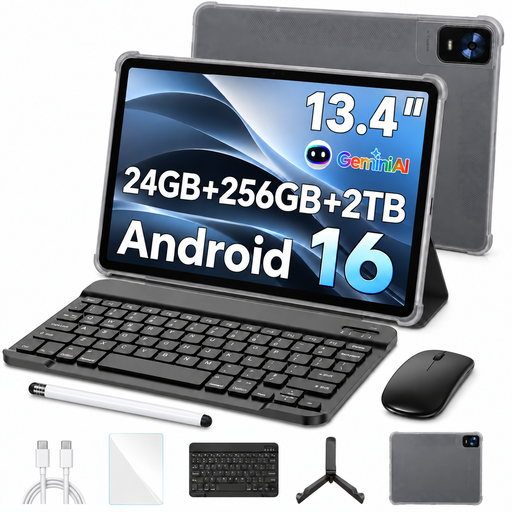
Android 16 tablet, 13.4 inches, 256 GB, with passive stylus
The listing mentions a passive stylus for use with a standalone tablet; check that its features suit the way you want to create lettering.
The title lists 24 GB RAM (8 GB + 16 GB virtual), 256 GB storage, plus a keyboard, mouse and case.
View at Joybuy
 No image available
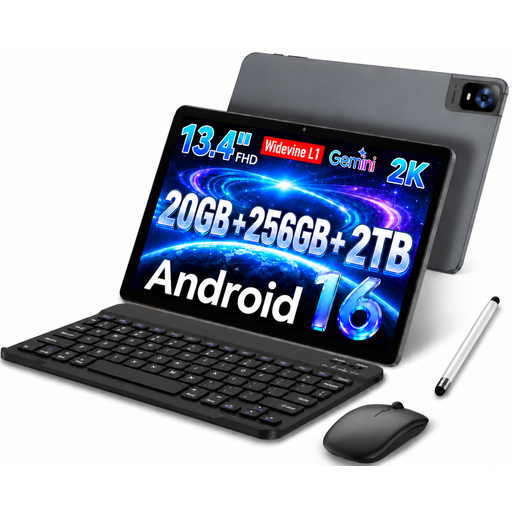
UXD Android 16 tablet, 13.4 inches, 256 GB, with stylus
The title lists a stylus in the set; check that its features meet the requirements of your drawing app.
Specifications include a 13.4-inch FHD IPS display, 20 GB RAM (8 GB + 12 GB virtual), 256 GB storage, plus a keyboard and mouse.
View at Joybuy
 No image available
Teclast ArtPad Pro 2025, 12.7 inches, with T-Pen
The product title mentions a pressure-sensitive T-Pen; check that its features suit the kind of strokes you want to create.
Specifications include a 12.7-inch 2K display, 4096 pressure-sensitivity levels, Helio G99, Android 15 and 256 GB storage.
View at Joybuy
 No image available
Teclast ArtPad Pro, 12.7 inches, with T-Pen and accessories
The product title mentions a pressure-sensitive T-Pen. Check that the included accessories and stylus features suit the way you work on lettering.
Specifications include a 12.7-inch 2K display, 4096 pressure-sensitivity levels, 256 GB storage, Android 15, a protective case and an English Bluetooth keyboard.
View at Joybuy
Frequently asked questions
Will a pen display work without a computer?
No. A connected pen display isn’t a standalone computer. XPPen describes the Artist 12 (2nd Gen) as a device that connects to a computer. If you want to draw without a connected computer, consider a standalone tablet.
Can any USB-C pen display be connected with just one cable?
No. A single-cable connection depends on the ports available on both the device and the display. Huion specifies that compatible devices need suitable USB-C data features and DisplayPort Alt Mode. According to the manual, the USB-C cable for this connection method is sold separately for the XPPen Artist 12 (2nd Gen).
What should I look for in an Apple Pencil for the iPad (A16)?
Apple lists the Apple Pencil (USB-C) and the 1st generation Pencil as compatible options for the iPad (A16). According to Apple Support Germany, you’ll need a USB‑C to Apple Pencil Adapter to pair and charge the 1st generation Pencil.
How can I adjust strokes in Procreate?
The Procreate Help Center describes settings for Apple Pencil pressure and stabilisation. Check that your pressure-sensitive stylus is compatible with your iPad, then adjust the settings for the brush you actually use.
Can I return a drawing tablet ordered online?
The Verbraucherzentrale says that almost all goods ordered online are covered by a statutory 14-day right of withdrawal. Before placing your order, check the details provided by the seller and whether an exception applies to the item.


