Choose your computer first by the operating system your app needs to be tested on, then by the size of the case. A mini PC can save space on a small desk, but if you need several local test environments, RAM, storage options and your testing software’s requirements matter too. Measure your whole workspace, including the monitor, power supply, cables and the clearance you need, before making a decision.
Who is a compact test computer for?
Windows app testers
You need a computer that supports your app’s Windows version and tools. If you use virtual test environments, check their requirements too. Microsoft Learn sets out the Windows requirements, while Docker Docs explains the Windows backends available for Docker Desktop.
macOS app testers
If your app needs to be tested natively on macOS or with a specific version of Xcode, your Mac and operating system must be compatible with that version. Apple Support Germany and Apple Developer provide technical details and Xcode system requirements.
Testers working across multiple environments
If you need to run several test installations at once or switch between them, RAM, storage options and the requirements of your tools are important considerations. Docker Docs and the technical specifications for individual desktop models can help you check which configuration is right for you.
What should you look for when choosing one?
Start by checking that the operating system, app and testing tools are compatible. Then measure your entire workspace, and only after that check the ports and upgrade options.
| What to consider |
What to check before buying |
Who is this most important to? |
| Operating system and testing tools |
Check that the target operating system, app version and requirements of your development or testing software all match. |
If I need to test an app and its required tools on a specific platform, compatibility comes first; around 29% of consumers put the operating system and tools at the top of their list. |
| Desk space and placement |
Measure the computer, monitor stand, power supply and cable routing together; check any mounting options separately. |
On a small desk, I want to fit my whole testing setup without the monitor stand and cables getting in the way; around 24% of consumers prioritise desk space and placement. |
| Multiple test environments |
Work out how much RAM and storage your planned VMs, containers and test data will need; check which upgrades the specific model supports. |
If I want to run several environments at once or switch between test installations, I look at resources and storage options; around 18% of consumers make multiple test environments their main concern. |
| Ports |
Check the video outputs and the USB and network ports you need against your monitor and test devices. |
I want to connect my monitor and existing devices to my testing setup without overlooking the types of ports I need; around 18% of consumers focus on connectivity. |
| Upgrades and what’s in the box |
Check whether RAM, an SSD and an operating system are included with the specific version, and what upgrades are supported. |
If I want to upgrade the computer later and know exactly what’s included, I check the precise configuration; around 11% of consumers prioritise upgrade options and what’s in the box. |
Common buying pitfalls
-
A test result applies to every version in a product range
Processor, operating system and specifications can vary between versions. So a test result for one specific configuration doesn’t automatically tell you how every similarly named version performs.
Compare the full model or version code and specifications with the configuration covered by the information.
-
Only the case needs space
Your monitor stand, power supply and cables all take up space too. A VESA specification on the computer also doesn’t confirm that it will fit your monitor or existing mount.
Measure the whole setup and check that the computer, monitor and mount are compatible with one another.
You may need a compatible mount or extra cables.
-
A barebone is ready to use straight away
A barebone may be sold without RAM, a drive or an operating system. In that case, the case alone isn’t a complete test computer.
Check exactly which components and accessories are included with the version on offer.
Depending on the version, you may also need to budget for and install RAM, an SSD and an operating system.
Key brands at a glance
GEEKOM
The A5-Pro range includes compact, pre-configured Windows mini PCs.
- For the A5-Pro version with Ryzen 5 7530U, GEEKOM lists 16 GB RAM, a 1 TB SSD and Windows 11 Pro. The manufacturer also describes upgrade options.
- These specifications apply to the configuration listed and not automatically to every version in the range.
MSI
The Cubi-NUC-1M range is designed for compact business workspaces, with a range of ports.
- MSI documents VESA 100 × 100 mm mounting, as well as various video and network ports, for the range.
- The processor, wireless technology and operating system depend on the specific version. Also check that your monitor and mount are suitable.
Apple
The Mac mini is worth considering if your app needs to be tested natively on macOS or with a compatible version of Xcode.
- Apple lists different RAM and storage options for Mac mini configurations with M6 and M5 Pro.
- The macOS version you need depends on the version of Xcode you’re using. Apple’s configuration details aren’t independent performance tests.
GMKtec
The NucBox M6 Ultra is available in a range of storage and RAM configurations.
- The manufacturer’s German website lists both barebone and fully equipped versions.
- Before ordering, check the model name and specifications of the version you’ve selected; a barebone may need additional components.
Lenovo
The ThinkCentre M Series Tiny range includes small business desktops with specifications that vary by model.
- Lenovo describes VESA-compatible mounting options for the Tiny range.
- The specifications for one M75q Gen 5 configuration don’t apply to the entire range.
Joybuy products for a compact Windows testing setup
These compact mini PCs are options for a potential Windows testing setup. Check each configuration against the requirements of your app and testing tools.
 No image available
SOYO Y5Pro mini PC, Intel Core i5-8250U/8350U
Described as a compact Windows mini PC for a small testing setup. Before buying, check the exact processor version and your app’s requirements.
The product title lists Windows 11, 8 GB RAM, a 256 GB SATA SSD, two HDMI outputs, USB-C and Wi-Fi 5. Stated dimensions: 105 × 113 × 45 mm.
Joybuy
 No image available
ACEMAGIC AK1PLUS mini PC, Intel Celeron N5095
The Windows 11 Pro configuration listed in the title could be a compact starting point for a Windows testing setup. Check that the operating system and testing tools meet your requirements.
The title lists 16 GB LPDDR4X, a 256 GB M.2-2280 SATA SSD and two HDMI 2.0 outputs. The description also lists an M.2 slot and a 2.5-inch SATA bay.
Joybuy
 No image available
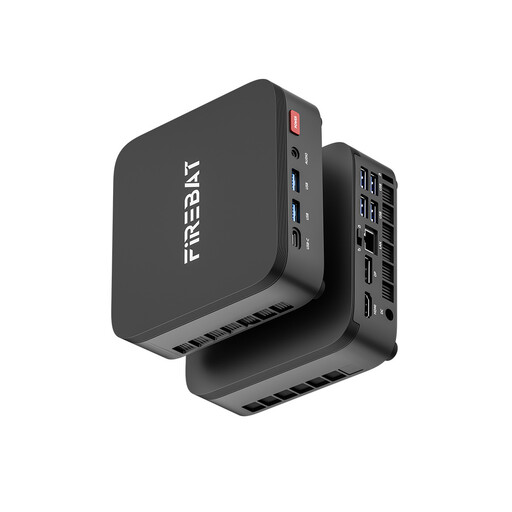
FIREBAT R3 mini PC, AMD Ryzen 5 7430U
The listed Windows 11 Pro configuration is relevant for a Windows testing setup. Check whether your specific app and testing tools require or support this configuration.
The product title lists 16 GB LPDDR4 at 3733 MHz and a 512 GB NVMe SSD. The description lists Windows 11 Pro.
Joybuy
 No image available
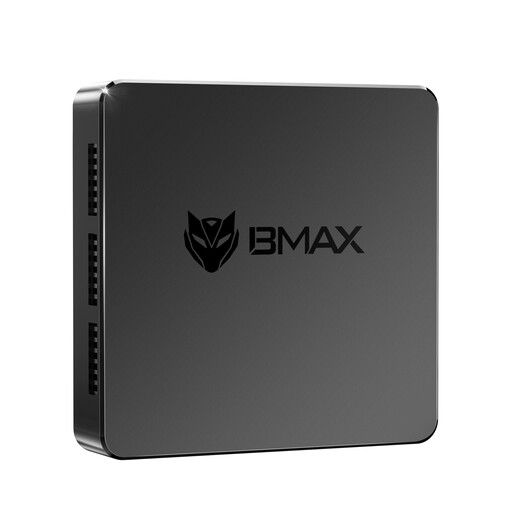
MaxMini B3 mini PC, Intel N4100
This mini PC lists two HDMI outputs for use with compatible monitors. Check which ports you need and what your test environment requires.
The title lists 8 GB LPDDR4, a 256 GB SSD, Dual HDMI and Gigabit LAN. Stated dimensions: 105 × 113 × 45 mm.
Joybuy
 No image available
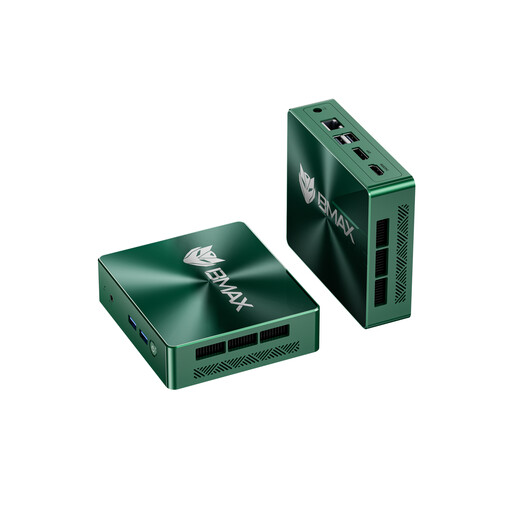
BMAX B6 mini PC, Intel Core i3-8109U
The listed M.2 slots may be useful if you’re planning to expand the storage. Check that the drives you want are supported by the specific version.
The title lists 12 GB RAM and a 256 GB SSD. The description lists two M.2 slots, as well as HDMI and DisplayPort. Stated dimensions: 125 × 112 × 34 mm.
Joybuy
Frequently asked questions
Is the minimum specification for Windows 11 enough for my app testing?
Not necessarily. Microsoft Learn sets out the minimum requirements for installing Windows 11. You should also check the requirements of your app and all the testing tools you’ll be using at the same time.
Can I mount a mini PC behind my monitor?
It depends on the computer, monitor and mount. MSI lists VESA 100 × 100 mm for the Cubi-NUC-1M range, but you should still check separately that it’s compatible with your monitor and the mount you want to use.
What else do I need to budget for with a barebone?
Check what’s included with the version you choose. GMKtec lists both barebone and fully equipped versions of the NucBox M6 Ultra; a barebone may need additional components such as RAM, a drive or an operating system.
Are a guarantee and your statutory rights the same thing?
No. The Verbraucherzentrale distinguishes between your statutory rights against the seller and a voluntary guarantee. When you buy, check who the seller is and what guarantee terms they offer.
Can I put an old desktop PC in household waste in Germany?
No. The German Environment Agency explains that waste electrical and electronic equipment must be collected separately from household waste. Before handing it in, delete any personal data stored on the device.


