Photographers who shoot lots of exposure brackets
If you regularly merge landscape shots, choose a setup that suits your photo-editing software and project sizes. Adobe explains how to merge photos into HDR images in Lightroom.


For exposure bracketing on a small desk, choose a desktop that suits your photo-editing software, project sizes and existing equipment. A ready-to-use mini PC or Mac mini keeps your setup compact; if you want to add drives later, compare expandable Windows models too. A general mini PC ranking won’t tell you how quickly a particular machine will merge your HDR files.
If you regularly merge landscape shots, choose a setup that suits your photo-editing software and project sizes. Adobe explains how to merge photos into HDR images in Lightroom.
If you also need room for a monitor and peripherals, plan for the case, cables and required ports together.
If you want to keep your originals and working files, plan for a separate backup too. Germany’s Federal Office for Information Security recommends keeping backup copies to help prevent data loss.
A good fit if: Your photo-editing software runs on Windows and you’re looking for a machine with RAM and an SSD already installed.
Things to consider: Specifications and upgrade options vary by configuration; a general mini PC review won’t assess your specific HDR workflow.
A good fit if: Your required software and existing workflow work with macOS.
Things to consider: Choose the right memory and SSD configuration, and plan to back up your data separately from the internal drive.
| Buying consideration | What to check before buying | Who it matters most to |
|---|---|---|
| Specifications for exposure bracketing | Check the software version, operating system and RAM in the exact configuration. For Photoshop 27.x, Adobe lists 8 GB RAM as the minimum and recommends at least 16 GB. | If you merge lots of landscape shots, the specifications should suit your photo-editing software and project size. Around 36% of consumers put the setup for merging images first. |
| Desk space and ports | Check the case dimensions and allow room for cables on your desk; make sure the video outputs and ports suit your equipment. | On a small desk, your monitor, peripherals and computer all need to fit together. Around 29% of consumers prioritise desk space and cable management. |
| Photos and backups | Check the SSD capacity and whether additional drives can be fitted; plan for a separate backup. The BSI recommends keeping backup copies to protect against data loss. | As your photo archive grows, you’ll need room for originals and working files, as well as a separate backup. Around 21% of consumers focus on storage and backups. |
| Upgrades and what’s included | Check the full model details to see which components are included and what RAM or SSD upgrades are possible. | If you want to add drives or RAM later, factor in the setup involved too. Around 14% of consumers prioritise upgradeability and clarity about what’s included. |
COMPUTER BILD’s mini PC review compares general-purpose devices; it doesn’t measure how long your specific exposure brackets will take to process.
Use reviews to find potential options, then check the software requirements and the exact specifications. If possible, test the workflow using files of your own.
A barebone may be missing important components. COMPUTER BILD describes the listed Intel NUC 13 as coming without RAM, storage or an operating system.
Before comparing prices, check what’s included in the specific offer and allow for any missing components and setup.
If the computer or drive fails, you could lose your originals and working files. The BSI recommends keeping backup copies.
Plan for a separate backup in addition to your working drive.
The Mac mini is a compact macOS option if the photo-editing software and peripherals suit your workflow.
The A5 Pro 2026 Edition is a specific Windows mini PC option.
The Cubi NUC 1M series is worth comparing for its ports and drive options when desk space is limited.
The Pro Mini 400 G9 is a compact Windows option available with different specification codes.
The ThinkCentre M75q Gen 5 Tiny is a compact Windows option if easy maintenance access and upgrades matter to you.
This selection includes compact Windows mini PCs and Mac mini models. Check that the operating system, exact configuration and ports suit your photo-editing software and equipment.
 No image available
Could be a good fit if a compact Windows PC suits your photo-editing software and its requirements.
The product listing names Windows 11, Intel Core i5 8250U/8350U, 8 GB DDR4 and a 256-GB SATA SSD. Check which of the two processor versions is on offer.
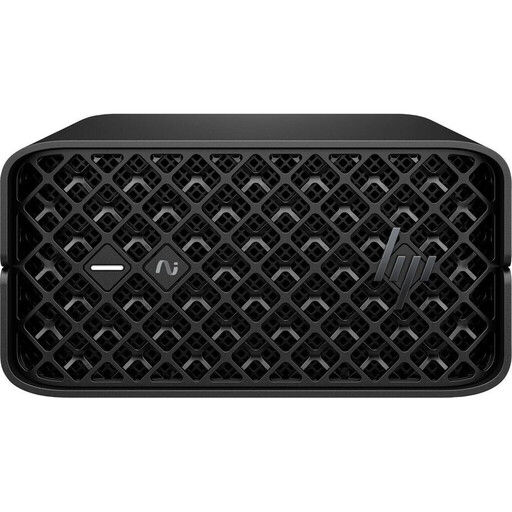 No image available
Consider this configuration if its listed specifications suit your photo-editing software and workflow.
The product title lists 128 GB RAM and a 2-TB SSD. Check that the software requirements and ports you need are compatible with your equipment.
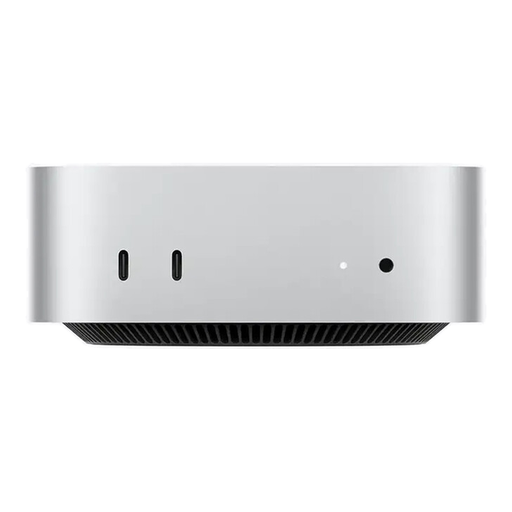 No image available
Worth considering if your photo-editing software works with macOS and the internal SSD has enough room for your projects.
The product title lists 16 GB Unified Memory, a 256-GB SSD, Thunderbolt 4 and HDMI.
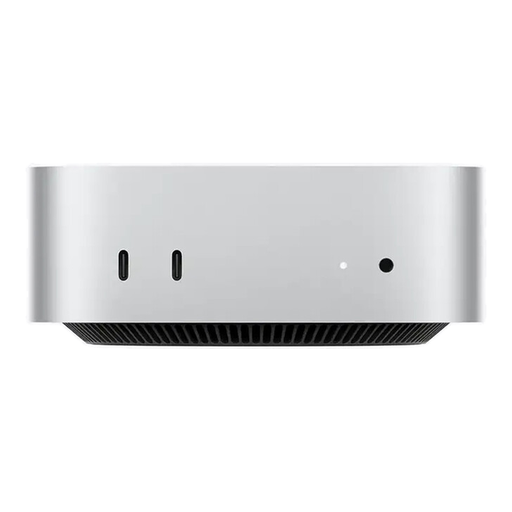 No image available
Worth considering if your photo-editing software works with macOS and the internal SSD has enough room for your projects.
The product title lists 16 GB Unified Memory, a 512-GB SSD, Thunderbolt 4 and HDMI.
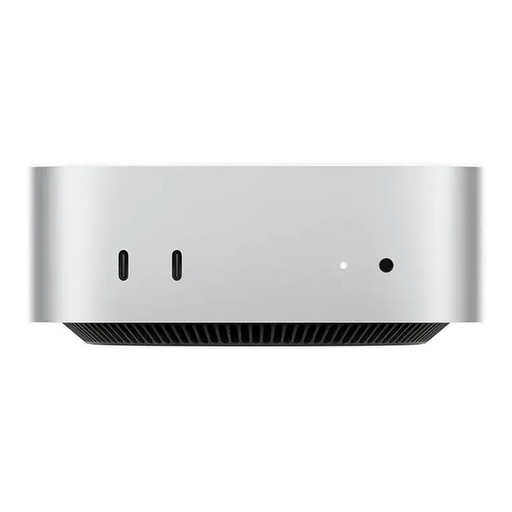 No image available
Worth considering if your photo-editing software works with macOS and the internal SSD has enough room for your projects.
The product title lists 24 GB Unified Memory, a 512-GB SSD, Thunderbolt 4 and HDMI.
Not necessarily. Check the requirements of your specific software and monitor. For Photoshop 27.x on Windows, Adobe lists graphics requirements and recommends 4 GB of GPU memory for displays of 4K or more; this doesn’t mean a separate graphics card is always required.
Keep a backup separate from your working drive and update it regularly. The BSI recommends keeping backup copies to protect against device failure or loss; a second internal SSD doesn’t automatically count as a separately stored backup.
Check who the seller is and the terms of any voluntary warranty. The consumer advice centre distinguishes statutory rights against the seller from a voluntary warranty; a warranty promise doesn’t replace your statutory rights.
Take the electrical appliance to a separate collection point; don’t put it in general waste. The Federal Environment Agency explains how to dispose of old electrical appliances separately. Back up any files you need and erase your personal data before handing it in.