For black-and-white portraits on a small desk, first check that the monitor and stand will fit the space available. If you regularly adjust tonal values, calibration and consistent display are important factors to consider. More pixels can make detailed retouching easier, but they don’t guarantee more neutral greys. For prints, you’ll also need suitable monitor and printer profiles.
Who is a compact photo monitor for?
Portrait retouching with a focus on greyscale
If you edit skin tones, shadows and highlights in black-and-white portraits, you’ll want to spot colour casts and subtle tonal transitions. EIZO Germany explains that a black-and-white image should not contain colour casts.
Photo editing on a small desk
When space is limited, the monitor’s width and stand depth need to suit the available surface. Compare the actual external dimensions, not just the screen size.
Preparing portrait prints
If you’re tailoring your edits to a particular combination of paper and printer, you’ll need a profiling and soft-proofing workflow. Adobe describes this as requiring a calibrated monitor profile and a profile for the printer and paper.
What should you look for when choosing one?
First, measure the space for the monitor, stand and cables. Then decide whether neutral greys, more room for retouching or print preparation matters most for your work.
| What to consider |
What to look for |
Who should pay particular attention? |
| Neutral, consistent greys |
Consider calibration and uniformity correction separately; check a test image under your usual working light. |
If you regularly assess greys and tonal values, check calibration and uniformity carefully. Around 34% of consumers rank this as their top purchasing priority. |
| Fit on your desk |
Compare the available width and depth with the monitor and stand dimensions, and allow space for cables. |
If desk space is limited, you’ll need to know whether the monitor and stand will actually fit. Around 33% of consumers prioritise available space. |
| Resolution for detailed retouching |
Assess the native resolution alongside the screen size and scaling. |
If you want to check fine portrait details, compare the resolution and usable workspace. Around 20% of consumers put retouching detail first. |
| Matching your portrait prints |
For soft-proofing and printing, consider a suitable monitor profile and the ICC profile for your specific printer, ink and paper combination. |
If you plan to print your portraits, factor in the need to match the specific output. Around 13% of consumers prioritise print matching. |
Common mistakes when choosing a monitor
-
Choosing by screen size alone
Even a monitor with a compact screen can take up too much space because of its stand.
Measure the available desk space and compare it with the width and depth of the monitor and stand. Remember to allow room for cables, too.
If the stand doesn’t fit, you may need a suitable alternative mount or a different desk layout.
-
Assuming a wide colour gamut means neutral greys
A colour gamut figure on its own doesn’t prove that greys will look neutral and consistent across the screen on a particular monitor.
Check calibration and uniformity separately from colour gamut figures. A calibration workflow may also require a measuring device and repeated adjustments.
-
Expecting the monitor alone to produce a matching print
The preview also depends on the printer, ink and paper. The on-screen view alone can’t represent that specific combination.
If you’re printing, use a calibrated monitor profile and a suitable profile for your printer and paper combination.
Key brands at a glance
BenQ
For the PhotoVue SW242Q, BenQ Germany lists a 24.1-inch screen, 2560 × 1600 pixels, hardware calibration and a black-and-white mode.
- BenQ also lists Uniformity technology and 90 W USB-C power delivery for this model.
- According to the specifications, the depth with the stand is 262.6 mm. Manufacturer claims about print-like results don’t guarantee a particular print outcome.
EIZO
According to EIZO Germany, the ColorEdge CS2400S is a 24.1-inch monitor with 1920 × 1200 pixels, hardware calibration and a Digital Uniformity Equalizer.
- Calibration and uniformity correction are useful features for controlled greyscale work.
- This model has a lower resolution than the BenQ SW242Q. A calibrated workflow still requires suitable settings and a measuring device.
ASUS
ASUS lists the ProArt PA248QFV as having a 24.1-inch screen, a 16:10 aspect ratio, 1920 × 1200 pixels and 100% sRGB.
- ASUS specifies an adjustable stand and gives the external dimensions with the stand, so you can compare them with your desk.
- The sRGB figure is a manufacturer specification; it doesn’t prove that the monitor offers hardware calibration or independently measured uniformity.
LG
LG Germany lists the 24BQ55WY-B as a 24-inch IPS display with a 16:10 aspect ratio, 1920 × 1200 pixels and typical 99% sRGB coverage.
- The stated sRGB coverage can be considered as a specification for digital output.
- This figure alone doesn’t indicate whether the monitor has dedicated hardware calibration or uniformity features.
Dell
According to Dell Germany, the Dell UltraSharp U2424H is a 23.8-inch IPS work monitor with an adjustable-height stand and 1920 × 1080 pixels in a 16:9 aspect ratio.
- The height-adjustable stand is a feature to consider when setting up your desk.
- This model has fewer vertical pixels than the 16:10 models listed here; the product specifications don’t confirm dedicated hardware calibration.
Monitors at Joybuy
The following Joybuy product options are compact monitors for working with portraits on screen. Before choosing, check that the size, resolution and stand suit your workflow and desk.
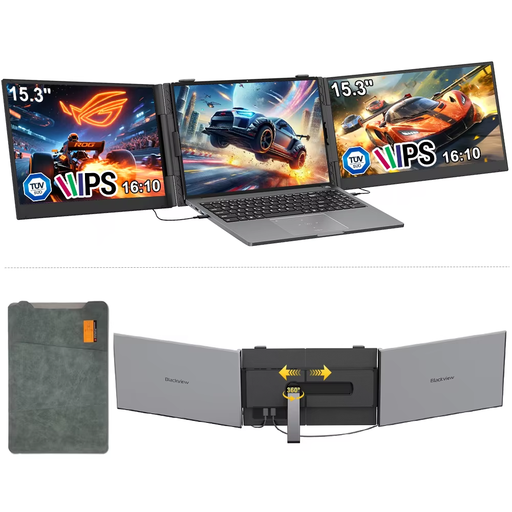 No image available
Blackview DCM8, portable 15.3-inch monitor
The compact screen size may suit a small desk, but be sure to compare the actual dimensions with the space you have available.
IPS display, 16:10 aspect ratio and 1920 × 1200 pixels; the product description lists compatibility with Windows, Mac, Chrome OS and mobile devices.
View at Joybuy
 No image available
KOORUI MB24V29FS4, 24-inch FHD IPS monitor
This could work as a compact monitor for digital image editing if its resolution and dimensions suit your workspace.
The product description lists 99% sRGB, 120 Hz, 5 ms, HDMI and VGA, as well as a 100 × 100 mm VESA mount.
View at Joybuy
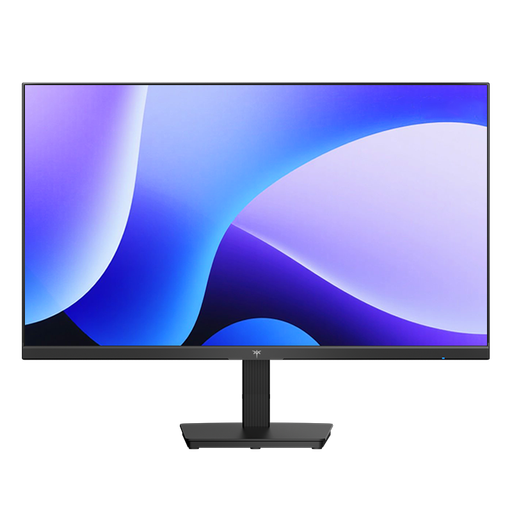 No image available
KTC H24B9S, 24-inch FHD IPS monitor
Check whether Full HD and the stated display features meet your portrait-editing needs; a colour gamut figure alone doesn’t guarantee neutral greys.
The product description lists 1920 × 1080 pixels, 144 Hz, 116% sRGB and a tilt-adjustable stand.
View at Joybuy
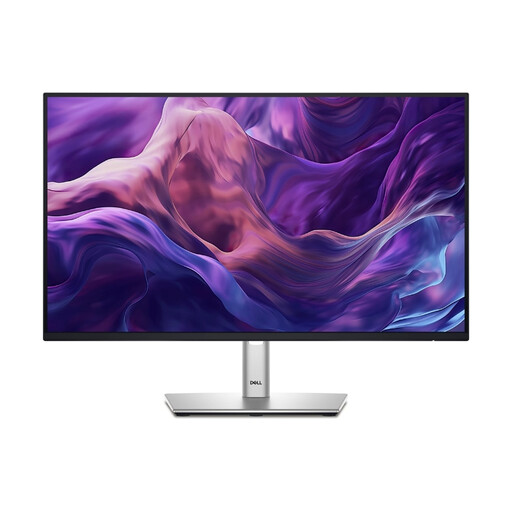 No image available
DELL P2425HE, 24-inch, FHD IPS, USB-C
An adjustable-height stand can be useful when positioning the monitor on your desk; also check how much desk space the base takes up.
The product description lists 24 inches, FHD, IPS and USB-C.
View at Joybuy
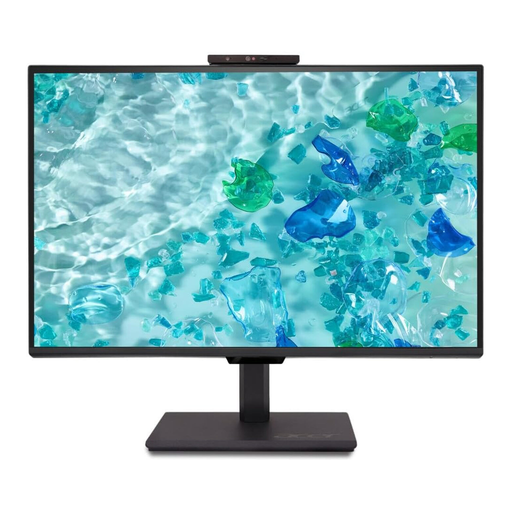 No image available
acer Vero B248YGbemiqprcuzx, 24-inch business monitor
Height adjustment and pivot functionality may be useful when setting up your workspace. Compare the dimensions with your desk.
The product description lists Full HD, 120 Hz and a 5 MP IR webcam with microphone.
View at Joybuy
Frequently asked questions
Is a black-and-white picture mode enough for neutral portraits?
No. A picture mode is a setting, not proof that a particular monitor displays neutral greys. Check the display with a suitable test image, and use calibration and profiling for consistent tonal work.
Will a photo monitor automatically make my black-and-white prints match what I see on screen?
No. Adobe explains that a reliable soft proof requires a calibrated monitor with an accurate profile, as well as a profile for the specific printer and paper combination. The preview can take paper white and shadow detail into account, but it doesn’t replace matching your settings to the actual output.
What should I check first after setting up the monitor?
Compare the stand and the clearance needed for cables with the desk space available. Then set the native resolution and assess the image under consistent working light, as far as possible. For a calibrated workflow, choose a calibration target suited to your lighting conditions.
What’s the difference between statutory rights and a manufacturer’s guarantee?
Your statutory rights apply against the seller; a guarantee is an additional voluntary service with its own terms. The Verbraucherzentrale recommends keeping the two separate and checking the guarantee terms for the specific device.


