First, choose based on the available desk space, including the stand and cable routing. Then consider whether you mainly want to inspect image edges, assess print colours or view your panorama and tools side by side. Compact 24.1-inch models can combine a smaller footprint with features for colour checking. An ultrawide monitor gives you more horizontal workspace, but needs sufficient room and its aspect ratio alone does not make it suitable for a particular print colour workflow. Adobe describes stitching, cropping and boundary warping as software decisions when creating a panorama, not monitor features.
Who are the different monitor options suited to?
Panorama photographers with limited desk space
If your desk also needs to accommodate a keyboard and cables, compare the monitor’s dimensions, including its stand, with the space available. Manufacturers’ specifications for compact models and wider displays can help you get a clearer idea of the space required.
Photographers planning to print their work
When preparing work for print, consider the colour space you need, along with a practical calibration and profiling workflow. Adobe explains the role of a calibrated and profiled monitor, while BenQ and EIZO’s colour space specifications apply to specific models.
Panorama editors who prioritise screen width
If you want to see your panorama and tools side by side, check that the wide display will fit on your desk. Adobe describes the panorama workflow in its software, while Philips specifies a 21:9 format for the 346E2LAE/00.
What should you look for when buying?
Compact monitor for digital output
A good choice if: you want to view images and tools on a 16:10 display and don’t have room for a wide monitor.
The trade-off: The ASUS ProArt PA248CRV and Dell UltraSharp U2421E are specified at 1920 × 1200 pixels, while the BenQ SW242Q is 2560 × 1600 pixels. A model geared towards sRGB is not automatically suitable for an Adobe RGB print workflow.
Compact monitor for colour checking
A good choice if: you want to assess colours for a specific output in limited space, taking into account the colour space you need and the available calibration options.
The trade-off: BenQ specifies 2560 × 1600 pixels and a depth of 262.6 mm with the stand for the SW242Q; EIZO specifies 1920 × 1200 pixels for the CS2400S. Colour space coverage is no substitute for suitable profiling.
Ultrawide for panoramas and tools
A good choice if: you have enough desk width and a wider view matters more to you than a compact design.
The trade-off: Philips specifies 34 inches, 21:9 and 3440 × 1440 pixels for the 346E2LAE/00. These specifications don’t prove that the monitor will fit on a small desk or that it’s suitable for a particular print colour workflow.
| Buying priority |
What to look for |
Who is it important to? |
| Desk space and setup |
Measure the width and depth of the space available. Check the dimensions of the specific monitor, including its stand, and allow for cable routing. |
If I need room for a keyboard and cables on a small desk too, the full footprint is crucial. Around 26% of consumers put space requirements first. |
| Detail and image edges |
Compare the native resolution and aspect ratio, and check that the image and tools remain clear at your intended scaling. Adobe notes that automatic cropping during stitching can remove image content. |
If I want to assess joins and image edges closely, I look for a suitable display and clearly legible tools. Around 26% of consumers prioritise this level of detail. |
| Colour workflow for output |
Check that the stated colour space suits your specific output and that calibration and profiling fit into your workflow. |
If I’m assessing colours for a planned print, colour space and a suitable calibration and profiling workflow matter to me. Around 21% of consumers put colour matching first. |
| Panorama alongside tools |
Check the format and full device dimensions against your available desk width; don’t assume a wide display means accurate colour. |
If I want to see the panorama alongside my tools and have enough space, horizontal workspace is my main priority. Around 16% of consumers prioritise this overall view. |
| Laptop connectivity |
Check whether the monitor can receive video over USB-C and whether its stated Power Delivery output meets your laptop’s power requirements. |
If I want to use my laptop with a suitable monitor connection, video output and charging power need to be compatible. Around 11% of consumers prioritise this connectivity. |
Which buying misconceptions should you avoid?
-
Choosing based on screen size alone
The diagonal measurement doesn’t tell you whether the stand and cables will fit on your desk alongside your other equipment.
Compare the manufacturer’s full dimensions with your measured desk space before choosing between a compact model and an ultrawide monitor.
-
Assuming an ultrawide monitor will stitch panoramas better
A wide display changes how you view your work, not the software features used to stitch a panorama. Adobe describes previewing, automatic cropping and boundary warping as parts of the software workflow.
Choose extra horizontal workspace only if you can make use of it and the monitor fits on your desk.
-
Assuming a stated colour space guarantees print-ready colours
A manufacturer’s colour space coverage specification describes one feature of a model, not the complete colour workflow through to output.
Check the colour space required for your output alongside calibration and profiling.
A colour-critical workflow may require extra time for calibration and profiling.
Which brands and models are worth considering?
BenQ
The PhotoVue SW242Q is a compact 24.1-inch model for buyers looking to combine a high native resolution with features for a photo colour workflow.
- BenQ specifies 2560 × 1600 pixels, 99% Adobe RGB and hardware calibration. With the stand, the manufacturer gives the width as 533.2 mm and the depth as 262.6 mm.
- Manufacturer specifications aren’t an independent colour assessment; check the full setup dimensions against your desk.
EIZO
The ColorEdge CS2400S is a compact option if wide gamut and hardware calibration are important for your colour workflow.
- EIZO specifies 24.1 inches, 1920 × 1200 pixels, more than 99% Adobe RGB and hardware calibration.
- Its native resolution is lower than the manufacturer’s specification for the BenQ SW242Q; this doesn’t support a general claim about every model from these brands.
ASUS
The ProArt PA248CRV is a 24.1-inch option for sRGB-focused editing and a compatible USB-C laptop.
- ASUS specifies 1920 × 1200 pixels, 100% sRGB and 96 W USB-C Power Delivery.
- Check separately whether the colour space is suitable for your specific print output.
Dell
The UltraSharp U2421E is a 24.1-inch option with a USB-C hub for a space-conscious workspace that’s primarily geared towards sRGB.
- Dell specifies 1920 × 1200 pixels, 99% sRGB, and a width of 530.8 mm and depth of 173 mm with the stand.
- These model specifications don’t establish its suitability for a particular wide-gamut print workflow.
Philips
The UltraWide 346E2LAE/00 is a wider alternative if you want to see your panorama and tools side by side and have enough desk space.
- Philips specifies 34 inches, 21:9 and 3440 × 1440 pixels.
- This model isn’t a blanket recommendation for small desks; its stated display specifications don’t establish its suitability for a particular print colour workflow.
Joybuy monitors at a glance
The range includes everything from a portable 16-inch monitor to 24- and 27-inch models. If you have a small desk, check the dimensions of the specific device and its stand.
 No image available
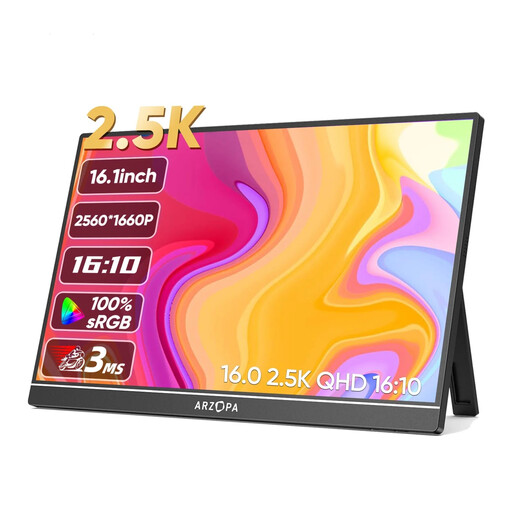
ARZOPA Z1RC 2.5K, portable monitor, 16 inches
This portable 16-inch monitor may suit you if you’re looking for a compact display for image editing.
The product name specifies 2560 × 1600 pixels, HDR 500 nits, 8-bit colour, IPS, USB-C and HDMI.
Joybuy
 No image available
MSI MAG 274UPDFDE E16M, 27 inches, Mini-LED
This 27-inch model is worth considering if you’re looking for a larger display. Before buying, check that the monitor and stand will fit on your desk.
The product name specifies UHD at 160 Hz or FHD at 320 Hz, as well as Mini-LED and Rapid IPS.
Joybuy
 No image available
INNOCN CB27U1, 27 inches, 4K UHD
If you want to see fine image details, the 4K UHD resolution stated in the product name is worth considering. Also check the space required for this 27-inch model.
The product name specifies 3840 × 2160 pixels, IPS, 120 Hz, HDR500 and USB-C with 90 W Power Delivery.
Joybuy
 No image available
KOORUI MB24V29FS4, 24 inches, FHD IPS
The 24-inch format may suit a space-conscious workspace; before choosing, compare the monitor’s full dimensions with your desk.
The product name specifies 120 Hz, 5 ms, 99% sRGB, HDMI and VGA.
Joybuy
Frequently asked questions
Do I need an ultrawide monitor for Lightroom Classic to stitch a panorama?
No, an ultrawide monitor isn’t required for stitching. Adobe describes stitching, previewing, automatic cropping and boundary warping as software features. Choose your screen width based on how you want to view your image and tools, and what will fit on your desk.
What should I bear in mind when setting up and calibrating my monitor?
First, compare the monitor’s dimensions with the stand against the space available on your desk. If you want to assess colours, consider calibration and profiling as part of your workflow; Adobe explains their role in achieving consistent colour reproduction.
Does a manufacturer’s warranty replace my rights against the seller?
No. If you buy from a business seller in the EU, the statutory minimum legal guarantee lasts for two years from the date you receive the goods, as explained by the EU consumer portal Your Europe. An additional manufacturer’s warranty must not reduce these rights. For your specific purchase, check who the seller is and what additional service terms apply.
What rules apply to electronic displays on the EU market?
The European Commission specifies mandatory ecodesign requirements for manufacturers and importers, as well as an A to G energy label for electronic displays. Check the energy label for the specific monitor; on its own, it doesn’t tell you whether a model suits your panorama or print colour workflow.


