What should you look for when buying?
First decide whether one person will be presenting at a desk or a group in a room. Then check the camera framing, audio and how you’ll share digital designs or show a physical whiteboard.
| Consideration |
What to check before buying |
Who it matters most to |
| Clear speech despite office noise |
Make a test call from the planned seats with the usual background noise, and check that quieter contributions come through too. |
If I want to discuss questions about the design clearly, the sound from the actual seat matters. Around 29% of consumers put voice transmission first. |
| Capturing everyone in the room |
Check the seating arrangement against the camera position; from a remote location, make sure people sitting to the side are clearly visible. |
If several people are sitting around the table, I want to include their contributions both visually and audibly. Around 23% of consumers prioritise capturing the group. |
| Showing designs |
Share digital files through the meeting app; for a physical whiteboard, check the relevant feature, its position and how it looks to remote participants. |
If I’m discussing design details, the remote group needs to be able to make them out. Around 18% of consumers prioritise showing design content. |
| Presenting at a desk |
Check the camera position, distance to the microphone and how it attaches to your existing workstation. |
If I’m presenting on my own from my desk, the camera should suit my position. Around 18% of consumers prioritise a desk setup that works for them. |
| Setup and privacy |
Test the operating mode, meeting software and sharing; agree how the camera is framed and what the recording rules are at work. |
If I’m introducing a device at the office, I want to clarify the connection and what it captures in advance. Around 12% of consumers’ main concern is making setup straightforward and appropriate. |
Joybuy product selection
This selection includes webcams for presentations at a computer, as well as videobars and conference systems for meetings with several people.
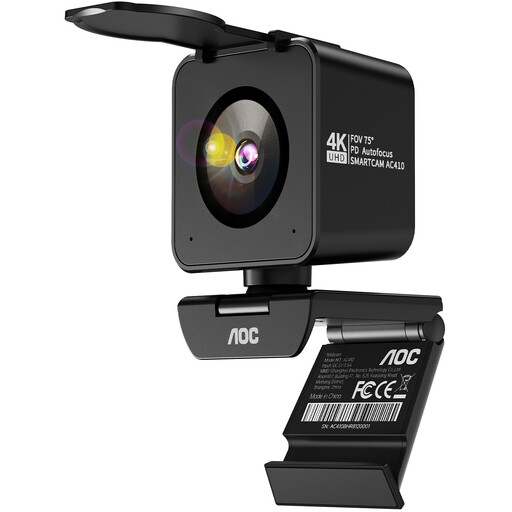 No image available
AOC 4K PRO webcam with Sony IMX363 sensor
For presenting at a computer, with one person on camera during a meeting.
The title lists PDAF autofocus, two microphones with noise cancellation, a 75° field of view, and USB-A and USB-C.
View at Joybuy
 No image available
Insta360 Link 2C Standard Bundle, Graphite Black
For one-to-one video presentations where features such as Auto Framing or a whiteboard mode could be useful.
The title describes a 4K webcam for PC and Mac with a 1/2" sensor, Auto Framing and HDR. The product description lists a microphone with AI noise cancellation and a whiteboard mode.
According to the product information, it isn’t compatible with ARM-based Windows systems.
View at Joybuy
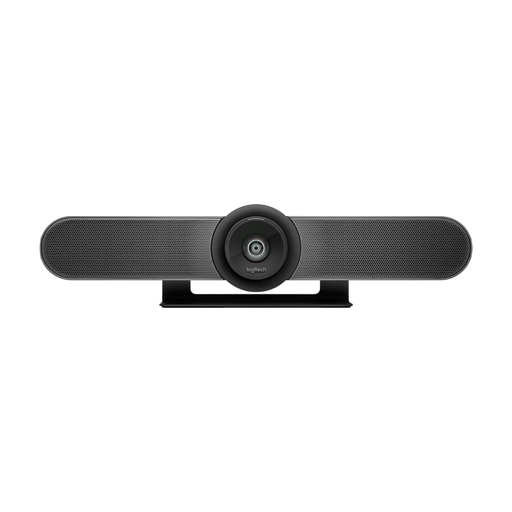 No image available
Logitech MeetUp All-in-One 4K Conference Camera
For small meeting rooms where several people sit in front of the camera.
For this model, Logitech lists a 120° diagonal field of view, a beamforming microphone array, a built-in speaker and motorised pan and tilt.
The product description lists USB plug-and-play; check the setup required for your chosen meeting software.
View at Joybuy
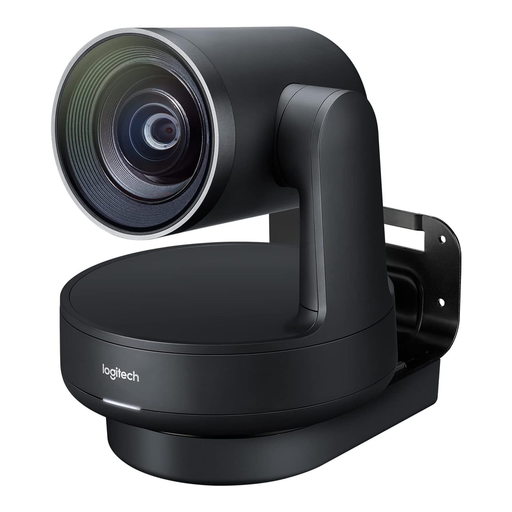 No image available
Logitech Rally Plus (960-001224)
For medium to large meeting rooms where a modular system needs to suit the room layout.
Logitech lists a 4K PTZ camera, two speakers, two microphone pods and a USB connection.
The system includes separate components and hubs, so plan the positioning and cabling to suit the room.
View at Joybuy
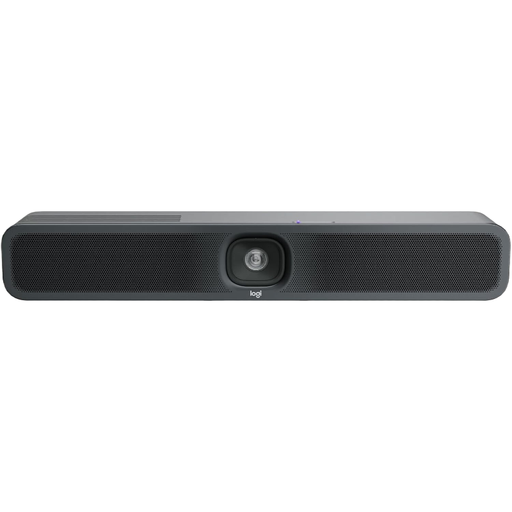 No image available
Logitech MeetUp 2, 4K All-in-One Conference Camera
For small meeting rooms where several people speak in front of a display and a laptop can run the meeting.
Logitech describes a USB videobar with a camera, microphone and speaker, as well as AI-based noise cancellation. These claims don’t guarantee clear speech amid the noise in your particular office.
For BYOD use, you’ll need a connected laptop with the meeting app running on it.
View at Joybuy
Frequently asked questions
Can a 4K conference camera show my digital design clearly without screen sharing?
The camera’s resolution alone isn’t a substitute for sharing the design file. Test screen sharing in your meeting app from the perspective of someone joining remotely. For a physical whiteboard, check for a feature specifically designed for it and make sure the board is positioned appropriately.
How do I set up a USB videobar for a briefing?
First decide whether a laptop or a room computer will run the meeting. Logitech describes both operating modes for the MeetUp 2; in BYOD mode, the meeting app runs on the laptop. Select the right audio and video devices in the app, then test the picture, sound and screen sharing before the meeting.
Do I need extra microphones?
That depends on the table size and seating arrangement. Yealink lists extension microphones for the UVC40 E2 as optional, so check the contents of the specific offer against your planned seating arrangement.
Can a business record a design briefing?
Having a camera doesn’t automatically make a recording permissible. The Conference of Independent Data Protection Supervisory Authorities distinguishes between processing data during a video conference and making an additional recording, which requires a separate assessment of the legal basis. Whether a particular recording is permissible depends, among other things, on its purpose, the participants and how the data is processed.
Does a works council need to be involved when a camera is used at work?
Not automatically just because a conference camera is being purchased. Section 87(1)(6) of the Works Constitution Act (BetrVG) lists the introduction and use of technical equipment designed to monitor employees’ conduct or performance as a matter for co-determination. Whether the planned setup falls under this provision should be assessed in light of how it will actually be used.


