For online training in a noisy office, choose your camera, microphone and audio output according to what each needs to do. A webcam with a built-in microphone may be enough if you’re joining on your own, but you should test how clearly your voice comes across and how well you can hear the session separately, at your actual workstation. Manufacturers’ claims about noise cancellation don’t guarantee that other voices will be filtered out or that you’ll hear the speaker clearly. If several people are taking part, you’ll also need to consider the camera’s framing and which voices it picks up.
Who should consider these options?
People who speak up regularly
If you ask questions or join in discussions at the office, check how clearly your voice comes across from your usual seat. Microsoft Support points out that background noise can distract others in a meeting when your microphone is on.
Listeners in a noisy office
If your main aim is to follow a presentation, consider the audio output separately from the camera. Microsoft Support explains how to choose your audio source before a Teams meeting.
People joining as a group
If several of you are sitting in front of one computer, decide together who should be in the frame and which voices need to be picked up. Guidance from Germany’s data protection authorities also covers possible video and audio recordings of people nearby.
What should you look for when buying?
First, decide what matters most to you: being heard clearly, hearing the presentation, joining as a group or getting set up quickly. A trial run in the intended location will help you assess the camera and audio separately.
| What you need |
What to check before buying |
Who is this particularly important for? |
| Speaking during the session |
Test the microphone at your usual speaking distance and with background noise; check the settings in your conferencing software. |
If I speak regularly, people need to hear me clearly despite office conversations. Around 40% of consumers prioritise being heard clearly when they speak. |
| Following the presentation and appearing on camera |
Test the audio output separately from the camera; check that the position and lighting at your workstation suit the image you want. |
If I’m mainly listening, I want to follow the presentation clearly and appear on camera in a suitable way. Around 30% of consumers prioritise being able to hear the session and having a suitable image of themselves. |
| Joining as a group |
Check the seating arrangement and the field of view you need; consider whether people or work areas not involved in the session might be captured. |
If we’re joining together, our seats and contributions need to be taken into account. Around 20% of consumers prioritise capturing several participants. |
| Set-up and control over the image |
Check the connection, permissions and any required software in advance; select the camera and microphone in your training app. |
If I want to get started without a lengthy set-up and close the camera lens when it’s not in use, I look for suitable connections and a lens cover. Around 10% of consumers prioritise easy set-up and control over the image. |
Common misconceptions
-
Noise cancellation guarantees clear conversations
Manufacturers describe microphone processing features, but office noise, speaking distance and the conferencing software you use also affect what gets picked up.
Test the microphone and noise cancellation with realistic background noise. Separately assess what others can hear from you and how well you can follow the presentation.
If a trial run isn’t enough, using a separate audio source may require extra equipment or set-up.
-
A wide field of view solves the audio challenge for a group
A wider frame can show more people, but that doesn’t mean their voices will come across clearly from a shared workstation. People or work areas in the background may also be visible.
Check the seating arrangement, framing and audio separately for the room you’ll be using. Consider whether people who aren’t involved might be captured.
-
Connections and extra features can be set up on the spot
You may need an adapter or additional software. Logitech says Logi Tune is required for the Brio 500’s advanced auto-framing.
Check the connection, permissions and any required software before your session. Select the camera and audio source in your training app, then test both in advance.
Depending on your computer and the features you want to use, you may need a suitable adapter or extra time for set-up.
Key brands at a glance
Logitech
The Brio 500 is a personal Full HD webcam with exposure correction, a built-in microphone and a Show Mode.
- Logitech describes its microphones as noise-cancelling. F.A.Z. Kaufkompass gives the microphone a positive review.
- That doesn’t prove it’s suitable for every noisy office. Logitech says Logi Tune is required for advanced auto-framing.
AnkerWork
The PowerConf C200 is a personal USB webcam with an adjustable field of view, according to the manufacturer.
- Anker lists 65°, 78° and 95° fields of view, as well as dual microphones with AI-based noise reduction.
- The noise reduction claims come from the manufacturer. Test how clearly your voice comes across against the noise at your workstation.
Poly
The Studio P5 is a personal webcam with USB/UVC support and a built-in directional microphone.
- HP lists an 80° field of view, Full HD recording, autofocus and a lens cover.
- These specifications don’t prove that it can clearly pick up several people speaking at once or voices in a very noisy office.
Jabra
The PanaCast 20 is designed for individuals who value image features such as intelligent zoom and picture-in-picture.
- Jabra promotes 4K video and AI-powered image optimisation for this model.
- Image specifications don’t show that it will make audio easier to understand during training in a noisy office.
OBSBOT
The Tiny 2 Lite is worth considering for a workstation where you want the camera to follow someone as they move.
- OBSBOT lists tracking, up to 4K at 30 frames per second and a dual microphone with adjustable noise cancellation.
- The manufacturer’s claims aren’t an independent assessment of audio performance in your particular office environment.
Joybuy products
This selection includes USB webcams for personal video calls, with built-in microphones. Even so, test how clearly your voice comes across against the background noise at your workstation.
 No image available
Full HD 1080p USB webcam with microphone
Worth considering if you’re looking for a webcam with a built-in microphone and physical camera cover; test the noise cancellation in the intended location.
1080p; 120° field of view; omnidirectional microphone with noise cancellation; USB plug-and-play; flexible tripod.
Joybuy
 No image available
AOC 4K webcam with 99° field of view
A good fit if you want a wide field of view and a built-in microphone; a trial run will show how clearly your voice comes across in practice.
4K; 99° field of view; microphone with noise cancellation; cover; compatible with Windows and macOS according to the product description.
Joybuy
 No image available
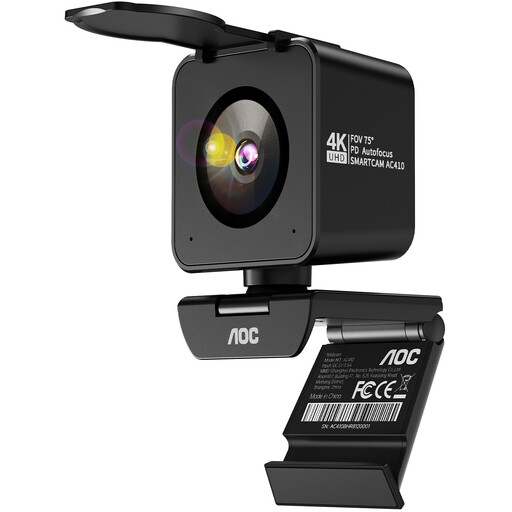
AOC 4K Pro webcam with Sony IMX363
An option if you’re looking for a webcam with two microphones and a USB-A or USB-C connection; check the audio quality against the noise in your office.
Sony IMX363 sensor; PDAF autofocus; two microphones with noise cancellation; 75° field of view; lens cover.
Joybuy
 No image available
SPL6408BT/00, EU version, black
Worth considering if you want a built-in microphone for video calls or remote learning; test how well it transmits your voice before the training session.
Full HD 1080p at 30 fps; automatic low-light correction; two microphones with noise cancellation; clip for attaching to a laptop or monitor; plug-and-play.
Joybuy
 No image available
Insta360 Link 2C Standard Bundle, Graphite Black
A good fit if you want to use auto-framing and a built-in microphone; noise cancellation is no substitute for testing it at your actual workstation.
4K; 1/2-inch sensor; auto-framing; HDR; microphone with AI noise cancellation; physical privacy switch. Not compatible with ARM-based Windows systems, according to the product description.
Joybuy
Frequently asked questions
Is a webcam’s noise cancellation enough for training in an open-plan office?
You can only tell by testing it in the intended location. Logitech and Anker list microphone features of this kind on selected models; Microsoft also describes noise cancellation in Teams. None of these claims guarantees that a particular webcam will reliably filter out other people’s conversations.
Why can I still struggle to hear the presentation, even with a good webcam?
The webcam and audio output do different jobs. If you use Teams, select your intended audio source before the meeting, then test the speaker and microphone separately.
What should I set up before the training session starts?
Select the camera and audio source in the app you’re using, check permissions and framing, and make a test call from the seat you’ll be using. If you want to use advanced auto-framing on the Brio 500, check in advance whether you’re allowed to use Logi Tune on your work computer.
What extra costs should I allow for?
If the camera microphone or your existing audio output isn’t good enough during the trial run, you may need a separate audio source. You may also need extra equipment for the connection or positioning you have in mind.
Can I simply record an online training session at the office?
Not just because your camera or conferencing software allows you to record. Guidance from Germany’s data protection authorities says you should check the relevant legal basis and other requirements for processing video and audio; the checklist also covers consent and information obligations. Discuss the specific training session and the people affected with the organisation responsible.


