What should you look for when buying?
First decide what needs to be visible in your tutorial, then check the room audio, seating arrangement and connections for your planned setup.
| What matters |
What to check before buying |
Who will find this important? |
| Clear speech and questions |
Check the microphone and speaker arrangement, then make a test call from the actual speaking positions. |
If I want to share questions from the room as well as my presentation, I’ll check the audio from different seats. Around 31% of consumers would make room audio their top priority for this use. |
| Whiteboard visibility and movement |
Check the camera position and whiteboard mode, and make sure the writing is legible in the transmitted image. |
If I move around while explaining or write on the board, the presenter or the board’s contents need to remain visible. Around 31% of consumers would prioritise whiteboard visibility and freedom of movement for their tutorial. |
| Framing for the seating arrangement |
Decide where to position the camera and identify the seats furthest from it; test the framing in your intended conferencing layout. |
If several people are sitting around a table or side by side in front of the camera, I want their contributions to appear in a way that suits the seating arrangement. Around 19% of consumers would choose a group shot as their main buying priority. |
| Connections and easy setup |
Check the USB ports, power supply and mounting position, and make sure the camera is available to select in your conferencing software. |
If I’m hosting the tutorial using a fixed room PC or a laptop that changes from time to time, the camera needs to work with the setup I have planned. Around 19% of consumers would check the connection and ease of repeating the setup first. |
Key brands at a glance
The models below are designed for different setups. Their features and limitations apply to the specific product lines mentioned and should not be taken as a general assessment of the brands.
Logitech
Logitech describes the MeetUp 2 as a USB video bar for small meeting rooms using a PC or BYOD setup.
- Logitech describes group and speaker views, as well as several mounting positions.
- The optional active USB cable is required for the one-cable BYOD connection described by the manufacturer.
Jabra
Jabra describes the PanaCast 50 as combining a front-facing panoramic camera with whiteboard sharing and room audio.
- The EMEA data sheet lists eight microphones, an integrated whiteboard camera and a panoramic output of 3840 × 1080 at 30 fps.
- The panoramic resolution has a different aspect ratio from 3840 × 2160; claims about call quality come from the manufacturer.
Owl Labs
The Meeting Owl 3 is a table-based solution for picking up contributions from different directions.
- Owl Labs specifies a 360° field of view, eight microphones and 1080p HD video output.
- An all-round view isn’t automatically the right choice for a mainly front-facing presentation with small whiteboard text.
HP Poly
HP describes the Poly Studio R30 as a USB video bar for small conference rooms and front-facing group shots.
- HP lists a 120° field of view, three microphones and a USB connection to a PC, with a separate power supply.
- Claims about speech clarity come from HP and are no substitute for testing the camera at your intended seating and mounting positions.
Insta360
The Link 2 is a tracking webcam for a presenter and potential whiteboard demonstrations.
- Insta360 describes a pan-and-tilt gimbal. The instructions distinguish between a whiteboard mode that uses markers and a Smart Whiteboard mode that works without them.
- Camera position and whiteboard visibility remain key to how the image appears; the webcam is not described as an all-in-one room video bar.
Joybuy products for tutorials in smaller rooms
This selection includes webcams for use with a computer, as well as conference cameras and a video bar for small group discussions or meeting rooms.
 No image available
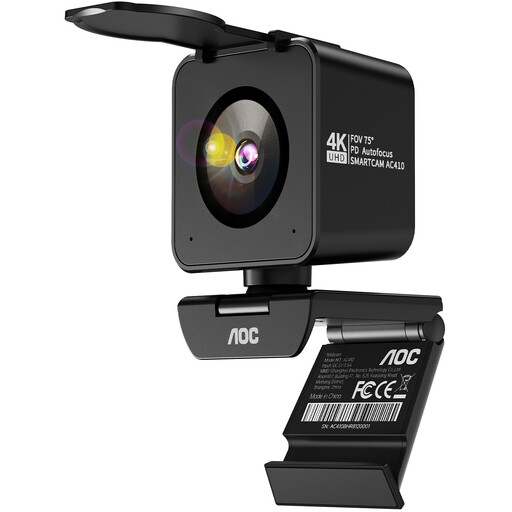
AOC 4K PRO Webcam with Sony IMX363 sensor
For computer-based tutorials when you’re looking for a webcam with autofocus and two microphones.
The title specifies a 75° field of view and USB-A and USB-C connections for PCs, meetings and streaming.
View at Joybuy
 No image available
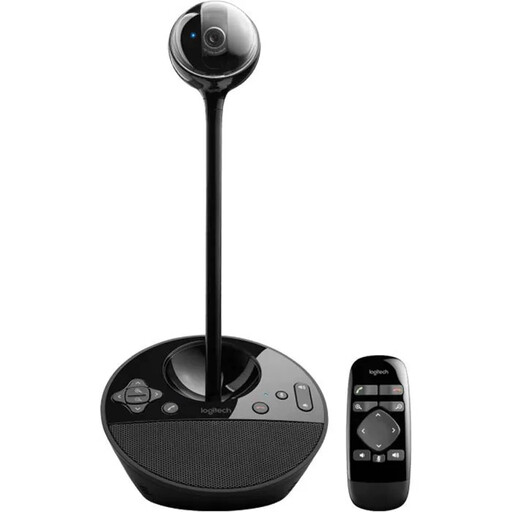
Logitech ConferenceCam, 10.4 × 15 × 15.4 cm
For small groups when you need a conference camera with an integrated speakerphone to fit your planned room setup.
The product description lists HD video, USB-A and pan, tilt and zoom functions. The full-duplex speakerphone has a specified microphone range of 2,40 m.
View at Joybuy
 No image available
Philips 4K UHD Webcam 4000 Series, SPL6408BT/00, EU version
For computer-based tutorials when a desktop webcam with autofocus and two built-in microphones suits your setup.
The description lists 4K at 30 fps, USB-A and compatibility with Zoom and Microsoft Teams.
View at Joybuy
 No image available
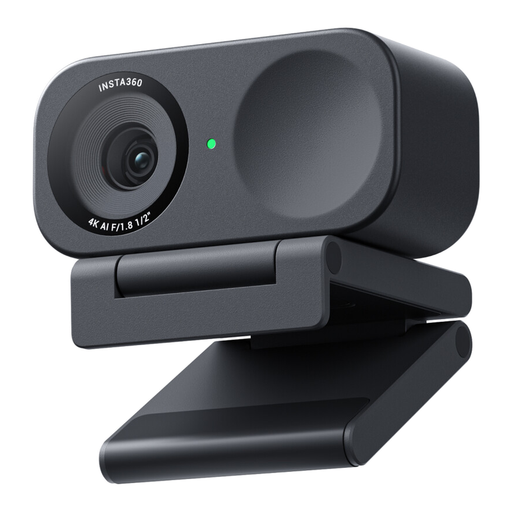
Insta360 Link 2C Standard Bundle, Graphite Black
For tutorials where adjustable framing or a whiteboard mode is useful.
The title describes a 4K webcam for PC and Mac. The description lists auto-framing, autofocus, HDR, AI noise cancellation and a whiteboard mode.
View at Joybuy
 No image available
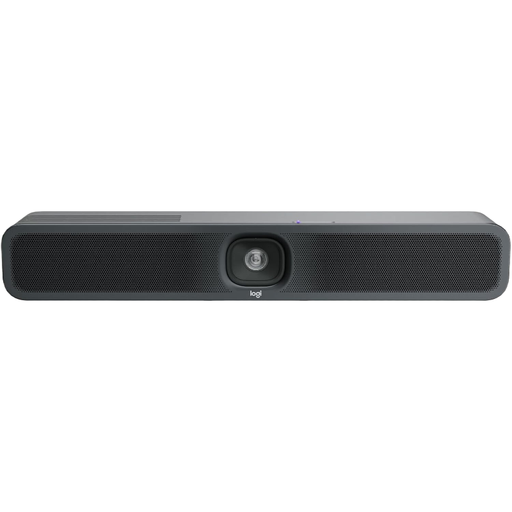
Logitech MeetUp 2, 4K all-in-one conference camera
For a small meeting room when you want the camera, microphone and speaker in one video bar.
The product description lists 4K video, USB and several mounting options. According to Logitech, the one-cable BYOD connection requires an optional active USB cable.
View at Joybuy
Frequently asked questions
How should I set up the picture and sound before the tutorial?
Position the camera where you plan to use it, then check in your conferencing software that the presenter, the seats furthest from the camera and, if relevant, the whiteboard are visible. Test the audio with another person speaking from the actual positions people will use; manufacturers’ field-of-view and microphone specifications are no substitute for testing in your room.
Does the Insta360 Link 2 whiteboard mode need markers?
According to Insta360’s instructions, the standard mode requires visible markers at the four corners of the whiteboard. The Link 2’s Smart Whiteboard mode works without markers, but the whiteboard area still needs to be recognised or set up correctly.
Are statutory rights and a manufacturer’s warranty the same thing?
No. The European Union’s consumer information states that goods bought from businesses come with a legal guarantee of at least two years from receipt of the goods; a commercial warranty is an additional promise with its own terms. Check who the seller is and which warranty terms apply to the specific offer. If you’re buying as a business, this does not automatically establish the same consumer status.
Can I simply record an online tutorial with participants?
No. The fact that your camera or conferencing software has a recording function does not, by itself, establish whether a particular recording is lawful. The German Data Protection Conference says you must check the applicable legal basis for each instance of data processing; the BfDI distinguishes the service provider’s responsibilities from those of users for the content of communications. Relevant factors include the participants, purpose and context of use.


