Teams with remote participants
When several people are speaking in the room, remote participants should be able to hear voices from beyond the presenter’s seat too. Logitech and HP describe video bar solutions for meeting rooms.


For a project update in a small meeting room, a USB video bar is a good fit if the team is mostly seated facing the display. If people are sitting around the table, a 360° tabletop camera may be more suitable. The key factors are the seating arrangement, how far people are from the microphones and how the room PC or laptop connects. You can share digital slides separately through your conferencing software. Logitech describes MeetUp 2 for room PC and BYOD use, while Owl Labs presents the Meeting Owl 3 as a 360° tabletop solution. Manufacturer range claims are no substitute for testing in your actual room.
When several people are speaking in the room, remote participants should be able to hear voices from beyond the presenter’s seat too. Logitech and HP describe video bar solutions for meeting rooms.
If you’re bringing your own computer to the meeting, check the USB connection and how you’ll share your slides. Logitech describes BYOD connections for MeetUp 2, while Zoom explains how to share your screen or applications.
If people are sitting in different directions, a front-facing camera may not capture the seating arrangement as well. Owl Labs describes the Meeting Owl 3 as a 360° tabletop solution.
A good fit if: several people are seated mainly facing the display and a room PC or laptop is running the meeting.
Keep in mind: Check the camera view and speech clarity from the seats at either end of the table. With Logitech MeetUp 2, the single-cable BYOD option depends on using the specified active USB cable.
A good fit if: people are sitting to the sides of the display or you need to include a physical whiteboard. Jabra lists a 180° field of view and a whiteboard feature for the PanaCast 50; Yealink specifies 120° for the UVC34.
Keep in mind: A wide viewing angle doesn’t guarantee clear audio from every seat or legible content in your particular room.
A good fit if: meeting participants are sitting around the table rather than all facing in the same direction.
Keep in mind: Owl Labs lists a 3 m video radius and a 5.5 m audio pickup radius for the Meeting Owl 3. These manufacturer figures are no substitute for testing from the actual seats in your room. Digital slides still need to be shared separately through your conferencing software.
| What you need | What to look for | Who it matters to |
|---|---|---|
| Speech clarity | Check the microphone and speaker arrangement where you plan to use the camera, as well as speech clarity from the seats furthest away. HP lists three microphones for the Poly Studio R30; Owl Labs gives the Meeting Owl 3 an audio pickup radius of 5.5 m. | If remote participants need to hear questions from every seat, I’d factor in the actual distances and the room acoustics. Around 40% of consumers put audio coverage first. |
| Slides and computer connection | Check that your room PC or laptop connects as expected and that your conferencing software supports the screen or application sharing you need. For a single-cable BYOD connection with MeetUp 2, Logitech lists an active USB cable as one option. | If you’re presenting from your own laptop, plan the connection and sharing of digital project materials together in advance. Around 30% of consumers prioritise the presentation setup and computer connection. |
| Visibility of the group | Compare the camera view with your actual seating arrangement. HP lists a 120° field of view for the Poly Studio R30 and Jabra lists 180° for the PanaCast 50, but neither manufacturer’s figure guarantees that everyone will be clearly visible. | If everyone in a group facing forwards needs to be in shot, I’d pay particular attention to the seats at either end. Around 20% of consumers prioritise visibility of the group. |
| Table discussion or whiteboard | Decide whether your priority is capturing people around the table or a physical whiteboard. Check the placement and sharing features you’ll need for your particular room. | If you’re holding a discussion around a table or using a whiteboard at the front of the room, I’d choose a setup that suits that specific use. Around 10% of consumers prioritise table discussions or whiteboards. |
The camera feed and digital content are transmitted in different ways.
Test content sharing in your conferencing software using the computer you plan to present from. Zoom explains how to share your screen or individual applications, even while video is on.
A stated microphone range doesn’t show how clearly voices will come through with your actual room acoustics and seating arrangement.
Before finalising your setup, make a test call from the seats furthest away.
A front-facing video bar and a 360° tabletop camera are designed for different seating arrangements.
Start by sketching out the seating positions, then check the camera placement and field of view against them.
Logitech describes MeetUp 2 as a video bar for small rooms, with room PC and BYOD options.
HP describes the Poly Studio R30 as a USB video bar for small conference rooms.
Jabra describes the PanaCast 50 as offering a wide, front-facing view of the room.
Owl Labs describes the Meeting Owl 3 as a 360° tabletop solution for discussions with people facing different directions.
Yealink describes the UVC34 as an all-in-one USB video bar for small and compact rooms.
The Joybuy products below include conference cameras and video solutions for small groups, from standalone conference devices to modular systems.
 No image available
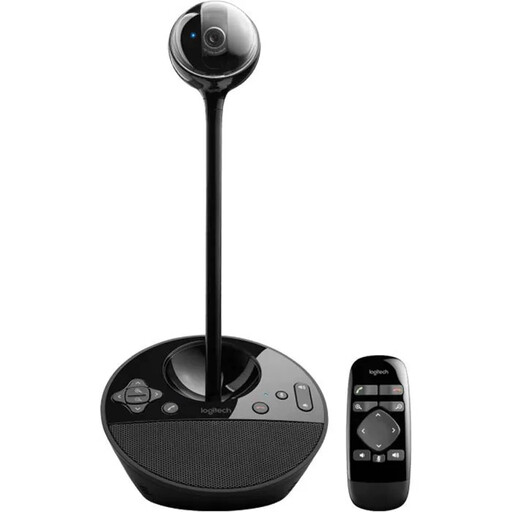
Described as suitable for small groups; the listed specifications include USB-A and a full-duplex speakerphone. The stated microphone range is 2,40 m. Check speech clarity and distances between seats in your room.
 No image available
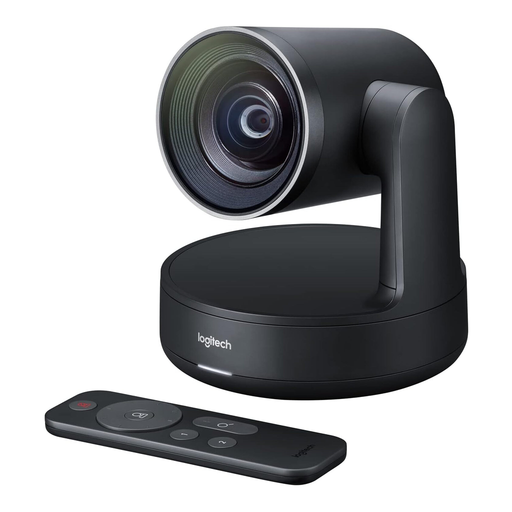
The product title identifies this model as a conference camera. Before choosing it, check that its specific connections and room coverage suit your meeting setup.
 No image available
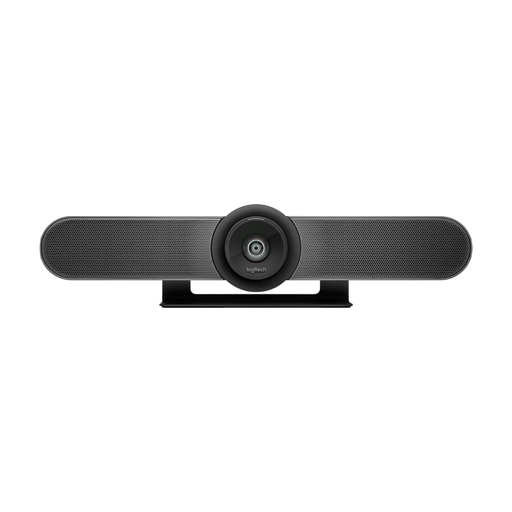
Described as an all-in-one conference camera for small meeting rooms. Table, wall and display mounting options are listed; choose a position that suits your seating arrangement.
 No image available
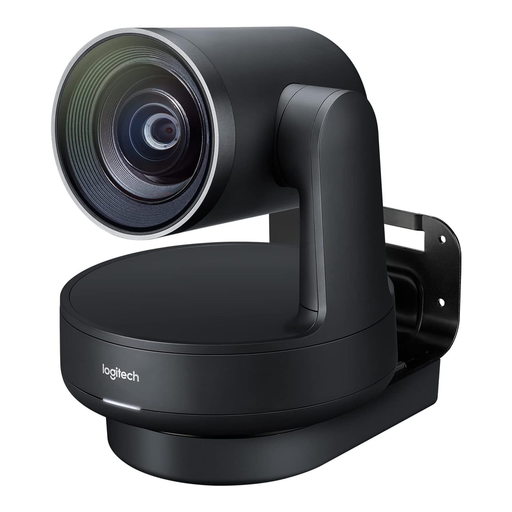
This modular system is described as suitable for medium to large meeting rooms. The camera, speakers, hub and microphones need to be positioned and connected around the room, so bear this setup work in mind if you have a small room.
 No image available
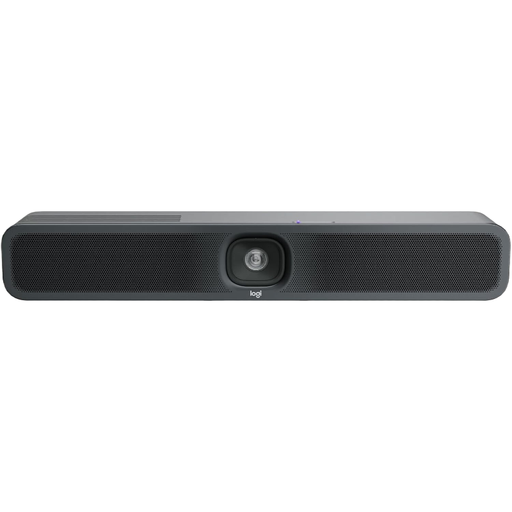
Described as suitable for small meeting rooms and room PC or BYOD use. Logitech lists USB connections; check which cable option your planned setup requires.
No. You can share digital slides through your conferencing software. Zoom explains how to share your screen or individual applications, even while video is on. Check the sharing permissions and how the presentation computer connects. If you’re using a physical whiteboard, check the camera position and any relevant feature separately.
Position it to suit the seating arrangement. Logitech lists display, table and wall mounting options for MeetUp 2; the Meeting Owl 3 from Owl Labs is a 360° tabletop solution for a discussion where people are facing different directions. Check the camera view and speech clarity from every seat you plan to use.
Check which cables and mounting options your room needs. For MeetUp 2, Logitech describes a single-cable BYOD connection using an active USB cable as an alternative to two standard cables. Confirm which option your setup requires and whether the necessary cable is included in the offer.
In its guidance on video conferencing systems, the German Data Protection Conference states that the responsible organisation needs a legal basis for processing personal data such as images and audio. Data minimisation and the role of any service provider you use should also be considered when choosing and operating a system. The published guidance dates from 2020 and is not a new regulation from 2026.