Which solution is right for you?

Teams working with detailed digital designs

If remote participants need to see small text, layouts or drawings, plan to share the digital original directly as well as showing the room. Microsoft Support explains how to share your screen or a window in Teams.

Groups with several people speaking

If people need to speak from different seats around the meeting table, check the microphone position and speech clarity in the room itself. The manufacturer’s details about built-in microphones are no substitute for testing from the seats you plan to use.

Teams in a small or permanently set-up room

With side-on seating or a permanent meeting set-up, consider whether a USB video bar with a computer, a wide panoramic view or a system with a built-in computer will suit your planned installation.

What should you look for when buying?

USB video bar with a computer

A good fit if: an existing laptop or room PC will host the meeting and the group faces the display.

Consider: the computer and suitable connections remain part of the set-up; Logitech describes MeetUp 2 for PC and BYOD use.

Panoramic video bar

A good fit if: people are seated close together and at an angle, and a wide view of the room is important. Jabra specifies a 180° field of view for the PanaCast 50.

Consider: a wide view does not replace directly sharing digital design details; check the framing at the installation point.

Video bar with a built-in computer

A good fit if: you want to use a permanently set-up small meeting room without a connected laptop. Yealink describes the MeetingBar A10 as having a built-in computer.

Consider: before buying, check that the meeting platform, set-up and content-sharing options suit your specific installation.

Need What to check before buying Who is this important for?
Show design details Test with a real brief to see whether you can share a window, presentation or whiteboard with remote participants. If I’m discussing small text or layouts, I want to be able to share the original directly. Around 31% of consumers say sharing designs is their main concern.
Make sure everyone can be heard clearly Hold a test meeting with both quiet and loud speakers sitting in all the intended places. If several people are speaking from different seats, I don’t want to have to ask them to repeat themselves. Around 25% of consumers prioritise speech clarity.
Capture every seat Check the field of view and framing from the intended installation point, with all seats occupied; compare viewing angles only on a like-for-like measurement basis. If people are seated along the sides, I want to see whether the whole group stays in shot. For around 25% of consumers, capturing the whole group is a priority.
Easy room operation Check that your existing computer, connections, meeting platform and planned content-sharing method are compatible. If the meeting space is permanently set up, I want to choose a start-up and connection process that works with the IT already in place. Around 19% of consumers prioritise straightforward room operation.

Avoid common misconceptions

  • Expecting the room camera to show fine details in a digital design at the same time

    Showing the group and sharing an original directly serve different purposes. A room camera alone cannot reliably make small text on a screen legible.

    Test the brief as a shared window or presentation, and check the sharing permissions for the account you’re using.

  • Comparing 120° and 180° without checking how the angle is measured

    Logitech specifies a 120° diagonal field of view for MeetUp 2, as well as 113° horizontally. So a single angle measurement is not enough to plan the view of the seats.

    Compare horizontal measurements like for like, and check the actual framing at the installation point.

  • Assuming a USB video bar is a fully standalone room system

    Logitech describes MeetUp 2 for PC and BYOD use, while Yealink specifies a built-in computer for the MeetingBar A10. The devices therefore require different set-ups.

    First decide what will host the meeting and how you’ll share the design. Then check that the connections and any presentation accessories you need are compatible with your planned set-up.

    Depending on the equipment you already have, you may need a computer, connection cables or presentation accessories.

Key brands at a glance

Logitech

Logitech describes MeetUp 2 as a video bar for small rooms, for use with a PC or in BYOD mode.

  • According to Logitech, MeetUp 2 has a built-in camera, six digital microphones, a speaker and several mounting options.
  • Logitech rules out use with RoomMate; having integrated software does not make MeetUp 2 a standalone room system.

HP Poly

HP describes Studio R30 as a USB video bar for small conference rooms.

  • HP specifies a 120° field of view, three microphones and a built-in speaker.
  • For set-up, HP describes connecting a PC via USB; the picture and audio specifications are provided by the manufacturer.

Jabra

Jabra positions the PanaCast 50 as a panoramic video bar for rooms where people sitting to the side should also stay in shot.

  • Jabra specifies a 180° panoramic view and eight microphones for the PanaCast 50.
  • The product sheet describes a whiteboard feature; how useful it is for a particular design brief depends on the set-up and content. These specifications apply to the PanaCast 50, not to all PanaCast models.

Yealink

Yealink describes the MeetingBar A10 as a compact, standalone Android video bar for small rooms.

  • Yealink specifies a built-in computer, camera, eight microphones, speaker and content-sharing capabilities.
  • Yealink specifies an additional Wireless Presentation Pod for a particular sharing method. Check whether it suits your planned set-up.

Joybuy products

Joybuy product options for PC-based video conferencing and small meeting rooms.

AOC webcam for PC with microphone, 4K and 99° field of view

AOC webcam for PC with microphone, 4K, 99° field of view and privacy cover, black

For video calls on a PC when you need a webcam with a built-in microphone.

The product name specifies 4K, a 99° field of view, noise reduction and a cover.

View at Joybuy
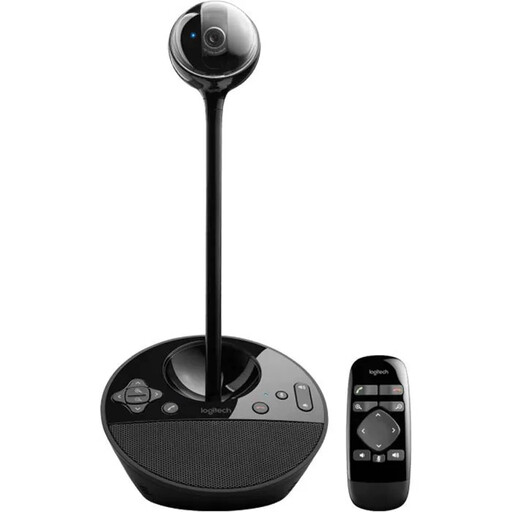
Logitech ConferenceCam, 10.4 × 15 × 15.4 cm

Logitech ConferenceCam, 10.4 × 15 × 15.4 cm

For small groups looking to connect a conference camera to a computer via USB.

Features include HD video, a full-duplex speakerphone, autofocus and zoom. The stated microphone range is 2.40 m.

View at Joybuy
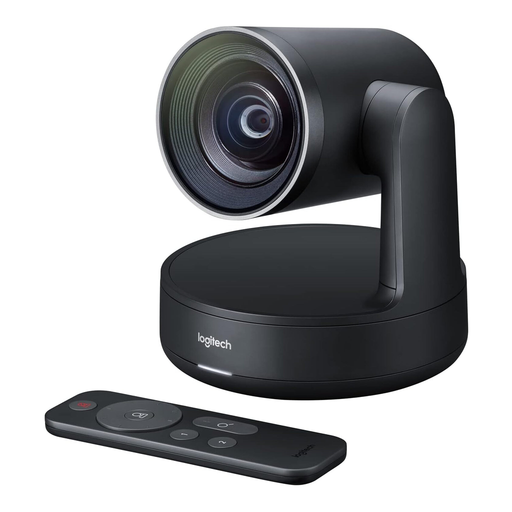
Logitech Conference Camera Rally 960-001227

Logitech Conference Camera Rally 960-001227

For video conferencing where a conference camera connects to a computer via USB.

The product details specify 4K video, USB connectivity and autofocus.

View at Joybuy
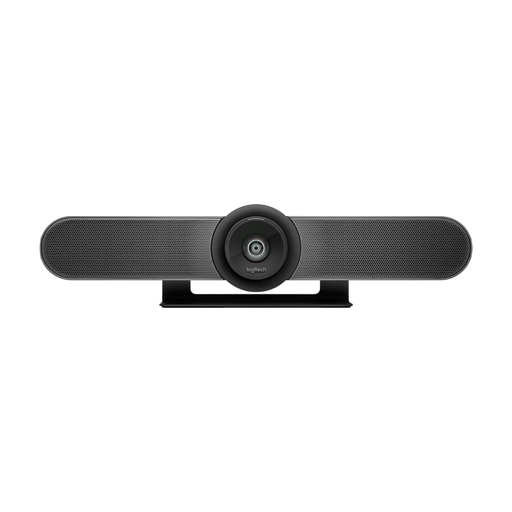
Logitech MeetUp All-in-One 4K Conference Camera

Logitech MeetUp All-in-One 4K Conference Camera

For small meeting rooms where you want the camera, microphones and speaker combined in one conference device.

The product details specify a 120° diagonal field of view, motorised pan and tilt, automatic framing and a USB connection.

View at Joybuy
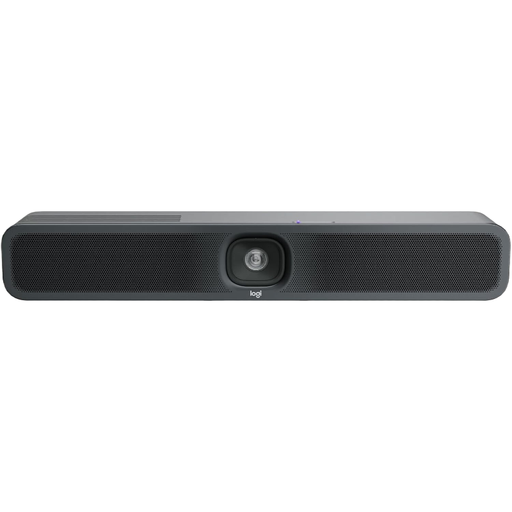
Logitech MeetUp 2, 4K all-in-one conference camera

Logitech MeetUp 2, 4K all-in-one conference camera

For small meeting rooms using a PC or BYOD set-up; Logitech rules out use with RoomMate for this model.

The product details specify 4K, USB, and a built-in camera, microphone and speaker.

View at Joybuy

Frequently asked questions

Will a 4K room camera make small text in a digital design brief legible?

Not reliably just because of the camera specification. For a digital brief, share the relevant window or presentation directly in the meeting app wherever possible, and check the view from a remote participant’s perspective. Microsoft Support explains these sharing options in Teams.

Can I use MeetUp 2 as a standalone conference system without a laptop or room PC?

No. Logitech describes MeetUp 2 for PC and BYOD use, and rules out deployment with Logitech RoomMate. Plan to use a suitable computer with this model and check its connections.

What should I test after installation, and what should I bear in mind when maintaining the system?

Test every intended seat with a remote participant, including changes of speaker, camera framing and sharing a real file. For permanently installed systems, also decide who will manage set-up and updates; Logitech and Yealink describe device management features, not automatic management.

What additional costs should I check for my set-up?

That depends on the equipment you already have and how the room is set up. Before buying, check whether your planned installation requires additional cables, presentation accessories, platform licences or IT management.

What data protection issues should I consider before video calls in Germany?

Buying a particular camera model does not automatically mean that your set-up meets data protection requirements. The Federal Commissioner for Data Protection and Freedom of Information explains that the organisation using a service is responsible for the content it determines. So check the service, account settings and specific processing of personal data within your own organisation.