What should you look for when buying?
Front-facing USB video bar
Best suited to: Seating arranged mainly to face the display, with a room PC or laptop starting the conference.
Consider: A wide field of view can capture many seats, but faces may look smaller on screen.
360° camera in the centre of the table
Best suited to: People sitting on different sides of a table, when remote participants need to follow who is speaking.
Consider: Check the distance to every seat, where the camera will sit on the table and how it looks in your conferencing software.
For conversation practice, clear voices, a suitable camera angle and a straightforward setup with the devices you plan to use are what matter most. The table below focuses on a conversation practice session in a small meeting room.
| What matters |
What to look for when buying |
Who is this most important for? |
| Clear voices |
Test the microphone setup and speaker at the actual seating distance. Include quieter voices and people sitting further away. |
If I need to make sure remote participants can understand everyone, sound comes first. Around 33% of consumers would make clear voices their top requirement. |
| Coverage of the seating arrangement |
Map out the seats and camera position. Check who is visible and how large faces look on screen. |
If people are sitting in different parts of the room, I want everyone in the planned seating area to be shown clearly. For around 27% of consumers, seat coverage would be their main concern. |
| Following changes of speaker |
Try out group and speaker views during a practice session with people taking turns to speak. |
If people often take turns speaking, I want remote participants to be able to follow who is talking. Around 20% of consumers would put the speaker view first. |
| Compatibility with existing devices |
Check the PC or laptop, conferencing software, connections, power supply and required cables together. |
If different teachers use the same room with different computers, I need a clear connection process for the planned setup. For around 20% of consumers, ease of setup would be their main concern. |
Related products from Joybuy
The Joybuy products below include webcams and conference cameras for computer-based conversations. Check whether they suit your seating arrangement, the connections you need and the conferencing software you use.
 Image unavailable
Full HD 1080P webcam with microphone
Described as a webcam for video calls on a PC or laptop. Before using it with a group, check that the framing and sound suit your seating arrangement.
Features listed in the product name: Full HD 1080P, USB Plug & Play and built-in microphone.
View on Joybuy
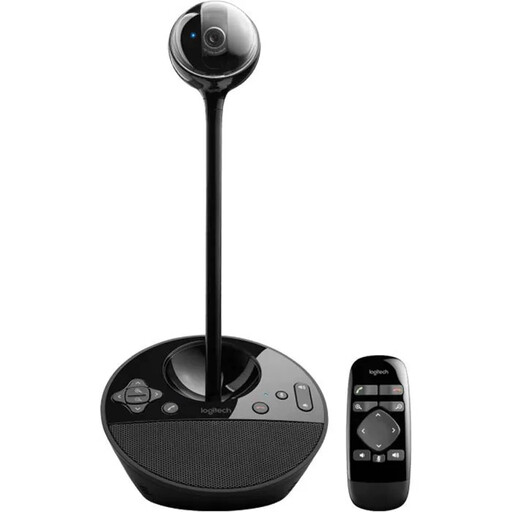 Image unavailable
Logitech ConferenceCam, 10.4x15x15.4cm
It may suit a computer-based group conversation if the USB connection listed works with your planned setup. Test how clearly voices can be heard in the room.
Dimensions listed in the product name: 10.4x15x15.4cm.
View on Joybuy
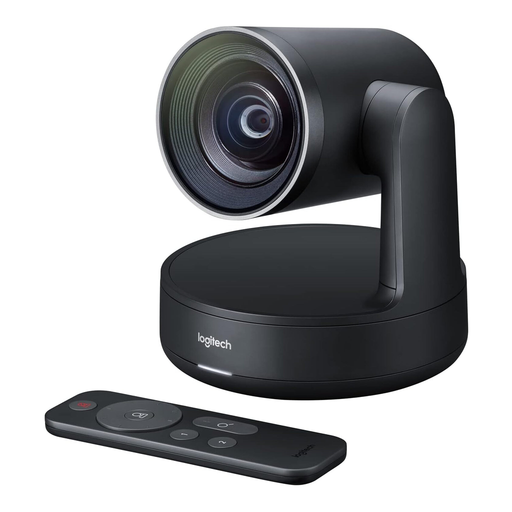 Image unavailable
Logitech Conference Camera Rally 960-001227
Described as a conference camera. Before choosing it, check that the angle, connection and sound suit the conversation practice session in your room.
View on Joybuy
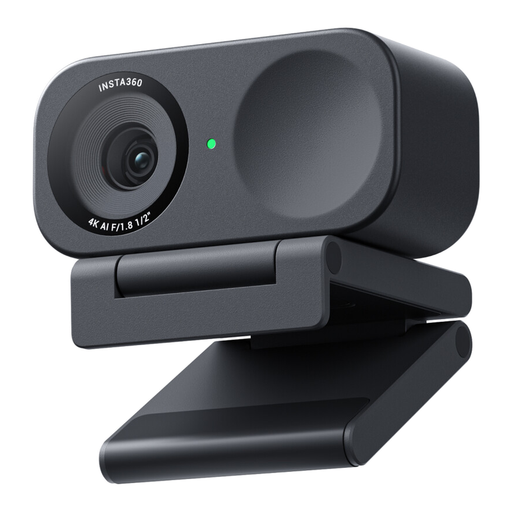 Image unavailable
Insta360 Link 2C Standard Bundle, Graphite Black
According to the product name, this webcam is designed for video calls on a PC or Mac. For group practice, check whether auto-framing gives you the view you want.
Features listed in the product name: 4K, 1/2" sensor, auto-framing, HDR and a microphone with AI noise reduction.
View on Joybuy
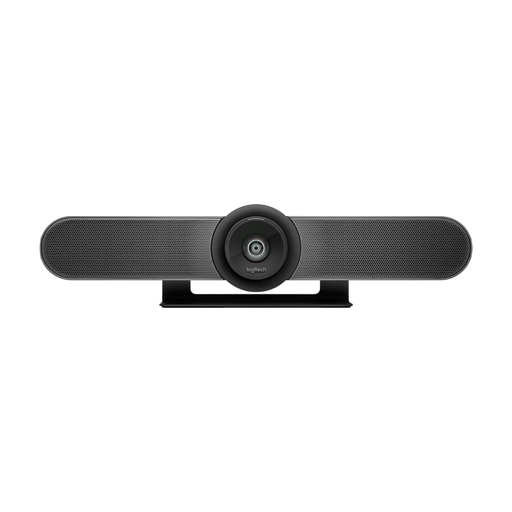 Image unavailable
Logitech MeetUp All-in-One 4K conference camera
Described as an all-in-one camera for small meeting rooms. Check the framing from the seats you’ll actually use and make sure you have the right mounting option.
Features listed in the product name: 4K, 120° field of view, integrated microphones and speakers, and motorised pan and tilt.
View on Joybuy
Frequently asked questions
Is a 120° field of view enough for a conversation group?
The angle alone won’t tell you. Distance, seating arrangement and camera position all affect who is visible and how large faces look. Check the picture from the seats you plan to use.
When is a 360° camera a better choice than a front-facing video bar?
A 360° camera in the centre of the table can work well for a group, with people facing one another from different sides. A front-facing USB video bar is a possible starting point when most seats face the display. Test both angles with the conferencing software you’ll be using.
How do I set up a USB video bar for teachers who take turns using the room?
First, decide whether the conference will be started from a room PC or from teachers’ own laptops. Logitech describes MeetUp 2 as supporting both setups. For the one-cable BYOD connection, the manufacturer specifies an active USB cable. Check the connections, power supply, software and accessories required for your particular setup.
How can I check whether the picture and sound are right for conversation practice?
Run a short test with someone joining remotely, taking turns in the seats you plan to use. This lets you check whether everyone is visible, quieter voices come through clearly and the speaker view suits the flow of the conversation.
Can I simply record conversation practice sessions in Germany?
No. Owning a camera does not give you permission to record. Processing personal image and audio data requires an appropriate legal basis, and the organisation running the session must consider its purpose and the people affected. Consent is one possible legal basis and must be freely given. The guidance issued by the German Data Protection Conference on 23 October 2020 is not blanket permission to record.


