Hosting a quiz in a noisy office
If you’re hosting the quiz, clear audio and a well-positioned microphone are essential. Check how clearly voices come through against keyboard, fan or conversation noise in your office.


Choose your camera to suit the background noise and seating arrangement. A front-facing USB video bar is better suited to a small group sitting in front of a screen, while a 360° camera is a better fit for players seated around a table. For either option, test how clearly voices come through against realistic office noise. Check seating, connections and the quiz and conferencing software you’ll be using in advance; manufacturers’ noise-cancellation claims are no substitute for a real-world test.
If you’re hosting the quiz, clear audio and a well-positioned microphone are essential. Check how clearly voices come through against keyboard, fan or conversation noise in your office.
If several people are playing together in person, the camera should suit the seating arrangement and whoever is speaking. Base your decision on the actual setup and whether a front-facing or 360° view would work better.
If you’re setting up a shared device, check the connections, conferencing platform and privacy settings before the quiz. Also decide whether the session will be recorded and who will be responsible for it.
Best suited to: A host and local players who are mostly seated in front of a screen, with a laptop or room PC running the conference.
Things to consider: A front-facing camera won’t necessarily show people sitting to the side or behind it appropriately. Test the audio from the seats you plan to use.
Best suited to: Groups seated around a table, where remote participants need to see speakers from several directions.
Things to consider: Position and distance from the speakers matter. A quoted audio coverage range doesn’t guarantee clear speech when there’s office noise in the background.
Best suited to: Several players seated close to a wall or along a wide table.
Things to consider: A wide front-facing image isn’t the same as a 360° view. Manufacturers’ claims about viewing angles and microphone technology can’t replace a listening test in your office.
| What to consider | What to check | Who it matters most to |
|---|---|---|
| Speech clarity | Check microphone position, mute controls and echo performance; make a test call with typical office noise in the background. | If questions need to come through clearly despite keyboard or fan noise, I’d test from the planned seating position. Around 31 % of consumers put speech clarity first. |
| View of the group | Sketch out the seating arrangement and check who will be in shot from the planned camera position. | If several people are playing in person, I want the camera to show whoever is speaking without capturing unnecessary areas. Around 25 % of consumers put the view of the group first. |
| Set-up | Test the connections, power supply, and camera and audio selection on the computer you’ll be using. | If the quiz needs to start without delay, I want to test the connection and device selection with the actual equipment beforehand. Around 19 % of consumers prioritise an easy set-up. |
| Privacy | Agree the camera framing and settings for audio, data processing and any recordings with the organisation responsible. | If people outside the quiz might also be in the office, I want to limit the picture and audio to what’s necessary. Around 13 % of consumers put control over privacy first. |
| Features | Decide on the seating arrangement and number of people first, then check the audio coverage and accessories you’ll need for the set-up. | If I don’t need features designed for a larger room, I want to choose a device that suits the actual quiz set-up. Around 12 % of consumers prioritise control over the features they need. |
Manufacturers’ claims about audio features don’t tell you how well voices will come through in your office, with its particular background noise.
Before the quiz, make a test call with the host speaking and realistic background noise.
A wide front-facing view and a 360° table view solve different positioning challenges. A wide viewing angle can also capture areas that aren’t involved.
Decide where the camera will go and where people will sit before choosing between a video bar and a table camera.
Connections, power supplies and expansion options vary by model and set-up.
Check what’s included, how it connects to your computer and what accessories you’ll need for the room.
Depending on the set-up, you may need an additional cable or accessory. Make sure you’ve planned where it will connect and sit.
The MeetUp 2 is a USB and BYOD video bar suited to small rooms where a quiz group sits in front of a laptop.
The Studio R30 is a USB video bar for small meeting rooms with front-facing seating.
The UVC34 is an all-in-one USB video bar for small rooms or a mobile BYOD set-up.
The Meeting Owl 4+ is a 360° table camera for quiz groups with speakers in different directions.
The PanaCast 50 is a wide-angle front-facing video bar for groups seated along a table or near a wall.
The products below include USB webcams for individual quiz hosts, as well as conference cameras for small quiz groups in a room.
 No image available
Described as a USB webcam with a built-in microphone, it’s an option for hosting a quiz on a PC.
Specifications include a 120° field of view and an omnidirectional microphone with noise cancellation. Test how clearly voices come through against the noise at your location.
 No image available
As a webcam for video conferencing, it could be an option for a quiz host using a computer.
Specifications include 4K UHD, a 99° field of view, a built-in microphone with noise cancellation and a USB-A to USB-C adapter. Windows and macOS compatibility and plug-and-play operation are also listed.
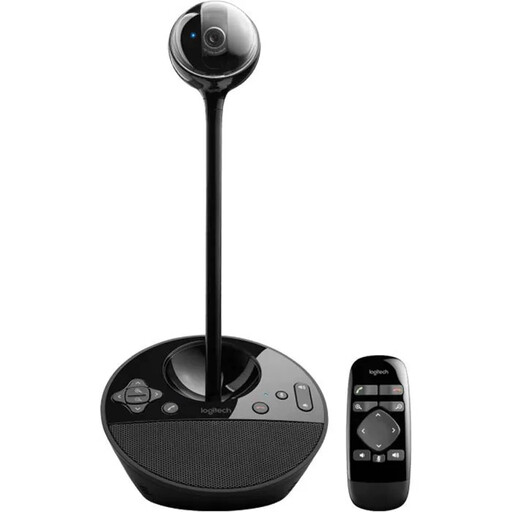 No image available
This conference camera is described as suitable for small groups, with a USB connection.
Specifications include Full HD, USB-A, a full-duplex speakerphone and a microphone range of 2.40 m. Bear this quoted distance in mind when positioning the camera.
 No image available
This webcam is described as suitable for video calls on a PC or Mac. Check that the framing and positioning work for your quiz.
Specifications include a 1/2-inch sensor, HDR, Auto Framing and a microphone with AI noise cancellation. Microsoft Teams and Zoom are listed as compatible platforms.
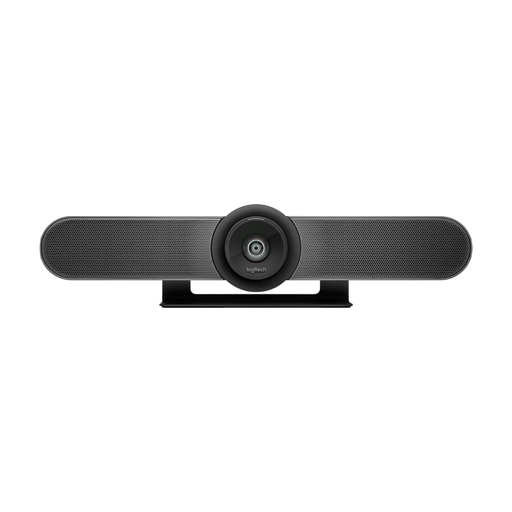 No image available
As a front-facing USB conference camera for huddle rooms and small meeting rooms, it could suit a local quiz group seated in front of a screen.
Specifications include a 120° field of view, built-in microphones and speakers, Auto Framing, and motorised pan, tilt and zoom.
Not just because of its resolution. Check that the local group fits in shot, and test speech clarity and background noise from the seats people will actually use. Manufacturers’ noise-cancellation claims don’t show how clearly voices will come through in your office.
On the computer you’ll be using, check the camera, microphone, speakers, mute controls and framing in the conferencing software you plan to use. Logitech describes the MeetUp 2 as connecting to a laptop or room system; HP lists a power supply and USB connection to a PC for the Studio R30.
That depends on the model and set-up. Logitech specifies an active USB cable for a single-cable BYOD connection to the MeetUp 2; Owl Labs offers an expansion microphone for the Meeting Owl 4+. Before choosing, check what your room actually needs.
The camera alone doesn’t determine whether a recording is permitted. The German Data Protection Conference classifies video and audio transmissions as the processing of personal data. For the specific purpose, participants and platform involved, the organisation responsible should check the data protection requirements and settings.