For meetings where people bring their own laptops, a USB video bar is a good fit if its connections, cables and audio suit the seating arrangement. A permanently set-up room may need a video bar with an integrated room application. What matters is the framing and voice coverage at your particular table, not just the camera resolution. Before you buy, check the operating mode, field-of-view specifications and cables you’ll need.
Which solution is right for you?
Hybrid team with several people around the table
For a team sharing a small table, the framing and voice pick-up need to suit the actual seating arrangement. Jabra gives the PanaCast 50 a 180° horizontal field of view, but a wide field of view alone doesn’t tell you how well voices will be picked up in your particular room.
Team using different laptops
If people use their own laptops, the USB connection, cables required and audio settings in the meeting app should all suit the way you plan to run meetings. Logitech describes the MeetUp 2 as suitable for PC and BYOD use; depending on the cabling, you may need a different set-up.
IT team with a dedicated meeting room
For a permanently set-up room, decide in advance whether a PC will start the meeting or whether you need an integrated room application. Yealink describes the MeetingBar A10 as offering native Teams and Zoom modes as well as a device mode; the operating mode needs to suit your room configuration.
What to look for when buying
Start by deciding on the operating mode and seating arrangement. Then you can assess voice coverage, framing and set-up requirements for your room.
USB video bar connected to a laptop
A good fit if: different team members start meetings on their laptops and want to connect the camera, microphones and speakers together. Logitech describes the MeetUp 2 and HP the Poly Studio R30 as solutions for small PC or BYOD rooms.
Bear in mind: the laptop and meeting app remain part of the set-up. For a single-cable connection, Logitech specifies a separate active USB cable for the MeetUp 2; check which cables you’ll actually need.
Video bar with an integrated room application
A good fit if: you want a dedicated room to use a native meeting application without someone bringing a laptop. Yealink describes the MeetingBar A10 as offering native Teams and Zoom modes as well as a device mode.
Bear in mind: decide on the operating mode and configuration before you buy. Device mode isn’t the same as a native room application that’s already been set up.
USB video bar for people sitting at the sides
A good fit if: people sit well to the side of the camera and you need the frame to cover the whole table. In its EMEA data sheet, Jabra gives the PanaCast 50 a 180° horizontal field of view.
Bear in mind: according to Jabra, the panoramic format of 3840 × 1080 at 30 frames per second isn’t the same as a standard 3840 × 2160 output.
| What you need |
What to check when buying |
Who should pay particular attention? |
| Voice coverage |
Check that microphone coverage suits the seating arrangement and room acoustics. Logitech gives the MeetUp 2 an audio range of up to 7 m as a manufacturer’s specification, not as a measurement in your room. |
If you want people sitting further away or speaking more quietly to be heard clearly, coverage at every seat matters. Around 29% of consumers put voice coverage first. |
| Framing |
Compare the seating plan and camera position with the horizontal field of view; don’t confuse horizontal and diagonal figures. Jabra gives the PanaCast 50 a 180° horizontal field of view, while Logitech gives the MeetUp 2 113° horizontal and 120° diagonal. |
If I’m sitting at the edge or to the side, I want to stay in shot without having to position the camera awkwardly. Around 29% of consumers prioritise a complete view of everyone. |
| Platform and operating mode |
Decide who will start the meeting, which platform you’ll use and whether you need a laptop or an integrated room application. Logitech describes the MeetUp 2 as suitable for PC and BYOD, not RoomMate; Yealink gives the A10 native Teams and Zoom modes as well as a device mode. |
If I need to use a specific meeting app and room configuration, I want to know in advance how the meeting will be started. Around 24% of consumers prioritise compatibility with their platform. |
| Set-up |
Check the mounting position, power supply, cables and connections required for your planned set-up. HP describes the Poly Studio R30 as connecting to a PC via USB. |
If different people use the room, I want them to be able to connect the camera and audio without recurring confusion. Around 18% of consumers prioritise an easy set-up. |
Common misconceptions
-
Assuming camera resolution tells you what the meeting picture will look like
Sensor resolution, video output and panoramic format are different specifications. Logitech gives the MeetUp 2 a 4K camera resolution and a separate 1080p figure; for the PanaCast 50’s panoramic mode, Jabra lists 3840 × 1080 at 30 frames per second.
Check the video output you actually need and the meeting mode you plan to use, rather than comparing only the biggest number in the product name.
-
Choosing a wide-angle camera without checking audio at every seat
A wider field of view doesn’t automatically improve audio coverage. Room acoustics and where people are sitting also affect how clearly their voices come across.
Assess the picture and sound against your planned seating arrangement. Treat manufacturer range figures as specifications for the model, not a guarantee for every room.
Changing the camera position or adjusting the audio set-up may mean extra installation steps.
-
Assuming a USB video bar is the same as a standalone room solution
A USB video bar connected to a laptop works differently from a video bar with a native room application: the way you start and run a meeting isn’t the same. Logitech describes the MeetUp 2 as suitable for PC and BYOD use; Yealink also lists native platform modes for the MeetingBar A10.
Before ordering, decide whether a laptop or a permanently set-up room application will start the meeting, and check that you have the right configuration.
Key brands to consider
Logitech
The MeetUp 2 is described as suitable for small PC or BYOD-based rooms. It’s a standalone model and shouldn’t be confused with the older MeetUp.
- Logitech lists group framing, integrated audio and a choice of mounting positions for the MeetUp 2.
- For BYOD, Logitech specifies two standard cables or a separate active USB cable for a single-cable connection. Logitech says the MeetUp 2 isn’t compatible with RoomMate.
HP Poly
HP describes the Poly Studio R30 as a USB video bar for small PC or BYOD rooms.
- HP lists integrated microphones and speakers, automatic picture adjustment and a USB connection to the PC.
- Two HP pages give different field-of-view angles for the R30: 120° on the product page and 110° on the comparison page. If the angle is important to your decision, check the current specification and how the angle is measured.
Yealink
The MeetingBar A10 is designed for small rooms where an integrated room application or device mode suits the way you plan to use it.
- Yealink lists an integrated camera, microphones and speakers for the MeetingBar A10, as well as native Teams and Zoom modes.
- These specifications apply to the A10, not every Yealink video bar. Decide on the operating mode and configuration before you buy.
Jabra
The PanaCast 50 is described as a USB video bar for rooms where you need to include people sitting well to the side.
- Jabra’s EMEA data sheet lists a 180° horizontal field of view and integrated audio.
- According to Jabra, panoramic video mode is 3840 × 1080 at 30 frames per second, which isn’t the same as a standard 3840 × 2160 output. These specifications apply to the PanaCast 50.
Products at Joybuy
The products below range from USB webcams for laptop meetings to Logitech conference cameras for small meeting rooms.
 No image available
Full HD 1080P webcam with microphone, USB Plug & Play
For laptop meetings where you need a simple USB connection.
Full HD 1080P; integrated microphone.
View at Joybuy
 No image available
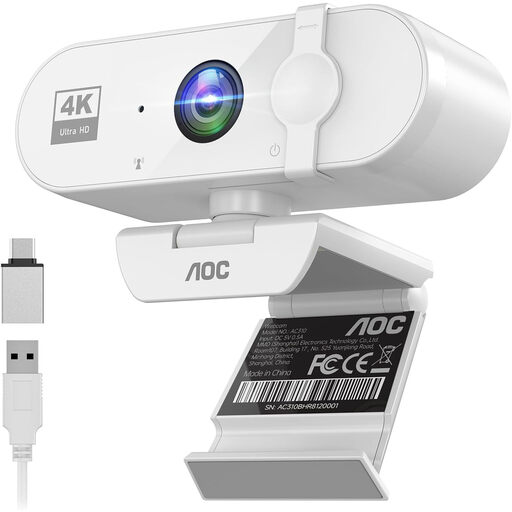
AOC 4K webcam with microphone and privacy cover (white)
For PC meetings when you’re looking for a webcam with a built-in microphone.
4K; integrated microphone; privacy cover.
View at Joybuy
 No image available
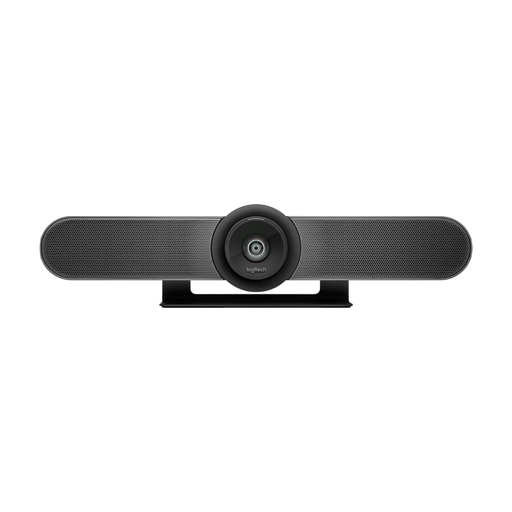
Logitech MeetUp All-in-One 4K Conference Camera
For small meeting rooms where you need an all-in-one conference camera with integrated audio.
4K; integrated microphones and speakers; motorised pan and tilt.
View at Joybuy
 No image available
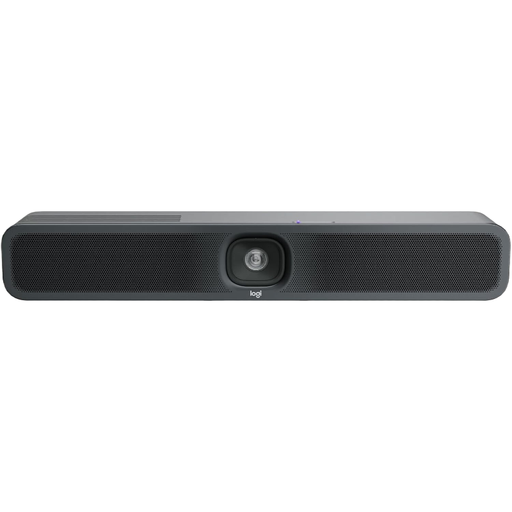
Logitech MeetUp 2 4K all-in-one conference camera
For small meeting rooms with laptop meetings in PC or BYOD mode.
4K; USB; integrated microphone and speaker.
View at Joybuy
 No image available
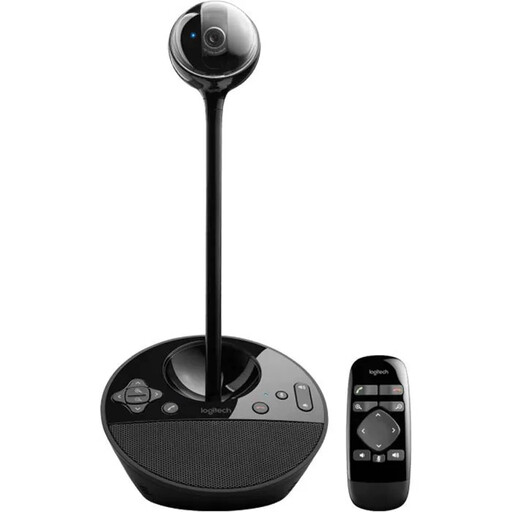
Logitech ConferenceCam (10.4 × 15 × 15.4 cm)
For small groups that need a conferencing solution with speakerphone functionality.
The stated microphone range is 2,40 m. Check that all seats are within range.
View at Joybuy
Frequently asked questions
Is a high-resolution camera enough for a hybrid team meeting?
No, resolution alone isn’t enough. Check whether everyone will be in shot from the planned camera position and whether their voices will come through clearly. A manufacturer’s sensor-resolution figure doesn’t tell you the meeting video output resolution or how clearly people will be heard in your particular room.
What should you set up before your first meeting?
Decide on the mounting position, power supply and connection to the laptop or room system. With a USB video bar, select the camera, microphone and speaker you want to use in the meeting app, then test the sound with people sitting in their actual seats. The connection options vary by model.
What ongoing costs and service terms should you check?
Check whether you’ll need extra cables or room components for your planned set-up, and what warranty terms are actually being offered. The German Federal Consumer Advice Centre notes that a voluntary guarantee isn’t the same as statutory consumer rights; the terms of your specific purchase contract will apply.
Can a team meeting in Germany be recorded without further checks?
Don’t start recording simply because the camera or meeting service offers the feature. The German Federal Commissioner for Data Protection and Freedom of Information assigns responsibility for data protection to the system’s user, so check the legal basis, responsibilities and safeguards for your particular use. The Data Protection Conference addresses the processing of personal data separately in its checklist.


