What should you look for when buying?
First, work out whether a laptop or desktop will handle the stream. Then check that the picture mode you want for gaming and your audio setup match the capture card’s connections.
| Priority |
What to look for when buying |
Who is it important to? |
| Compatibility and setup |
Check the console model, HDMI output, card connections, USB version, operating system and computer requirements. Nintendo Deutschland notes that the Switch Lite does not support TV Mode. |
If you need a console, monitor and laptop to work together in a limited space, a straightforward, compatible signal path is key. Around 40% of consumers put compatibility and setup first. |
| Setting up your equipment |
Make a note of the equipment you already have and the cables you need; compare capture and passthrough separately. The GC311 and GC311G2 have different passthrough specifications. |
If you want to avoid paying for headline specifications you won’t use and make the most of your existing equipment, check the connections and modes you need carefully. Around 30% of consumers prioritise the effort involved in putting together a compatible setup. |
| Gaming picture while streaming |
Check the resolution, frame rate and, where applicable, HDR of the picture mode you want against the passthrough specifications for the exact model; check capture limits separately. Elgato, AVerMedia and ASUS list different modes for different models. |
If you want to keep a particular picture mode on your screen while streaming, the right passthrough matters just as much as capture quality. Around 20% of consumers put gaming picture mode first. |
| Game audio, commentary and chat |
Check the HDMI audio, analogue inputs, and controller and headset connections for the exact model. Make a test recording to see which audio sources are included. Manufacturers list different audio connections and features for different models. |
If you want to stream commentary or party chat as well as game audio, test your audio setup in advance. Around 10% of consumers prioritise including chat audio. |
Joybuy products
This selection includes external USB capture cards for recording console and gaming footage on a computer. Make sure the capture resolution, passthrough, connections and audio features suit your particular setup.
 No image available
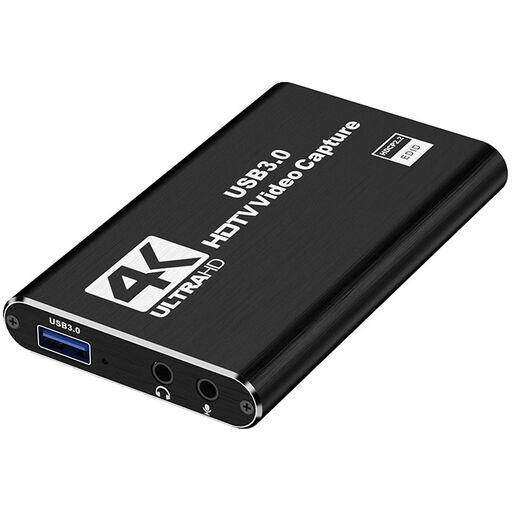
4K HDMI capture card, USB 3.0, 1080p60 capture
For Full HD capture in a USB setup with a PC or laptop; check that the connections match your console and computer.
The title lists USB 3.0, an HDMI input of up to 4K 30 Hz and 1080p60 capture.
View at Joybuy
 No image available
4K USB 3.0 video capture card, 5 ports
For a USB setup for gaming and streaming capture; check that the connections and audio setup work with your console and computer.
The title lists USB 3.0, five ports and audio capture. The product description lists 1080p60 capture.
View at Joybuy
 No image available
VIELLAN 4K HDMI video capture card, USB 3.0
For Full HD capture with 4K HDMI passthrough; check that the gaming picture mode you want works with your connected devices.
The title lists 1080p capture, 4K HDMI passthrough and USB 3.0, and names PS4, Xbox and Nintendo Switch as compatible systems. Windows, macOS and Linux are listed as supported operating systems.
View at Joybuy
 No image available
VIELLAN HDMI video capture card with USB 3.0
For a USB setup where microphone and headphone connections are as important as the picture; check the audio setup before streaming.
The title lists video capture up to 1080p, 4K HDMI passthrough, UVC and UAC, as well as a microphone input and headphone output.
View at Joybuy
Frequently asked questions
How do I connect a console to OBS?
With a capture card that has HDMI passthrough, connect the console’s HDMI cable to the card’s HDMI input. Connect its HDMI output to your gaming screen, then connect the card to your computer via USB. In OBS, add the device as a video capture source. Check the connections and supported modes for the exact model; OBS Project describes capture devices as potential video sources.
Why is my PlayStation 5 capture feed black?
With Elgato capture devices, enabling HDCP can prevent the capture feed from appearing. For PlayStation 5 gameplay, Elgato explains how to disable HDCP under System and HDMI. According to Elgato, these devices cannot capture protected film or streaming app signals.
Will an HDMI capture card work with the Nintendo Switch Lite?
Not using the usual dock and HDMI connection: Nintendo Deutschland explains that the Switch Lite does not support TV Mode.
Do I need a 4K capture card if I stream in Full HD?
Not necessarily; it also depends on the picture you want to keep on your screen while gaming. For example, AVerMedia describes the StreamLine MINI+ GC311G2 as offering 1080p60 capture and 4K60 passthrough. Compare capture and passthrough separately against your own setup.
Can I publicly stream any game and music in a console stream?
Owning a capture card does not automatically give you permission to stream any content you like. Section 19a of the German Copyright Act (UrhG) governs the right to make works available to the public, as explained by Gesetze im Internet. Check the rights for the specific game, music track and platform.


